Notebooks
Hosted data science notebooks are a place users can execute DataRobot API and other custom code-first workflows. Notebooks are Jupyter compatible and provide centralized governance, enterprise-grade security, and reproducibility for data science teams to collaborate across the code development experience.
| Version | Capability |
|---|---|
| v9.1 | Notebooks are enabled by default. |
| v10.0 | Codespaces are enabled by default. |
| v10.2 | Custom execution environments are enabled by default. |
Note
Notebooks need additional Custom Resource Definitions (CRD).
Warning
Some Notebooks services are now installed as a separate sub-chart and no longer share
configs via the notebooks.<service> section. Refer to the 11.0 changes at the end of this document for more details.
The following list outlines the available Notebooks services. Those services prefixed with notebooks. are configured under the notebooks section:
- notebooks.audit-log
- notebooks.code-assistance
- notebooks.code-nuggets
- notebooks.data-retention
- notebooks.environment-variables
- notebooks.execution-environments
- notebooks.filesystems
- notebooks.notebook-import
- notebooks.notebook-revisions
- notebooks.notebooks
- notebooks.orchestrator
- notebooks.permissions
- notebooks.scheduling
- notebooks.terminals
- notebooks.usage-tracking
- notebooks.users
- nbx-ingress
- nbx-websockets
- nbx-operator
- nbx-vcs
- cfx-session-port-proxy
By default, each service has a replica count of 1. To configure it for a particular service, use values.yaml as follows:
notebooks:  # for services with prefix `notebooks.` from the list above
  <notebook-service-name>:
    deployment:
      replicaCount: 2

nbx-ingress:  # for services without prefix `notebooks.`
  deployment:
    replicaCount: 2

cfx-session-port-proxy:
  ...
Or, override all notebooks services as follows:
notebooks:  # only affects services with prefix `notebooks.` from the list above
  global:
    deployment:
      replicaCountOverride: 2
Configuration
To override configs for a Notebooks service, use the configs.data section:
notebooks:
  # Common config variables for all services
  <notebook-service-name>:
    configs:
      data:
        ENVIRONMENT: production
        LOG_LEVEL: INFO
        DEBUG: false
  # Service-specific configs
  orchestrator:
    configs:
      data:
        ACTIVE_NOTEBOOK_SESSIONS_LIMIT_PER_USER: 2  # This value is the limit on active running sessions per user
        RUNNER_EPHEMERAL_STORAGE_LIMIT: "2Gi"
        NOTEBOOK_STARTUP_TIMEOUT_MIN: 15  # This value is used as a limit for session startup
        KERNEL_EPHEMERAL_STORAGE_LIMIT: "10Gi"
  filesystems:
    configs:
      data:
        MOUNT_DIR: "/home/notebooks/storage"
        ACCESS_MODES: '["ReadWriteOnce"]'
        SIZE: "10Gi"
        STORAGE_CLASS_NAME: default # to override default storage class for notebooks filesystem (https://kubernetes.io/docs/concepts/storage/storage-classes/)
  websocket:
    configs:
      data:
        WEBSOCKET_MAX_PARSER_BODY_SIZE: "64mb"
        WEBSOCKET_TOKEN_EXPIRATION_TIME: "1d"
        WEBSOCKET_IO_PATH: "/socket.io-nbx"
You can also apply these configs to all Notebooks services prefixed with notebooks.:
notebooks:
  global:
    commonConfigMap:
      data:
        ENVIRONMENT: production
        LOG_LEVEL: INFO
        DEBUG: false
You can set these values in the operator's config section as follows:
RUNNER_CONFIG: |
  startupProbe:
    initialDelaySeconds: 42
    failureThreshold: 333
  livenessProbe:
    initialDelaySeconds: 42
    timeoutSeconds: 41
    periodSeconds: 40
    failureThreshold: 39
    httpGet:
      path: /someOtherPath
      port: 8976
Notebooks currently have one (deprecated) private preview feature, Notebooks Filesystem Management, a persistent filesystem management for notebooks; it was deprecated in v9.2.
This feature can be toggled in User Settings or in values.yaml as follows:
core:
  config_env_vars:
    # ...
    ENABLE_NOTEBOOKS_FILESYSTEM_MANAGEMENT: "False" # deprecated in 9.2, use codespaces instead
To configure these options, refer to the Tuning DataRobot Environment Variables section of this guide.
Notebooks and codespaces limits
Notebooks and codespaces limits are declared in a single standardized chart block. Each limit defines a cluster-wide default and, where a ceiling applies, a max:
notebooks:
  limits:
    concurrentSessionsPerOrg:
      default: 5
      max: 100
    maxCodespacesPerOrg:
      default: 50
A chart template flattens each block into the shared Notebooks ConfigMap, converting the camelCase key to SCREAMING_SNAKE_CASE:
| Chart value | Rendered environment variable |
|---|---|
notebooks.limits.concurrentSessionsPerOrg.default |
|
notebooks.limits.concurrentSessionsPerOrg.max |
Set these values under notebooks.limits instead of declaring the NBX_LIMITS__* keys directly. Helm validates this block at render time. Each limit must be a map containing default and only the supported default, max, and legacyEnv fields. A numeric max cannot be lower than default. Each legacyEnv must be unique. Neither a generated NBX_LIMITS__* key nor a dual-written legacyEnv key can also appear in global.commonConfigMap.data.
Note
Notebooks services read cluster limits once at startup. Changing a limit requires a chart redeploy; the services do not reload these values while running.
Organization limits
For several of these limits, a system administrator can also set a per-organization override under Notebook limits on the organization's Profile tab. For the administrator procedure, refer to Set notebook limits.
The Notebooks users service reads the raw organization value and resolves the effective limit against the cluster block:
- When the organization override is empty, the cluster
defaultapplies. - When the cluster block defines a
max, the effective value is the lower of the override and that ceiling.
This dependency runs one way: DataRobot does not read configuration from Notebooks services. A cluster values overlay can therefore impose a stricter default, or a ceiling below the bounds that the admin UI accepts.
| Limit | notebooks.limits. key |
Default | Ceiling | Organization field |
|---|---|---|---|---|
| Concurrent notebook and codespace sessions per organization | concurrentSessionsPerOrg |
5 |
100 |
max_concurrent_notebooks |
| Created codespaces per organization | maxCodespacesPerOrg |
50 |
Not set | max_codespaces |
| Codespace file upload size, in MB | fileUploadSizeMb |
1,000 |
50,000 |
max_codespace_file_upload_size |
| Enabled notebook schedules per organization | maxEnabledNotebookSchedules |
1,000 |
Not set | max_enabled_notebook_schedules |
| Soft-deletion retention, in days | softDeletionRetentionDays |
30 |
Not set | notebooks_soft_deletion_retention_period |
Where a limit defines no ceiling, a cluster overlay can add max for a deployment and the users service applies it without a code change.
The users service caches organization values for 60 seconds, so an override saved in the admin UI takes effect within about a minute. The data retention service caches the resolved organization record for 10 minutes. Because this outer cache dominates the users-service cache, a change to the soft-deletion retention period can take up to 10 minutes to reach notebooks that are soft-deleted after the change. Refer to Data retention.
Two organization limits resolve outside the users-service limit resolver:
-
Max notebook machine size falls back to the
ORGANIZATION_MAX_NOTEBOOK_MACHINE_SIZE_DEFAULTenvironment variable (defaultS) when the organization leaves it unset. TheNOTEBOOKS_MAX_MACHINE_SIZEeng config bounds the sizes the admin UI offers; refer to Notebooks machine sizes. -
Max notebooks/Codespaces scheduling workers is enforced by the DataRobot scheduling queue rather than by a Notebooks service. When the organization leaves it unset, the queue applies a fixed default of two workers. The chart currently renders
notebooks.limits.notebookSchedulingWorkersinto the shared ConfigMap, but no service consumes those rendered values; changing that chart entry does not change scheduling queue capacity.
Behavior change
An organization that leaves Max notebooks/Codespaces scheduling workers unset resolves to two scheduling workers. In earlier releases, an unset value granted that organization unlimited notebook scheduling queue capacity. Set an explicit value for any organization that depends on more than two concurrently running scheduled notebooks.
Cluster-only limits
The remaining entries under notebooks.limits are operational caps with no organization override. The orchestrator service reads the following:
| Limit | notebooks.limits. key |
Default | Pre-standard environment variable |
|---|---|---|---|
| Active notebook and codespace sessions per user | activeSessionsPerUser |
2 |
ACTIVE_NOTEBOOK_SESSIONS_LIMIT_PER_USER |
| Run time for a scheduled notebook, in hours | maxScheduledRunHours |
24 |
MAX_NOTEBOOK_SESSION_RUN_TIME_HOURS |
| Notebook startup timeout, in minutes | notebookStartupTimeoutMin |
15 |
NOTEBOOK_STARTUP_TIMEOUT_MIN |
| Notebook restart timeout, in minutes | notebookRestartTimeoutMin |
1 |
NOTEBOOK_RESTART_TIMEOUT_MIN |
| Notebook dangling timeout, in seconds | notebookDanglingTimeoutSec |
30 |
NOTEBOOK_DANGLING_TIMEOUT_SEC |
| Automatic notebook restart | notebookAutoRestart |
true |
NOTEBOOK_AUTO_RESTART |
| Automatic notebook restart limit | notebookAutoRestartLimit |
2 |
NOTEBOOK_AUTO_RESTART_LIMIT |
The same block carries notebook content caps and session time-to-live bounds:
| Limit | notebooks.limits. key |
Default | Runtime behavior |
|---|---|---|---|
| Cells per notebook | maxCellsPerNotebook |
1,000 |
|
| Cell size, in MB | maxCellSizeMb |
2 |
|
| Cell output size, in MB | maxCellOutputSizeMb |
10 |
Not applied in this release; the rendered variable does not match the variable read by the service. |
| Minimum session time-to-live, in minutes | minSessionTtlMinutes |
10 |
Not applied in this release; the rendered variable does not match NOTEBOOK_SESSION_MIN_TTL_MINUTES, which the service reads. |
| Maximum session time-to-live, in minutes | maxSessionTtlMinutes |
180 |
Not applied in this release; the rendered variable does not match NOTEBOOK_SESSION_MAX_TTL_MINUTES, which the service reads. |
Important
For the orchestrator settings in the operational-caps table at the start of this section, the service reads the NBX_LIMITS__* key ahead of the matching pre-standard environment variable. Because the chart renders the standardized key, an override left only under the pre-standard name does not take precedence. Move such overrides into the corresponding notebooks.limits block. ACTIVE_NOTEBOOK_SESSIONS_LIMIT_PER_USER is the one exception—the orchestrator reads it first and the chart does not overwrite it, so a value delivered through core.config_env_vars continues to apply.
Notebooks and codespaces active sessions limit
Two limits bound active notebook and codespace sessions:
-
A cluster-level environment variable,
ACTIVE_NOTEBOOK_SESSIONS_LIMIT_PER_USER(chart keynotebooks.limits.activeSessionsPerUser), configured in the orchestrator service (refer to Configuration), which sets the maximum number of active notebook and codespace sessions allowed per user. -
An organization-level setting, Max concurrent notebooks/Codespaces active sessions, on the organization's Profile tab under Organizations in system admin settings, which sets the maximum number of concurrent active notebook and codespace sessions allowed for the organization. The built-in default is 5, and the admin UI accepts values up to 100. On a self-managed deployment, a values overlay can change the inherited default or impose a ceiling below 100. Refer to Organization limits for effective-limit resolution.
Notebooks machine sizes
Notebooks support the following machine sizes:
- XS
- S
- M
- L
- XL
- XXL
- XXXL
The difference between machine sizes correlates to different resource allocation (CPU, RAM).
Not all options are available by default. Initially, only XS, S, M and L are present in the list of sizes. To enable the larger sizes, update the NOTEBOOKS_MAX_MACHINE_SIZE eng config on the monolith side (default value is L). For example:
core:
  config_env_vars:
    NOTEBOOKS_MAX_MACHINE_SIZE: "XL"
Machine size changes only CPU and RAM resource request. Change persistent file storage size as follows:
notebooks:
  filesystems:
    configs:
      data:
        SIZE: "20Gi"
Notebooks filesystem
If the notebook filesystem or codespaces feature is enabled (codespaces are enabled by default), configure persistent volumes by setting a storage class name.
DataRobot applies storage class names in the following order of precedence:
-
STORAGE_CLASS_NAMEconfig item. For more details, see the Configuration section. -
storageClassNamefrom global section. For more information, see Persistent Storage)
If the previous values are empty, Helm tries to run the lookup operation to get the default storage class name (you need the required permissions to run this operation). The default value is ebs-standard.
Note
If Volume Snapshots are not configured, Codespaces are not restorable.
Data retention
The data retention service runs hard deletion on a periodic basis. When initially deleted, a notebook and its related resources (at time of deletion) are soft-deleted. Assuming there's been no request for restoration, after a certain period of time (30 days by default) the service hard deletes the assets.
The service resolves the retention window for each soft-deleted notebook in the following order of precedence:
-
A per-user override in
RETENTION_WINDOW_PER_USERS, which maps a user ID to a retention window. -
The organization value, Notebooks/Codespaces soft-deletion retention period, set in the DataRobot admin UI and read through the Notebooks users service. Refer to Organization limits.
-
The cluster-wide
RETENTION_WINDOWvalue, which defaults to30d.
notebooks:
  data-retention:
    configs:
      data:
        RETENTION_WINDOW: "7d" # 7 days retention - example of other valid values: "30min", "6h", "90d", etc.
        RETENTION_WINDOW_PER_USERS: '{"5f7a1b2c3d4e5f6a7b8c9d0e": "1h"}' # per-user overrides, keyed by user ID
Because the users service resolves an unset organization value to the softDeletionRetentionDays cluster default, RETENTION_WINDOW primarily applies to soft-deleted records that have no organization ID. Set the retention default under notebooks.limits.softDeletionRetentionDays to change the window that organizations inherit.
Note
If Volume Snapshots are not configured, Codespaces are not restorable.
Codespaces
Codespaces are the next generation of Notebook filesystem functionality.
Starting with v9.2, the notebook filesystem feature is being deprecated (feature flag: ENABLE_NOTEBOOKS_FILESYSTEM_MANAGEMENT). For newer installations, or if the notebook filesystem feature had not been previously enabled, only Codespaces should be used. It is enabled by default.
For existing installations that already have the notebook filesystem feature enabled, codespaces should be used along with the existing notebook filesystem feature.
Custom environments
Custom environments in Notebooks allow users to build, manage, and use their specific environment images tailored to their data science workflows.
The custom environments feature has been enabled by default since DataRobot 10.2.
This feature is built on top of Custom Models.
Note
For custom environments to work when Custom Models are enabled and configured, ensure that the Notebooks execution-environments service can access the Custom Models image registry.
There are two ways to configure registry access. First, configure both IMAGE_BUILDER_CUSTOM_MODELS_REGISTRY_HOST and IMAGE_BUILDER_CUSTOM_MODELS_ENVIRONMENT_REGISTRY_REPO globally (via the modeling-envvars ConfigMap) according to the Configuration section. Second, set the EXECUTION_ENVIRONMENTS_REGISTRY_REPO config directly for the Notebooks execution-environments service as follows:
notebooks:
  execution-environments:
    configs:
      data:
        EXECUTION_ENVIRONMENTS_REGISTRY_REPO: "<custom models base image registry>" # usually equal to custom models IMAGE_BUILDER_CUSTOM_MODELS_REGISTRY_HOST + IMAGE_BUILDER_CUSTOM_MODELS_ENVIRONMENT_REGISTRY_REPO configuration
        # some example values:
        # EXECUTION_ENVIRONMENTS_REGISTRY_REPO: 1234567890.dkr.ecr.us-east-1.amazonaws.com (base-image suffix added automatically)
        # EXECUTION_ENVIRONMENTS_REGISTRY_REPO: 1234567890.dkr.ecr.us-east-1.amazonaws.com/custom-models (base-image suffix added automatically)
        # EXECUTION_ENVIRONMENTS_REGISTRY_REPO: 1234567890.dkr.ecr.us-east-1.amazonaws.com/custom-models/base-image
        # EXECUTION_ENVIRONMENTS_REGISTRY_REPO: 1234567890.dkr.ecr.us-east-1.amazonaws.com/custom-models/<custom-image-name>
To disable custom environments on the cluster level, use DISABLE_CUSTOM_ENVS config (false by default):
notebooks:
  execution-environments:
    configs:
      data:
        DISABLE_CUSTOM_ENVS: true
Create an environment
These steps use the python311_notebook_base environment.
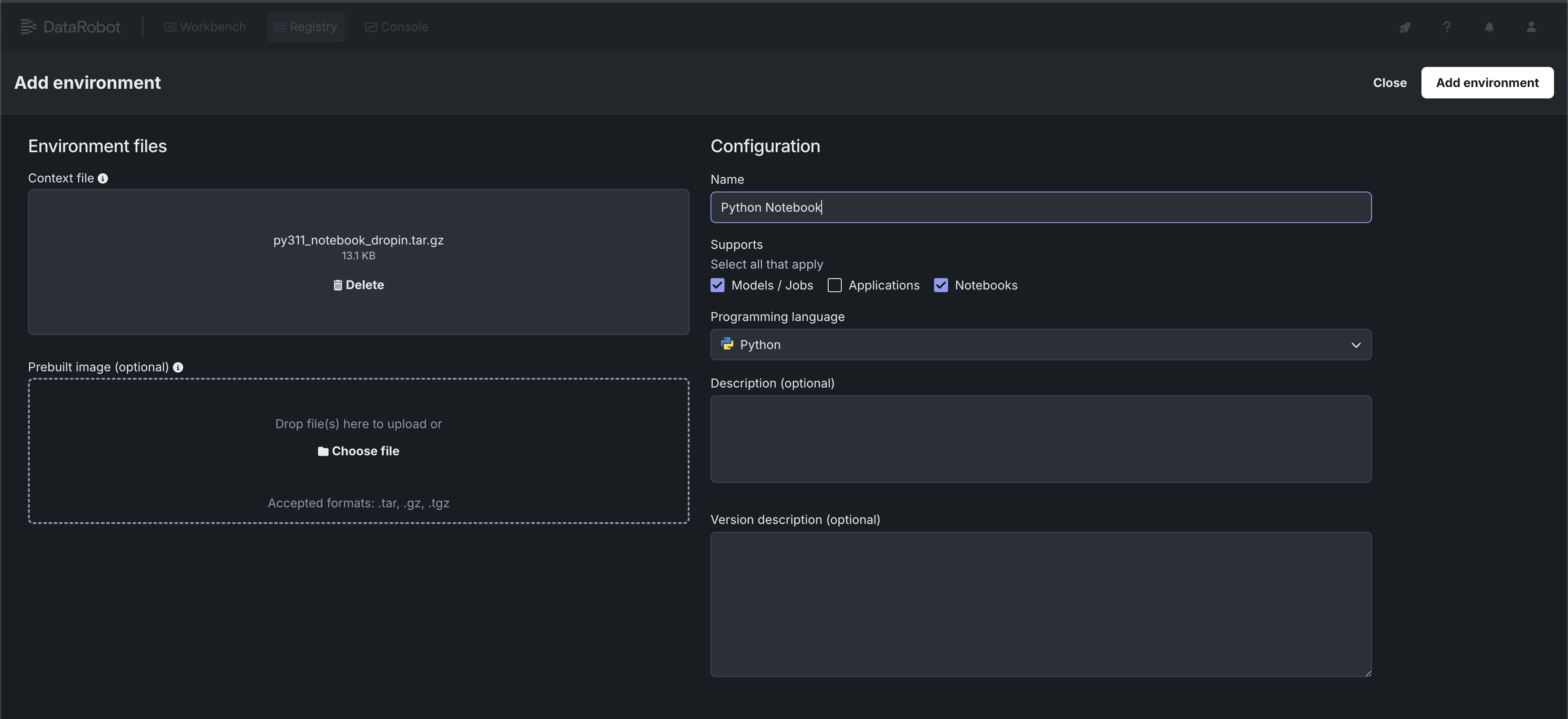
The environment data must be uploaded as a .tar, .gz, or .zip. DataRobot provides example public environments as a starting point. You can clone the repository and create the tarball yourself or use the pre-made tarball called py311_notebook_dropin.tar.gz in the public_dropin_notebook_environments folder.
- Navigate to Registry > Environments.
- Click + Add environment.
- Give the environment a name, upload the tarball, set the language to Python, and set Environment type to Notebooks.
- Click Add environment.
Notebook instance deployments
Each notebook instance has two running deployments: kernel and runner. The notebook operator is responsible for running these deployments. The default configuration is as follows:
nbx-operator:
  imagePullSecrets:
    - name: datarobot-image-pullsecret
By default, the operator uses datarobot-image-pullsecret (the common DataRobot secret).
If you need to pull notebook images with other pull secrets, specify them here.
Session environment variables
You can inject extra environment variables into every notebook and codespace session workload by configuring extraEnvVars in the nbx-operator chart.
This is particularly useful in air-gapped or self-managed environments that require a private Python package index.
OpenTelemetry endpoint
To export telemetry from notebook and codespace sessions, configure the Custom Applications OpenTelemetry collector endpoint on the notebooks.orchestrator service. The orchestrator passes the endpoint to session workloads as OTEL_EXPORTER_OTLP_ENDPOINT.
notebooks:
  orchestrator:
    configs:
      data:
        KERNEL_OTEL_EXPORTER_OTLP_ENDPOINT: <CUSTOM_APPLICATIONS_OTLP_ENDPOINT>
CUSTOM_MODEL_OTEL_EXPORTER_OTLP_ENDPOINT is accepted as a fallback when KERNEL_OTEL_EXPORTER_OTLP_ENDPOINT is not configured. Use the Custom Applications collector endpoint, not the platform-internal collector endpoint.
nbx-operator:
  notebookSession:
    extraEnvVars:
      - name: PIP_INDEX_URL
        value: <INDEX_URL_VALUE_HERE>
      - name: UV_INDEX_URL
        value: <INDEX_URL_VALUE_HERE>
      - name: PIP_TRUSTED_HOST
        value: <TRUSTED_HOST_VALUE_HERE>
      - name: UV_INSECURE_HOST
        value: <TRUSTED_HOST_VALUE_HERE>
The extraEnvVars list accepts any number of name/value pairs. Each entry is injected as an environment variable into every notebook and codespace session pod.
Revision storage using AWS S3
Self-managed installations of DataRobot support storage of notebooks revision files in Amazon S3.
To configure revision storage, set an IAM role with the appropriate permissions (for example, AWS_IRSA_ROLE_NAME) in values.yaml as follows:
notebooks:
  notebook-revisions:
    serviceAccount:
      annotations:
        eks.amazonaws.com/role-arn: AWS_IRSA_ROLE_NAME
For more details, see the following links:
Notebook revision files are stored under <S3_BUCKET>/<FILE_STORAGE_PREFIX>nbx_rev. (FILE_STORAGE_PREFIX already contains a trailing slash, for example data/.)
GPU usage configuration
To manage GPU utilization, the operator uses GPU-related configurations, which you can set with the MACHINE_GPU_1, MACHINE_GPU_2, MACHINE_GPU_3, and MACHINE_GPU_4 environment variables.
By default, DataRobot does not have kernels configured to work with GPUs. You must first enable the ENABLE_NOTEBOOKS_GPU feature flag:
core:
  config_env_vars:
    ENABLE_NOTEBOOKS_GPU: "True"
Afterwards, create a custom notebook environment. For setup instructions, see Custom Environments.
Note
DataRobot previously had drop-in environment support for GPUs (see Python GPU Notebook), but in release/10.2 all such environments, have been deprecated and removed, except Python 3.11 Base, have been deprecated and removed.
Node selectors
Node selectors are utilized to ensure that the pods are scheduled on nodes with GPU capabilities. They're key-value pairs that are added to the nodeSelector term of the pod specification, enforcing that the pod is scheduled on nodes with the corresponding labels.
Example:
nodeSelectors:
  datarobot.com/instance-type: accelerated-computing
  datarobot.com/node-capability: gpu
  datarobot.com/node-type: on-demand
Toleration
Tolerations enable pods to be scheduled on nodes with specific taints, which are generally used for GPU resources. To disable tolerations, omit the field or explicitly set it to null.
Example with tolerations:
toleration:
  effect: "NoExecute"
  key: "nvidia.com/gpu"
  operator: "Equal"
  value: "true"
Example without tolerations:
toleration: null
Usage
Example Helm values:
notebooks:
  execution-environments:
    configs:
      data:
        MACHINE_GPU_1: |
          name: "nvidia-g6-single"
          cpu: "5000m"
          memory: "54Gi"
          gpu: "1"
          ephemeral_storage: "15Gi"
          node_selector:
            datarobot.com/node-capability: gpu
            datarobot.com/node-type: on-demand
            datarobot.com/gpu-type: nvidia-g6-single
          tolerations:
            - effect: "NoExecute"
              key: "nvidia.com/gpu"
              operator: "Equal"
              value: "true"
Where:
name: any name for the GPU resource; this is what appears in the UI.cpu,memory: provisioned resource values for CPU and RAM.ephemeral_storage: temporary storage size (not persistent; it is destroyed when the notebook stops).gpu: GPU count (must be at least 1 for a GPU configuration).node_selector,tolerations: see Node selectors and Toleration.
Warning
Notebooks require an additional 1Gb/0.5-1 vCPU core for system needs, so best practice recommends reserving those resources. For example, if the required GPU config is 16Gb/5vCPU, it is better to set it as 15Gb/4vCPU.
The Notebooks service supports up to four GPU machine configurations, which you can define with the MACHINE_GPU_1, MACHINE_GPU_2, MACHINE_GPU_3, or MACHINE_GPU_4 environment variables.
There is no recommended RAM/CPU values for GPU configs, everything depends on node capacity and machine type. For reference:
Default GPU configurations
If MACHINE_GPU_* is not defined, the execution-environments service uses the following default configurations:
- NodeSelectors:
datarobot.com/node-capability: "gpu"datarobot.com/node-type: "on-demand"datarobot.com/gpu-type: "nvidia-g6-single"
- Toleration:
effect: "NoExecute"key: "nvidia.com/gpu"operator: "Equal"value: "true"
Notebook resource configuration
Each notebook resource type (XS, S, M, L, XL, XXL, XXXL) can be configured with environment variables. The default values are:
notebooks:
  execution-environments:
    configs:
      data:
        # XS - 1 CPU - 4 GB RAM
        MACHINE_XSMALL__CPU: '1000m'
        MACHINE_XSMALL__RAM: '4Gi'
        # S - 2 CPU - 8 GB RAM
        MACHINE_SMALL__CPU: '2000m'
        MACHINE_SMALL__RAM: '8Gi'
        # M - 4 CPU - 16 GB RAM
        MACHINE_MEDIUM__CPU: '4000m'
        MACHINE_MEDIUM__RAM: '16Gi'
        # L - 8 CPU - 32 GB RAM
        MACHINE_LARGE__CPU: '8000m'
        MACHINE_LARGE__RAM: '32Gi'
        # XL - 15 CPU - 63 GB RAM
        MACHINE_XLARGE__CPU: '15000m'
        MACHINE_XLARGE__RAM: '63Gi'
        # XXL - 16 CPU - 256 GB RAM
        MACHINE_XXLARGE__CPU: '16000m'
        MACHINE_XXLARGE__RAM: '256Gi'
        # XXXL - 32 CPU - 256 GB RAM
        MACHINE_XXXLARGE__CPU: '32000m'
        MACHINE_XXXLARGE__RAM: '256Gi'
Private Git repositories
Availability information
Private Git integration has been available since DataRobot 11.0. It supports cloud versions of GitHub, GitLab, Bitbucket, and Microsoft Azure Repos. It also supports GitLab Enterprise Self-Managed for self-managed and STS deployments.
If you want to work with private git repositories stored in GitHub Cloud, GitLab Cloud, GitLab Enterprise, Bitbucket Cloud. or Azure Repos Cloud, you should configure the OAuth applications first in the DataRobot cluster.
After that, DataRobot users can authorize their accounts and get access to their private repos.
Note for GitHub users: Install the OAuth application created above in your organization so that the OAuth application can access the organization's private repositories.
Note
For personal private repositories, each user must install the same OAuth application in their GitHub account.
If you are enabling a GitLab Enterprise OAuth Provider then you must update the nbx-operator chart like so (where value my-example.net is added):
nbx-operator:
  runner:
    configMap:
      ALLOWED_GIT_HOSTS: "my-example.net,github.com,gitlab.com,bitbucket.org,login.microsoftonline.com"
Kernel gateway authorization
An opt-in feature adds the use of KG_AUTH_TOKEN for all kernel gateway requests (requests made to the kernel pods from the associated runner pod). See the Kernel Gateway config options for details.
To opt in, add the ENABLE_KERNEL_GATEWAY_TOKEN value, set to True, to the orchestrator config.
This feature is an added layer of security for the runner to kernel communication that can be helpful if the default cluster networking policies aren't in place. Meaning, that by default runner A can only communicate with kernel A and not kernel B. However as a way to prevent communication via respective 401 HTTP responses this feature can be enabled for an on-prem setup that doesn't have these default networking policies in place.
This feature is not enabled by default because it is not normally needed. It also relies on a modified code path in the NBX operator, which slightly lowers the reliability of the startup probe for the kernel. In that case, the probe uses TCP instead of HTTP, so there is a small chance that the kernel gateway server is reported as ready before it is fully up and running. This risk is generally acceptable for self-managed deployments without default networking policies.
Troubleshooting
Hydra (10.0 or below)
Notebooks services use Hydra and may experience instabilities. During provisioning, hydra pods may fail on database migration.
One solution is to remove the hydra pods; they should come up in a healthy state on the next attempt.
If you still have issues with the Notebooks service, check the custom resources oauth2clients.hydra.ory.sh.
To check them, run: kubectl -n DR_CORE_NAMESPACE get oauth2clients.hydra.ory.sh
This command should return several records with the nbx- prefix (there may be more, but these must be present for Notebooks).
Each of these clients should have an associated secret. To check secrets, run kubectl -n DR_CORE_NAMESPACE get secrets | grep "oauth2".
If the secret was not created, check the hydra and hydra-maester pods.
You can remove these pods and wait for new pods to be created. The appropriate secrets should be created after that.
If the secret was still not created, delete the oauth2clients custom resource using this command:
kubectl get oauth2clients.hydra.ory.sh -o custom-columns=NAME:.metadata.name | grep 'nbx-' | xargs kubectl delete oauth2clients.hydra.ory.sh
helm upgrade. That should trigger hydra-maester to retry creating the secret.
Scaledown to 0
Scaling the cluster down to 0 can also cause problems with Hydra secrets. To reduce the risk of these problems, consider keeping Hydra deployments at one pod per deployment. If this issue occurs, follow the same procedures described above.
kubectl -n DR_CORE_NAMESPACE delete oauth2clients.hydra.ory.sh <oauth2_client_name>

helm upgrade --install ...
Helm release limitation for version 9.1.1 and prior
For version 9.1.1 and prior versions, the Helm release name must include dr.
This limitation was fixed in 9.1.2 and 9.2.
Notebooks upgrade guide
In Helm, when you execute the helm upgrade command, it doesn't automatically upgrade the Custom Resource Definitions (CRDs). Outdated CRDs can lead to compatibility issues and may cause unexpected behavior in the functionality of notebooks. Follow the instructions related to notebooks CRDs in the 9.x or 10.x upgrade guide, depending on your current version.
v9.1
In the recent 9.1 upgrade, significant changes were made to the naming standards in the values file for notebooks.
Prior to version 9.1, services related to notebooks in the values file used a prefix notebooks-. For instance, the notebook operator was defined as:
notebooks:
  notebooks-notebook-operator:
    imagePullSecrets:
      - name: datarobot-image-pullsecret
From version 9.1 onward, the notebooks- prefix was removed, resulting in a simplified structure. The above example is now:
notebooks:
  notebook-operator:
    imagePullSecrets:
      - name: datarobot-image-pullsecret
If you have scripts, tools, or other configurations that rely on the old naming convention, update them to accommodate this change.
v10.1
In 10.1, notebooks machine resource configuration was added.
For execution-environments service there are separate configuration for each machine size (XS, S, M, L, XL, XXL, XXXL)
Changes
The execution-environments service has separate configurations for each machine size (XS, S, M, L, XL, XXL, XXXL).
The default values are:
notebooks:
  execution-environments:
    configs:
      data:
        # XS - 1 CPU - 4 GB RAM
        MACHINE_XSMALL__CPU: '1000m'
        MACHINE_XSMALL__RAM: '4Gi'
        # S - 2 CPU - 8 GB RAM
        MACHINE_SMALL__CPU: '2000m'
        MACHINE_SMALL__RAM: '8Gi'
        # M - 4 CPU - 16 GB RAM
        MACHINE_MEDIUM__CPU: '4000m'
        MACHINE_MEDIUM__RAM: '16Gi'
        # L - 8 CPU - 32 GB RAM
        MACHINE_LARGE__CPU: '8000m'
        MACHINE_LARGE__RAM: '32Gi'
        # XL - 15 CPU - 63 GB RAM
        MACHINE_XLARGE__CPU: '15000m'
        MACHINE_XLARGE__RAM: '63Gi'
        # XXL - 16 CPU - 256 GB RAM
        MACHINE_XXLARGE__CPU: '16000m'
        MACHINE_XXLARGE__RAM: '256Gi'
        # XXXL - 32 CPU - 256 GB RAM
        MACHINE_XXXLARGE__CPU: '32000m'
        MACHINE_XXXLARGE__RAM: '256Gi'
        # GPU
        MACHINE_GPU_DEFAULT__CPU: '8000m'
        MACHINE_GPU_DEFAULT__RAM: '61Gi'
Note: GPU configuration changed in release 10.2+.
v10.2
In the 10.2 release, significant changes were made to notebooks GPU configuration.
Notebooks GPU configs have moved to the execution-environments service and supports up to four separate configurations. GPU_CONFIG from the operator's service has been removed.
Changes
Notebooks GPU configs moved to the execution-environments service and support up to four separate configurations. GPU_CONFIG was removed from the operator service.
For example, the new configuration setup is:
notebooks:
  execution-environments:
    configs:
      data:
        MACHINE_GPU_1: |
          name: "nvidia-g6-single"
          cpu: "5000m"
          memory: "54Gi"
          gpu: "1"
          ephemeral_storage: "15Gi"
          node_selector:
            datarobot.com/node-capability: gpu
            datarobot.com/node-type: on-demand
            datarobot.com/gpu-type: nvidia-g6-single
          tolerations:
            - effect: "NoExecute"
              key: "nvidia.com/gpu"
              operator: "Equal"
              value: "true"
v11.0
The major change in the 11.0 release is the extraction of some Notebooks services from the notebooks umbrella chart into separate sub-charts (and repositories).
This change requires special attention during the upgrade process because some configs previously defined in the notebooks section must now be set on a per-service basis.
The following services have been extracted from the notebooks umbrella chart into separate sub-charts:
- notebooks.ingress -> nbx-ingress
- notebooks.websockets -> nbx-websockets
- notebooks.operator -> nbx-operator
- notebooks.session-port-proxy -> cfx-session-port-proxy
To ensure a smooth upgrade, follow these instructions:
- Back up your current
values.yamlfile. Before making any changes, ensure you have a backup of your current configuration. - Move service-specific overrides for all services from the list above into dedicated top-level sections. For example, for the
notebooks.notebooks-operatorservice:notebooks: notebooks-notebook-operator: # configured this way before 11.0 imagePullSecrets: - name: datarobot-image-pullsecret nbx-operator: # configured this way after 11.0 imagePullSecrets: - name: datarobot-image-pullsecret - Review the
notebooks.globalsection and any other non-service-specific overrides in thenotebooks.section, and replicate them for each of the new sub-charts following the example in step 2.
v11.4
As of 11.4, the MAX_FILES_UPLOAD_REQUEST_SIZE and MAX_FILES_UPLOAD_SIZE values for the filesystems service are no longer used.
MAX_FILES_UPLOAD_REQUEST_SIZE and MAX_FILES_UPLOAD_SIZE values for filesystems service are no longer used for the limits applied to uploading Codespace files. Instead there is an Org-level setting (in DR Admin UI) "Max Codespace file upload size (in megabytes)". This is the value that's used for what max size is allowed.
v11.13
In Release 11.13, the default Notebook and Codespace execution environment was updated to use the drop-in Python 3.13 image as the default.
To use the previous built-in Python 3.11 image, set the following in values.yaml:
execution-environments:
  configs:
    data:
      DEFAULT_ENV_ID: "63778bb0b4a7ca60e5511373"
Note
The Python 3.11 image will be deprecated in a future release. For that reason, upgrading to Python 3.13 is recommended.