Credentials management
Because there is often a need to access secure data sources, DataRobot provides an option to securely store associated credentials for reuse. This capability is particularly useful for automating workflows that require access to secure sources or when combining many tables and sources that would each otherwise require individual authentication. The Credentials management tile is where you can create new stored credentials, edit or remove existing ones, and add or remove associations with data connections.
Application of stored credentials is available whenever you are prompted for them, such as when:
- Creating a data source from the Data connections page or testing connections.
- Using the Data Source option when beginning a project.
- Using a data source or S3 to make batch predictions via the API.
- Using a data connection to create a new dataset in the AI Catalog.
- Taking a snapshot of a dataset in the AI Catalog.
- Creating a project from a dataset in the AI Catalog.
- Using the AI Catalog to select a prediction dataset using Make Predictions.
To access this page, open Account Settings > Credentials management.
FIPS validation requirements
Due to FIPS validation requirements, credentials with passwords of fewer than 14 characters may not work for connections to Snowflake systems. Snowflake keypair credentials must be a valid RSA with at least 2048 bits and a passphrase of at least 14 characters. For more information, see the FIPS validation FAQ.
Add new credentials
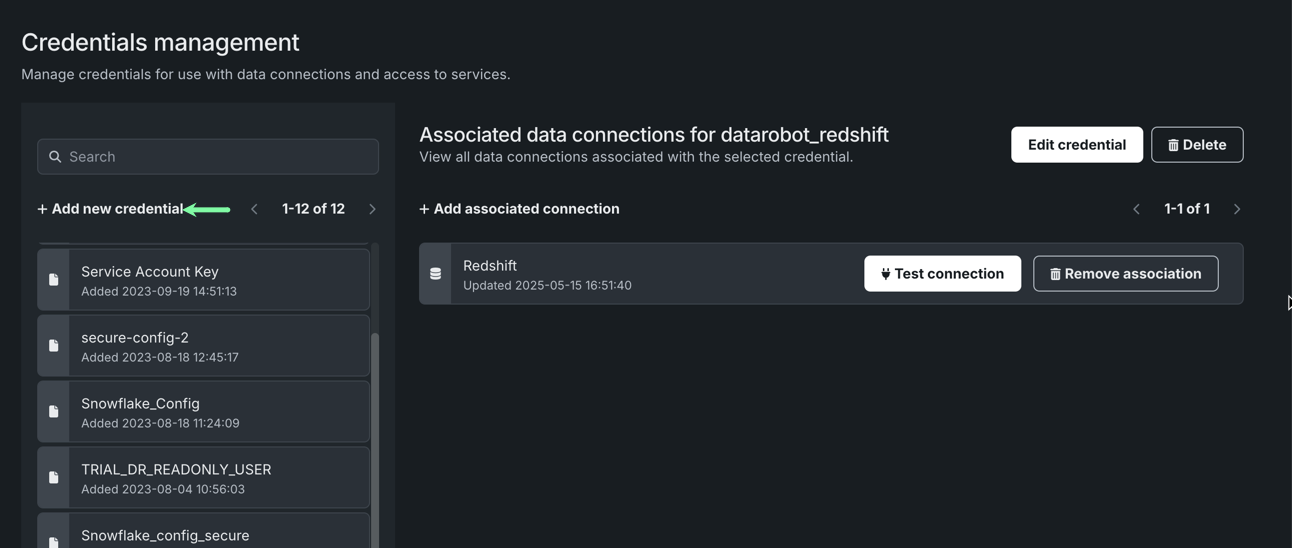
From the Credentials management tile, click + Add new credential.
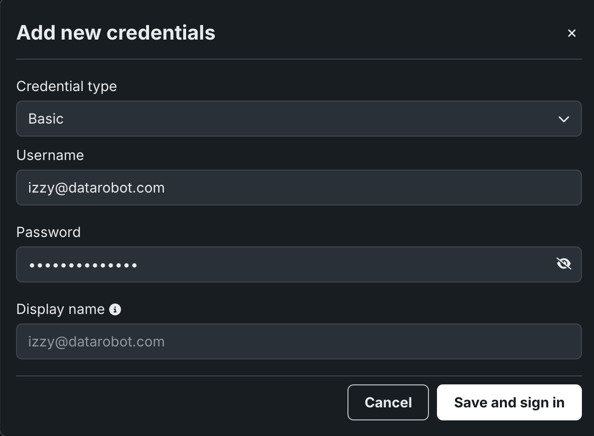
In the Add new credentials dialog box, select a Credential type, manually enter the required credential fields, then click Save and sign in. The credential entry becomes available in the panel on the left.
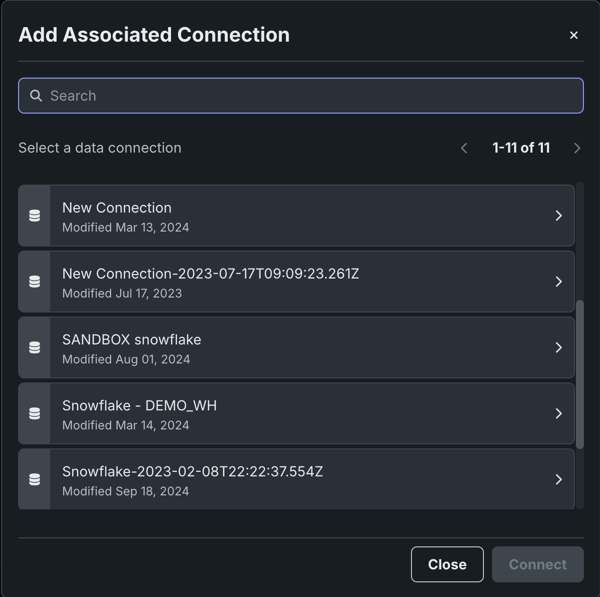
Click Add associated connection to add a data connection. Then, select the data connection you would like associated to these credentials and click Connect.
Add credentials from a shared secure configuration
IT admins can configure OAuth-based authentication parameters for a data connection, and then securely share them with other users without exposing sensitive fields. This allows users to easily connect to their data warehouse without needing to reach out to IT for data connection parameters. When Enable Secure Config Exposure is active for your organization, these credentials can also be used as runtime parameters in custom models, applications, and jobs so that secret values are injected into those runtimes. For more information, see Using credentials from shared secure configs in runtimes.
From the Credentials management tile, click + Add new credential.
In the Add new credentials dialog box, select a Credential type, click the Shared secure configurations tab, then click Save and sign in.
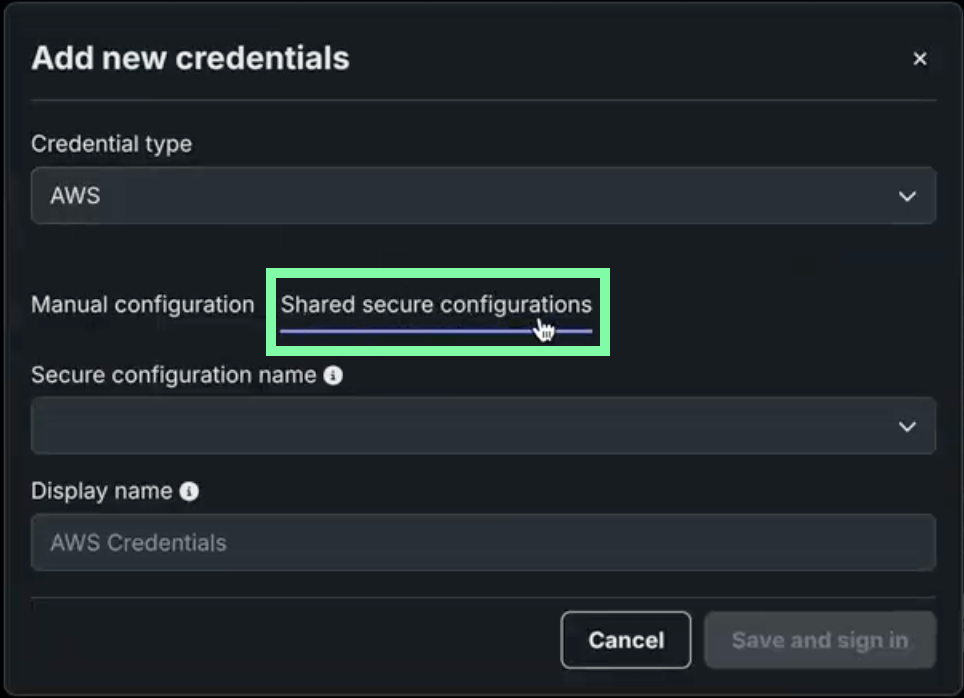
Credential types for secure configurations
Not all credential types support shared secure configurations. Only those with the Shared secure configurations tab do.
The credential entry becomes available in the panel on the left.
Using credentials from shared secure configs
Premium
Secure configuration exposure is a premium feature. Contact your DataRobot representative or administrator for information on enabling the feature.
Required feature flag: Enable Secure Config Exposure
When Enable Secure Config Exposure is enabled for your organization, credentials created from a shared secure configuration can be used as runtime parameters in:
-
Custom models: Use the credential as a runtime parameter when defining or deploying a custom model. The credential’s values are injected into the model’s runtime environment (for example, as environment variables in the container).
-
Custom applications: Use the credential as a runtime parameter in custom applications so the application can access the injected values at runtime.
-
Custom jobs: Use the credential as a runtime parameter in custom jobs so the job code can read the injected values when the job runs.
When Enable Secure Config Exposure is active, shared secure configuration values are injected directly into the runtime parameters of the custom model, application, or job executed in the cluster. When it is disabled, the credential is injected using only the configuration ID, without exposing the underlying secure configuration values. In the enabled case, the actual secret values from the shared secure configuration (such as access keys or tokens) are exposed in the container's runtime so the code can use them. This differs from secure, back-end–only use (such as Data Connections), where secret values are never sent to user-controlled code.
Secret exposure in runtimes
Enable Secure Config Exposure causes secret values to be exposed in the container's runtime. When this feature is enabled for your organization, any credential created from a shared secure configuration and used as a runtime parameter in a custom model, application, or job exposes actual secret values (such as access keys and tokens) by injecting them into the runtime. Those secrets are then present in the container's runtime and can be accessed by custom code. Do not enable or use this capability unless you accept the risks inherent in exposing secrets in an uncontrolled container runtime. Use only when necessary and with appropriate governance.
If your organization has Enable Secure Config Exposure active, admins are notified when sharing a secure configuration that the secret shared configuration values are exposed when used in runtimes.
Manage credentials
The Credentials management tile provides the ability to create new stored credentials as well as manage existing ones. Unlike other areas in DataRobot where you interact with stored credentials, you can only edit them from this tile.
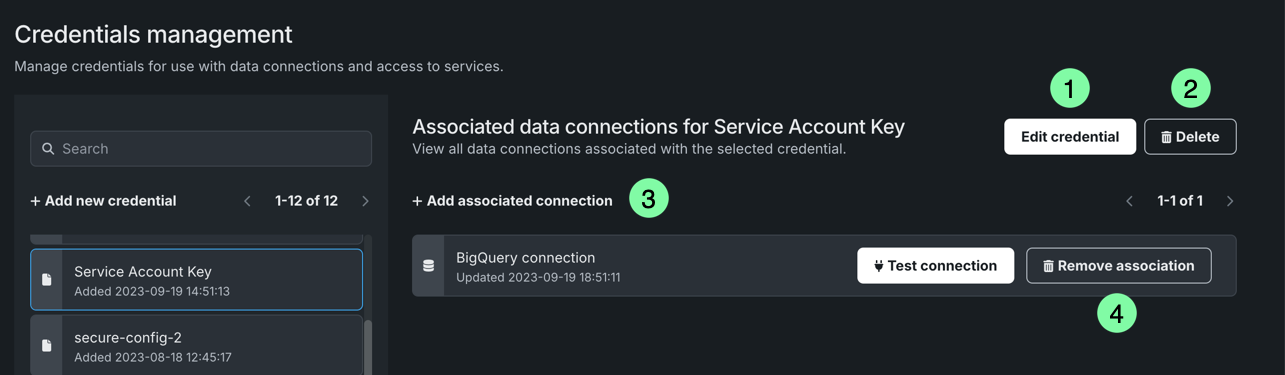
| Element | Description | |
|---|---|---|
| 1 | Edit credential | Allows you to modify the username, password, and/or account name. When you edit credentials, the credentials are updated for all associated data connections. |
| 2 | Delete | Removes the credentials from your list of stored credentials. |
| 3 | Add associated connection | Establishes an association between a data connection and specific credentials, allowing you to quickly access them when working with the data connection. |
| 4 | Remove association | Removes the association between a data connection and specific credentials. If you are removing all data connections for the associated credentials, you receive a message prompting you to delete the credentials. You can decide to remove the credentials or leave them without any associated connections. |