DataRobotライセンスの適用
このページでは、アプリケーションインターフェイスまたはDataRobot APIを使用してDataRobotのライセンスを適用する方法について説明します。 なお、このワークフローは管理者専用で、DataRobotに管理者権限でログインしている必要があります。
DataRobotアプリケーションでのライセンスの適用
-
ブラウザーでDataRobotクラスターにアクセスします。
-
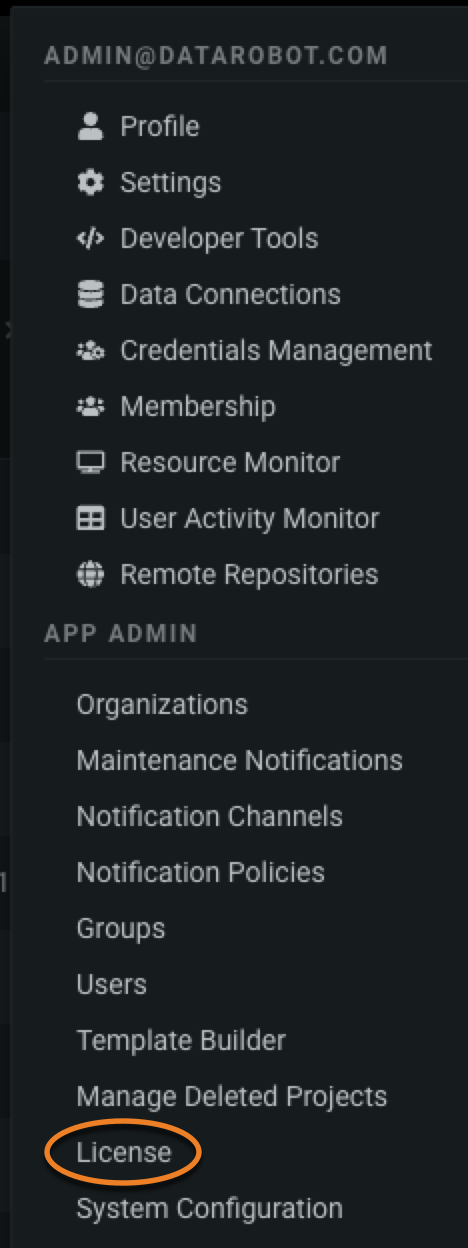
ページ右上のプロフィールアイコンをクリックし、ライセンスを選択します。
-
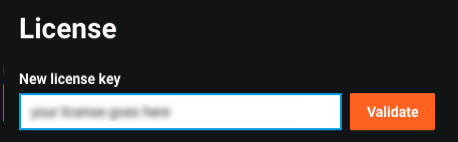
ライセンスページで、フィールドにライセンスキーを入力し、検証をクリックします。
-
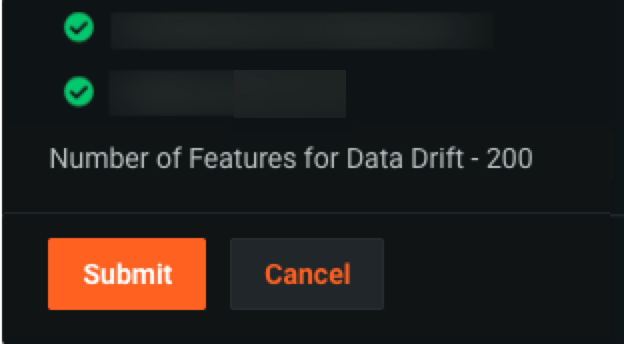
検証後、DataRobotはサブスクリプションに含まれる機能を一覧表示します(下の画像ではぼかされています)。
-
検証後のライセンスに正しいサブスクリプション機能が一覧表示されていることを確認し、送信をクリックします。
シートライセンス
シートライセンスでは、組織で購入した個々のライセンスの数に基づいて、ユーザーに特定の権限を付与することができます。 ユーザーアカウントにシートライセンスを適用するには:
-
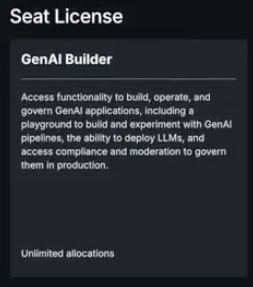
前のセクションでアクセスしたライセンスページから、シートライセンスセクションをクリックします。
-
表示されたテーブルでシートを割り当てるをクリックします。

-
シートを割り当てるモーダルで、組織の名前を入力し、割り当てるシート数を指定します。
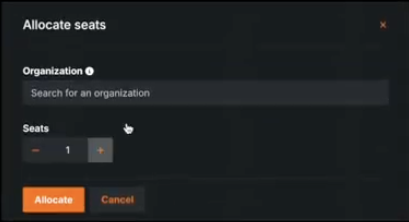
シートが組織に割り当てられましたが、ユーザーには割り当てられていません。 シートライセンスをユーザーに割り当てるを参照してください。
APIによるライセンスの適用
また、管理者はDataRobotのREST APIを使用して、DataRobotのライセンスを検証できます。 そのためには、次のスニペットに情報を入力し、REST APIコールを実行します。
# Set the URI of the DataRobot App node
# Ex. https://datarobot.example.com
# Ex. http://10.2.3.4
dr_app_node="http://10.2.3.4"

# If you have a username and password, start here
# Set the initial username
admin_username=localadmin@datarobot.com

# Set the local administrator user password
admin_password=""

# Read the license
ldata=$(cat ./license.txt)

# Apply the license with the following commands

# Log in to the App Node
curl --silent -X POST \
  --cookie "/tmp/cookies.txt" \
  --cookie-jar "/tmp/cookies.txt" \
  -H "Content-Type: application/json" \
  -d '{"username":"'"${admin_username}"'","password":"'"${admin_password}"'"}' \
  ${dr_app_node}/account/login

# Get an API key
api_key=$(curl --silent -X POST \
  --cookie "/tmp/cookies.txt" \
  --cookie-jar "/tmp/cookies.txt" \
  -H "Content-Type: application/json" \
  -d '{"name":"apiKey"}' \
  ${dr_app_node}/api/v2/account/apiKeys/ | cut -d ',' -f 5 | cut -d '"' -f 4)

# Apply the license
curl --silent -w "%{http_code}\n" -X PUT \
  -H "Content-Type: application/json" \
  -H "HTTP/1.1" \
  -H "Authorization: Token ${api_key}}" \
  -d '{"licenseKey":"'"${ldata}"'"}' \
  ${dr_app_node}/api/v2/clusterLicense/

# Expected output: 200