LLM gateway management
The LLM gateway management pages control which LLMs an organization's users can access through the LLM gateway. Set policies at the provider, publisher, and LLM level, and those policies are then applied to the organization, groups within the organization, or individual users. Policies apply to every agentic workflow that uses the LLM gateway, including the playground, chat completions, and deployed agents.
Note
Not all displayed providers are publicly available. See the LLM availability list for supported providers and LLMs.
Provider, publisher, and LLM distinction
LLM gateway policies are organized around three levels:
| Entity | Definition |
|---|---|
| Provider | The platform that hosts the compute and serves the model (for example, Amazon Bedrock, Azure OpenAI, Anthropic). |
| Publisher | The organization that created the model and holds author rights (for example, OpenAI, Anthropic, Meta). |
| LLM | A specific model available through the LLM gateway (for example, Claude Sonnet 4.5 or GPT-4o). |
The same LLM can be available through multiple providers. For example, Claude can be accessed through Anthropic directly (first-party hosting) or through Amazon Bedrock or Google Gemini Enterprise Agent Platform (third-party hosting). The model weights are the same, but inference runs on different servers depending on the provider you select.
Cascading access control
Policies provide an access hierarchy that functions so that the most specific rule "wins"—LLM rules take precedence over publisher rules, which take precedence over provider rules. Rules from different levels do not merge—a more specific level does not combine with the level above it, it replaces it.
In other words, evaluation uses the most specific level that has any rule. If that level is empty, access falls through to the parent. If every level is empty, access is denied. Within the level that decides, any matching deny overrides any matching allow. A more specific allow cannot override a deny at the same level.
In this way you can allow an entire provider (for example, Azure OpenAI) for the organization with a single policy instead of enabling each LLM individually. Publishers and LLMs inherit that policy. Or, you apply that policy but simultaneously provide a specific override, for example preventing the group contractors from accessing specific models.
See LLM gateway permissions and evalution details for information on how policy is processed in the platform.
LLM gateway management page
To manage LLM access, open Admin settings from the top navigation bar and select LLM gateway management in the left sidebar.
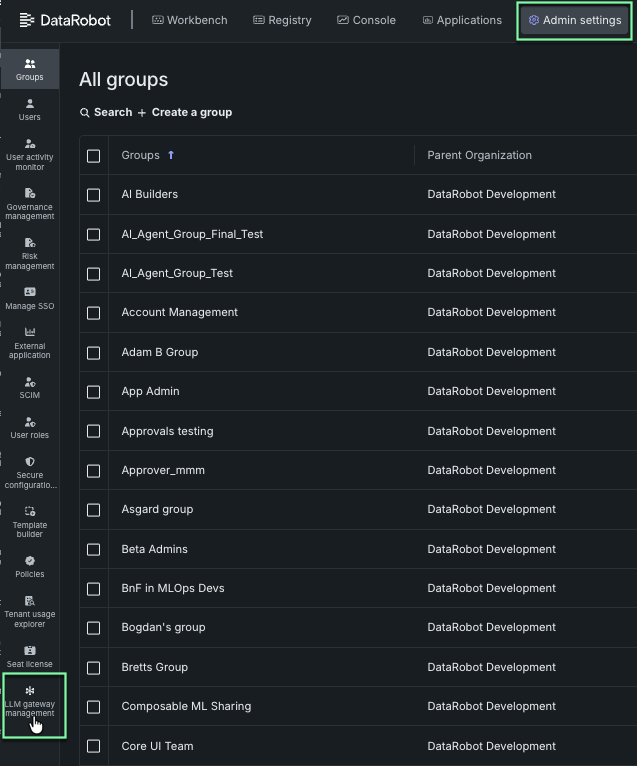
The page opens on the LLM access tab.
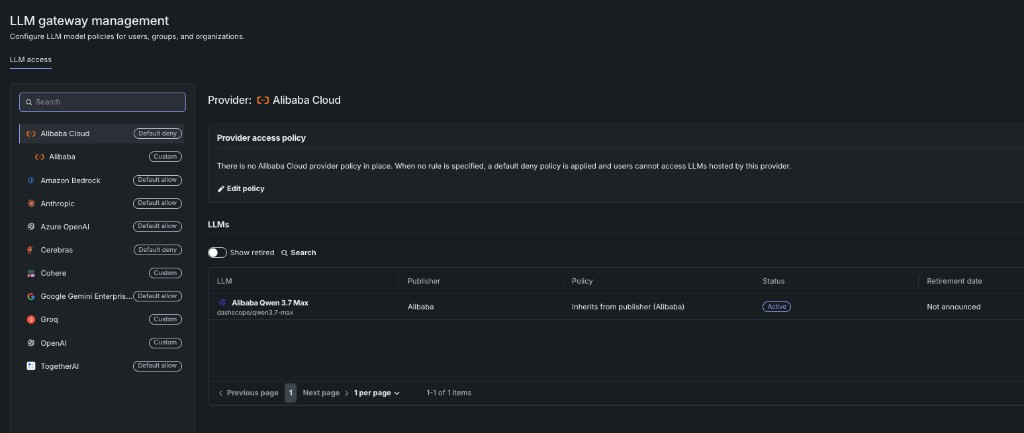
Access control entities
The levels that can be controlled by policy configuration, as defined above, are: provider, publisher, and LLM.
The left panel of the LLM access tab lists LLM providers as top-level categories and publishers as child categories; click a provider to expand it and see the associated publishers. Select a provider or publisher to view its policies and associated LLMs in the main panel. When you select an LLM, the panel displays that LLM's policies and shows how the final LLM policy was determined.
Use the search field at the top of the left panel to filter providers and publishers by name. Search matches providers and publishers only—not individual LLMs. To find a specific LLM, select a provider or publisher and use the search field in the LLM list.
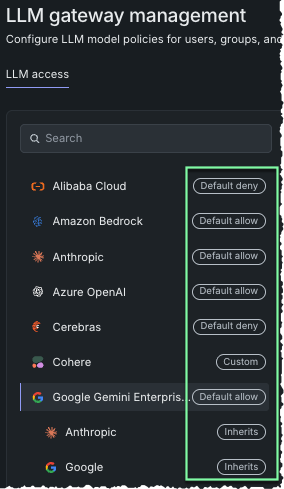
Badges in the left panel, next to the provider or publisher name, summarize the policy on each resource.
Provider policy definitions
At the provider level, you can set one of the following policies:
| Policy | Description |
|---|---|
| Default allow | All publishers and LLMs under this provider are allowed unless a more specific rule blocks access. Set publisher- or LLM-level rules to override the default policy and block access. |
| Default deny | All publishers and LLMs under this provider are denied, and as a result, users cannot access LLMs hosted by this provider unless a more specific publisher or LLM rule grants access. This is also the result when no provider policy is set (it is the default). |
| Custom | Access rules have been customized for this provider policy, granting different access to specific users and groups. |
Publisher policy definitions
At the publisher level, you can set one of the following policies:
| Badge | Description |
|---|---|
| Default allow | All LLMs offered by this publisher are allowed by default. Set LLM-specific rules to override the default policy and block access. |
| Default deny | All LLMs under this publisher are denied by default. Set LLM-specific rules to override the default policy and allow access. |
| Inherits | Access follows the parent policy—in this case, publisher follows provider. |
| Custom | Customized access rules override the parent policy, granting access to different users and groups. |
LLM policies
At the LLM level, you can set one of the following policies:
| Policy | Description |
|---|---|
| Allow | LLM-level rules override the default publisher or provider policy to allow access, where specified. |
| Deny | LLM-level rules override the default publisher or provider policy to deny access, where specified. |
| Inherits | Access follows the parent policy—in this case, LLM follows publisher. |
| Custom | Customized access rules override the parent policy, granting access to different users and groups. |
Configure LLM access
Select a provider, publisher, or LLM to open the policy summary for that resource. The heading identifies the resource (for example, Provider: Amazon Bedrock). Use Edit policy to add or change conditions. Use Delete to remove the policy.

You can add Allow and Deny conditions for the organization, groups, and users on the same resource. Publisher- and LLM-level policies replace the parent policy where defined. Changes apply to new LLM requests immediately; users who already have a playground or catalog view open may need to refresh the page.
The policy panel shows the conditions currently set on the selected resource, or an empty state if none are set. The following table describes the effect at each level. The screenshot above is a provider policy of Allow Organization on Amazon Bedrock.
| Level | No policy | Policy set |
|---|---|---|
| Provider | Default deny. Users cannot access this provider's LLMs unless a publisher or LLM rule grants access. | The conditions apply to every LLM from the provider. Publisher- and LLM-level rules replace them where defined. |
| Publisher | Access follows the provider policy. | The conditions apply to every LLM from that publisher on this provider, and replace the provider rule. LLM-level rules still replace them where defined. |
| LLM | Access follows the publisher policy. | The conditions apply to that LLM only, and replace the publisher rule. |
Add or edit conditions
To add or edit conditions, click Edit policy. The list of conditions make up the policy for the given entity.
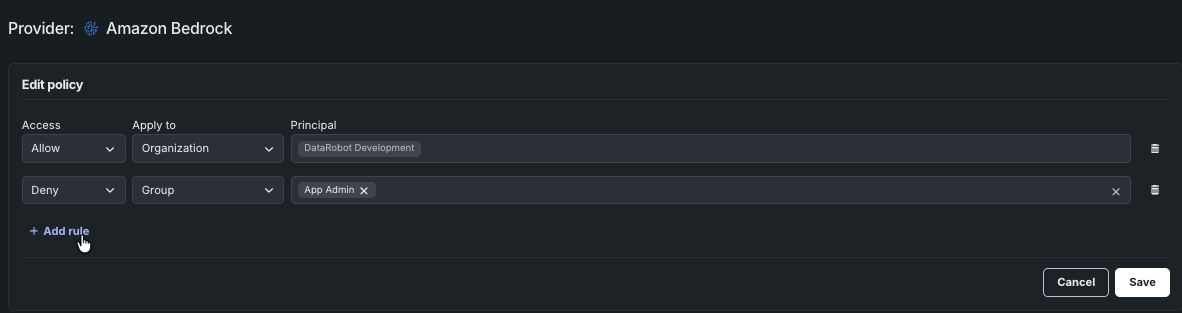
For each condition, set the following fields:
| Field | Options | Description |
|---|---|---|
| Access | Allow, Deny | Whether to grant or block access for the specified principal. |
| Apply to | Organization, Group, User | The type of principal the condition applies to. |
| Principal | Varies | The organization, group, or user. When Apply to is Organization, the organization name is pre-filled. |
Click Add rule to add another condition. Click Cancel to discard changes. If you leave the form with unsaved changes, a confirmation dialog reports that rules added to the access policy have not been saved and will be lost.
The save action and inherited-rule banner vary by level:
| Level | Save the form | If the resource currently inherits |
|---|---|---|
| Provider | Add | Not applicable. |
| Publisher | Add | The form lists the inherited provider rule. Conditions you add apply to all of that publisher's LLMs from the provider. |
| LLM | Save | The form reports that the LLM-level policy replaces the inherited rule and applies only to that LLM. |

Inherited publisher rule
Anthropic under Amazon Bedrock inherits Allow Organization, except group: App Admin. Conditions added on the publisher apply to all Anthropic LLMs from Amazon Bedrock and replace that inherited rule.
If conditions conflict, the affected principal values are highlighted and a message is displayed below them. Organization Deny with a group or user Allow is not applied. Group Deny with a user Allow for a member of that group is ignored.
Warning
Within a single resource, any matching Deny overrides any matching Allow. An organization Deny cannot be limited by a group or user Allow. To grant access to only specific groups, leave the organization condition unset and add group Allow conditions.
Delete a policy
Click Delete on the policy summary. A confirmation dialog describes the effect of the deletion.
| Level | After deletion |
|---|---|
| Provider | All provider-level conditions are removed. Access through this provider is blocked until a new condition grants permission at the provider, publisher, or LLM level. |
| Publisher | The publisher inherits the provider policy. Users who had access only through the publisher policy may lose access. |
| LLM | Access reverts to the publisher policy. Some users may lose or gain access. |
View LLMs
When a provider or publisher is selected, the LLMs table lists the LLMs available at that level. Click an LLM row to open its policy and policy resolution details. Click Back to return to the table.
The table includes the following columns:
| Column | Description |
|---|---|
| LLM | Display name and model ID (for example, Claude Sonnet 4.5 / bedrock/anthropic.claude-sonnet-4-5-20250929-v1.0). |
| Publisher | Publisher associated with the LLM (for example, Anthropic). |
| Policy | Policy in effect, or the resource it inherits from (for example, Inherits from provider (Amazon Bedrock)). |
| Status | Lifecycle status: Active, Deprecated, or Retired. |
| Retirement date | Scheduled retirement date. If none is scheduled, Not announced. |
Use Show retired to include retired LLMs, and use the search field to filter by name. If no LLMs match, the table displays No matches found.
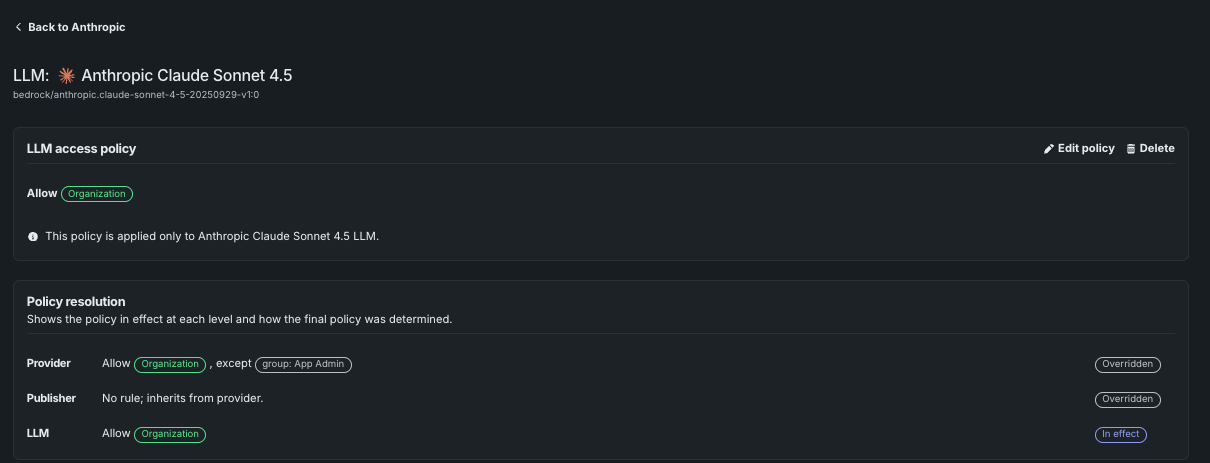
LLM policy resolution
When you select an LLM, Policy resolution lists Provider, Publisher, and LLM and shows the policy at each level. Read from the LLM row first (most specific), then publisher, then provider.
The table uses the following badges:
| Badge | Description |
|---|---|
| In effect | The policy at this level determines the final LLM policy. |
| Inherits | The policy is inherited from the parent. |
| Overridden | The policy at this level does not apply because a more specific level has a rule. |
Inherited policies
GPT-4o and the OpenAI publisher have no policy. Azure OpenAI has Default allow. Policy resolution shows In effect on the provider and Inherits on the publisher and LLM. GPT-4o is available to the organization.
Overridden policies
GPT-4o has an LLM-level Allow. The publisher and provider also have policies. Policy resolution shows In effect on the LLM and Overridden on the publisher and provider. Only the LLM policy is evaluated.
For the evaluation model, worked examples, and common policy patterns, see LLM gateway permissions and evaluation.