Add files from remote repos to custom models
If you add a model to the Custom Model Workshop, you can add files to that model from a wide range of repositories, including Bitbucket, GitHub, GitHub Enterprise, S3, GitLab, and GitLab Enterprise. After adding a repository to DataRobot, you can pull files from the repository and include them in the custom model.
Add a remote repository
The following steps show how to add a remote repository so that you can pull files into a custom model:
-
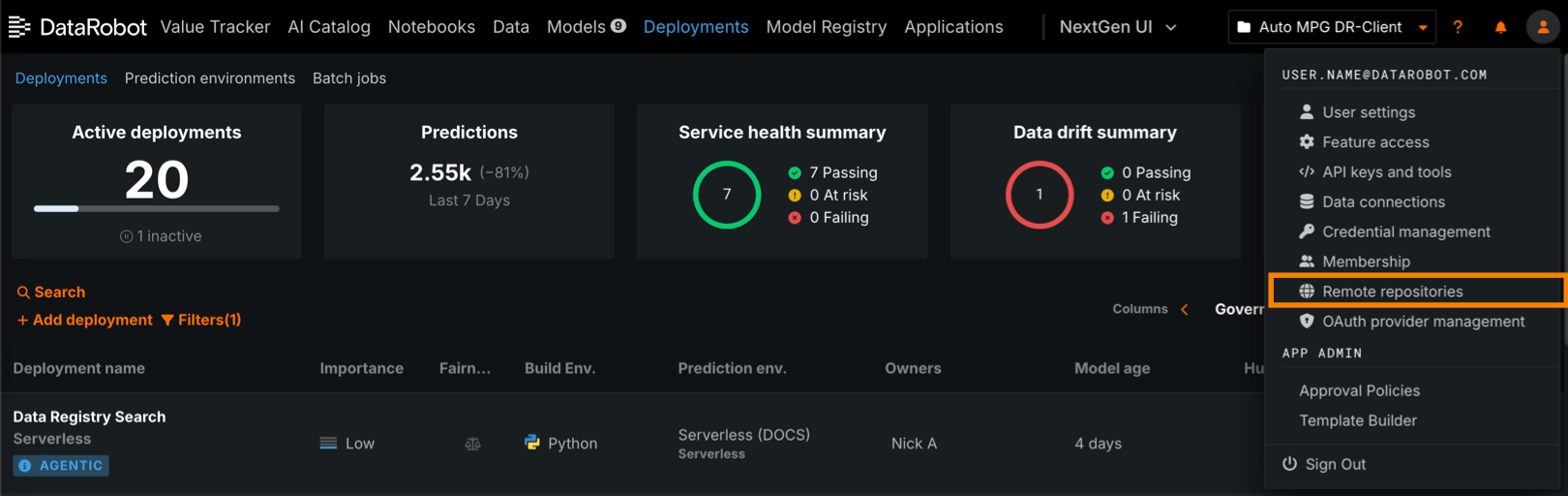
On any page, click your profile avatar (or the default avatar ) in the upper-right corner of DataRobot, then click Remote repositories.
-
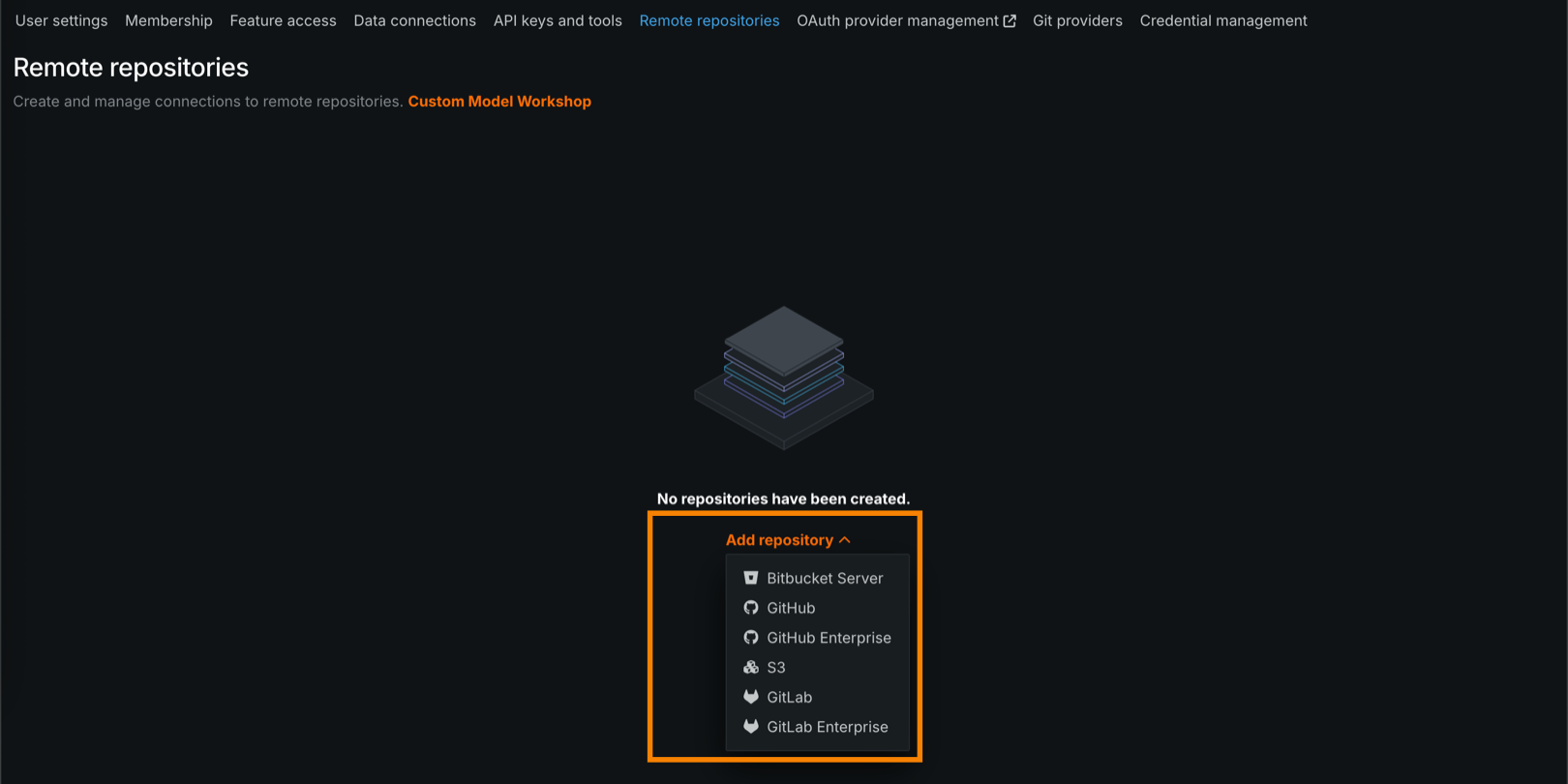
On the Remote Repositories page, click Add repository, and then select a repository provider to integrate a new remote repository with DataRobot.
-
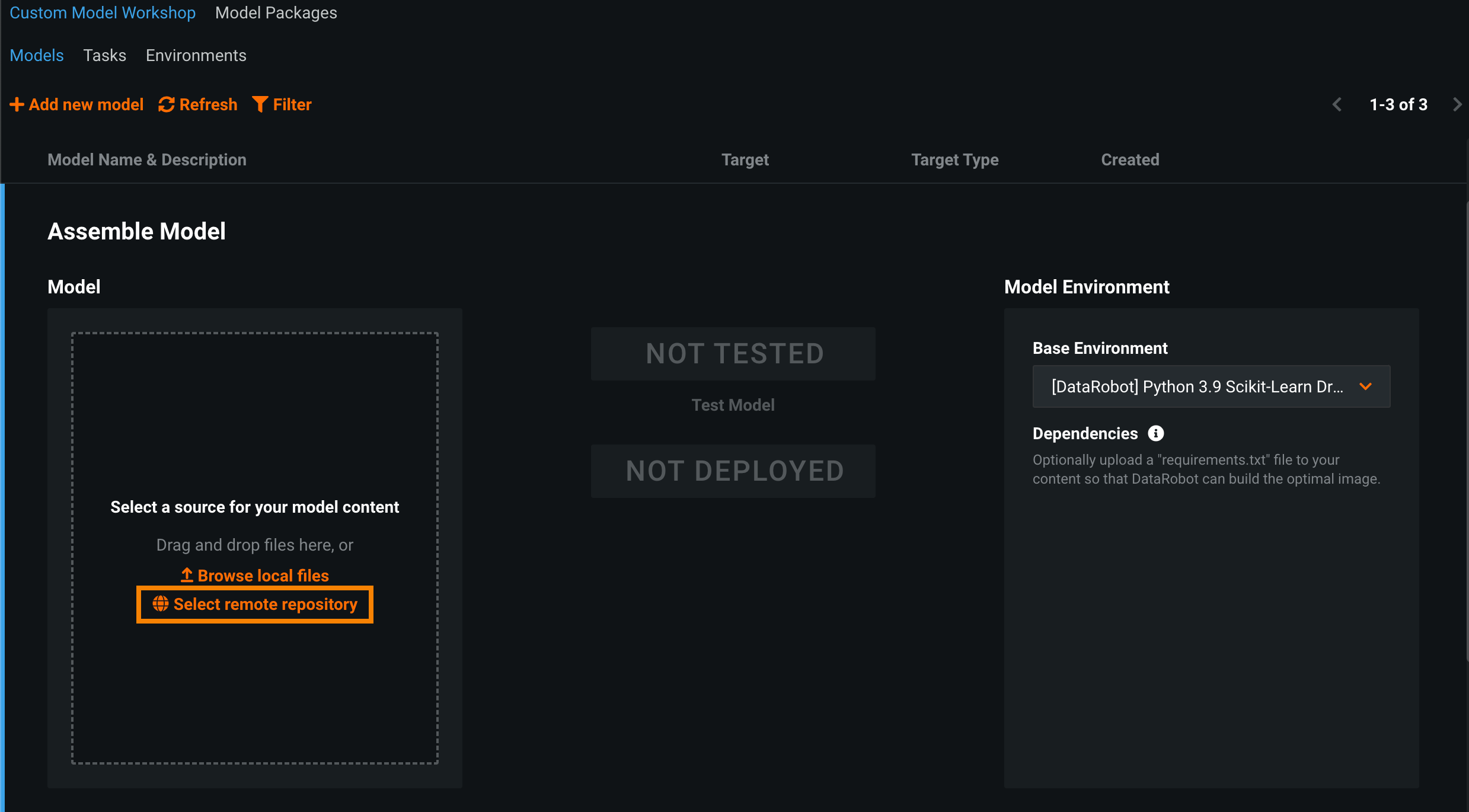
On the Model Registry > Custom Model Workshop tab, select a custom model you wish to add files to and navigate to the Assemble tab.
-
On the Assemble tab, click Select remote repository.
-
Click Add repository , and then select a repository provider to integrate a new remote repository with DataRobot.
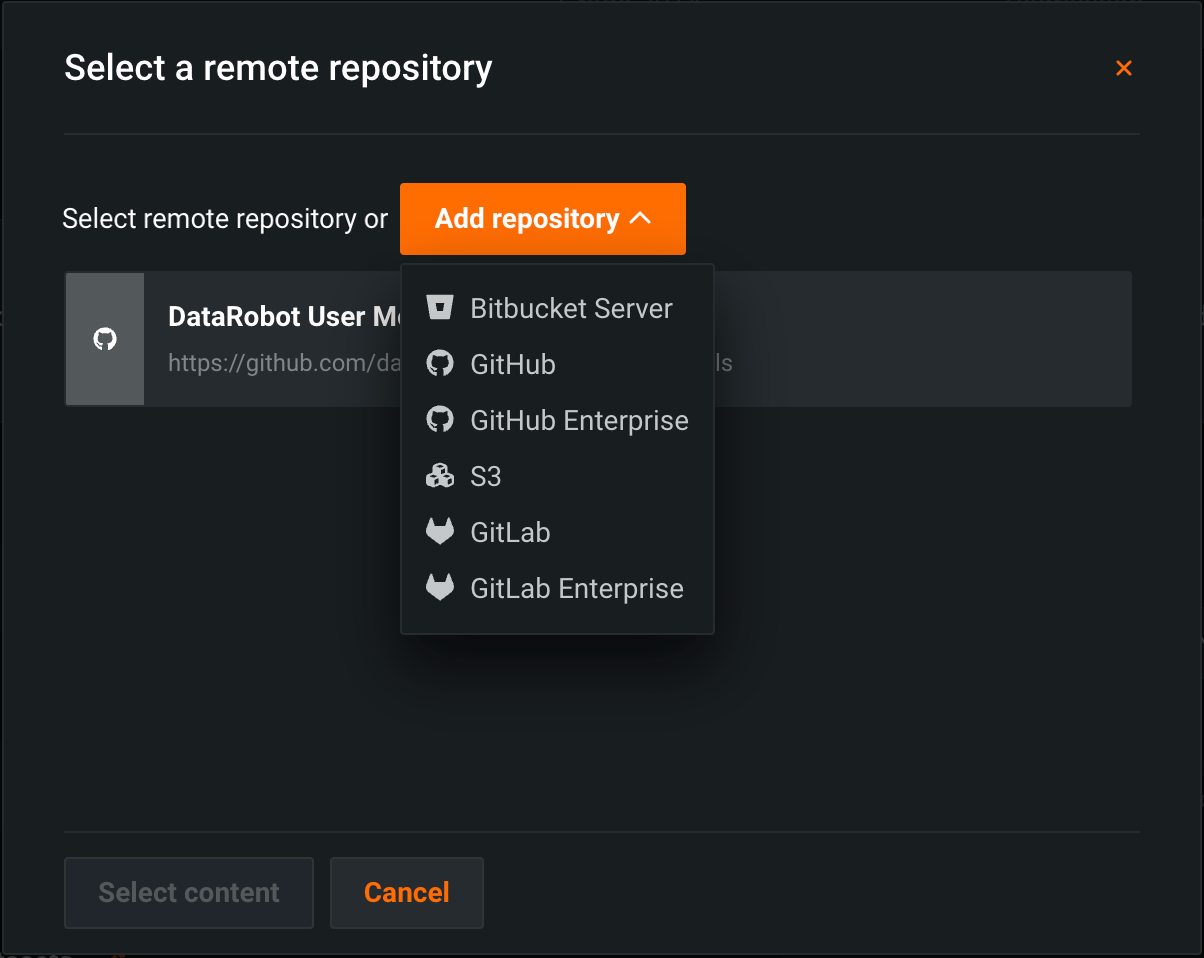
After you select the type of repository to register, follow the relevant process from the list below:
Bitbucket Server repository
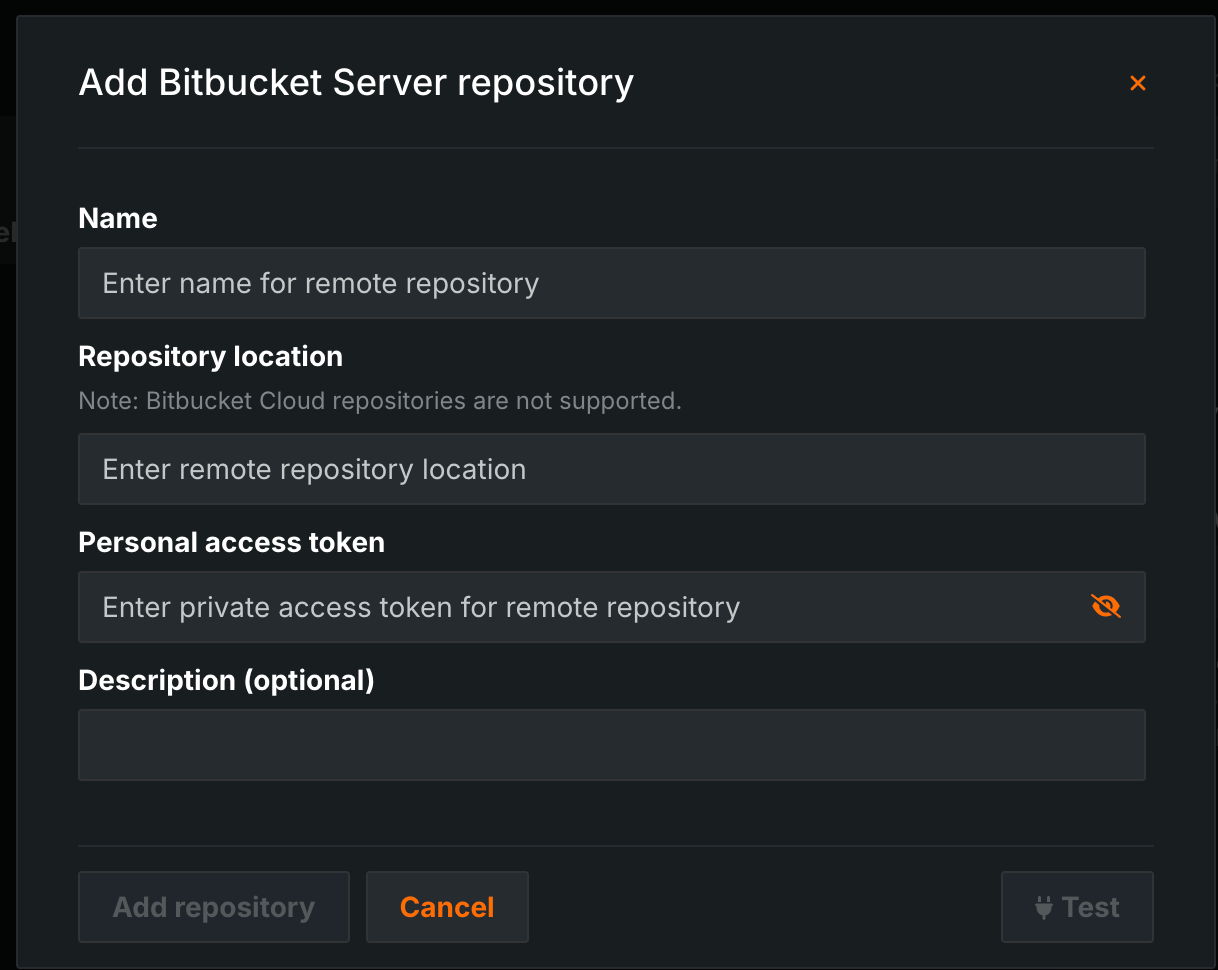
To register a Bitbucket Server repository, in the Add Bitbucket Server repository modal, configure the required fields:
| Field | Description |
|---|---|
| Name | The name of the Bitbucket Server repository. |
| Repository location | The URL for the Bitbucket Server repository that appears in the browser address bar when accessed. Alternatively, select Clone from the Bitbucket Server UI and paste the URL. |
| Personal access token | The token used to grant DataRobot access to the Bitbucket Server repository. Generate this token from the Bitbucket Server UI. |
| Description | (Optional) A description of the Bitbucket Server repository. |
After you configure the required fields, click Test to verify connection to the repository. Once you verify the connection, click Add repository.
GitHub repository
To add a GitHub repository, in the Add GitHub repository modal, the steps for connecting to the repository depend on the connection method.
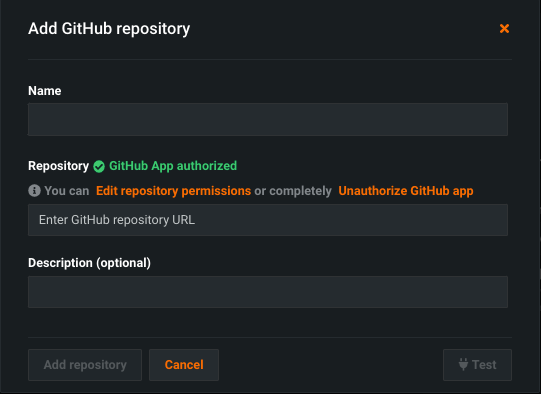
The primary method for adding a GitHub repository is to authorize the DataRobot User Models Integration application for GitHub. Click Authorize GitHub app, then, configure the following fields:
| Field | Description |
|---|---|
| Name | The name of the GitHub repository. |
| Repository | Enter the GitHub repository URL. Start typing the repository name and repositories will populate in the autocomplete dropdown.
|
| Description | (Optional) A description of the GitHub repository. |
Private repository permissions
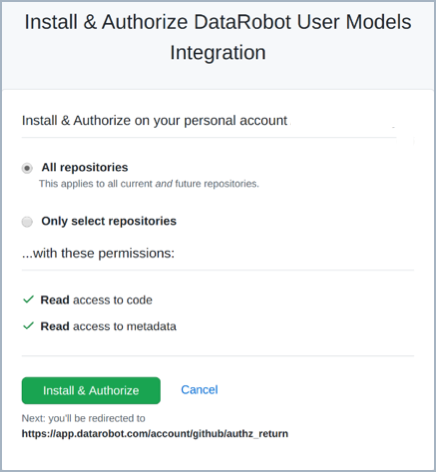
To use a private repository, click Edit repository permissions in the Add GitHub repository window. This gives the GitHub app access to your private repositories. You can give access to all current and future private repositories or a selected list of repositories
External GitHub repositories
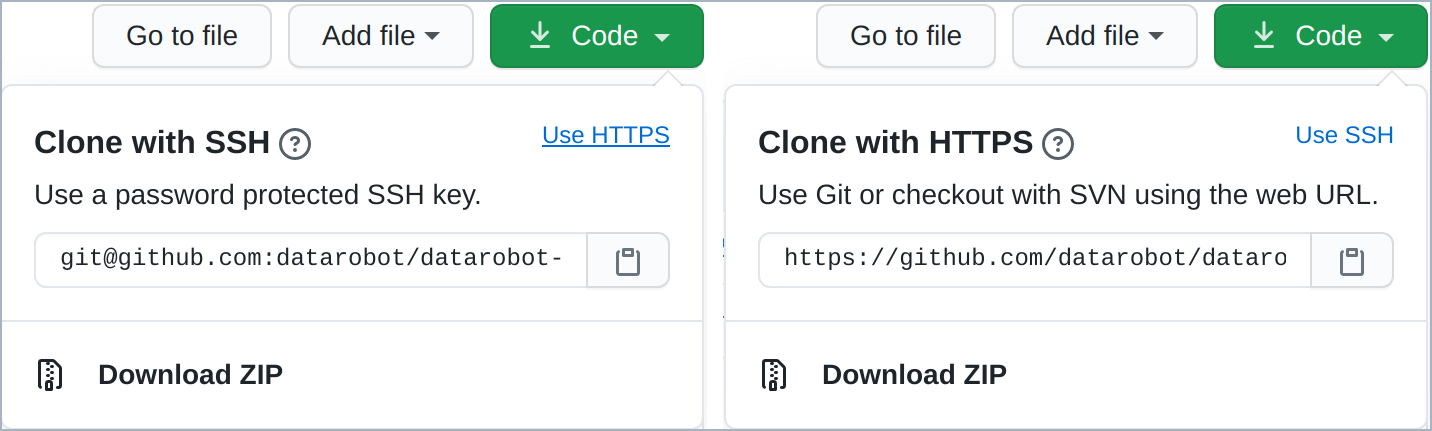
To use an external public GitHub repository that is not owned by you or your organization, navigate to the repository in GitHub and click Code. Copy and paste the URL into the Repository field of the Add GitHub repository window.
After access is granted, the private repositories appear in the autocomplete dropdown for the Repository field.
The fallback method for adding a GitHub repository is to provide a repository location and personal access token.
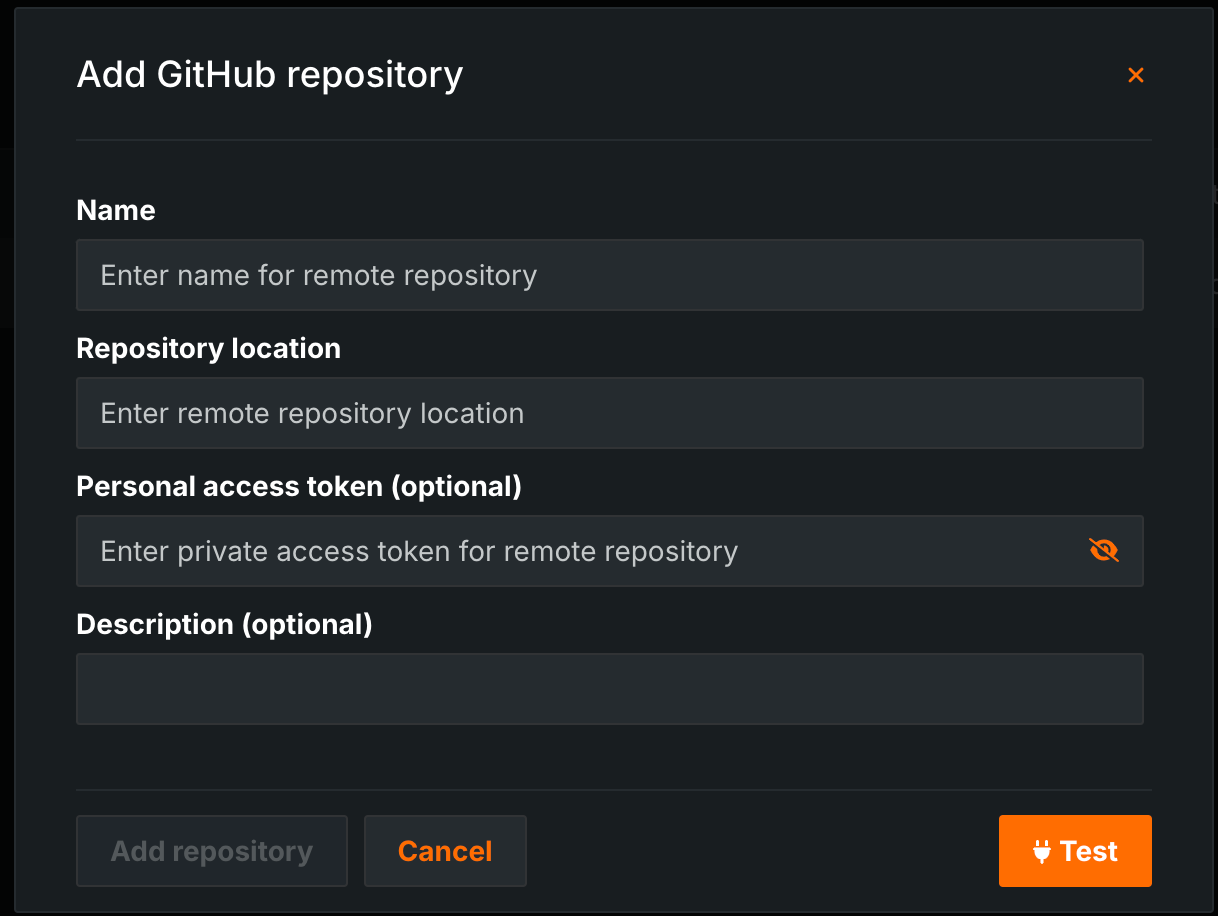
| Field | Description |
|---|---|
| Name | The name of the GitHub repository. |
| Repository location | The URL for the GitHub repository that appears in the browser address bar when accessed. Alternatively, select Clone from the GitHub UI and paste the URL. |
| Personal access token | (Optional) The token used to grant DataRobot access to the GitHub repository. Generate this token from the GitHub UI. A token isn`t required for public repositories. |
| Description | (Optional) A description of the GitHub repository. |
After you configure the required fields, click Test to verify connection to the repository. Once you verify the connection, click Add repository.
GitHub repository organizations
You can add repositories from any GitHub organization you belong to.
GitHub organization repository access
If you belong to a GitHub organization, you can request access to an organization's repository for use with DataRobot. A request for access notifies the GitHub admin, who then who approves or denies your access request.
Organization repository access
If your admin approves a single user's access request, access is provided to all DataRobot users in that user's organization without any additional configuration. For more information, reference the GitHub documentation.
GitHub Enterprise repository
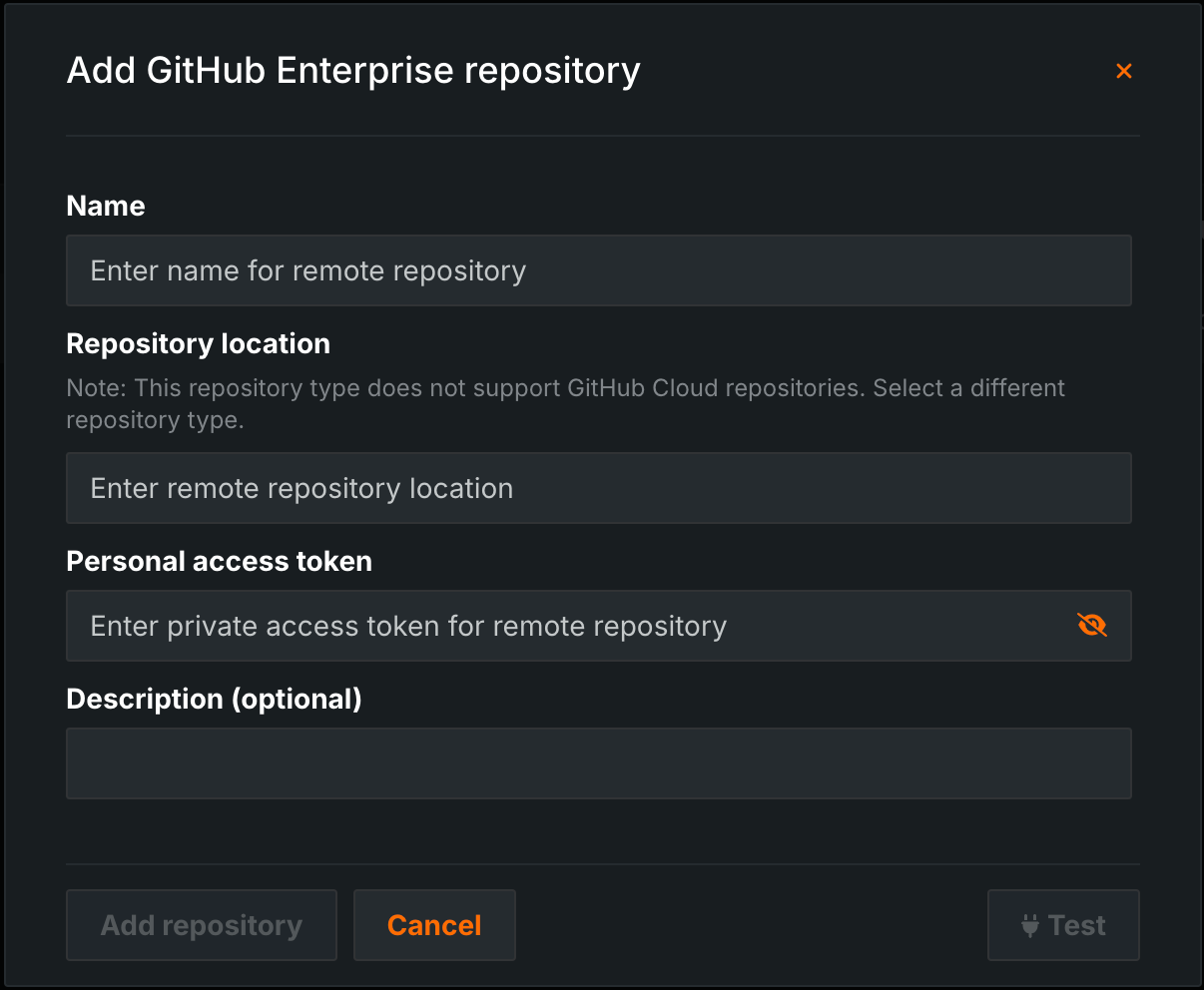
To register a GitHub Enterprise repository, in the Add GitHub Enterprise repository modal, configure the required fields:
| Field | Description |
|---|---|
| Name | The name of the GitHub Enterprise repository. |
| Repository location | The URL for the GitHub Enterprise repository that appears in the browser address bar when accessed. Alternatively, select Clone from the GitHub Enterprise UI and paste the URL. |
| Personal access token | The token used to grant DataRobot access to the GitHub Enterprise repository. Generate this token from the GitHub UI. |
| Description | (Optional) A description of the GitHub Enterprise repository. |
After you configure the required fields, click Test to verify connection to the repository. Once you verify the connection, click Add repository.
Git Large File Storage
Git Large File Storage (LFS) is supported by default for GitHub integrations. Reference the Git documentation to learn more. Git LFS support for GitHub always requires having the GitHub application installed on the target repository, even if it's a public repository. Any non-authorized requests to the LFS API will fail with an HTTP 403.
S3 repository
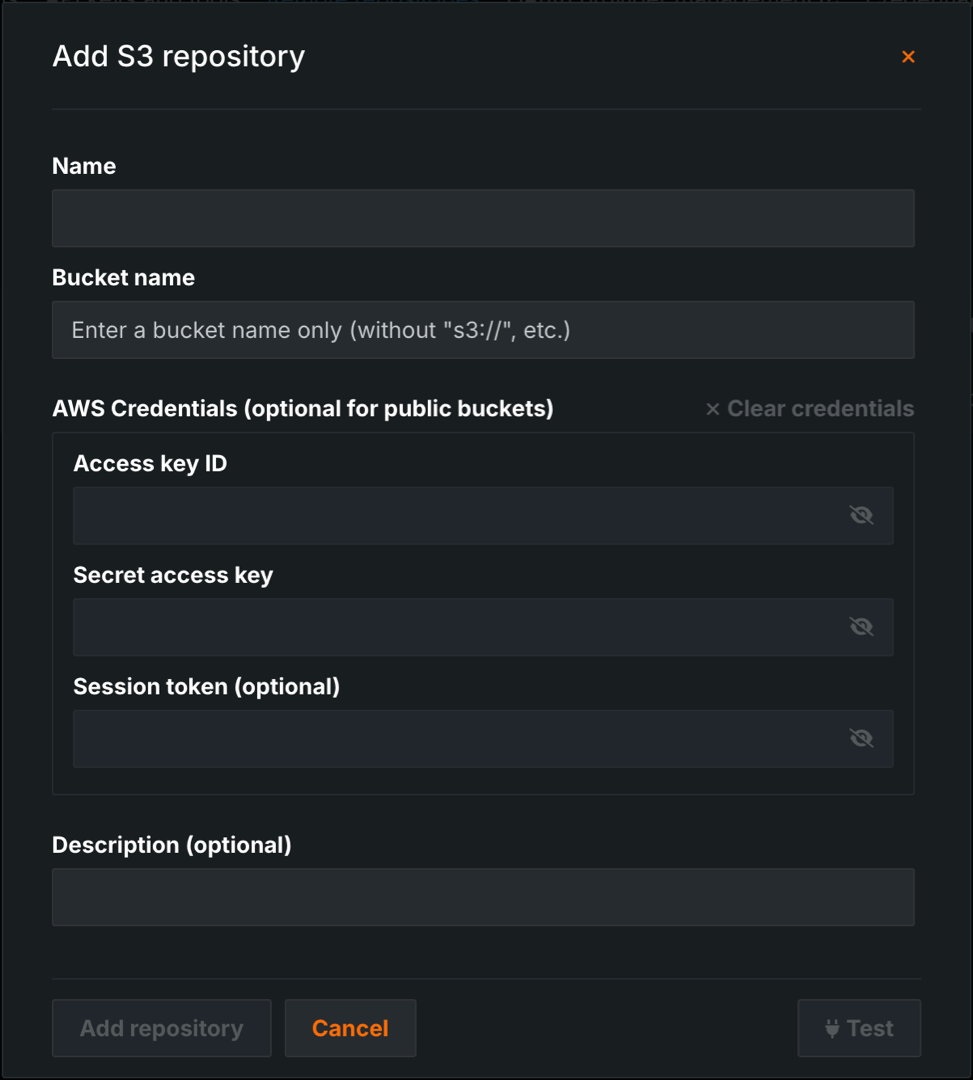
To register an S3 repository, in the Add S3 repository modal, configure the required fields.
| Field | Description |
|---|---|
| Name | The name of the S3 repository. |
| Bucket name | The name of the S3 bucket. If you are adding a public S3 repository, this is the only field you must complete. |
| Access key ID | The key used to sign programmatic requests made to AWS. Use with the AWS Secret Access Key to authenticate requests to pull from the S3 repository. Required for private S3 repositories. |
| Secret access key | The key used to sign programmatic requests made to AWS. Use with the AWS Access Key ID to authenticate requests to pull from the S3 repository. Required for private S3 repositories. |
| Session token | (Optional) A token that validates temporary security credentials when making a call to an S3 bucket. |
| Description | (Optional) A description of the S3 repository. |
After you configure the required fields, click Test to verify connection to the repository. Once you verify the connection, click Add repository.
S3 credentials
AWS credentials are optional for public buckets. You can remove any S3 credentials by editing the repository connection. Select the connection and click Clear credentials.
AWS S3 access configuration
DataRobot requires the AWS S3 ListBucket and GetObject permissions in order to ingest data. These permissions should be applied as an additional AWS IAM Policy for the AWS user or role the cluster uses for access. For example, to allow ingestion of data from a private bucket named examplebucket, apply the following policy:
    {
      "Version": "2012-10-17",
      "Statement": [
        {
          "Effect": "Allow",
          "Action": ["s3:ListBucket"],
          "Resource": ["arn:aws:s3:::examplebucket"]
        },
        {
          "Effect": "Allow",
          "Action": ["s3:GetObject"],
          "Resource": ["arn:aws:s3:::examplebucket/*"]
        }
      ]
    }
GitLab Cloud repository
To add a GitLab repository, in the Add GitLab repository modal, the steps for connecting to the repository depend on the connection method.
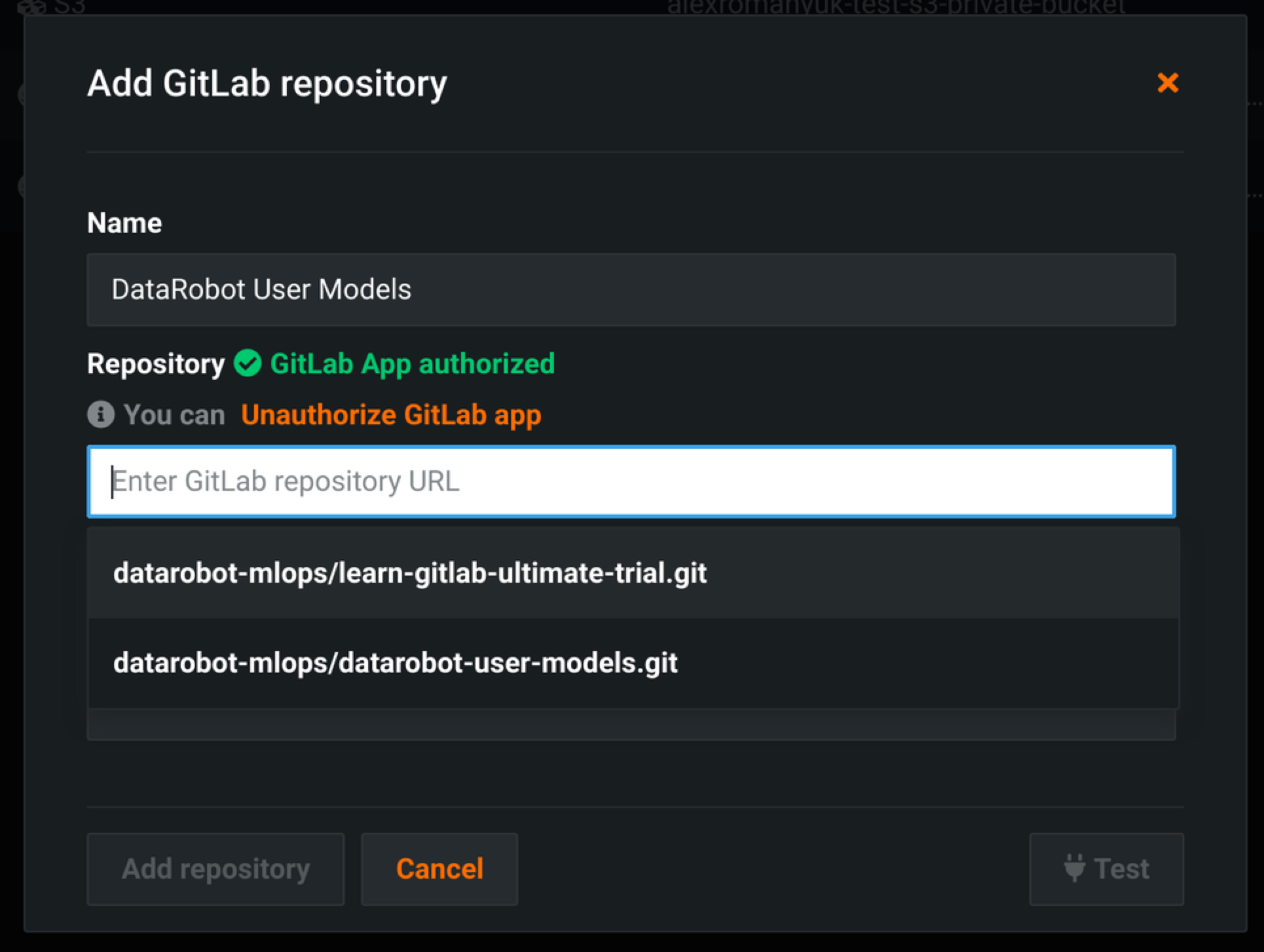
The primary method for adding a GitLab repository is to authorize the DataRobot User Models Integration application for GitLab.
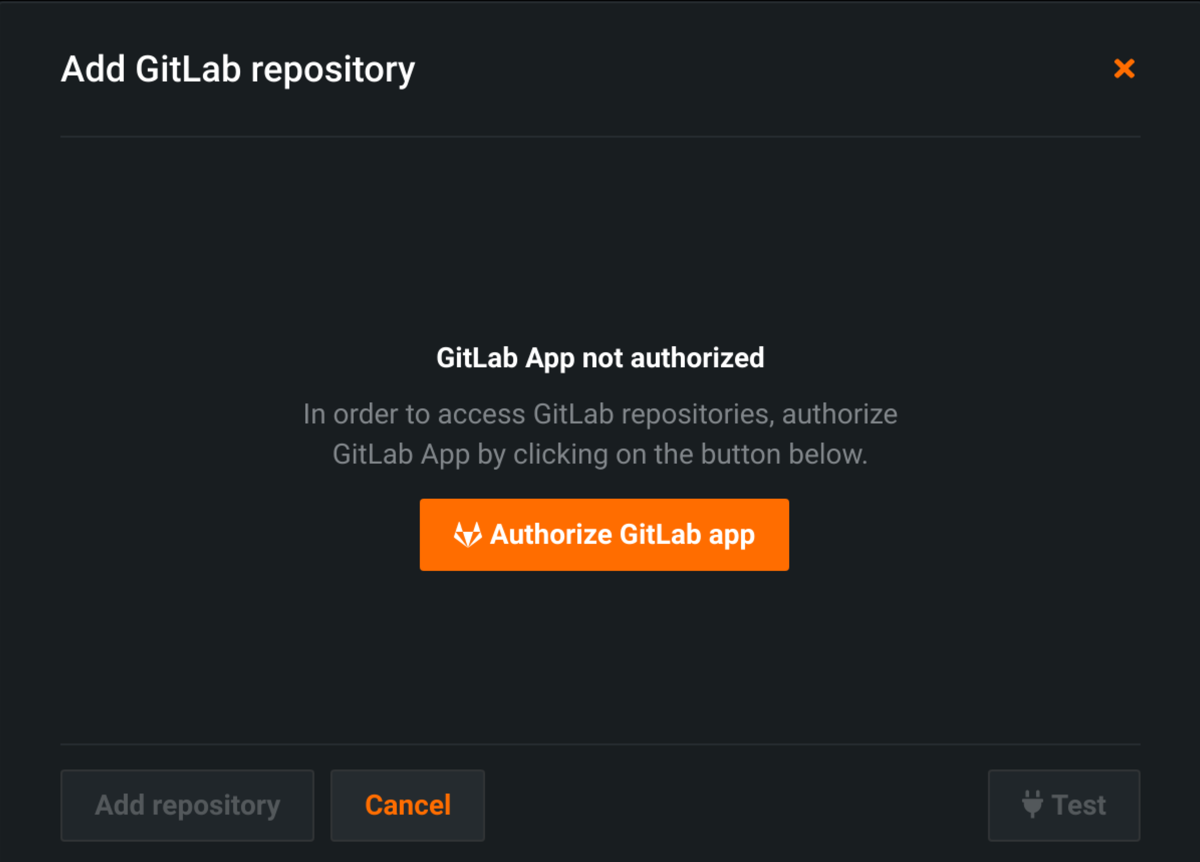
Click Authorize GitLab app, grant access, and configure the following fields:
| Field | Description |
|---|---|
| Name | The name of the GitLab repository. |
| Repository | Enter the GitLab repository URL. Start typing the repository name and repositories will populate in the autocomplete dropdown. |
| Description | (Optional) A description of the GitLab repository. |
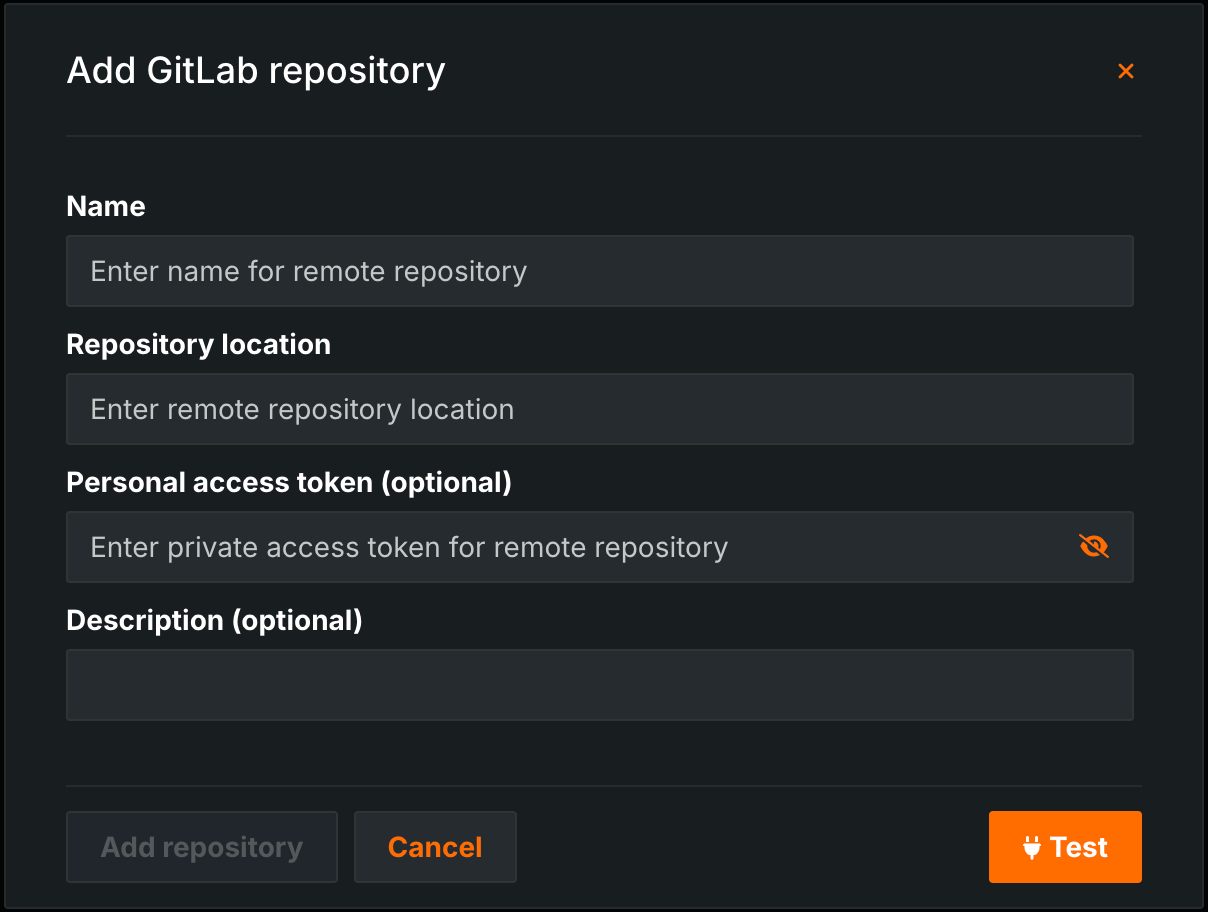
The fallback method for adding a GitLab repository is to provide a repository location and personal access token.
| Field | Description |
|---|---|
| Name | The name of the GitLab repository. |
| Repository location | The URL for the GitLab repository that appears in the browser address bar when accessed. |
| Personal access token | (Optional) Enter the token used to grant DataRobot access to the GitLab repository. Generate this token from GitLab. A token isn`t required for public repositories. |
| Description | (Optional) A description of the GitLab repository. |
After you configure the required fields, click Test to verify connection to the repository. Once you verify the connection, click Add repository.
GitLab Enterprise repository
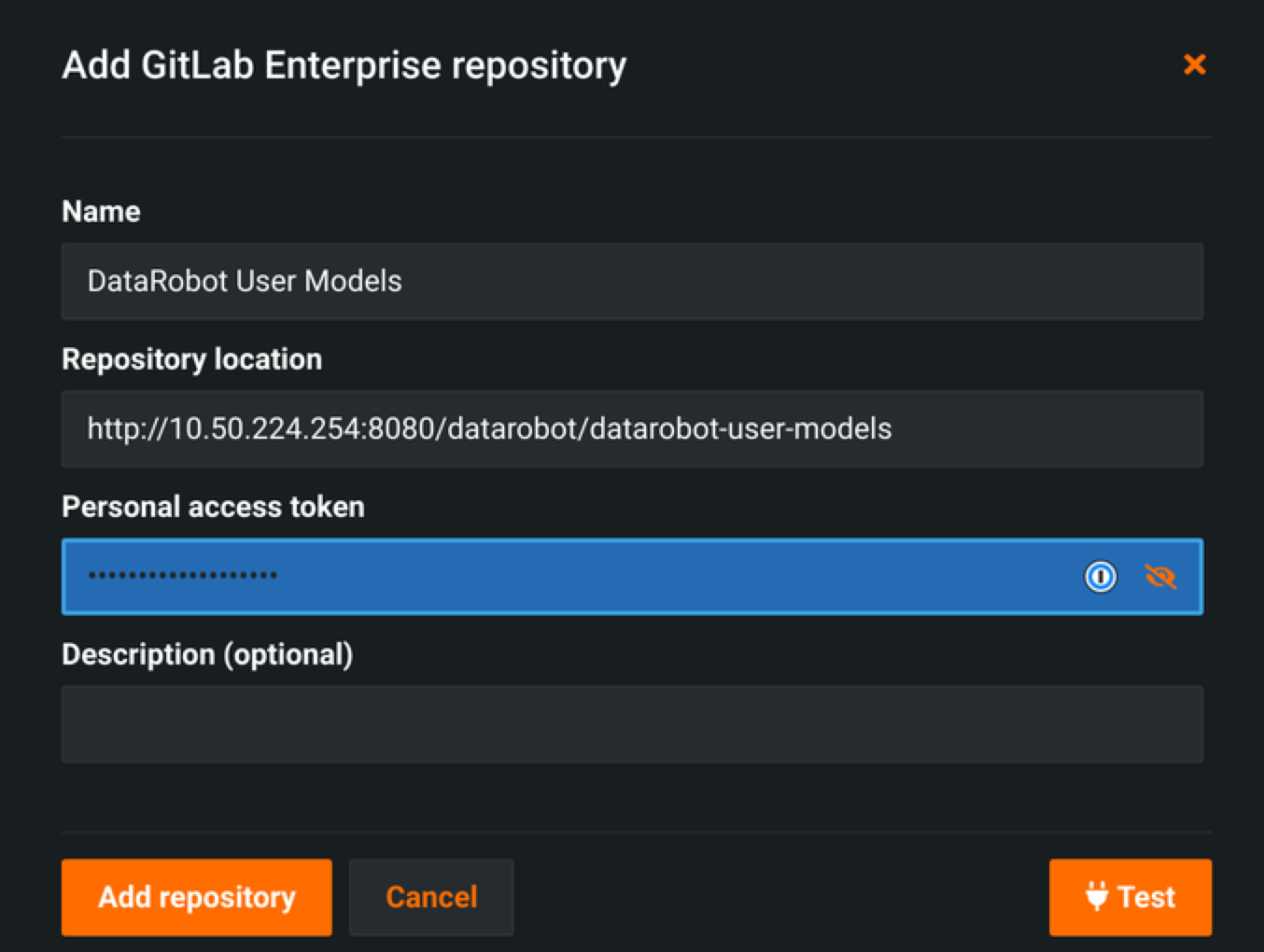
To register a GitLab Enterprise repository, in the Add GitLab Enterprise repository modal, configure the required fields:
| Field | Description |
|---|---|
| Name | The name of the GitLab Enterprise repository. |
| Repository location | The URL for the GitLab Enterprise repository that appears in the browser address bar when accessed. |
| Personal access token | (Optional) Enter the token used to grant DataRobot access to the GitLab Enterprise repository. Generate this token from GitLab Enterprise. A token isn`t required for public repositories. |
| Description | (Optional) A description of the GitLab Enterprise repository. |
After you configure the required fields, click Test to verify connection to the repository. Once you verify the connection, click Add repository.
Create a personal access token for GitLab Enterprise
To create a personal access token:
-
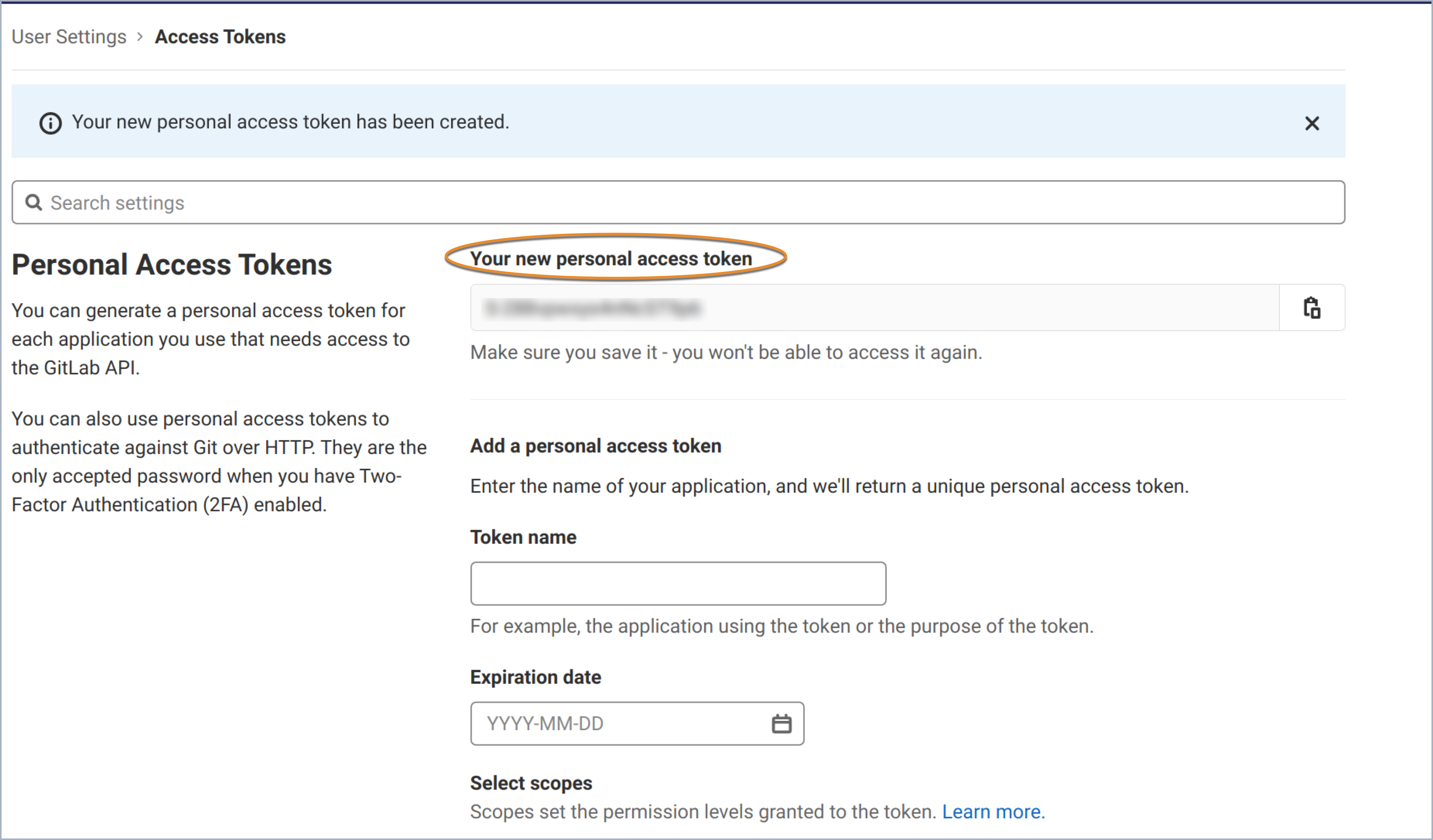
Enter a name for the new token, set the mandatory scopes (
read_apiandread_repository), and click Create personal access token.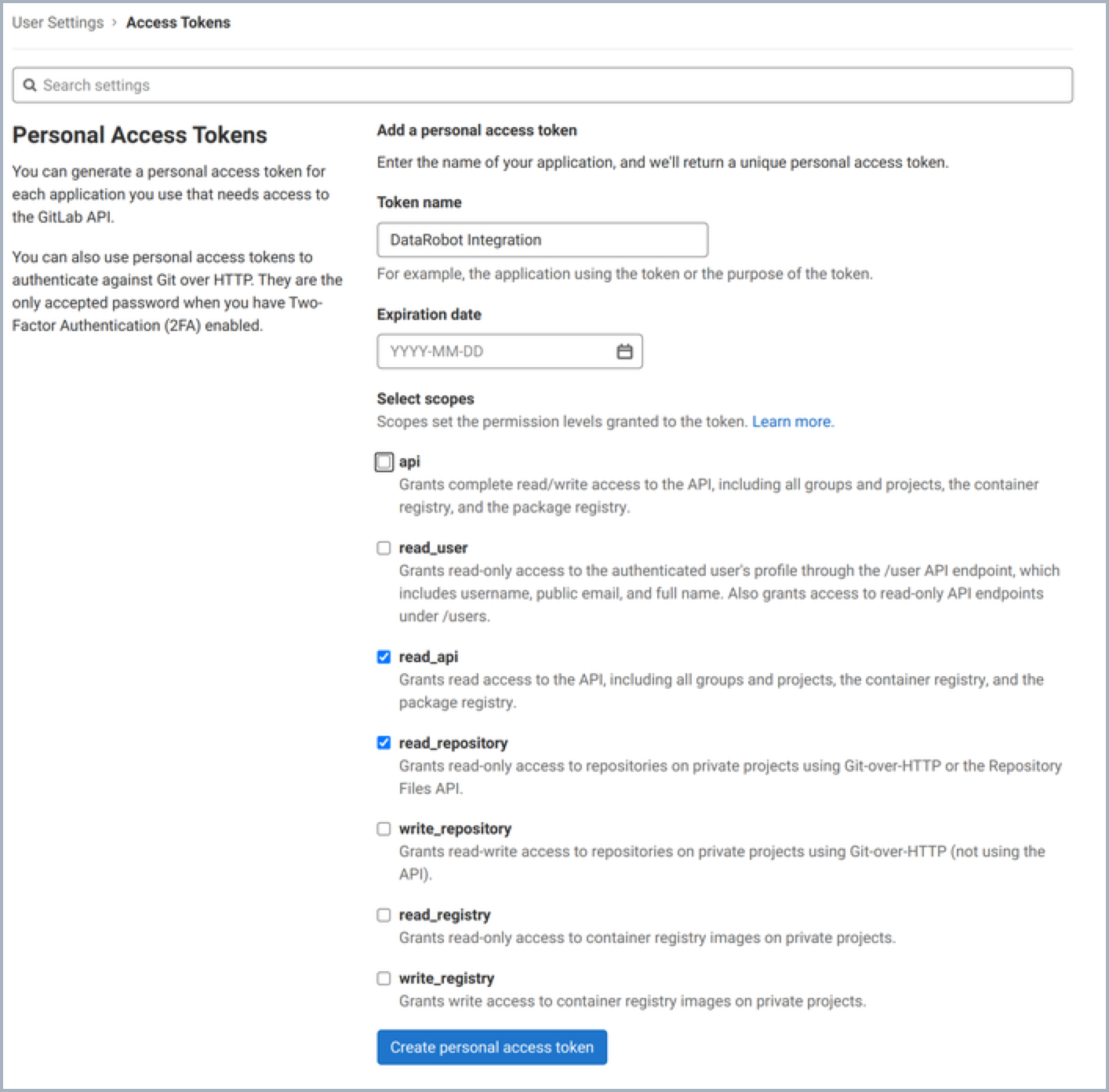
The newly generated token appears at the top of the page.
-
Enter the new token into the Personal access token field in the Add GitLab Enterprise repository window.
Pull files from the repository
After you add a repository to DataRobot, you can pull files from the repository and include them in the custom model.
To pull files from a repository:
-
In the top navigation bar, click Model Registry.
-
Click Custom Model Workshop, click the Models tab, and select a model from the list.
-
Under Assemble Model, click Select remote repository.
Select a base environment
If the Model group box is empty, select a Base Environment for the model.
-
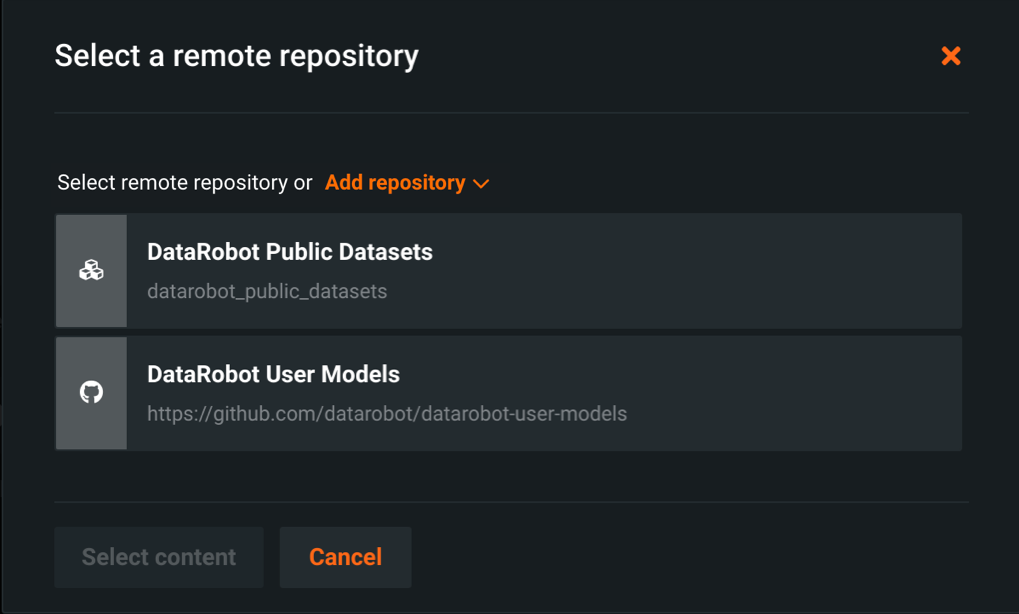
In the Select a remote repository dialog box, select a repository in the list and click Select content.
-
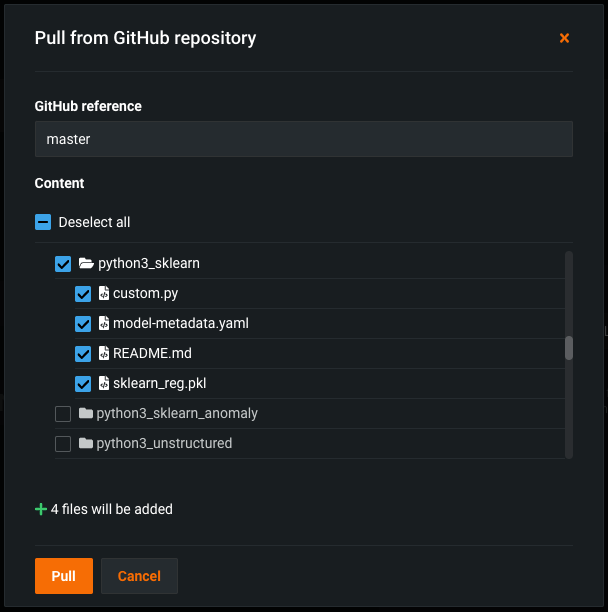
In the Pull from GitHub repository dialog box, select the checkbox for any files or folders you want to pull into the custom model.
You can also click Select all to select every file in the repository, or, after selecting one or more files, click Deselect all to clear your selections.
Repository type
This step uses GitHub as an example; however, the process is the same for each repository type.
Tip
You can see how many files you have selected at the bottom of the dialog box (e.g., + 4 files will be added).
-
Once you select the files you want to pull into the custom model, click Pull.
The added files appear under the Model header as part of the custom model.