Tracing
On the Tracing tab, you can inspect traces from a custom or external model deployment, including text generation, agentic workflow, VDB, and MCP deployments. Each trace includes a combined span list and timeline that shows the order and duration of actions carried out by the model or agent. Deployment tracing uses the same interface as application tracing.
To access tracing, select a deployment from the Deployments inventory and click the Tracing tab.
Traces represent the path taken by a request to a model or agentic workflow. DataRobot uses the OpenTelemetry framework for tracing. A trace follows the entire end-to-end path of a request, from origin to resolution. Each trace contains one or more spans, starting with the root span. The root span represents the entire path of the request and contains a child span for each individual step in the process. The root (or parent) span and each child span share the same Trace ID.
Access and retention
Tracing is available for custom applications, custom and external model deployments, and Workloads. Applications, deployments, and Workloads share the same tracing interface.
Retention is configured at the organization level by a system administrator and applies to all users in the organization. If a policy isn't set explicitly, trial organizations use a 14-day policy and paying organizations use a 30-day policy. Administrators can set retention per signal type (traces, logs, or metrics) to 14, 30, 60, 90, 180, or 360 days.
To view or change your organization's retention settings, see Configure OTel retention.
Traces appear in a list by Root span name. Each entry shows the status of the trace and the timestamp. Select a trace to open the detail pane, which shows high-level metadata for the request alongside a combined span list and timeline.
Depending on the request, the list and detail pane can include the following fields:
| Field | Description |
|---|---|
| Root span name | The name of the root span for the trace. |
| Timestamp | The date and time of the trace. |
| Status | The overall status of the trace, including all spans (for example, Success). The status is Error if any dependent task fails. |
| Trace ID | A unique identifier for the trace. |
| User ID | The user associated with the request, when available. |
| Latency | The time it took for the trace to complete. This value is equal to the duration of the root span and includes all actions represented by child spans. |
| Tokens | Token usage for the trace. |
| Spans | The number of completed spans (actions) included in the trace. |
| Errors | The number of spans in the trace that recorded an error. |
| Cost | If cost data is provided, the total cost of the trace. |
| Prompt | The user prompt related to the trace. |
| Completion | The agent or model response (completion) associated with the prompt for the trace. |
| Tools | The tool or tools called during the request represented by the trace. |
Search and filter traces
Use the search row above the trace list to locate traces.
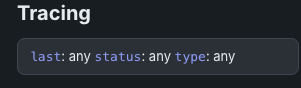
| Filter | Description |
|---|---|
| Last timestamp | Limit traces by the time of the most recent activity in the trace. |
| Status | Filter traces by Success or Alert status. |
| Type | Filter traces by type, including generation type, to distinguish operational spans from generation-specific spans. |
Review spans
Select a trace to review its spans. The span list and timeline appear together: each row shows the span name, duration, and token usage, and a timeline chart shows when the span ran relative to the rest of the trace. Expand a parent span to show its child spans. Restricted span appears when you do not have access to the deployment or service associated with the span.
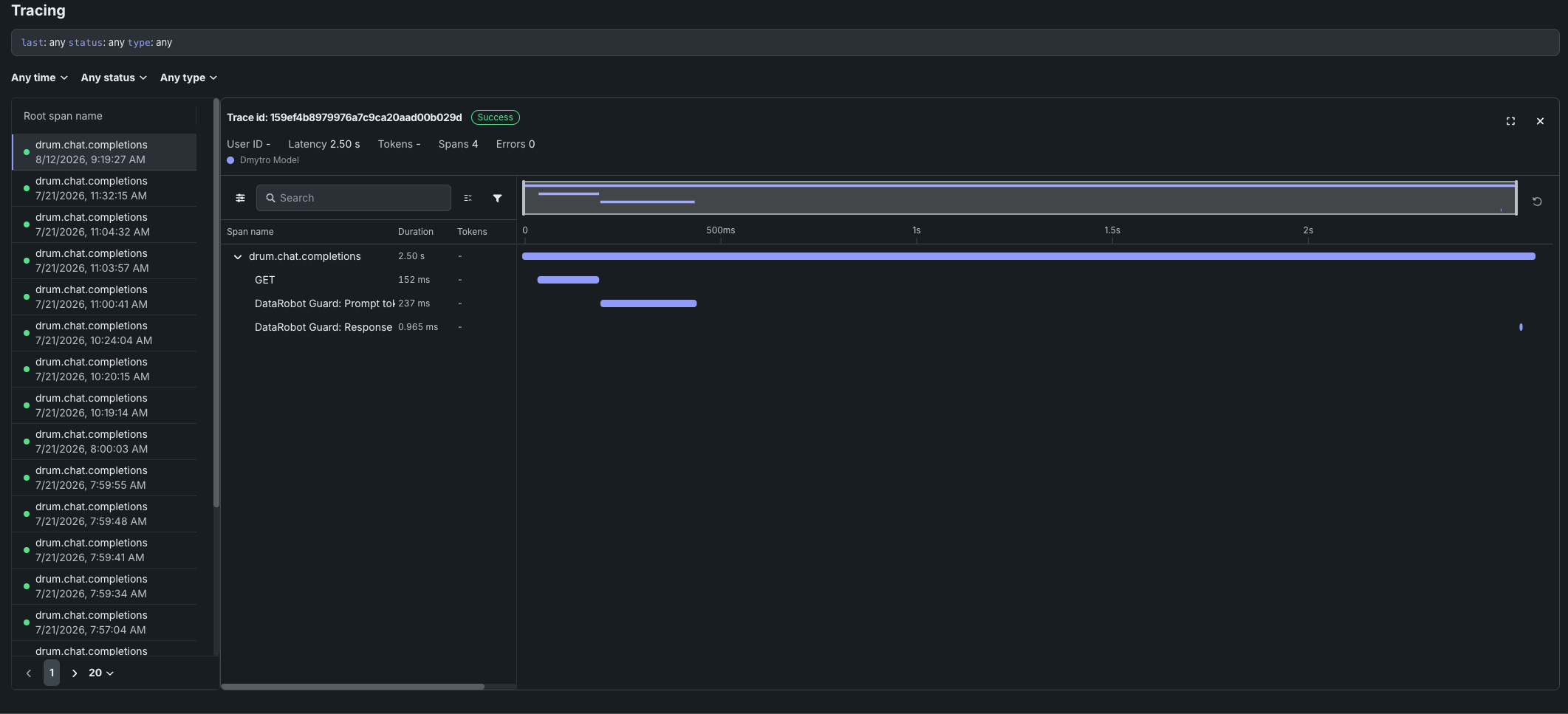
In the span view, filter spans by duration, tokens, name, or status code, or isolate identical spans.
When you select a span, high-level metadata, logs, input, output, and remaining metadata are available on the same page. Formatted text in a span appears alongside attributes. Click the span service or model name to access the deployment or resource (if you have access).
When you expand a span, logs appear with the span attributes, input, and output. The results shown are a subset of the full deployment logs.
Analyze attribute distributions
For a span attribute, you can view how its values are distributed across all spans with the same span name and see an anomaly score for the selected span's value. Use the distribution to check whether a value, such as a latency, token count, or routing decision, is typical for that step of your agent.
To view the distribution, select a span, and on the Attributes tab, hover over an attribute and click the histogram icon. The icon is available for numeric and text attributes, but not for nested objects.
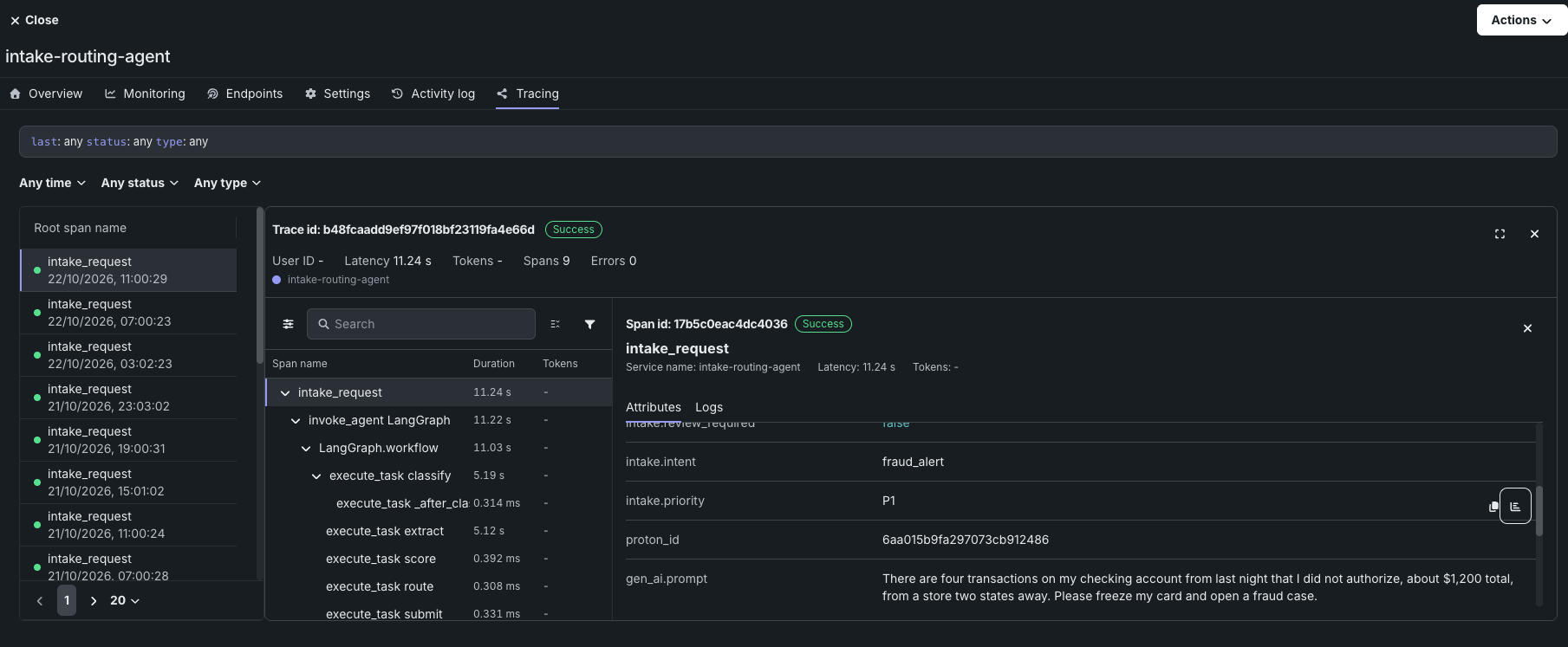
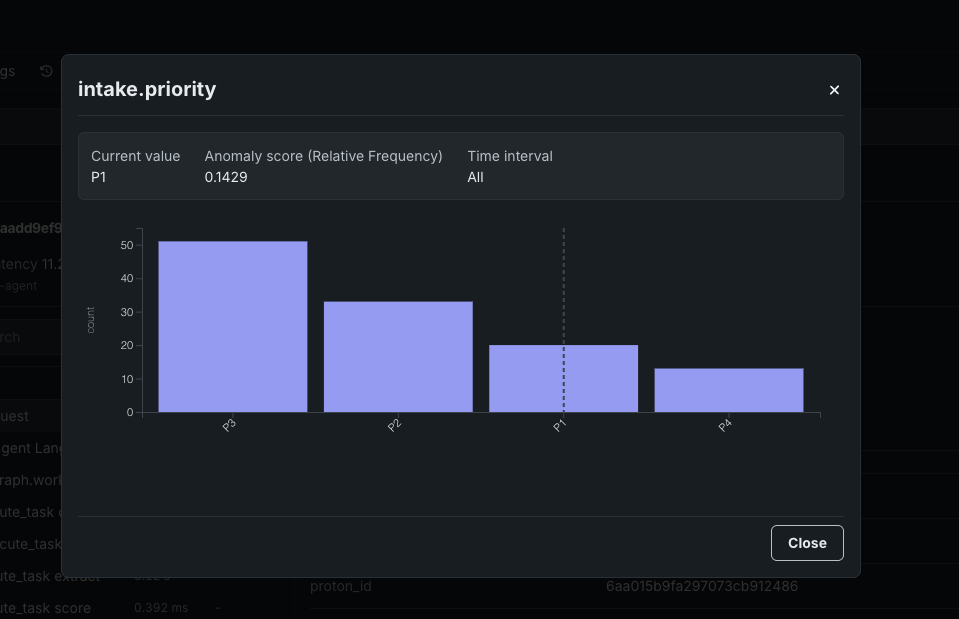
The attribute distribution opens in a modal named for the attribute:
| Field | Description |
|---|---|
| Current value | The attribute value on the selected span. |
| Anomaly score | A score from 0 to 1 for the current value, with the scoring method in parentheses. N/A appears when a score can't be calculated. |
| Time interval | The date range (UTC) of the spans included in the distribution, taken from the trace list's time filter. All appears when no time filter is set. |
| Chart | The number of spans per value (text attributes) or per value range (numeric attributes). A dashed line marks the current value. |
The scoring method depends on the attribute type:
| Method | Attribute type | Interpretation |
|---|---|---|
| DMAD | Numeric | Double Median Absolute Deviation. Compares the value with the spread of values on its side of the median, so skewed attributes such as latency are scored fairly. A higher score is more unusual; a value at the median scores 0. Not calculated for near-constant attributes. |
| Relative Frequency | Text | The share of spans with the same value. A lower score is rarer; for example, a score of 0.1429 means about 14% of spans have this value. |
Boolean attributes (true or false) don't have a distribution or an anomaly score. If no matching spans have the attribute, No data appears; widen the time filter in the trace list and try again.
How anomaly scores are calculated
Scores are calculated from the same histogram shown in the chart. The population is every span that has the attribute and the same span name, in the same deployment, application, or workload, within the time interval and the retention period. The selected span is included. Because medians are estimated from histogram bins, scores are approximate.
DMAD (numeric attributes)
DMAD measures how far a value is from the typical value, in units of the typical spread on that side of the distribution. It is calculated as follows:
- Find the median, \(m\), of all values in the histogram.
- Choose the side of the distribution the value falls on. If the value \(x\) is greater than or equal to \(m\), use the values at or above \(m\); otherwise, use the values at or below \(m\).
- Find the median of that side, \(m_{side}\). The spread is the distance between the two medians: \(d = |m_{side} - m|\).
- Find the distance from the median in spreads, \(k = \frac{|x - m|}{d}\), and convert it into a score:
Because each side has its own spread, a long tail on one side (for example, occasional slow requests) doesn't hide unusual values on the other side. If the spread on the value's side is 0, as with near-constant attributes, no score is calculated and N/A appears.
The score depends only on how many spreads the value is from the median:
| Distance from the median | Score |
|---|---|
| 0 (the median itself) | 0 |
| 1 spread | 0.5 |
| 3 spreads | 0.75 |
| 9 spreads | 0.9 |
| 19 spreads | 0.95 |
For example, if the median latency of a span is 2 s and the median of latencies above 2 s is 3 s, the spread is 1 s. A latency of 5 s is 3 spreads from the median and scores 0.75.
Relative Frequency (text attributes)
Relative Frequency is the number of spans with the same value divided by the total number of spans in the histogram:
Unlike DMAD, a lower Relative Frequency score indicates a more unusual value. A value that no other span has scores \(1/N\), where \(N\) is the number of spans with the attribute.
Tracing table OTel attributes
For Cost, Prompt, Completion, and Tools, DataRobot reads specific span attributes across all spans that belong to the trace. Other fields (such as Timestamp, Latency, and Tokens) come from trace and span metadata rather than these attributes.
| Column | OpenTelemetry mapping |
|---|---|
| Cost | Sums numeric values from the datarobot.moderation.cost attribute on spans in the trace (when that attribute is present). |
| Prompt | Uses the gen_ai.prompt attribute. If more than one span includes gen_ai.prompt, the first value encountered in trace order is shown. |
| Completion | Uses the gen_ai.completion attribute. If more than one span includes gen_ai.completion, the last value encountered in trace order is shown. |
| Tools | Collects every distinct value of the tool_name attribute found on spans in the trace and lists those tool names in the column. |
Attribute keys must match exactly (including the underscore in gen_ai). Names such as genai.prompt or GenAI.prompt are not read for the Prompt and Completion columns.
Automatic instrumentation (including DataRobot agent templates) often sets gen_ai.prompt, gen_ai.completion, and sometimes tool_name. For custom or external models, frameworks differ: tool execution may not emit tool_name even when tools run (for example, some LangGraph callback flows). In that case Prompt and Completion can populate while Tools remains empty until tool_name is configured on a span that runs inside the tool—see Implement tracing.