LLM gateway model configuration
Note
The ability to add LLMs to the LLM gateway is a function controlled by the install administrator. For multi-tenant SaaS users, contact DataRobot Support or visit the Support site to request assistance.
A self-managed or single-tenant SaaS org admin can add LLMs to the LLM gateway of their installation, making them available for users. In this way, you can leverage the agentic functionality in situations where, for example, company policy restricts the LLMs available to its employees.
DataRobot's GenAI service supports managed LLMs from a variety of providers. To enable these models, refer to the LLM provider documentation for provisioning LLM resources:
- Azure OpenAI
- Amazon Bedrock
- Google Gemini Enterprise Agent Platform (formerly Vertex AI)
- Anthropic
- Cerebras
- TogetherAI
Set up LLM credentials
Once LLMs are configured on the provider side, set up provider credentials in the DataRobot GenAI service to access the various LLMs. For user-managed credentials (always used for self-managed, and often, single-tenant SaaS installations), best practice suggests using secure configurations in DataRobot for maximum flexibility and security. In certain cases, for instance a single-tenant SaaS environment with DataRobot-managed credentials, an admin can set up credentials directly in values.yaml.
Via secure configuration
Prior to DataRobot installation, ensure the respective provider is enabled under the llmGateway configuration section within the buzok-llm-gateway sub-chart, for example:
buzok-llm-gateway:
  enabled: true
  llmGateway:
    providers:
      <supported-provider>:
        enabled: true
        credentialsSecureConfigName: genai-<provider>-llm-credentials
When configuring, use the following list of supported providers and corresponding LLM credentials "SecureConfig" display names:
anthropic:
  credentialsSecureConfigName: genai-anthropic-llm-credentials
aws:
  credentialsSecureConfigName: genai-aws-llm-credentials
azure:
  credentialsSecureConfigName: genai-azure-llm-credentials
cerebras:
  credentialsSecureConfigName: genai-cerebras-llm-credentials
google:
  credentialsSecureConfigName: genai-gcp-llm-credentials
togetherai:
  credentialsSecureConfigName: genai-togetherai-llm-credentials
Note
You can include the following providers' secure configurations, but they are not yet supported in DataRobot:
- cohere (
genai-cohere-llm-credentials) - openai (
genai-openai-llm-credentials) - groq (
genai-groq-llm-credentials)
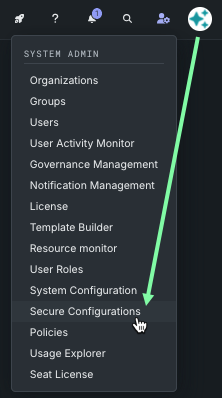
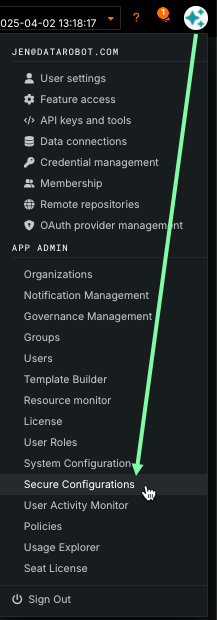
After installation is complete, provide model credentials to DataRobot from the Secure Configuration page:
From the system admin icon, to the left of the profile icon:
From the user profile icon, in the APP ADMIN section:
-
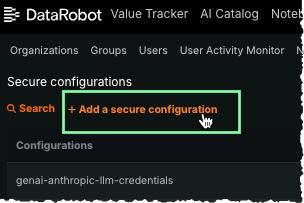
Click + Add a secure configuration.
-
Complete the fields to create the configuration.
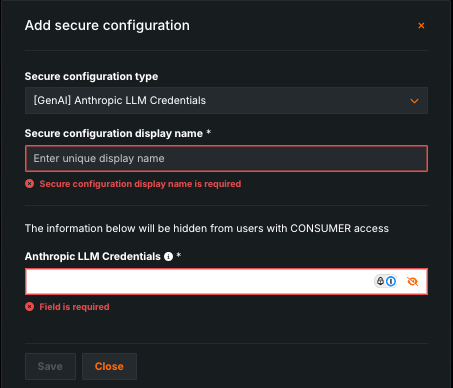
Field Description Secure configuration type From the dropdown, select the credential provider. For ease in locating provider options, enter GenAIin the search field. Example:[GenAI] Anthropic LLM CredentialsSecure configuration display name Enter the display name, listed in each provider section below. Example: genai-anthropic-llm-credentialsLLM Credentials Add the credentials in JSON format by copying and pasting the JSON—from {to}—from the provider-specific configuration sections below. Be sure to update with your actual credentials. -
Click Save. The new secure configuration, with credentials, is added to the list of secure configurations.
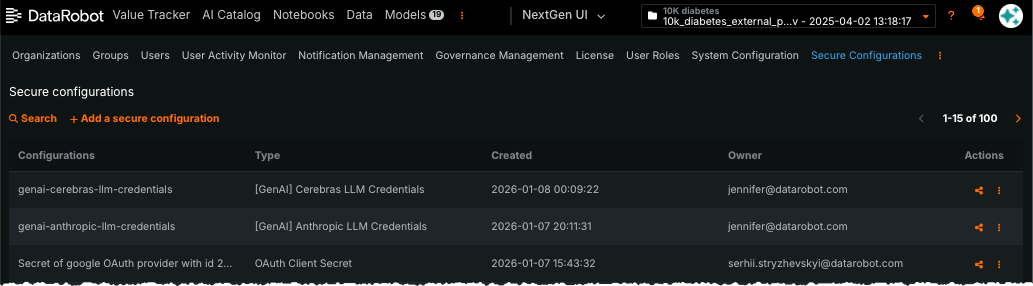
-
Under Actions in the configuration table, click the share icon to share the newly created config with the GenAI Admin system user (
genai-admin@datarobot.com). This user is automatically created during installation. You must assign either the Owner or Editor role to the admin.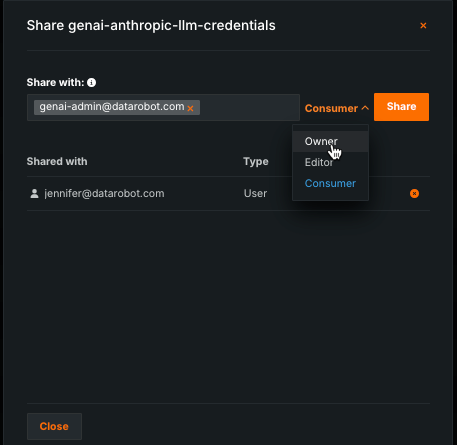
Note
The Generative AI Service caches credentials retrieved from secure configuration for a short period of time. When rotating credentials, it can take a few minutes for the new credentials to be applied.
Directly during installation
Note
Using this method, updating credentials requires reinstalling or updating DataRobot. Because the credentials are visible for the person performing the installation, this is considered a less secure and flexible way of setting up credentials for the service.
Credentials can be specified directly in the buzok-llm-gateway configuration section. Secure configuration won't be used in this case. The example below is how a configuration for AWS credentials; exact keys differ for various providers, see the provider-specific configuration sections for credentials structure details:
buzok-llm-gateway:
  enabled: true
  llmGateway:
    providers:
      aws:
        enabled: true
        credentialsSecureConfigName: ""
        credentials:
          endpoints:
          - region: "<aws_region>"
            access_key_id: "<aws_access_key_id>"
            secret_access_key: "<aws_secret_access_key>"
Provider-specific configuration
The following sections describe configuration for supported providers:
- Azure OpenAI
- Amazon Bedrock
- Google Gemini Enterprise Agent Platform (formerly Vertex AI)
- Anthropic
- Cerebras
- TogetherAI
Azure OpenAI
Azure OpenAI models must be configured with specific deployment names, where deployment name can be:
- Equal to the model name, for example, a deployment for the
gpt-35-turbo-16kmodel can be namedgpt-35-turbo-16k. - Different from the model name, such as creating a deployment named
gpt-4o-2024-11-20for the modelgpt-4o.
For a list of deployment names, see the chat model ID on the Azure OpenAI LLM availability page.
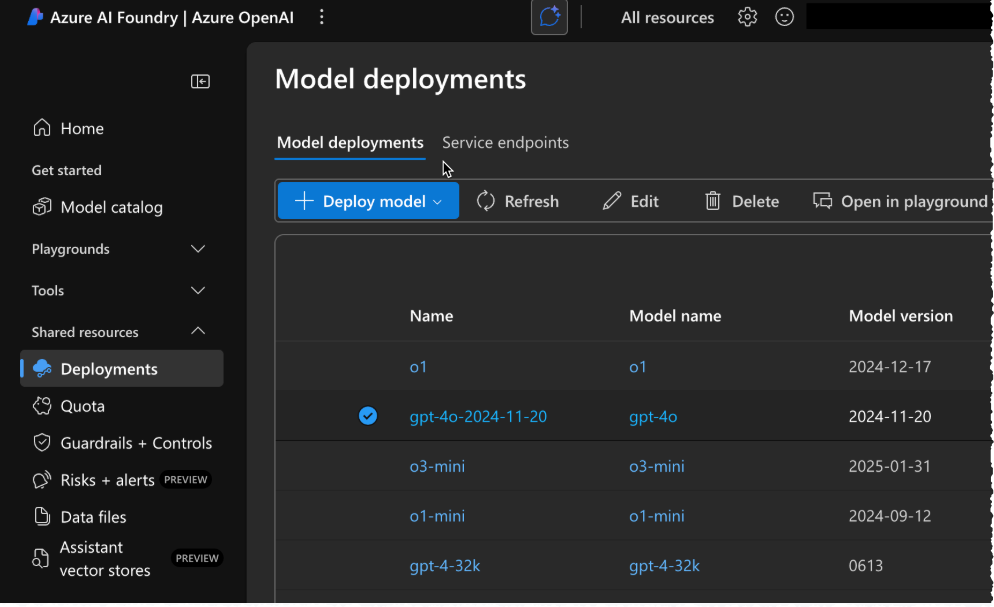
After configuring an Azure OpenAI LLM deployment, format the credentials using the following JSON structure.
API key authentication
| Field | Description |
|---|---|
region |
Azure region code for the deployment. |
api_type |
Must be azure. |
api_base |
Base URL for the Azure OpenAI resource (for example, https://<your-llm-deployment-endpoint>.openai.azure.com/). |
api_version |
Azure OpenAI REST API version. |
api_key |
API key for the Azure OpenAI resource. |
{
    "endpoints": [
        {
            "region": "<region-code>",
            "api_type": "azure",
            "api_base": "https://<your-llm-deployment-endpoint>.openai.azure.com/",
            "api_version": "2024-10-21",
            "api_key": "<your-api-key>"
        }
    ]
}
Service principal and managed identity
In addition to API keys, the LLM gateway can authenticate to Azure OpenAI with a Microsoft Entra ID service principal or with managed identity (including Kubernetes workload identity). These approaches let you use Entra-based access and reduce reliance on long-lived API keys stored in DataRobot.
Assign the Cognitive Services OpenAI User role to the service principal or managed identity on the Azure AI Foundry resource (or equivalent Cognitive Services resource) where model deployments are hosted. See Azure OpenAI role-based access control.
Service principal: include the fields below on each endpoint (omit api_key if you authenticate only with the service principal).
| Field | Description |
|---|---|
region |
Azure region code for the deployment. |
api_type |
Must be azure. |
api_base |
Base URL for the Azure OpenAI resource. |
api_version |
Azure OpenAI REST API version. |
tenant_id |
Microsoft Entra tenant (directory) ID. |
client_id |
Application (client) ID of the Entra app registration. |
client_secret |
Client secret for the app registration. |
azure_scope |
Optional. OAuth2 scope for token requests; omit to use gateway defaults. Example: https://cognitiveservices.azure.com/.default |
api_key |
Optional. If present with service principal fields, the gateway uses the API key first (see credential precedence below). |
{
    "endpoints": [
        {
            "region": "<region-code>",
            "api_type": "azure",
            "api_base": "https://<your-llm-deployment-endpoint>.openai.azure.com/",
            "api_version": "2024-10-21",
            "tenant_id": "<entra-tenant-id>",
            "client_id": "<app-client-id>",
            "client_secret": "<client-secret>",
            "azure_scope": "https://cognitiveservices.azure.com/.default"
        }
    ]
}
Managed identity: each endpoint still supplies region, api_type, api_base, and api_version in JSON. For managed identity only, omit api_key and service principal fields; the gateway reads tokens from the pod environment.
| Field | Description |
|---|---|
region |
Azure region code for the deployment. |
api_type |
Must be azure. |
api_base |
Base URL for the Azure OpenAI resource. |
api_version |
Azure OpenAI REST API version. |
| Environment variable | Description |
|---|---|
AZURE_TENANT_ID |
Microsoft Entra tenant ID (injected on LLM gateway pods). |
AZURE_CLIENT_ID |
Client ID of the user-assigned managed identity (or application used with federated credentials). |
AZURE_FEDERATED_TOKEN_FILE |
Path to the projected OIDC token file (workload identity). |
If an endpoint object includes more than one authentication method, the gateway selects credentials in this order: API key, then service principal fields (tenant_id, client_id, client_secret), then managed identity using the environment variables above.
When creating a secure configuration with these credentials, use:
| Field | Value |
|---|---|
| Secure configuration type | [GenAI] Azure OpenAI LLM Credentials |
| Secure configuration display name | genai-azure-llm-credentials |
Note
Currently, "2024-10-21" is the latest stable version of the Azure API. To use the latest models, you may be required to use a preview version of the API. Refer to the official Azure API documentation for details on Azure Inference API versions.
The secure configuration section for Azure should follow the YAML structure outlined below:
buzok-llm-gateway:
  enabled: true
  llmGateway:
    providers:
      azure:
        enabled: true
        credentialsSecureConfigName: genai-azure-llm-credentials
Amazon Bedrock
The Generative AI Service supports the various first-party (e.g., Amazon Nova) and third-party (e.g., Anthropic Claude, Meta Llama, and Mistral) models from Amazon Bedrock.
There are two options of setting up Amazon Bedrock models:
- IAM roles
- Static AWS credentials
Using IAM roles (IRSA) is recommended as it is a more secure option. This is because it uses dynamic short-lived AWS credentials. However, if your Kubernetes cluster is not in the AWS cloud, setting up this authorization mechanism requires setting up Workload Identity Federation. For this reason, the Generative AI Service also supports static AWS credentials. For security reasons, when using static credentials, it is recommended to create a separate AWS user that only has permissions to access AWS Bedrock.
After enabling model access in AWS Bedrock, format the credentials using the following JSON structure for using static credentials:
{
    "endpoints": [
        {
            "region": "<your-aws-region, e.g. us-east-1>",
            "access_key_id": "<your-aws-key-id>",
            "secret_access_key": "<your-aws-secret-access-key>",
            "session_token": null,
        }
    ]
}
Use the following JSON structure when using a role different from IRSA (ensure there is a policy that allows IRSA to assume this role):
{
    "endpoints": [
        {
            "region": "<your-aws-region, e.g. us-east-1>",
            "role_arn": "<your-aws-role-arn>"
        }
    ]
}
Using IRSA to access Bedrock is available in 11.1.2 and later. Set "use_web_identity": true to use AssumeRoleWithWebIdentity from the pod's service account token.
{
    "endpoints": [
        {
            "region": "<your-aws-region, e.g. us-east-1>",
            "role_arn": "<your-aws-role-arn>",
            "use_web_identity": true
        }
    ]
}
Using FIPS-enabled endpoints is available in 11.1.2 and later. Set "use_fips_endpoint": true to do that. Note, that model availability may vary between FIPS-enabled and regular endpoints.
{
    "endpoints": [
        {
            "region": "<your-aws-region, e.g., us-east-1>",
            "role_arn": "<your-aws-role-arn>",
            "use_fips_endpoint": true
        }
    ]
}
Single-tenant SaaS (STS) configuration
For single-tenant SaaS (STS) installations, the Bedrock credential configuration differs from the standard IRSA setup. Use the following JSON structure:
{
    "endpoints": [
        {
            "region": "<your-aws-region, e.g. us-east-1>",
            "role_arn": "<customer-aws-role-arn>"
        }
    ]
}
Note the following differences from the standard IRSA configuration:
- The
role_arnvalue must be the IAM role on the customer's AWS account—not the IAM role currently used by the STS cluster. - Do not include
use_web_identityin the configuration. The STS cluster handles authentication through its own role assumption mechanism rather than web identity federation.
When creating a secure configuration with these credentials, use:
| Field | Value |
|---|---|
| Secure configuration type | [GenAI] AWS Bedrock LLM Credentials |
| Secure configuration display name | genai-aws-llm-credentials |
The secure configuration section for Amazon Bedrock should follow the YAML structure outlined below:
buzok-llm-gateway:
  enabled: true
  llmGateway:
    providers:
      aws:
        enabled: true
        credentialsSecureConfigName: genai-aws-llm-credentials
Google Gemini Enterprise Agent Platform (formerly Vertex AI)
The Generative AI Service supports multiple models from Google Gemini Enterprise Agent Platform (formerly Vertex AI), including first-party Gemini models and third-party Claude/Llama/Mistral models.
After provisioning the model, you should receive a JSON file with access credentials. To provide credentials to DataRobot Generative AI, format the contents using the following JSON structure:
{
    "endpoints": [
        {
            "region": "us-central1",
            "service_account_info": {
                "type": "service_account",
                "project_id": "<your-project-id>",
                "private_key_id": "<your-private-key>",
                "private_key": "----- <your-private-key>-----\n",
                "client_email": "<your-email>.iam.gserviceaccount.com",
                "client_id": "<your-client-id>",
                "auth_uri": "https://accounts.google.com/o/oauth2/auth",
                "token_uri": "https://oauth2.googleapis.com/token",
                "auth_provider_x509_cert_url": "https://www.googleapis.com/oauth2/v1/certs",
                "client_x509_cert_url": "https://<your-cert-url>.iam.gserviceaccount.com",
                "universe_domain": "googleapis.com"
            }
        }
    ]
}
When creating a secure configuration with these credentials, use:
| Field | Value |
|---|---|
| Secure configuration type | [GenAI] Google VertexAI LLM Credentials |
| Secure configuration display name | genai-gcp-llm-credentials |
The secure configuration section for Google Gemini Enterprise Agent Platform (formerly Vertex AI) should follow the YAML structure outlined below:
buzok-llm-gateway:
  enabled: true
  llmGateway:
    providers:
      google:
        enabled: true
        credentialsSecureConfigName: genai-gcp-llm-credentials
Anthropic
The Generative AI Service provides first-party integration with Anthropic, giving access to various Claude models.
To configure access to Anthropic, provide the API key using the following JSON structure:
{
    "endpoints": [
        {
            "region": "us",
            "api_key": "<your-anthropic-api-key>"
        }
    ]
}
When creating a secure configuration with these credentials, use:
| Field | Value |
|---|---|
| Secure configuration type | [GenAI] Anthropic LLM Credentials |
| Secure configuration display name | genai-anthropic-llm-credentials |
The secure configuration section for Anthropic should follow the YAML structure outlined below:
buzok-llm-gateway:
  enabled: true
  llmGateway:
    providers:
      anthropic:
        enabled: true
        credentialsSecureConfigName: genai-anthropic-llm-credentials
Cerebras
The Generative AI Service provides integration with Cerebras, giving access to high-performance inference models.
To configure access to Cerebras, sign in to the Cerebras platform and create a new API key. Format the credentials using the following JSON structure:
{
    "endpoints": [
        {
            "region": "global",
            "api_key": "<your-cerebras-api-key>"
        }
    ]
}
When creating a Secure Configuration with these credentials, use:
| Field | Value |
|---|---|
| Secure configuration type | [GenAI] Cerebras LLM Credentials |
| Secure configuration display name | genai-cerebras-llm-credentials |
The secure configuration section for Cerebras should follow the YAML structure outlined below:
buzok-llm-gateway:
  enabled: true
  llmGateway:
    providers:
      cerebras:
        enabled: true
        credentialsSecureConfigName: genai-cerebras-llm-credentials
TogetherAI
The Generative AI Service provides integration with TogetherAI, offering access to a wide range of open-source language models.
To configure access to TogetherAI, sign in to the TogetherAI console and create a new API key. Format the credentials using the following JSON structure:
{
    "endpoints": [
        {
            "region": "global",
            "api_key": "<your-togetherai-api-key>"
        }
    ]
}
When creating a Secure Configuration with these credentials, use:
| Field | Value |
|---|---|
| Secure configuration type | [GenAI] TogetherAI LLM Credentials |
| Secure configuration display name | genai-togetherai-llm-credentials |
The secure configuration section for TogetherAI should follow the YAML structure outlined below:
buzok-llm-gateway:
  enabled: true
  llmGateway:
    providers:
      togetherai:
        enabled: true
        credentialsSecureConfigName: genai-togetherai-llm-credentials