Operate deployed Workloads
The Console exposes day-to-day operations on a deployed Workload through the Settings tab and the Actions menu (). For the Workload list and the full inventory of actions, see View deployed Workloads. For the change-event operations (Promote and Replace artifact), see Update deployed Workloads.
Edit importance, name, and description
On the deployed Workload's Overview tab, edit importance, name, and description—see View deployed Workloads. Inline edits use PATCH /workloads/{workload_id}; for the JSON shape and merge semantics, see Runtime settings: Importance and metadata.
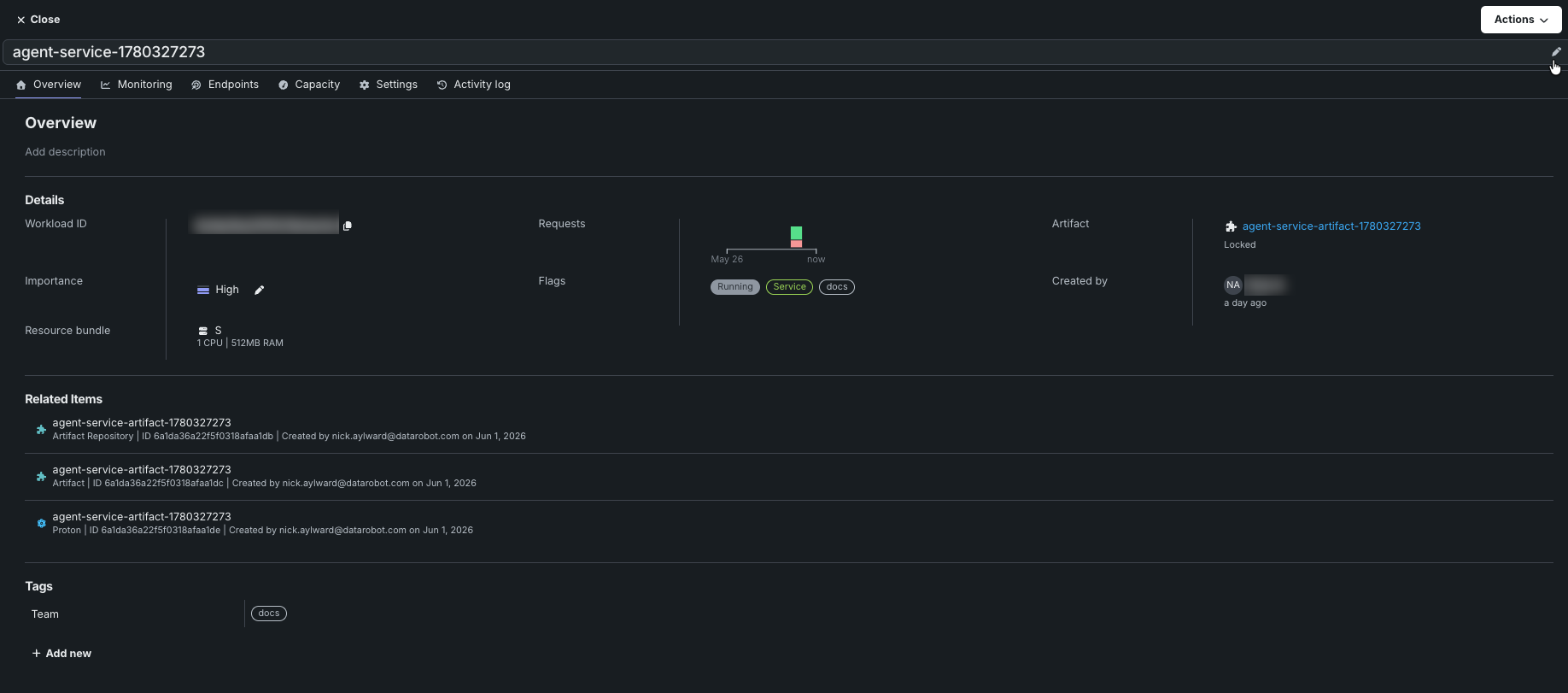
In addition, in the Tags section, click + Add new to add a tag. Tags are user-defined key/value pairs. The Service artifacts page is filterable by tags.
Configure autoscaling settings
The Settings tab on a deployed Workload exposes a Compute management section for configuring autoscaling. Saving changes calls PATCH /workloads/{workload_id}/settings, which queues a rolling replacement using the strategies in Replace and roll out.
On the Settings tab, the Compute management section provides two tabs for, one for each scaling strategy: Fixed and Auto.
On the Fixed tab, set the Replica count for the Workload. The replica count must be at least 1; the default when no value is specified is 1.
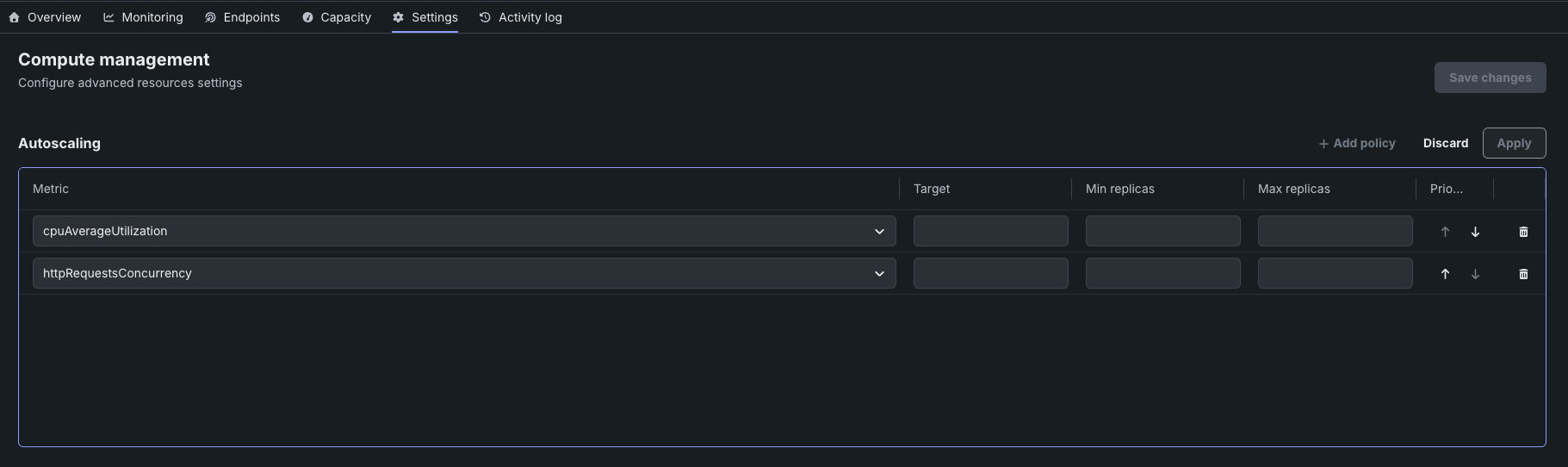
On the Auto tab, set the scaling Policies. Use the Policies table to define scaling policies that adjust the Workload's replica count based on observed metrics. When a policy's metric exceeds its target, DataRobot adds replicas (up to the maximum); when the metric falls back under the target, replicas are removed (down to the minimum). A Workload can have multiple policies; each row in the Autoscaling table is one policy.
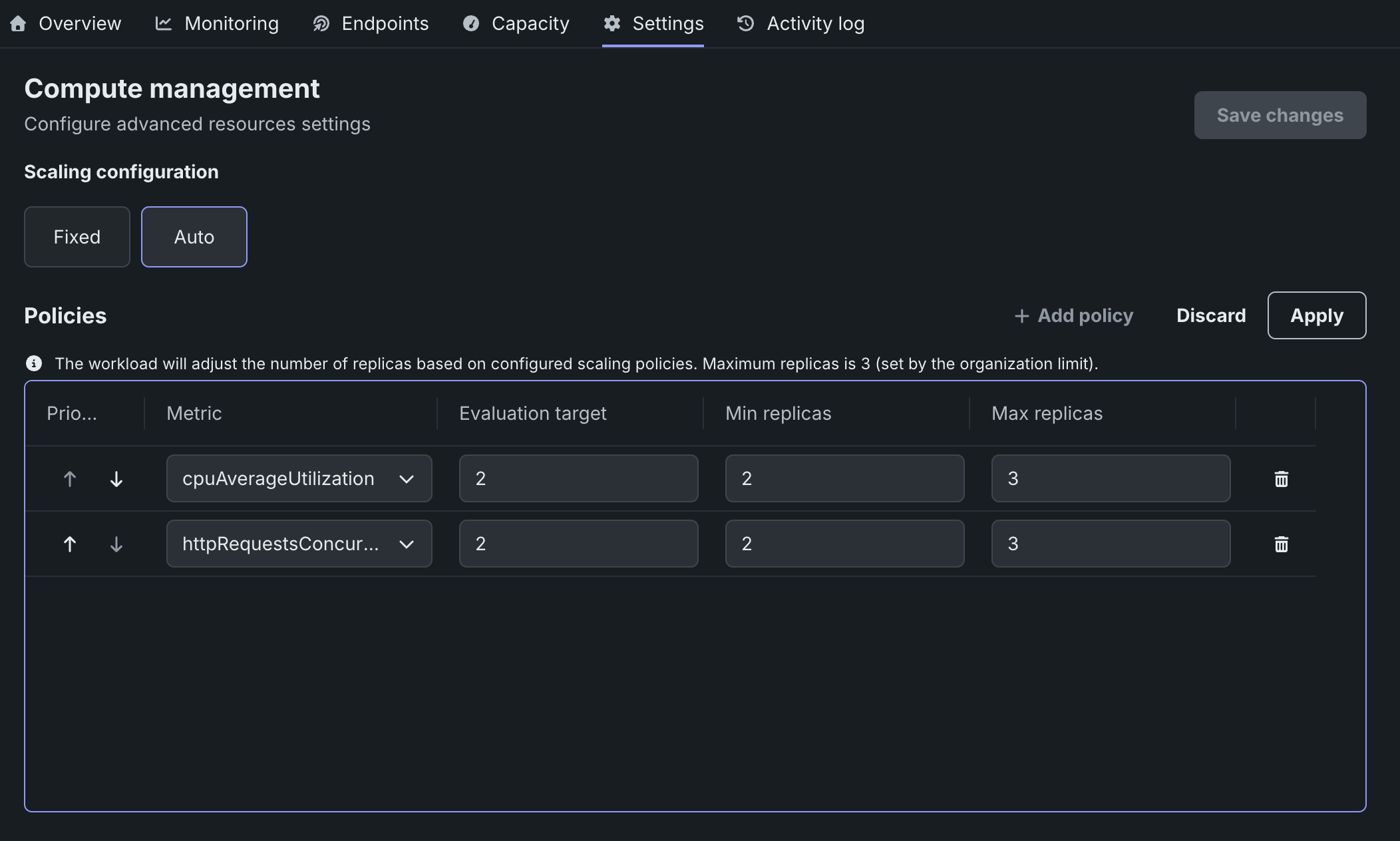
To add a policy, click Add policy on the Policies table and configure the following columns:
| Column | Description |
|---|---|
| Priority | The evaluation order when more than one policy is defined; used to decide which policy wins when multiple metrics trigger simultaneously. |
| Metric | The metric that triggers scaling. Supported values: CPU utilization (cpuAverageUtilization), HTTP requests concurrency (httpRequestsConcurrency—scales to zero when the proton is idle), GPU cache utilization (gpuCacheUtilization, NIM artifacts only), and GPU request queue depth (gpuRequestQueueDepth, NIM artifacts only). |
| Target | The threshold value for the selected metric. |
| Min replicas | The lowest number of replicas the autoscaler scales down to. |
| Max replicas | The highest number of replicas the autoscaler scales up to. |
After adding or editing a policy, click Apply, then click Save changes in the upper-right corner of the tab. The save triggers PATCH /workloads/{workload_id}/settings, which queues a rolling replacement. For the underlying AutoscalingPolicy schema, the full scaling-metric reference (including scale-to-zero for httpRequestsConcurrency), additional runtime fields, and the per-container vs. per-Workload resource layering, see Runtime settings and Scaling metrics.
Share a Workload
The Share action edits sharedRoles on the Workload, granting access to users, groups, or organizations. To open the Share dialog, click Share from the Workload's row actions menu () or from the Actions menu () in the top-right of the deployed Workload's detail view.
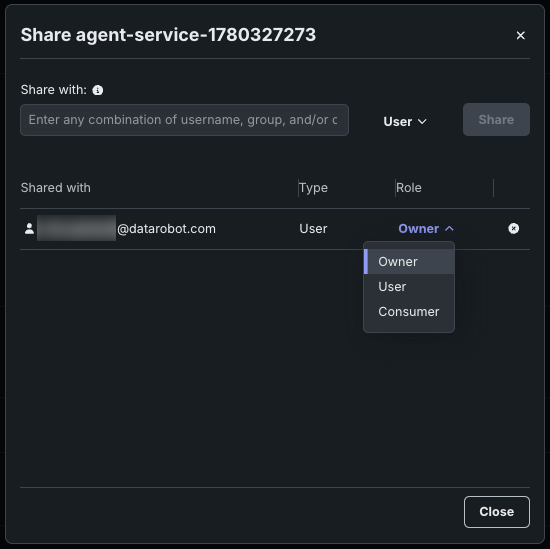
Workloads support the OWNER, EDITOR, and OBSERVER roles for new integrations; additional legacy aliases are accepted. Shared roles propagate to events, statistics, and the /protons/ sub-resource so collaborators see the same telemetry and lifecycle as owners.
For the full role list, propagation rules, and shareRecipientType options (user, group, organization, role), see Sharing and access control.
Run lifecycle actions
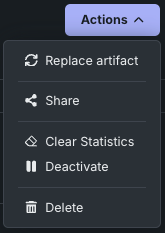
The Workload row's actions menu () on the Console > Deployed workloads page's Service tab, and the Actions menu () on the deployed Workload's detail view, expose the following lifecycle and governance actions:
| Action | Description |
|---|---|
| Clear statistics | Resets the Workload's stats counters to a clean baseline. Calls DELETE /workloads/{workload_id}/stats. The same endpoint also supports scoping by protonId, startTime, and endTime for partial resets—see Reset Workload stats. |
| Deactivate | Stops the Workload's underlying proton without deleting the Workload. Calls POST /workloads/{workload_id}/stop; the Workload object and its metadata persist, and you can restart it later. Restarting a draft Workload resets the 8-hour TTL. |
| Delete | Permanently removes the Workload, including its protons and invoke routing. Calls DELETE /workloads/{workload_id}. Use Deactivate when you want to pause execution but keep the Workload object. |
For the underlying API behavior, status transitions, draft TTL interactions, and the restart flow for a stopped Workload, see Lifecycle actions. For more information on the promotion and replacement actions, see Update deployed Workloads.