Agentic chatting and compare
Chatting with an agent primarily involves testing the agent's output against expectations—it allows human evaluation of responses. In contrast to RAG playground chats where "conversations" with follow-up questions and prompts occur, in the agentic playground chat you provide prompts and assess if the responses aligns with desired outcomes. Did the applied playground metrics and tools create the output you expected? Agentic chatting does not include context-aware capabilities, and so while a "chat" is a collection of chat prompts, each response is individual and not dependent on previous responses.
Single- vs multi-agent chats
A single agent chat is accessed by clicking the agent tile (not the checkbox) in the Agentic playground > Workflows tab.
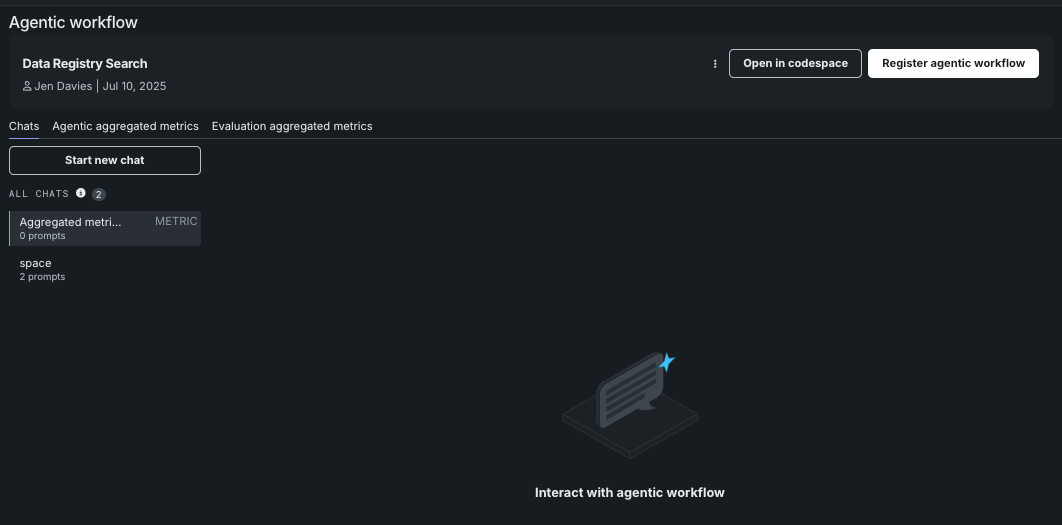
To return to the multi-agent view, click the Agentic playground tile (or the back arrow above).
A multi-agent chat:
- Is accessed from the Agentic playground > Workflows tab (1).
- Uses check boxes to select agents (2). Selecting only one of the agents does not make it a single-agent chat.
- Displays Agentic workflow comparison in the top of the chat window (3).
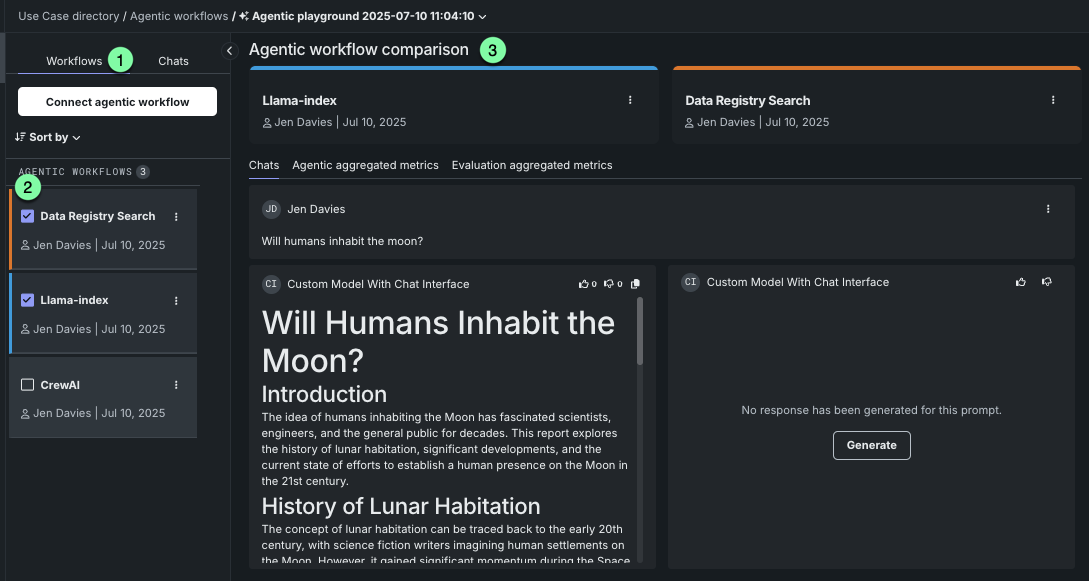
There is no functional difference between single- and multi-agent chat responses; however, tracing is available only in single-agent chats.
Entering and sending prompts
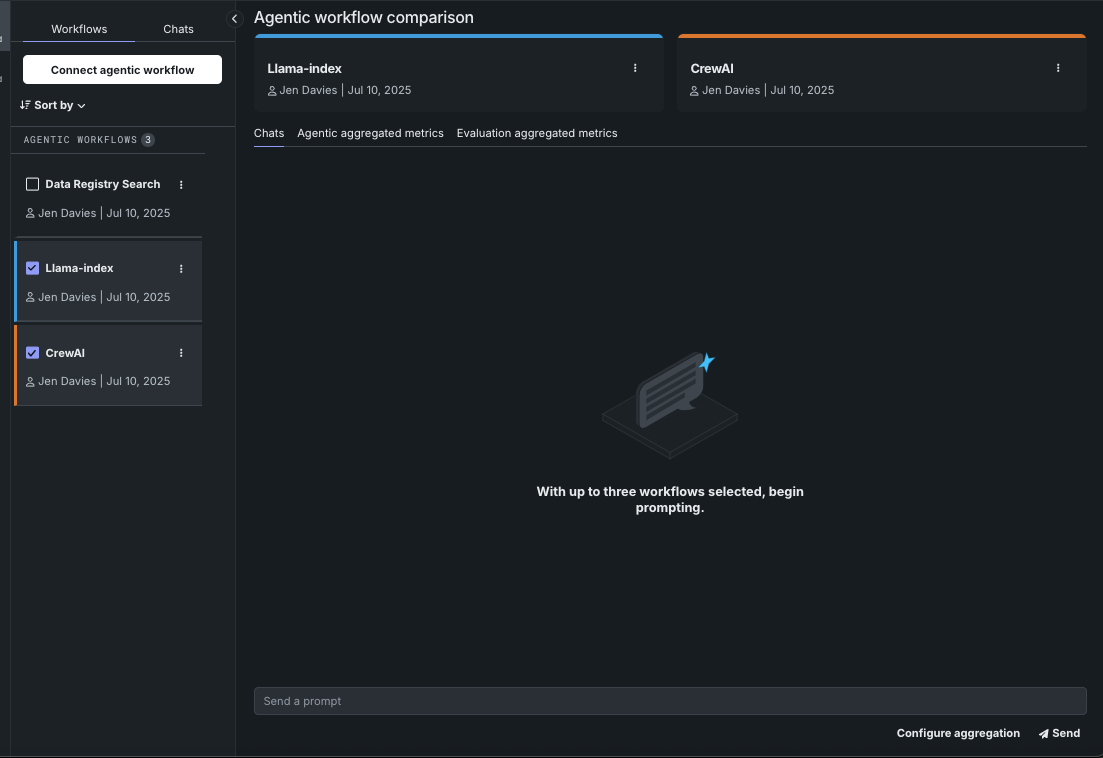
Enter a prompt to start a chat for either single or multi-agent chatting from the Agentic playground > Workflows tab. Click Send to request a response.
Agent actions
Most actions, with the exception of tracing are shared for both single- and multi-agent chats, as described in the sections and tables below.
Actions menu
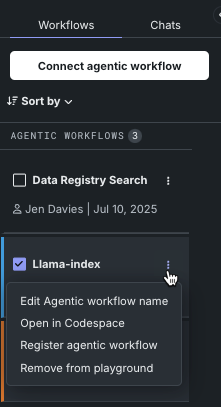
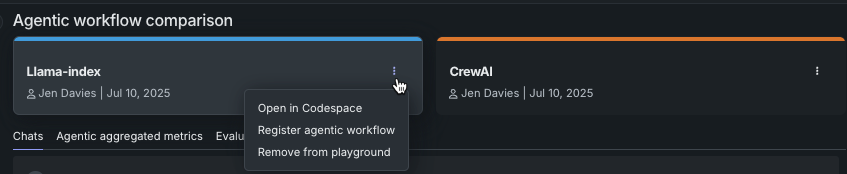
Click the actions menu either under the Workflows tab or within the chat window to act on the agent.
| Action | Description | Location |
|---|---|---|
| Edit agentic workflow name | Edit the display name of the agentic workflow. | Workflows tab action menu. |
| Open in codespace | Opens the agent in a codespace, where you can directly edit the existing files, upload new files, or use any of the codespace functionality. |
|
| Register agentic workflow | After experimenting in the agentic playground to build a production-ready agentic workflow, register the custom agentic workflow in the Registry workshop, in preparation for deployment to Console. |
|
| Remove from playground | Delete the agentic workflow from the playground. Removing an agentic workflow deletes it from the Use Case but does not delete it from Workshop. All playground-related information stored with the workflow, including metrics and chats, are also removed. |
|
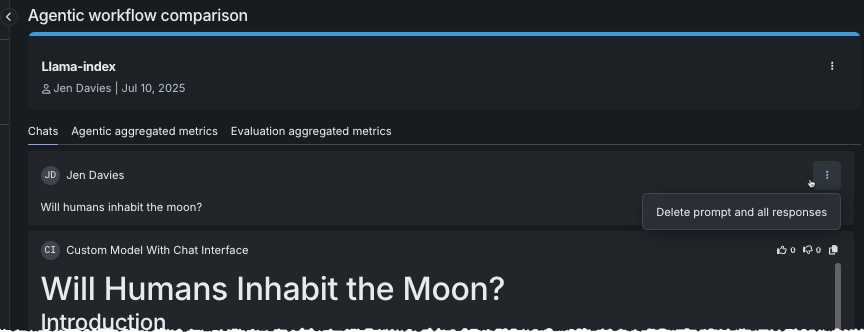
You can remove both the prompt and all responses from the chat history from within the Agentic workflow comparison window:
Aggregation tools
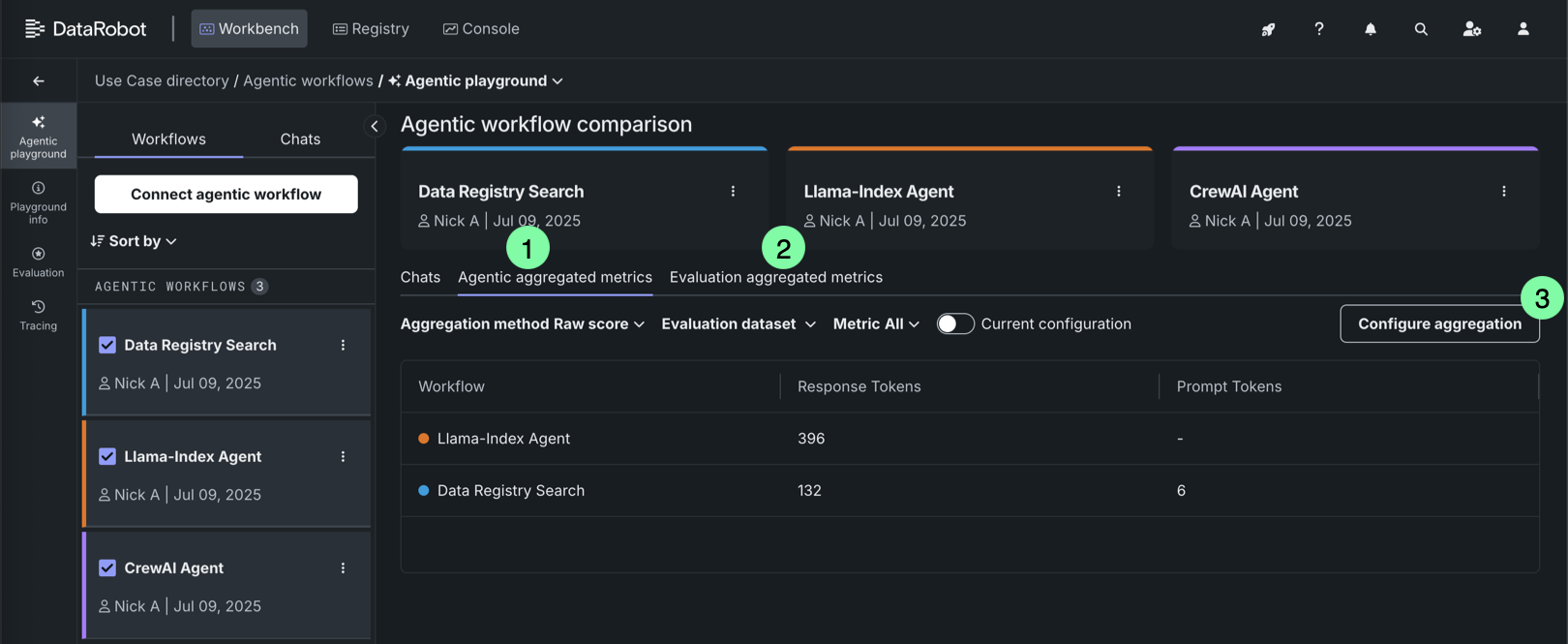
The following table lists the shared aggregation tools and tabs available:
| Element | Description | |
|---|---|---|
| 1 | Agentic aggregated metrics | View aggregated metrics and scores calculated not using an evaluation dataset. These metrics originate in the Registry workshop. |
| 2 | Evaluation aggregated metrics | View aggregated metrics and scores calculated using an evaluation dataset to provide a baseline for comparison. These metrics originate in the playground. |
| 3 | Configure aggregation | Combine metrics across many prompts and/or responses to get a more comprehensive approach to evaluation. |
Single-agent tracing
There are two types of agentic tracing available for single-agent chats. The output of the trace depends on the execution location.
From the actions menu, in the prompt header, select Open tracing table.
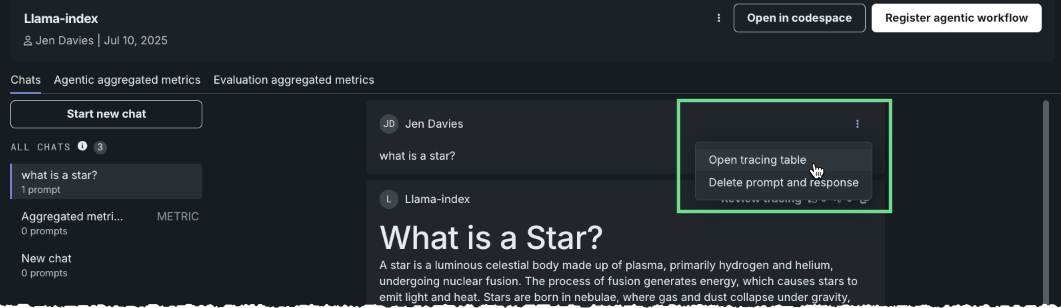
View a log that traces all components used in LLM response generation.

Click Review tracing in the response header:
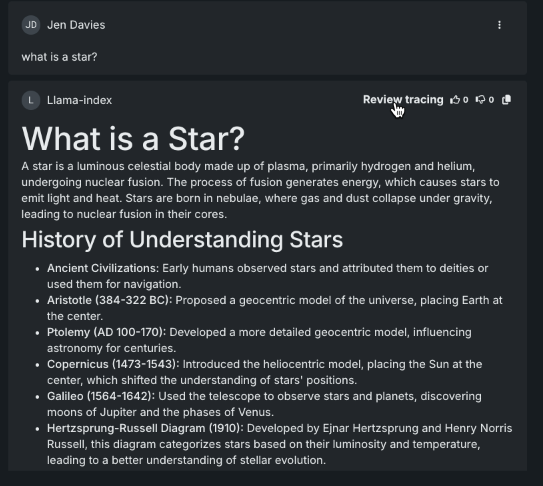
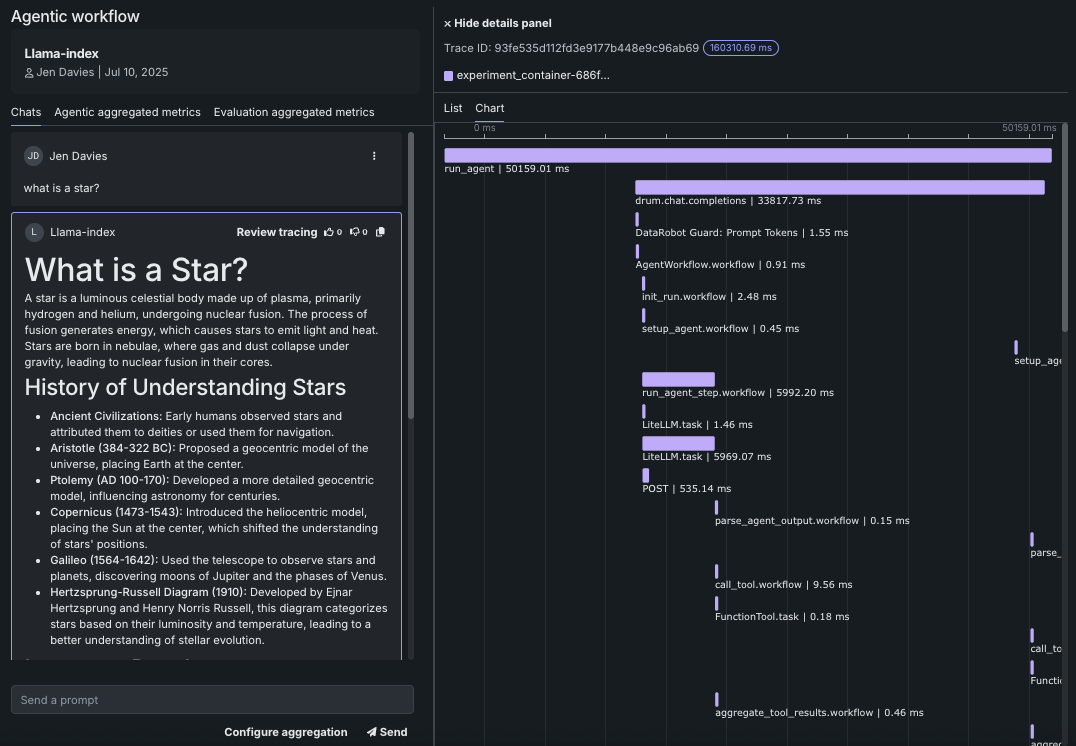
The tracing details panel opens.
| Location | Option | Description |
|---|---|---|
| Prompt header actions menu | Open tracing | Opens the tracing table log, which shows all components and prompting activity used in generating agentic responses. |
| Response header | Review tracing | Opens the tracing details panel, illustrating the path a single request takes through the agentic workflow. |
Response feedback
Use the response feedback "thumbs" to rate the prompt answer. Responses are recorded in the Tracing, tab User feedback column. The response, as part of the exported feedback sent to the AI Catalog, can be used, for example, to train a predictive model.