Work with agentic playgrounds
An agentic playground, a type of Use Case asset, is the space for connecting and interacting with agentic workflows. Within the playground you compare agentic workflow responses to determine which agent to use in production for solving a business problem. Multiple playgrounds can exist in one Use Case and multiple agentic workflows can exist within a single playground.
The suggested, simplified workflow for working with playgrounds is as follows:
- Add an agentic playground.
- Connect an agentic workflow.
- Chat with a single agent to test, tune, and view tracing or with multiple agents to compare results..
- Connect additional agentic workflows.
- Add datasets and metrics to a playground or to individual agentic workflows to evaluate responses.
Add an agentic playground
To add an agentic playground, create a Use Case (if a new Use Case is needed), then, in the left navigation bar, click the Playgrounds tile.
From the Playgrounds tab, the following options are available, depending on how many playgrounds already exist:
-
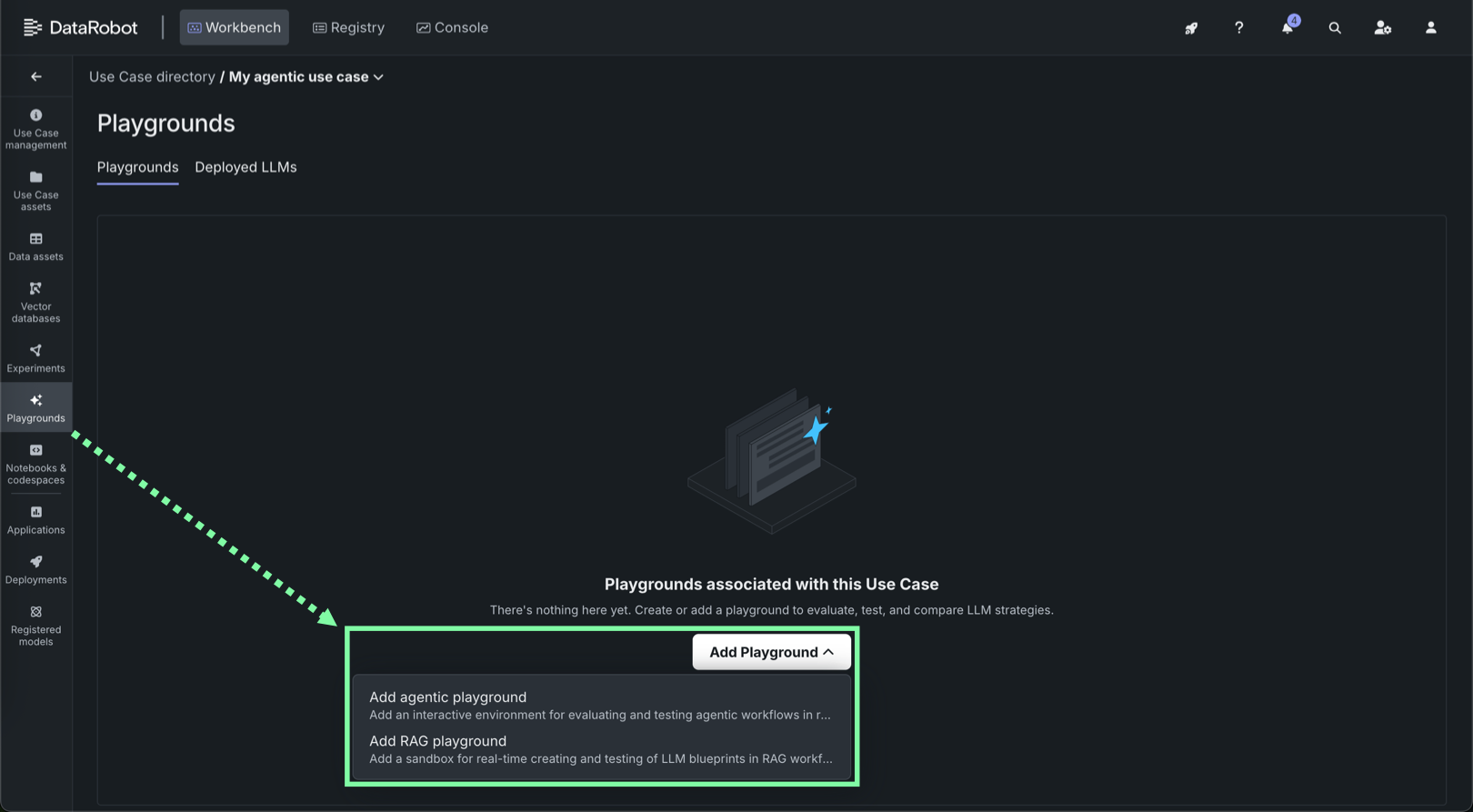
If you haven't added a playground yet, click the Add Playground dropdown in the center of the page, then click Add agentic playground. This button is only available for the first playground added to a Use Case; use the Add Playground dropdown for subsequent playgrounds.
-
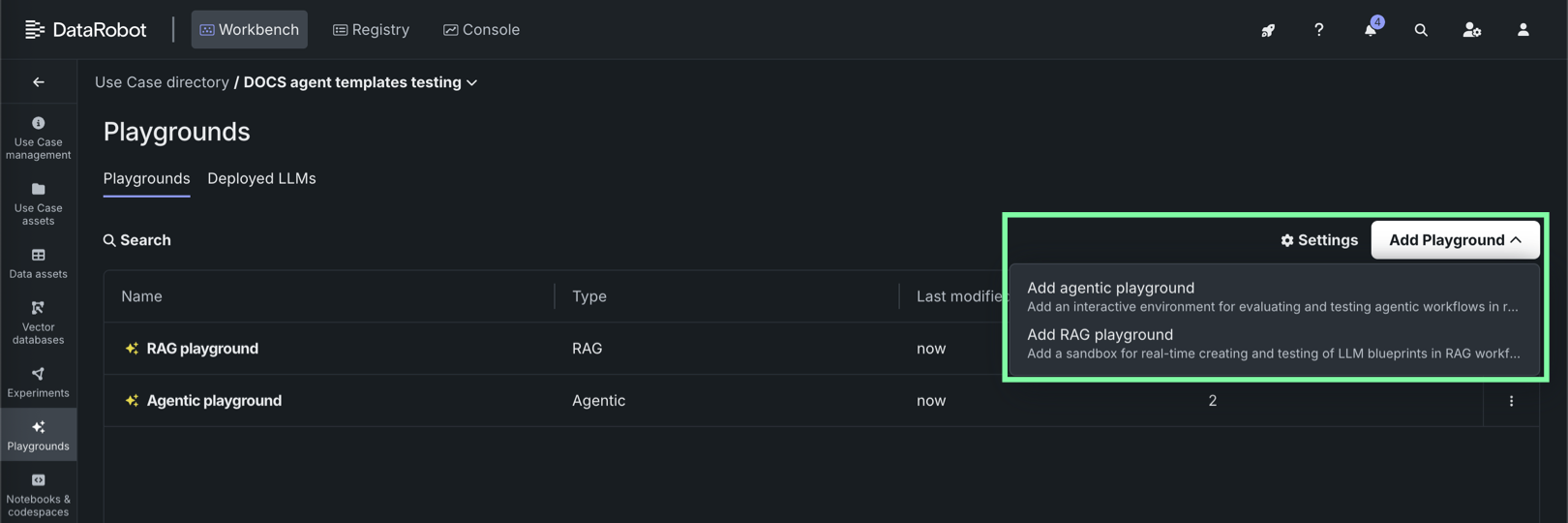
If you've already added one or more playgrounds (RAG or agentic), click the Add Playground dropdown in the upper-right corner of the page, then click Add agentic playground.
Playground naming
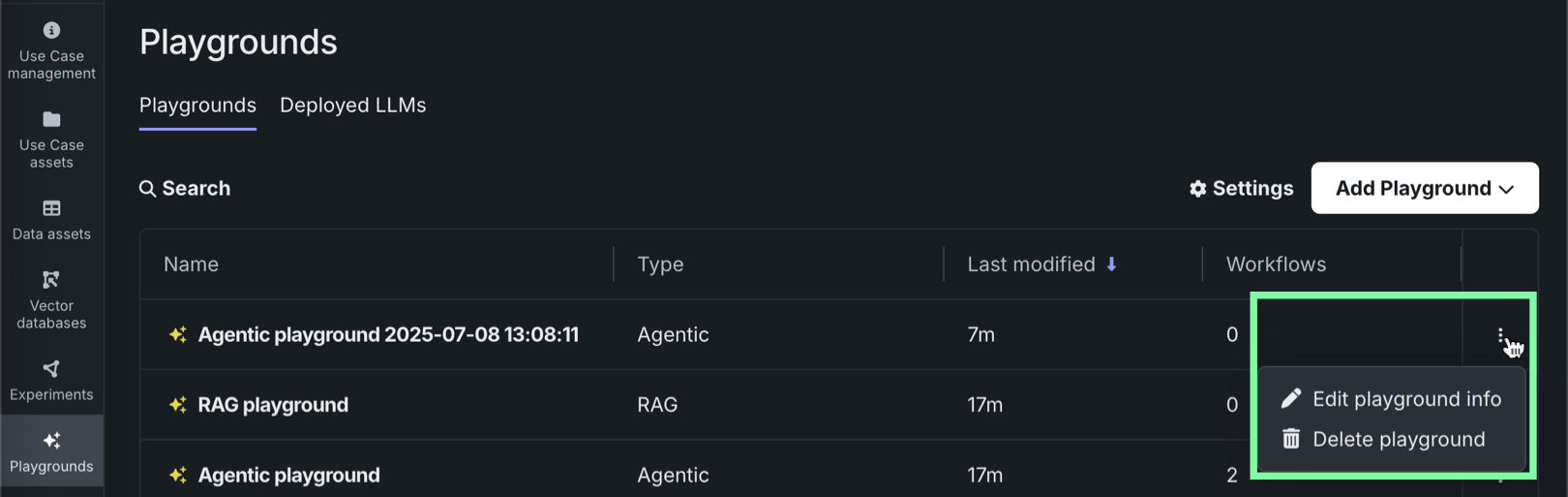
The playground is named, by default, Playground <timestamp>. You can change the name from the Use Case directory by choosing Edit playground info in the actions menu .
Navigate the playground
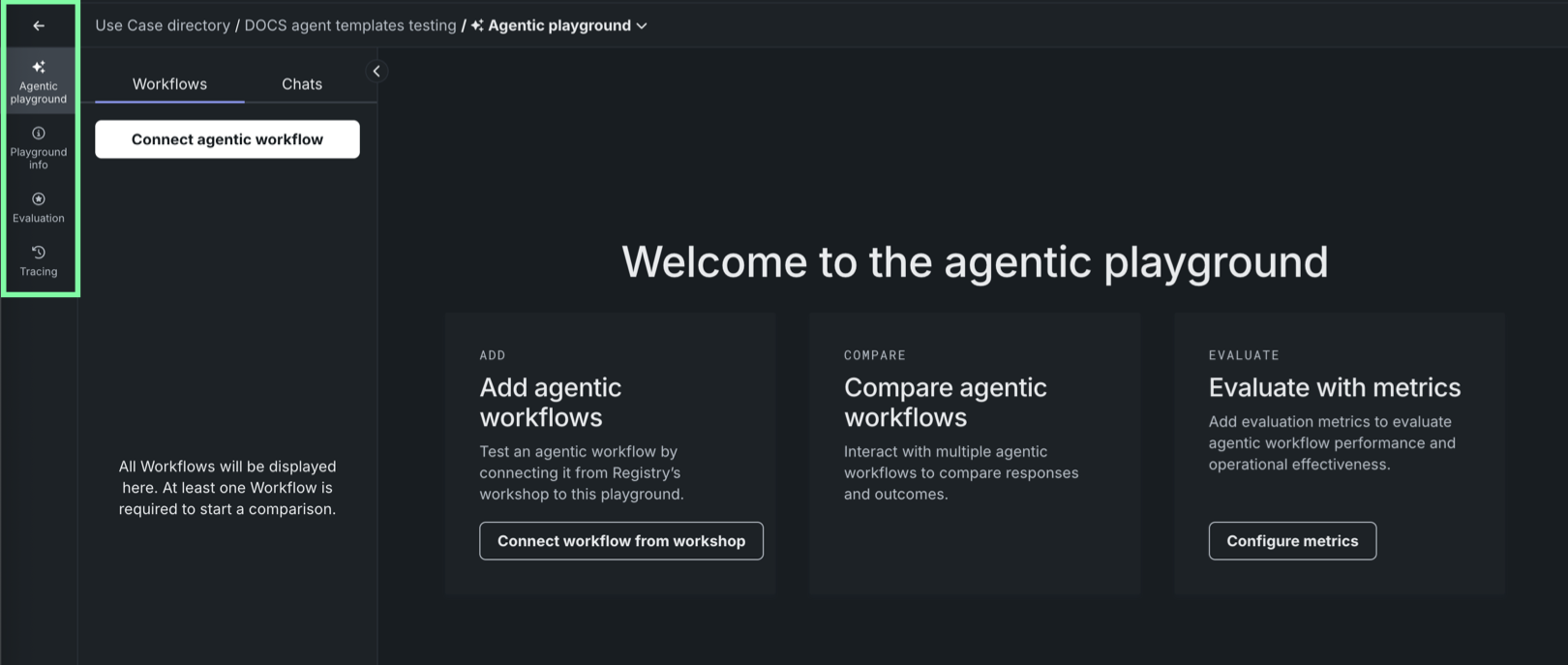
After you create and open an agentic playground, you can access several areas of the playground from the left navigation bar. Click the icons to navigate the playground:
| Icon | Component | Description |
|---|---|---|
 |
Agentic playground | Connect, compare, and chat with agentic workflows. |
| Playground info | Display playground summary information including the name, description, creation time and date, creator, last modification time and date, and number of agentic workflows. | |
| Evaluation* | Configure evaluation metrics in a playground. | |
| Tracing* | Display an exportable log that traces all components used in agent response generation. |
* Available only if LLM/agentic assessment is enabled.
Return to the Playgrounds tile
Also in the left navigation, you can click back to return to the Playgrounds tile in the current Use Case.
Connect an agentic workflow
Agentic workflows can be created manually in the Registry workshop, or programmatically using the agent templates in the public datarobot-agent-templates repository. This repository provides ready-to-use templates for building and deploying AI agents with multi-agent frameworks, streamlining the process of setting up your own agents—with minimal configuration requirements.
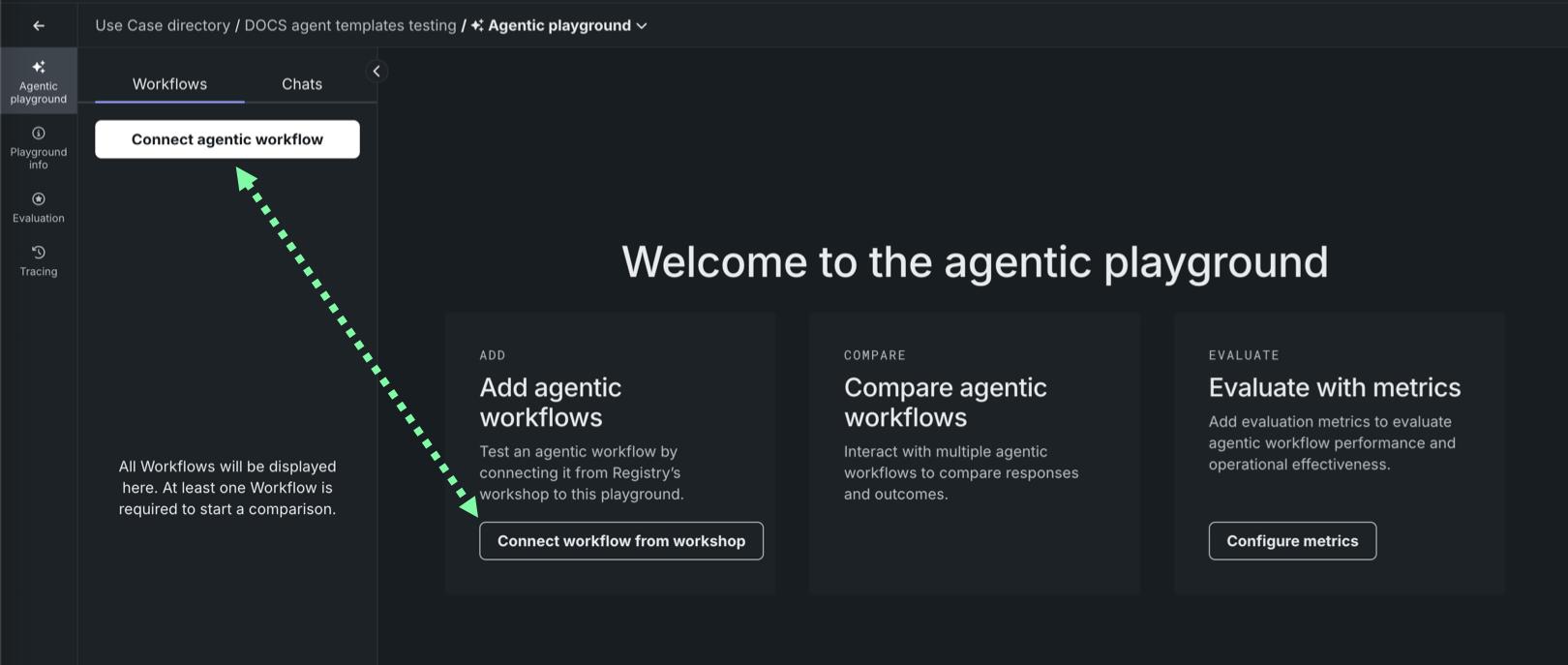
To connect an agentic workflow to a playground, select the Agentic playground tile and then the Workflows tab. The following options are available:
-
If you haven't added a workflow yet, click Connect workflow from workshop in the center of the page. This button is only available for the first workflow added to a playground.
-
If you've already added one or more workflows, click the Connect agentic workflow dropdown in the upper-left corner of the page.
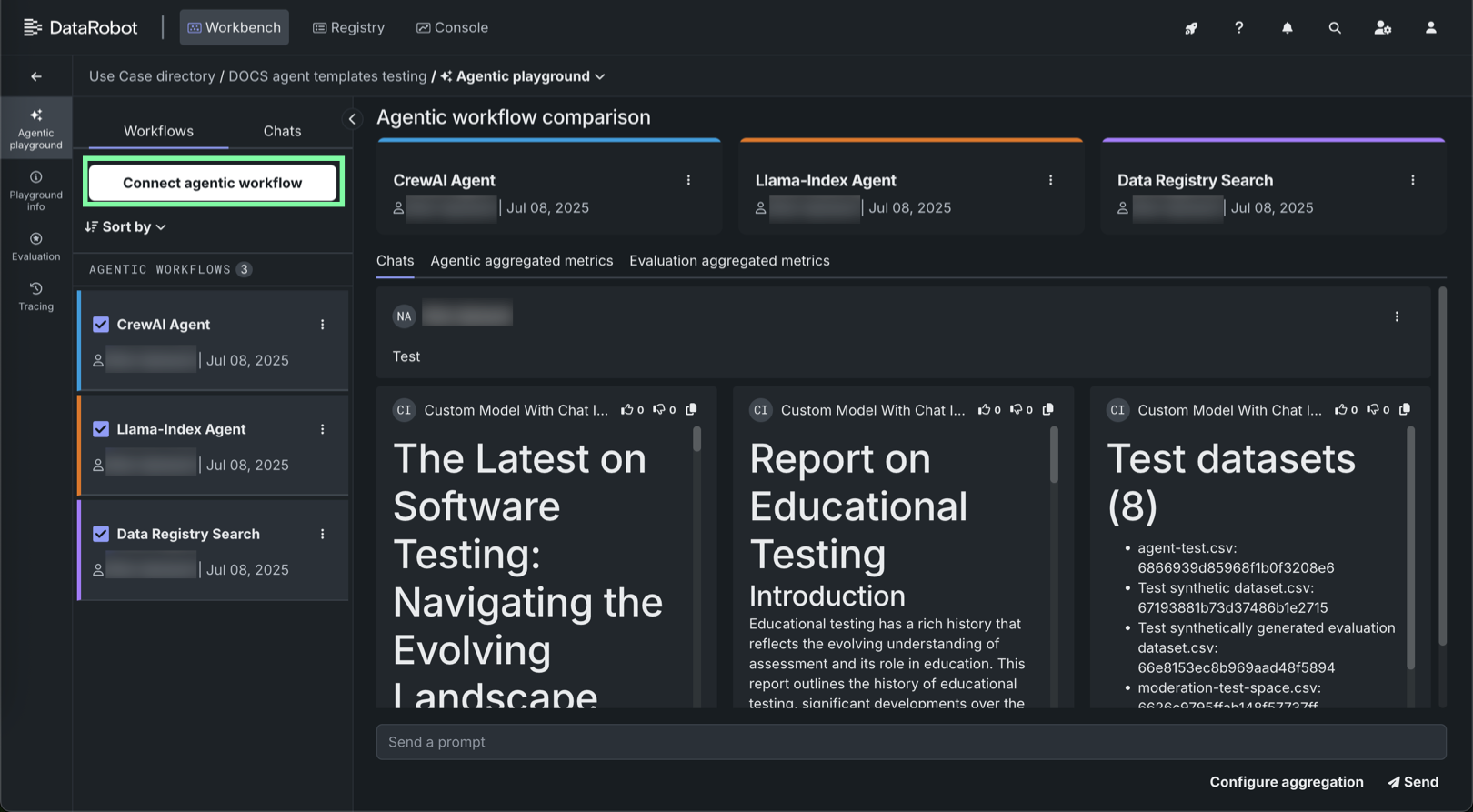
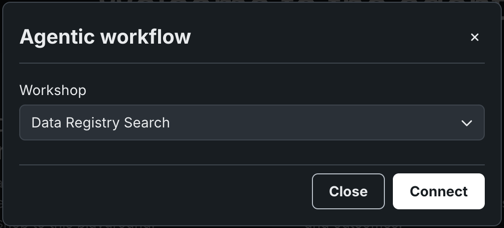
In the Agentic workflow modal, from the Workshop dropdown, select an agentic workflow that you previously assembled in the workshop, then click Connect.
Manage connected agentic workflows
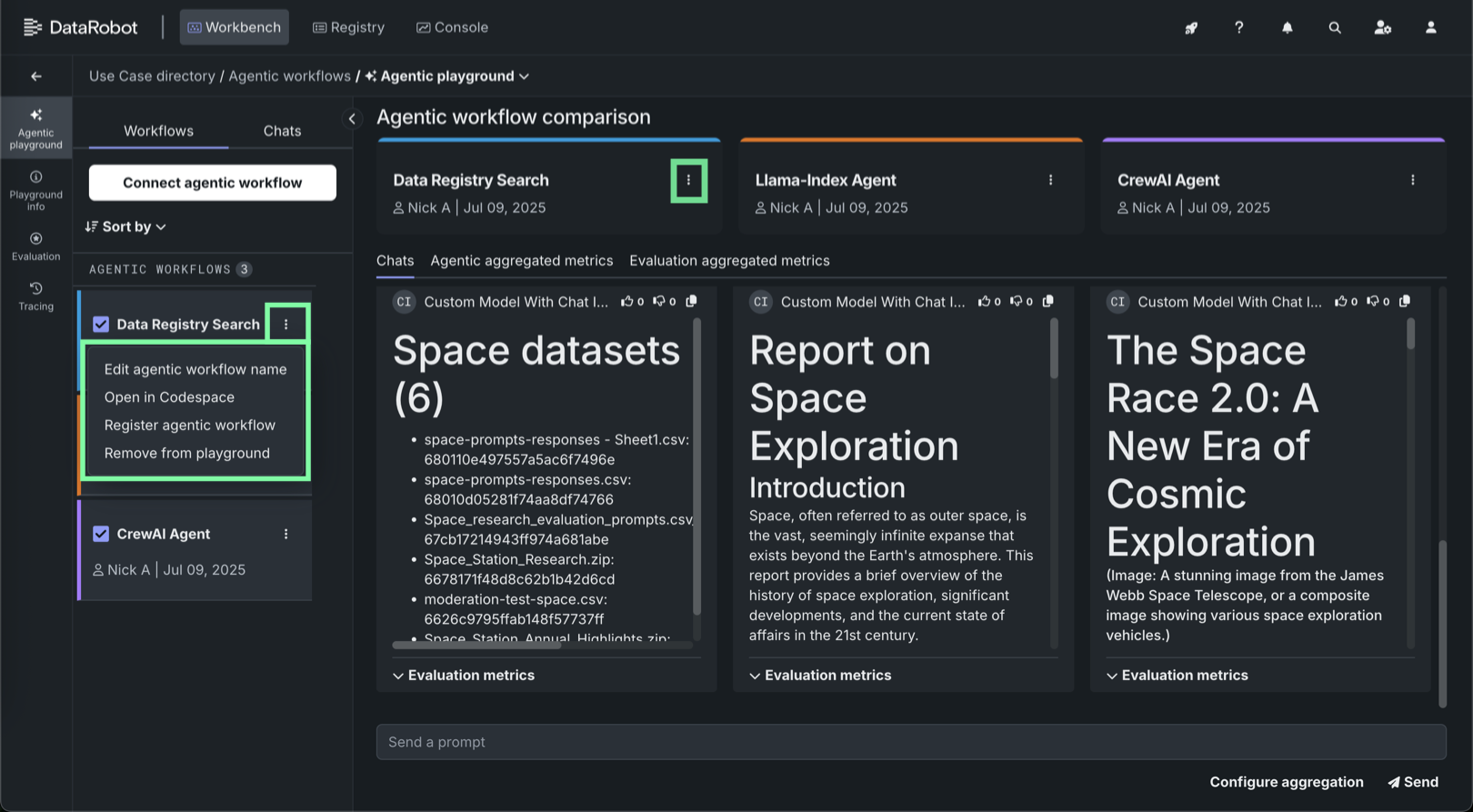
To access management actions for connected agentic workflows, click the actions menu for an agentic workflow, either in the Workflows panel, or in the header of the Agentic workflow comparison, next to the agent name.
| Action | Description |
|---|---|
| Edit agentic workflow name | Change the current name for the agentic workflow. The default name is the name defined in the Registry's Workshop. This option is only available in the actions menu in the Workflows panel. |
| Open in codespace | Open a codespace containing the agentic workflow's files to fine-tune the agentic workflow by editing the underlying code. |
| Register agentic workflow | Open the agentic workflow in the workshop to make any final changes to the configuration, register the workflow, and deploy to production. |
| Remove from playground | Disconnect the selected agentic workflow from the current playground. This does not remove the agentic workflow from the workshop, and you can restore the connection at any time. |