Deploy an LLM from the playground
Use an LLM playground in a Use Case to create an LLM blueprint. Set the blueprint configuration, specifying the base LLM and, optionally, a system prompt and vector database. After testing and tuning the responses, the blueprint is ready for registration and deployment.
You can create a text generation custom model by sending the LLM blueprint to Registry's workshop. The generated custom model automatically implements the Bolt-on Governance API, which is particularly useful for building conversational applications.
Follow the steps below to add the LLM blueprint to the workshop:
-
In a Use Case, from the Playgrounds tab, click the playground containing the LLM you want to register as a blueprint.
-
In the playground, compare LLMs to determine which LLM blueprint to send to the workshop, then do either of the following:
-
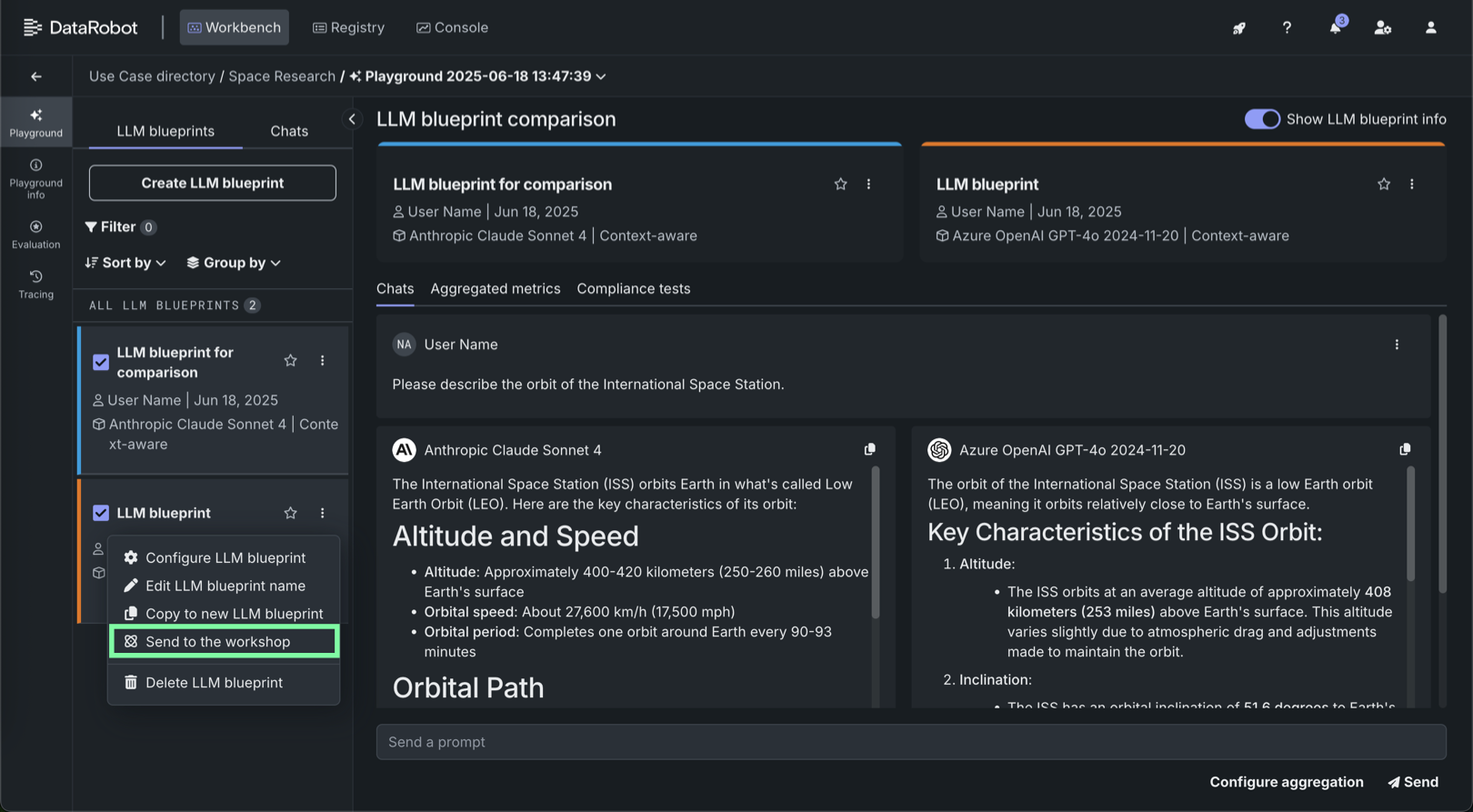
From the LLM blueprints tab, click the Actions menu , and then click Send to the workshop.
-
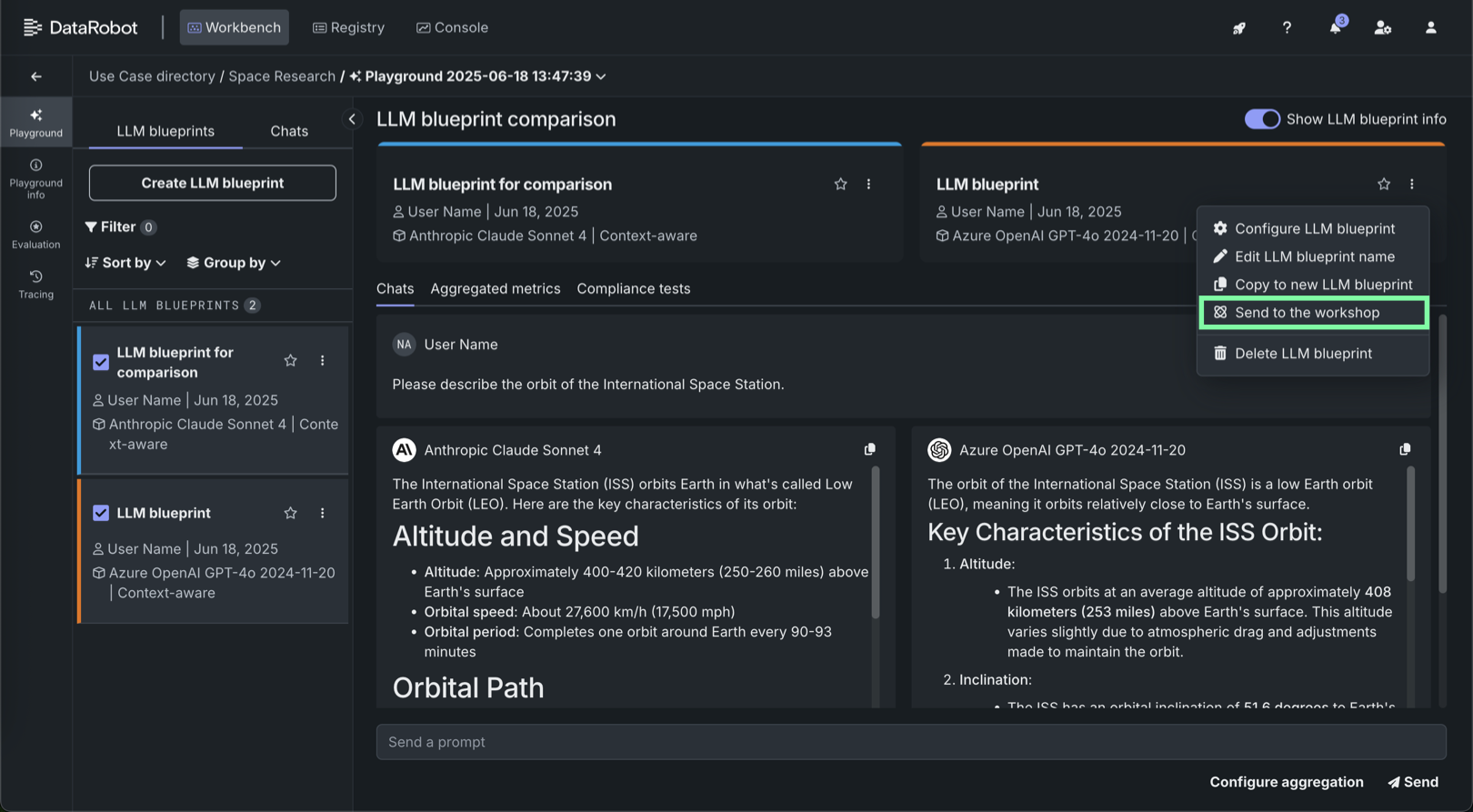
In the chat comparison window, on the blueprint's header, click LLM blueprint actions , and then click Send to the workshop.
-
-
In the Send to the workshop modal, do the following, then click Send to the workshop:
-
(Optional) If the LLM uses a vector database: on the Vector database tab configure the following:
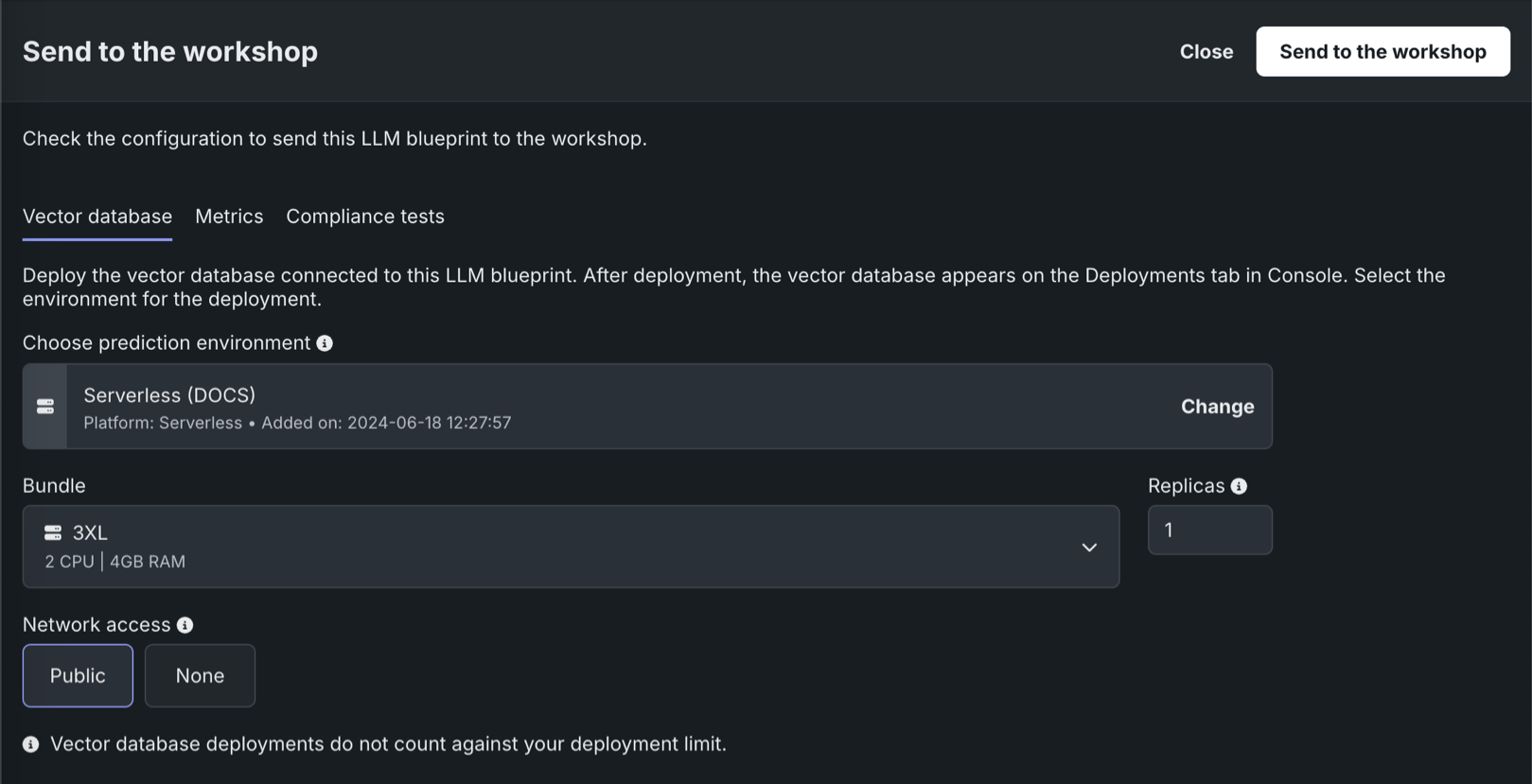
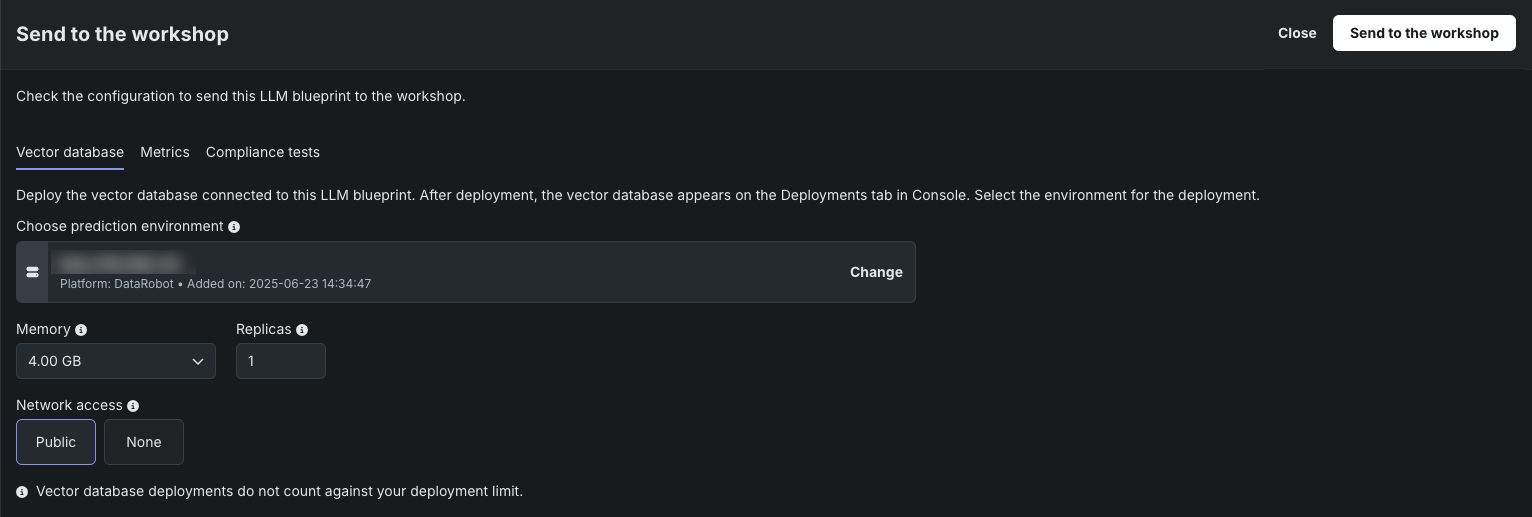
Field Description Choose prediction environment Determines the prediction environment for the deployed vector database. Verify that the correct prediction environment with Platform: DataRobot Serverless is selected. Memory Determines the maximum amount of memory that can be allocated for a custom inference model. If a model is allocated more than the configured maximum memory value, it is evicted by the system. If this occurs during testing, the test is marked as a failure. If this occurs when the model is deployed, the model is automatically launched again by Kubernetes. Bundle Preview feature If enabled for your organization, this selects a Resource bundle (instead of Memory). Resource bundles allow you to choose from various CPU and GPU hardware platforms for building and testing custom models in the workshop. Replicas Sets the number of replicas executed in parallel to balance workloads when a custom model is running. Increasing the number of replicas may not result in better performance, depending on the custom model's speed. Network access Premium feature. Configures the egress traffic of the custom model: - Public: The default setting. The custom model can access any fully qualified domain name (FQDN) in a public network to leverage third-party services.
- None: The custom model is isolated from the public network and cannot access third-party services.
DATAROBOT_ENDPOINTandDATAROBOT_API_TOKENenvironment variables. These environment variables are available for any custom model using a drop-in environment or a custom environment built on DRUM.Premium feature: Network access
Every new custom model you create has public network access by default; however, when you create new versions of any custom model created before October 2023, those new versions remain isolated from public networks (access set to None) until you enable public access for a new version (access set to Public). From this point on, each subsequent version inherits the public access definition from the previous version.
Preview feature: Resource bundles
Custom model resource bundles and GPU resource bundles are off by default. Contact your DataRobot representative or administrator for information on enabling this feature.
Feature flag: Enable Resource Bundles, Enable Custom Model GPU Inference (Premium feature)
Automatic deployment of vector databases
When you send an LLM from the playground to the workshop with a vector database and the vector database is not already deployed, the vector database deploys automatically. The vector database must be deployed before you can edit the LLM code and files in the workshop. While the vector database is deploying, the custom model in the workshop for the LLM is empty.
What monitoring is available for vector database deployments?
DataRobot automatically generates custom metrics relevant to vector databases for deployments with the vector database deployment type—for example, Total Documents, Average Documents, Total Citation Tokens, Average Citation Tokens, and VDB Score Latency. Vector database deployments also support service health monitoring. Vector database deployments don't store prediction row-level data for data exploration.
-
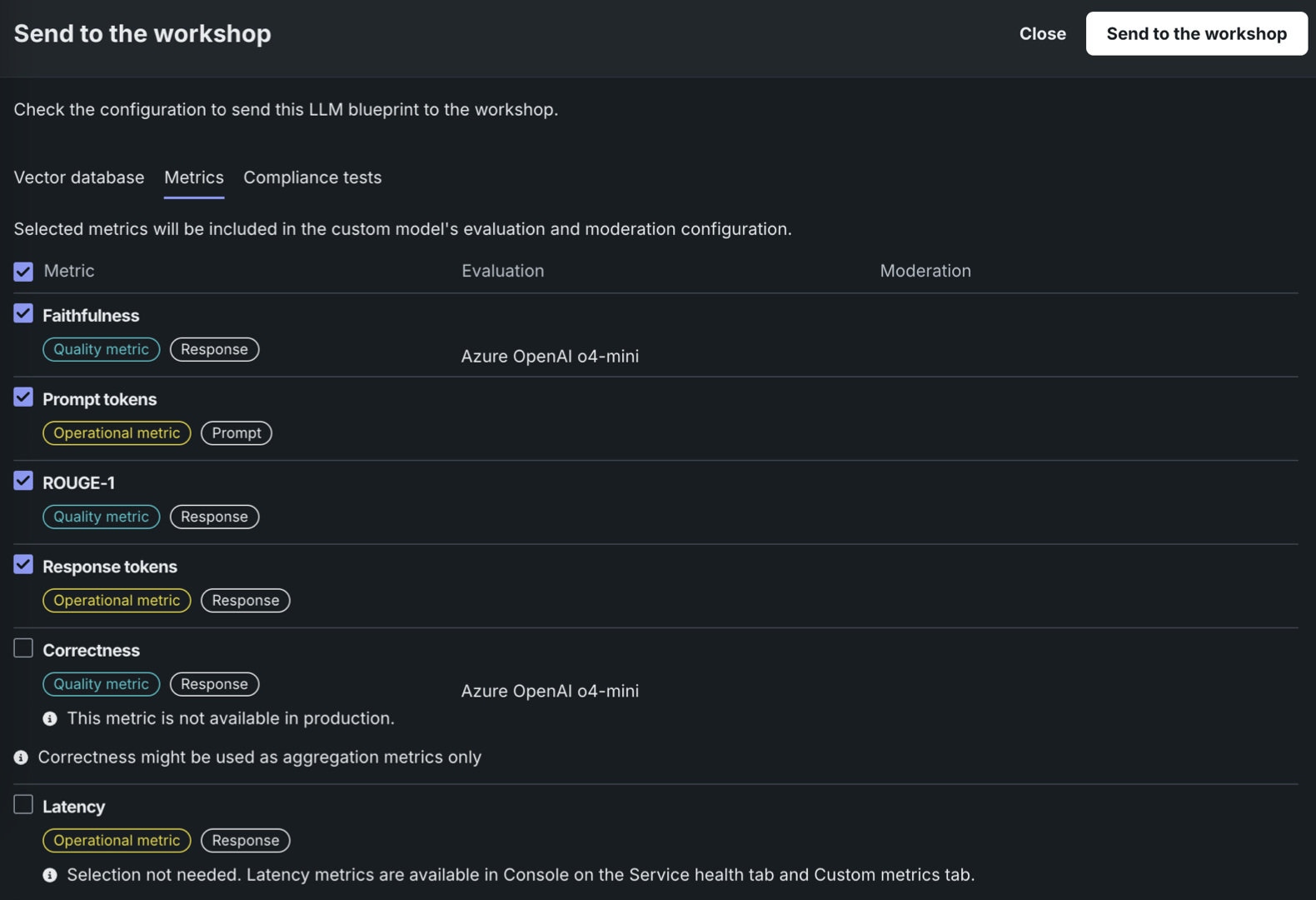
If the LLM has configured evaluation metrics and moderations, on the Metrics tab, select up to twelve evaluation metrics (and any configured moderations).
-
On the Compliance tests tab, select any tests to send to the workshop with the LLM. When you select compliance tests, they are sent to the workshop and included as part of the custom model registration. They are also included in any generated compliance documentation.
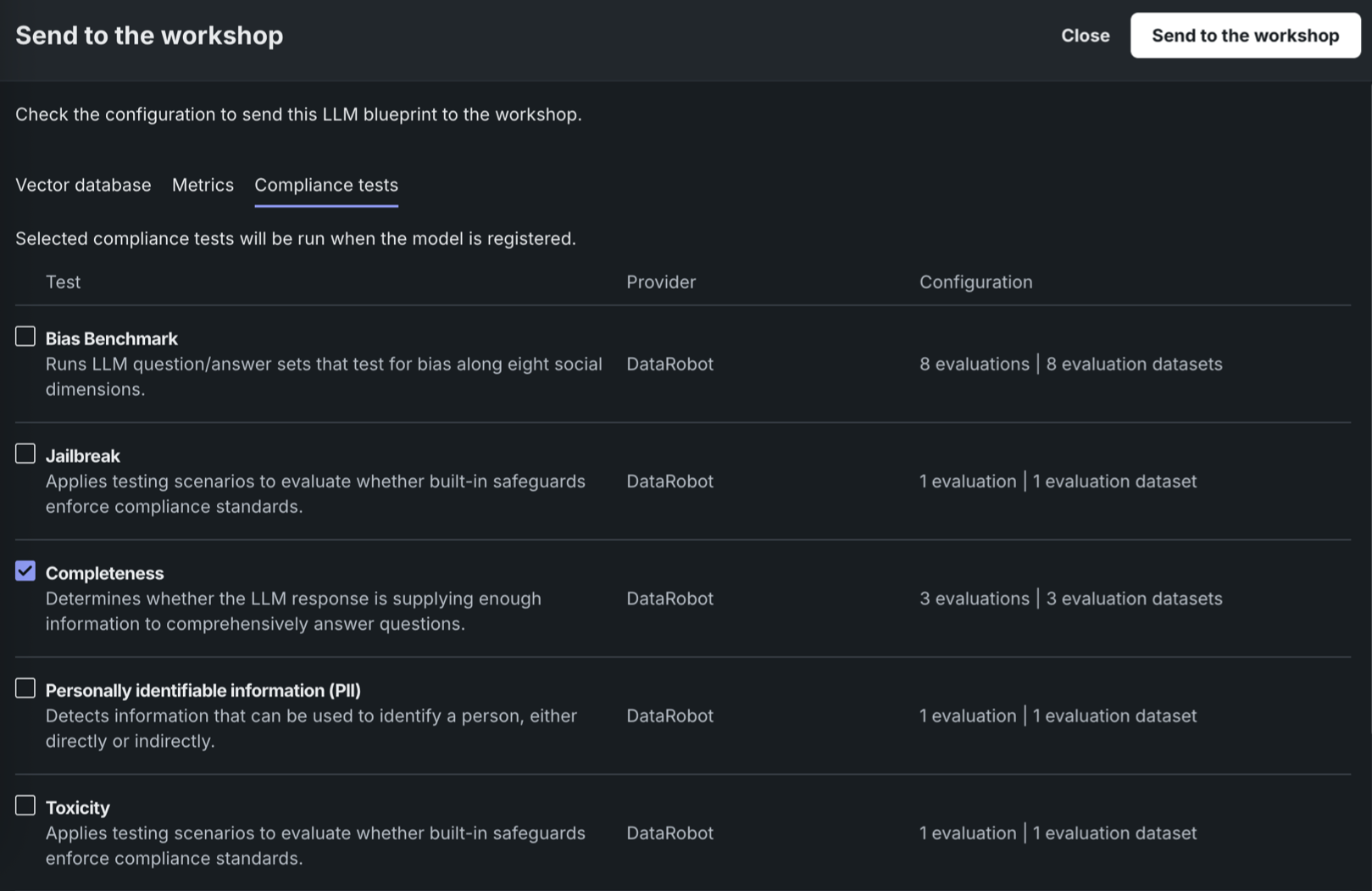
Compliance tests in the workshop
The selected compliance tests are linked to the custom model in the workshop by the
LLM_TEST_SUITE_IDruntime parameter. If you modify the custom model code significantly in the workshop, set theLLM_TEST_SUITE_IDruntime parameter toNoneto avoid running compliance documentation intended for the original model on the modified model.
-
-
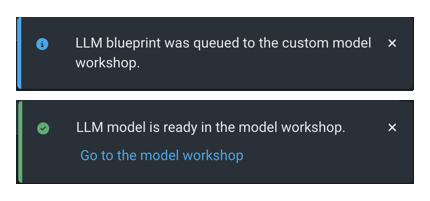
In the lower-right corner of the LLM playground, notifications appear as the LLM is queued and registered. When notification of the registration's completion appears, click Go to the workshop:
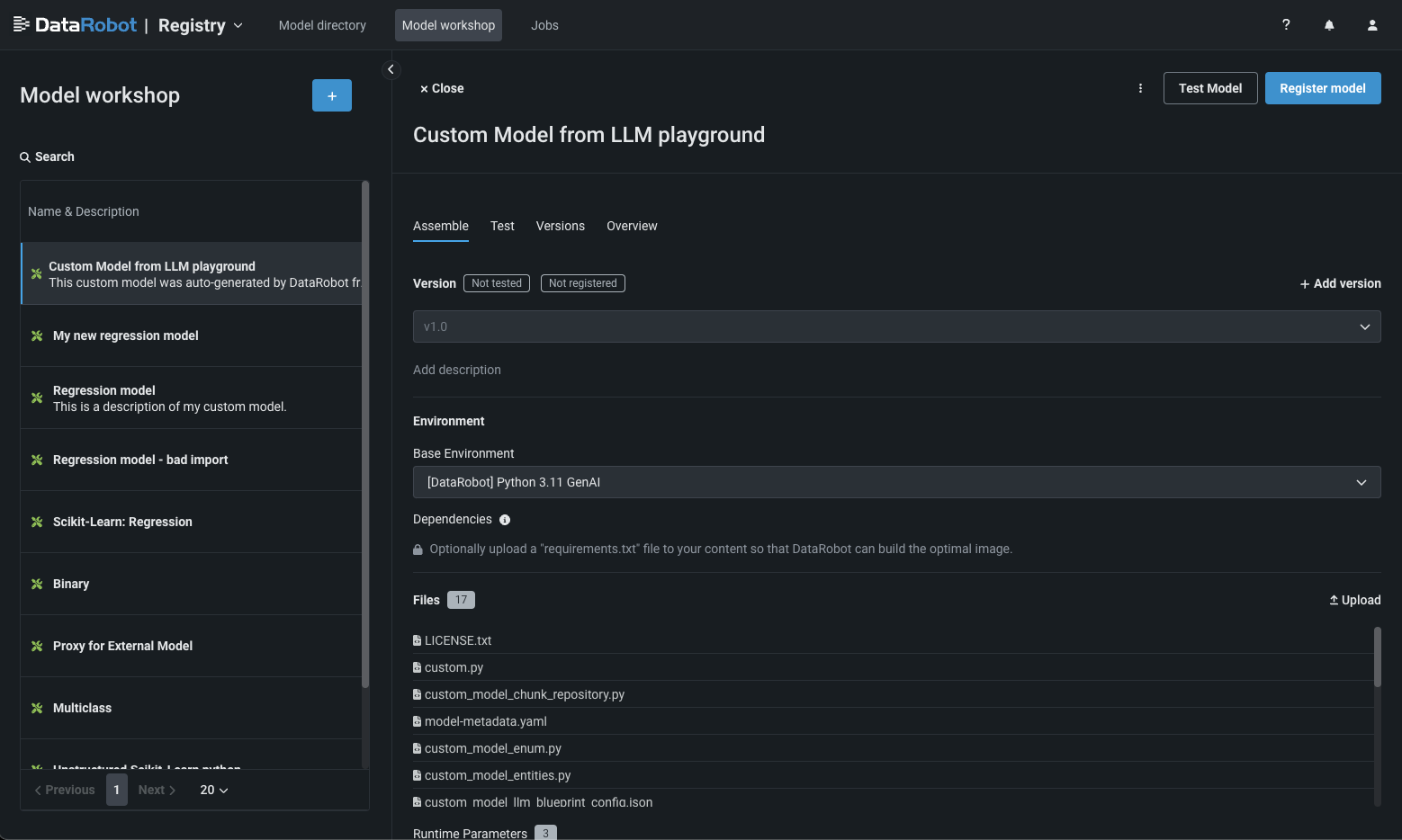
The LLM blueprint opens in the Registry's the workshop as a custom model with the Text Generation target type:
-
On the Assemble tab, in the Runtime Parameters section, configure the key-value pairs required by the LLM, including the LLM service's credentials and other details. To add these values, click the edit icon next to the available runtime parameters.
Premium: DataRobot LLM gateway
If your organization has access to the DataRobot LLM gateway, you don't need to configure any credentials. Confirm that the
ENABLE_LLM_GATEWAY_INFERENCEruntime parameter is present and set toTrue. If necessary, configure thePROMPT_COLUMN_NAME(the default column name ispromptText), and then skip to the next step. You can also make requests to the DataRobot LLM gateway.To configure Credential type Runtime Parameters, first, add the credentials required for the LLM you're deploying to the Credentials Management page of the DataRobot platform:
Microsoft-hosted LLMs: Azure OpenAI GPT-3.5 Turbo, Azure OpenAI GPT-3.5 Turbo 16k, Azure OpenAI GPT-4, Azure OpenAI GPT-4 32k, Azure OpenAI GPT-4 Turbo, Azure OpenAI GPT-4o, and Azure OpenAI GPT-4o mini
Credential type: API Token (not Azure)
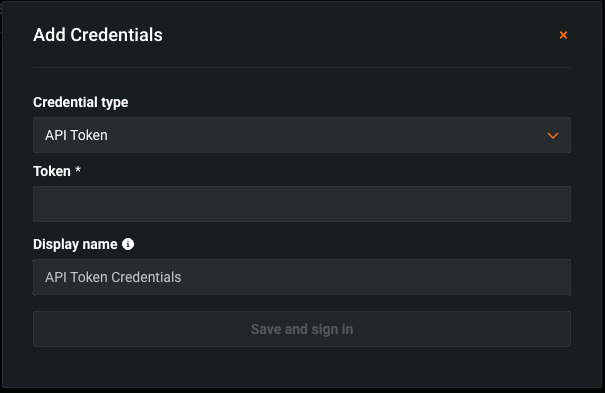
The required Runtime Parameters are:
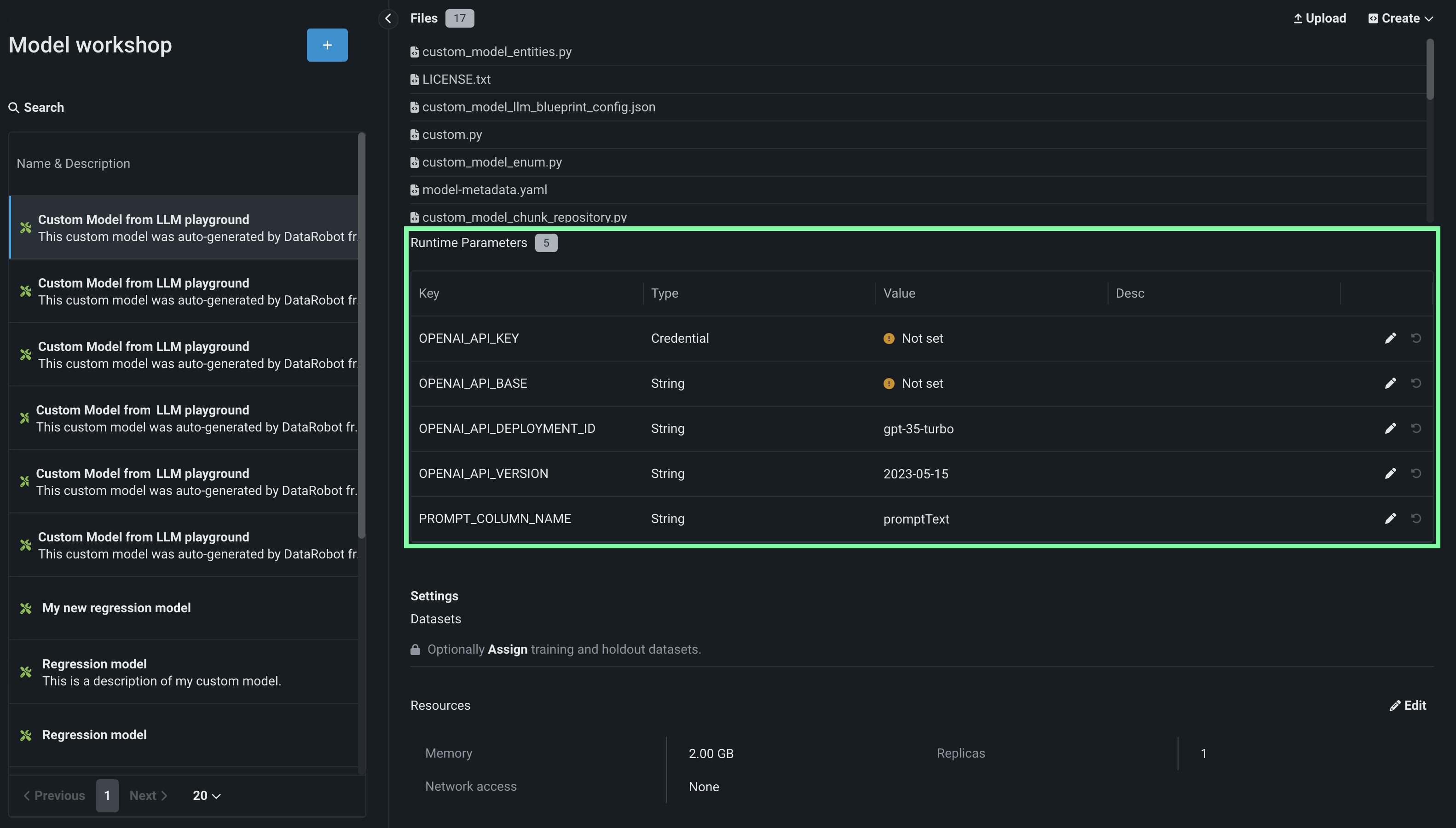
Key Description OPENAI_API_KEY Select the API Token credential, created on the Credentials Management page, for the Azure OpenAI LLM API endpoint. OPENAI_API_BASE Enter the URL for the Azure OpenAI LLM API endpoint. OPENAI_API_DEPLOYMENT_ID Enter the name of the Azure OpenAI deployment of the LLM, chosen when deploying the LLM to your Azure environment. For more information, see the Azure OpenAI documentation on how to Deploy a model. The default deployment name suggested by DataRobot matches the ID of the LLM in Azure OpenAI (for example, gpt-35-turbo). Modify this parameter if your Azure OpenAI deployment is named differently. OPENAI_API_VERSION Enter the Azure OpenAI API version to use for this operation, following the YYYY-MM-DD or YYYY-MM-DD-preview format (for example, 2023-05-15). For more information on the supported versions, see the Azure OpenAI API reference documentation. PROMPT_COLUMN_NAME Enter the prompt column name from the input .csv file. The default column name is promptText. Amazon-hosted LLM: Amazon Titan, Anthropic Claude 2.1, Anthropic Claude 3 (Haiku, Opus, and Sonnet), Anthropic Claude 3.5 Sonnet (v1 and v2), and Amazon Nova (Micro, Lite, and Pro)
Credential type: AWS
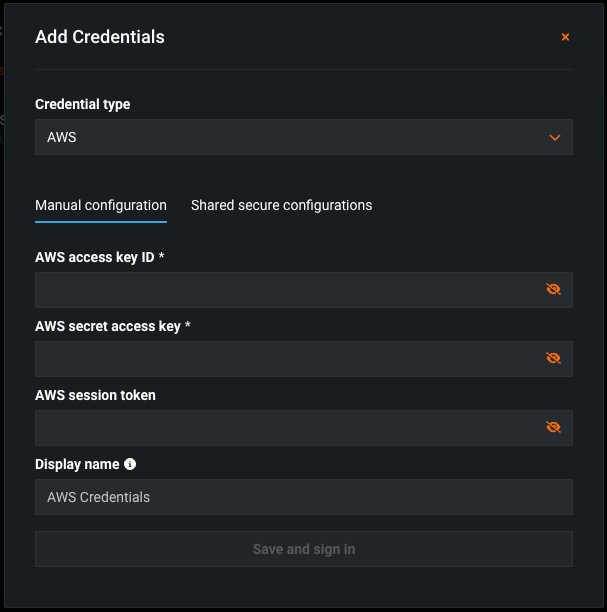
The required Runtime Parameters are:
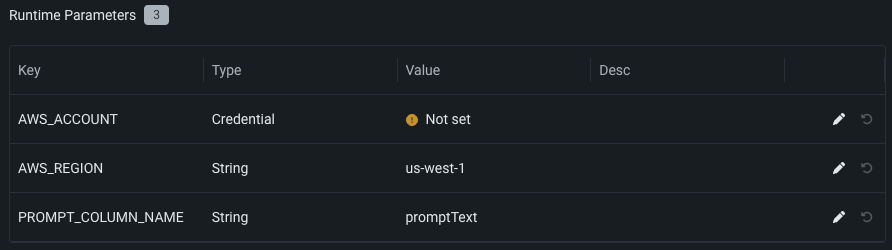
Key Description AWS_ACCOUNT Select an AWS credential, created on the Credentials Management page, for the AWS account. AWS_REGION Enter the AWS region of the AWS account. The default is us-west-1. PROMPT_COLUMN_NAME Enter the prompt column name from the input .csv file. The default column name is promptText. Google-hosted LLM: Google Gemini 1.5 Flash, Google Gemini 1.5 Pro
Credential type: Google Cloud Service Account
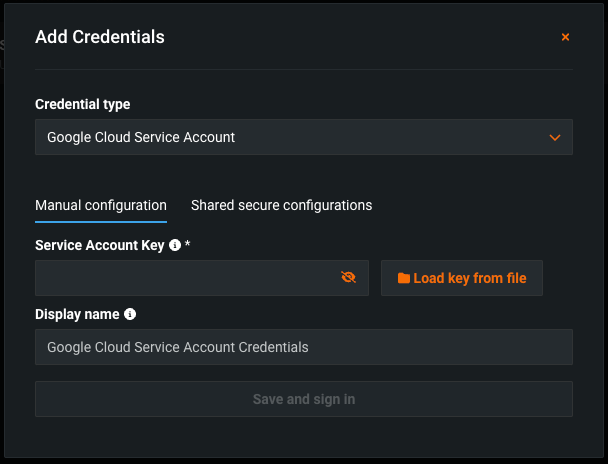
The required Runtime Parameters are:
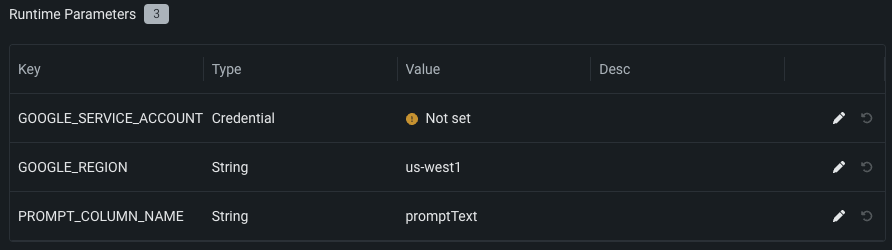
Key Description GOOGLE_SERVICE_ACCOUNT Select a Google Cloud Service Account credential created on the Credentials Management page. GOOGLE_REGION Enter the GCP region of the Google service account. The default is us-west-1. PROMPT_COLUMN_NAME Enter the prompt column name from the input .csv file. The default column name is promptText. -
In the Settings section, ensure Network access is set to Public.
-
After you complete the custom model assembly configuration, you can test the model or create new versions. DataRobot recommends testing custom LLMs before deployment.
-
Next, click Register model, provide the registered model or version details, then click Register model again to add the custom LLM to Registry.
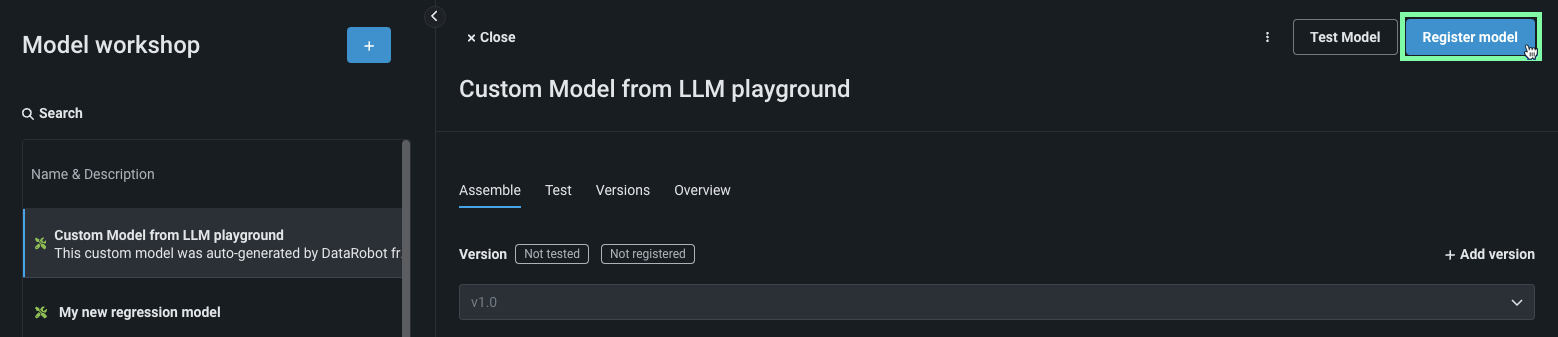
The registered model version opens on the Registry > Models tab.
-
From the Models tab, in the upper-right corner of the registered model version panel, click Deploy and configure the deployment settings.
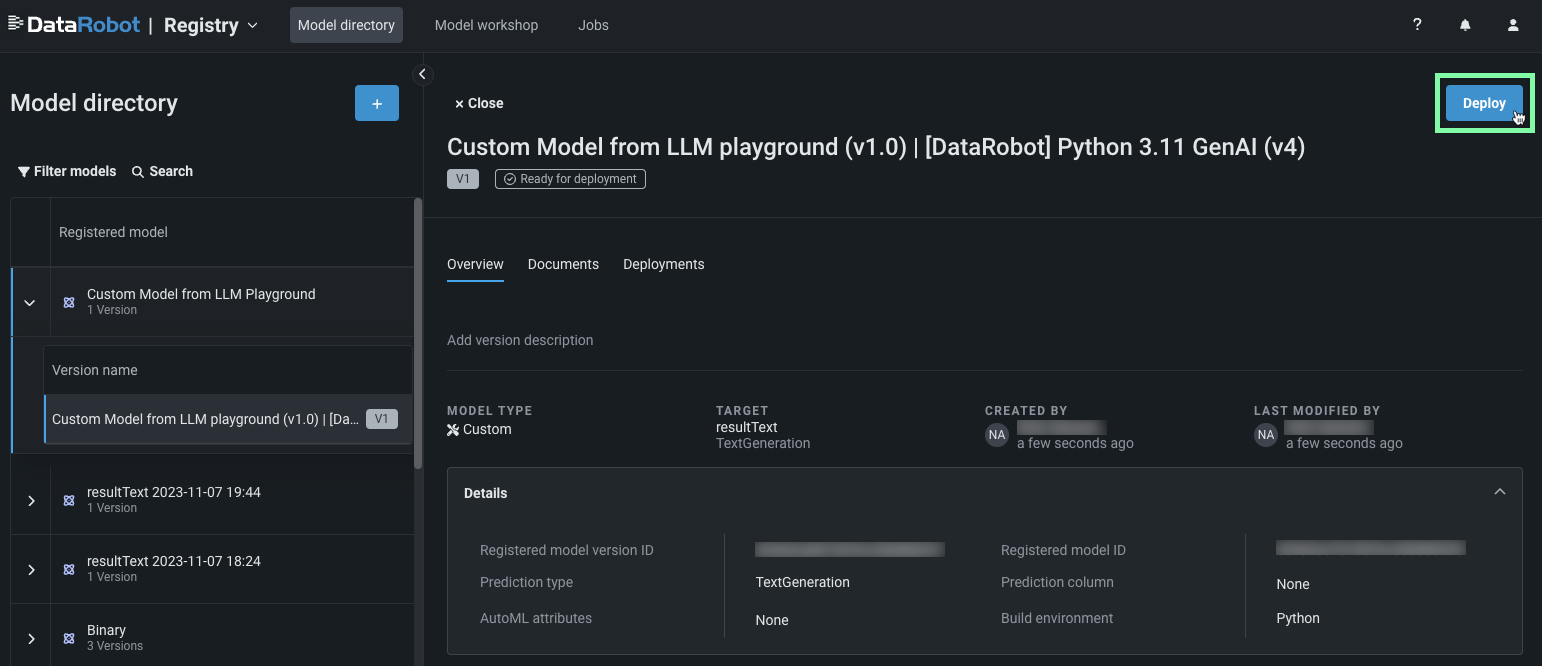
For more information on the deployment functionality available for generative models, see Monitoring support for generative models.
For more information on this process, see the playground deployment considerations.