Vector database data sources
Generative modeling in DataRobot supports three types of vector databases:
- Resident, "in-house" built vector databases, with the Source listed in the application showing DataRobot. Supporting up to 10GB, they are stored in DataRobot and can be found in Vector databases tile for a Use Case.
- Connected vector databases up to 100GB, which link out to an external provider. The Source listed in the application is the provider name and they are stored in the provider instance.
- External, hosted in the workshop for validation and registration, and identified as
Externalin the Use Case directory listing.
Dataset requirements
When uploading datasets for use in creating a vector database, the supported formats are either .zip or .csv. Two columns are mandatory for the files—document and document_file_path. Additional metadata columns, up to 50, can be added for use in filtering during prompt queries. Note that for purposes of metadata filtering, document_file_path is displayed as source.
For .zip files, DataRobot processes the file to create a .csv version that contains text columns (document) with an associated reference ID (document_file_path) column. All content in the text column is treated as strings. The reference ID column is created automatically when the .zip is uploaded. All files should be either in the root of the archive or in a single folder inside an archive. Using a folder tree hierarchy is not supported.
See the considerations for more information on supported file content.
Internal vector databases
Internal vector databases in DataRobot are optimized to maintain retrieval speed while ensuring an acceptable retrieval accuracy. To add data for an internal vector database:
-
Prepare the data by:
-
Using a previously exported vector database.
-
Compressing the files that will make up your knowledge source into a single
.zipfile. You can either select files and zip or compress a folder holding all the files. -
Preparing a CSV with mandatory
documentanddocument_file_pathcolumns as well as up to 50 additional metadata columns. Thedocument_file_pathcolumn lists the individual items from the decompressed.zipfile; thedocumentcolumn lists the content of each file. For purposes of metadata filtering (RAG workflows),document_file_pathis displayed assource.
-
CSV-specific requirement details
The mandatory columns for CSV are defined as follows:
documentcan contain any amount (up to file size limitations) of free-text content.document_file_pathis also required and requires a file format suffix (for example,file.txt).
Using a CSV file allows you to make use of the no chunking option during vector database creation. DataRobot will then treat each row as a chunk and directly generate an embedding on each row.
DataRobot vector databases only support using one text column from a CSV for the primary text content. If a CSV has multiple text columns, they must be concatenated into a single document column. You can add up to 50 other columns in the CSV as metadata columns. These columns can be used for metadata filtering, which limits the citations returned by the prompt query.
If the CSV has multiple text columns, you can:
- Combine (concatenate) the text columns into one
documentcolumn. - Convert the CSV rows into individual PDF files (one PDF per row) and then upload the PDFs.
For example:
Consider a CSV file containing one column with large amounts of free text, swag, and a second column with an ID but no text, InventoryID. To create a vector database from the data:
- Rename
swagtodocument. - Rename
InventoryIDtodocument_file_path. - Add "fake" paths to the
document_file_pathcolumn. For example, change 11223344 to/inventory/11223344.txt. In this way, the column is recognized as containing file paths.
-
Upload the file. You can do this either from:
-
A Workbench Use Case from either a local file or data connection.
-
The AI Catalog from a local file, HDFS, URL, or JDBC data source. DataRobot converts a
.zipfile to.csvformat. Once registered, you can use the Profile tab to explore the data: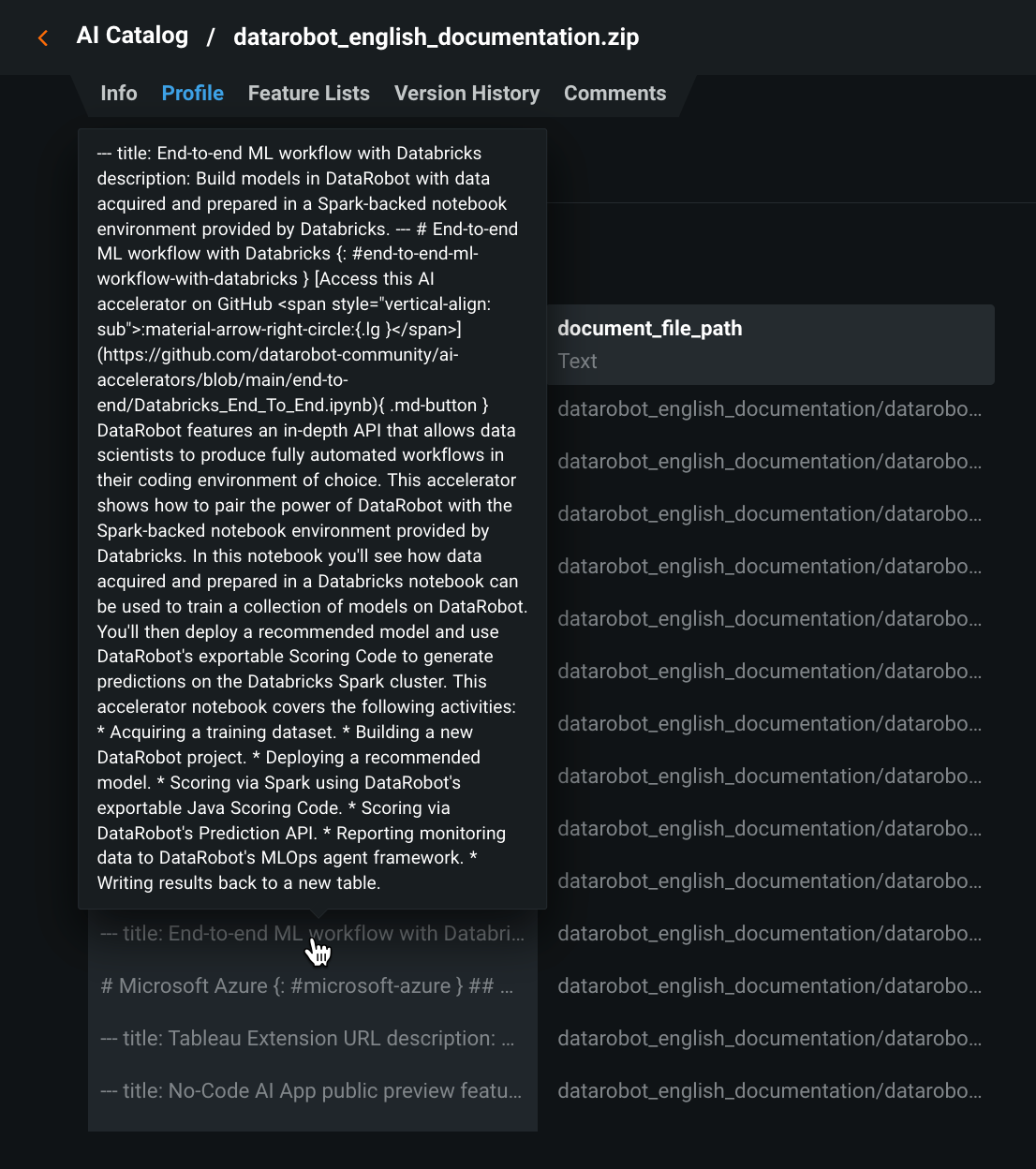
-
Once the data is available on DataRobot, you can add it as a vector database for use in the playground.
Export a vector database
You can export a vector database, or a specific version of a database, to the Data Registry for re-use in a different Use Case. To export, open the Vector database tile of your Use Case. Click the Actions menu and select Export latest vector database version to Data Registry.
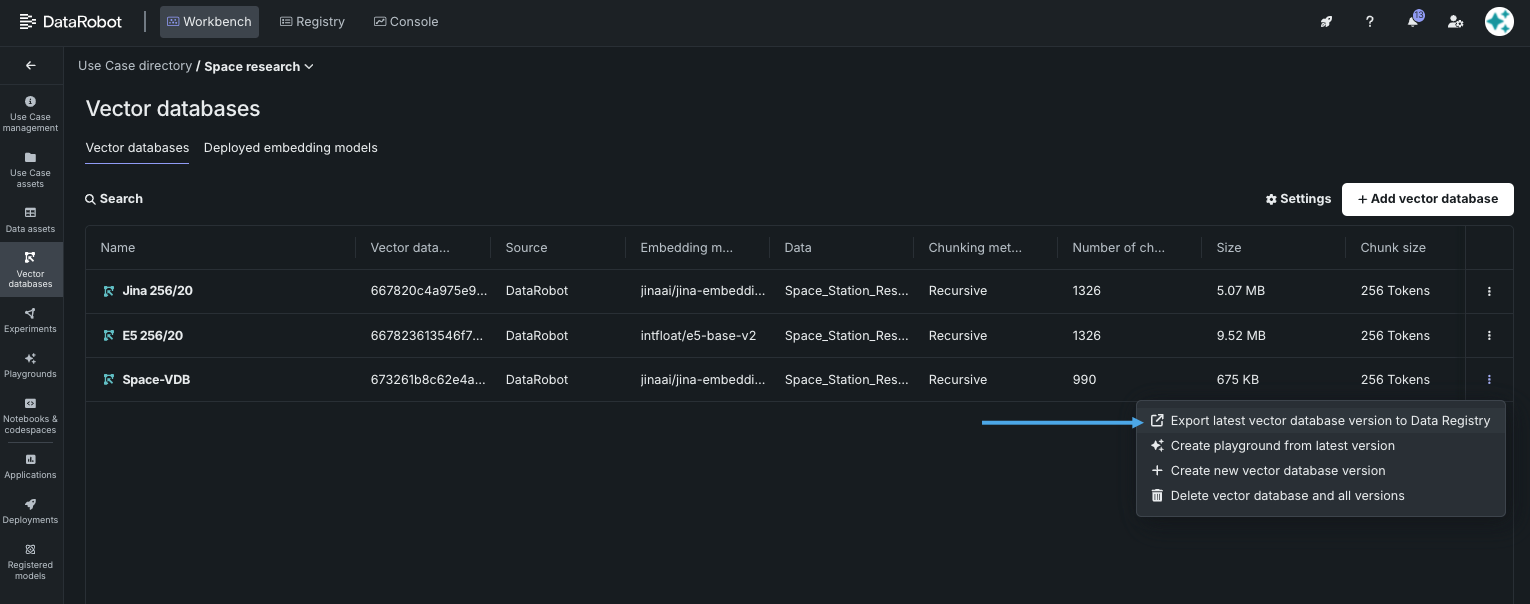
When you export, you are notified that the job is submitted. Open the Data assets tile to see the dataset registering for use via the Data Registry. It is also saved to the AI Catalog.
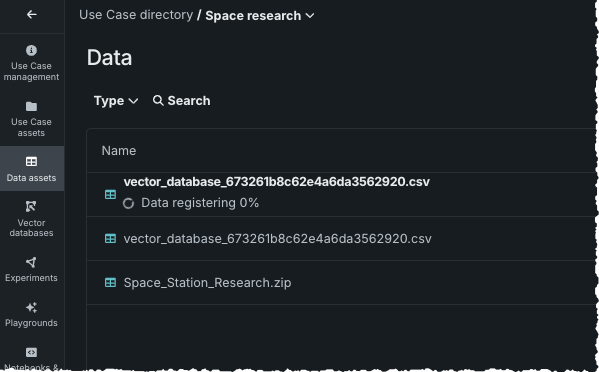
Once registered, you can preview the dataset or create a new vector database from this dataset.
To preview before creating a new vector database from the export, from the Data assets tile choose Create vector database from the Actions menu. Then choose Add data.
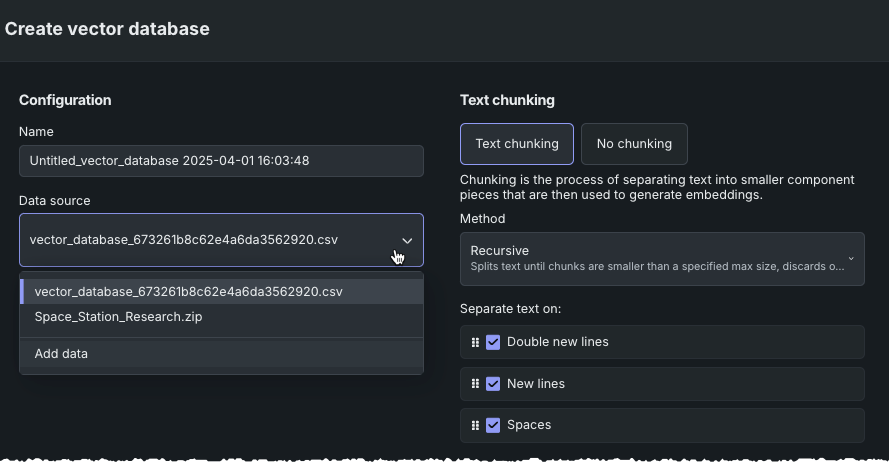
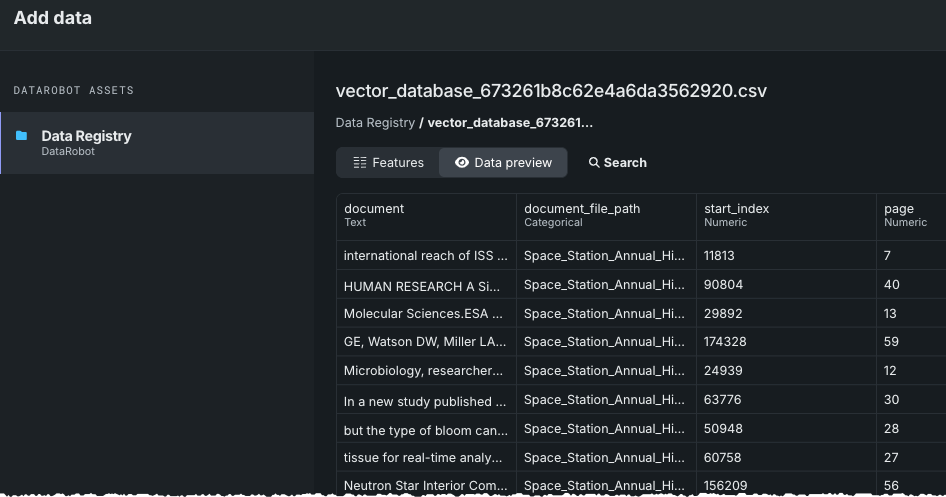
The Data Registry opens. Select the newly exported vector database. The Data preview shows that each chunk from the vector database is now a dataset row.
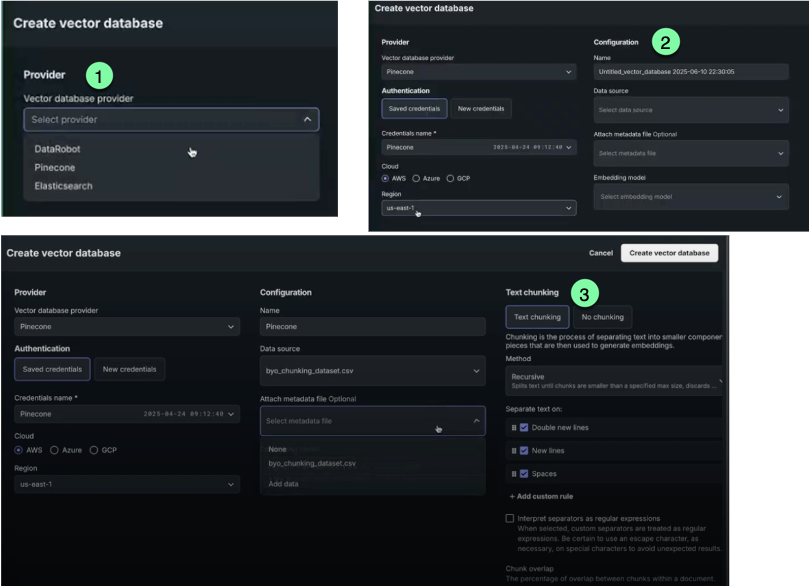
From the Actions menu select Create vector database. A modal opens to configure the database.
You can download the dataset from the AI Catalog, modify it on a chunk level, and then re-upload it, creating a new version or a new vector database.
External (BYO) vector databases
The external "bring-your-own" (BYO) vector database provides the ability to leverage your custom model deployments as vector databases for LLM blueprints, using your own models and data sources. Using an external vector database cannot be done via the UI; review the notebook that walks through creating a ChromaDB external vector database using DataRobot’s Python client.
Key features of external vector databases:
-
Custom model integration: Incorporate your own custom models as vector databases, enabling greater flexibility and customization.
-
Input and output format compatibility: External BYO vector databases must adhere to specified input and output formats to ensure seamless integration with LLM blueprints.
-
Validation and registration: Custom model deployments must be validated to ensure they meet the necessary requirements before being registered as an external vector database.
-
Seamless integration with LLM blueprints: Once registered, external vector databases can be used with LLM blueprints in the same way as local vector databases.
-
Error handling and updates: The feature provides error handling and update capabilities, allowing you to revalidate or create duplicates of LLM blueprints to address any issues or changes in custom model deployments.
Basic external workflow
The basic workflow, which is covered in depth in this notebook, is as follows:
- Create the vector database via the API.
- Create a custom model deployment to bring the vector database into DataRobot.
- Once the deployment is registered, link to it as part of vector database creation in your notebook.
You can view all vector databases (and associated versions) for a Use Case from the Vector database tab within the Use Case. For external vector databases, you can see only the source type. Because these vector databases aren't managed by DataRobot, other data is not available for reporting..