Work with metrics
Premium
Agentic evaluation tools are a premium feature. Contact your DataRobot representative or administrator for information on enabling this feature.
The playground's agentic evaluation tools include evaluation metrics and datasets, aggregated metrics, compliance tests, and tracing. The agentic evaluation metric tools include:
| Agentic workflow evaluation tool | Description |
|---|---|
| Evaluation metrics | Report an array of performance, safety, and operational metrics for prompts and responses in the playground and define moderation criteria and actions for any configured metrics. |
| Evaluation datasets | Upload or generate the evaluation datasets used to evaluate an agentic workflow through evaluation dataset metrics and aggregated metrics. |
| Aggregated metrics | Combine evaluation metrics across many prompts and responses to evaluate an agentic workflow at a high level, as only so much can be learned from evaluating a single prompt or response. |
| Tracing table | Trace the execution of agentic workflows through a log of all components and prompting activity used in generating responses in the playground. |
Configure evaluation metrics
With evaluation metrics, you can configure performance and operational metrics for agents. You can view these metrics in comparison chats and in chats with individual agents.
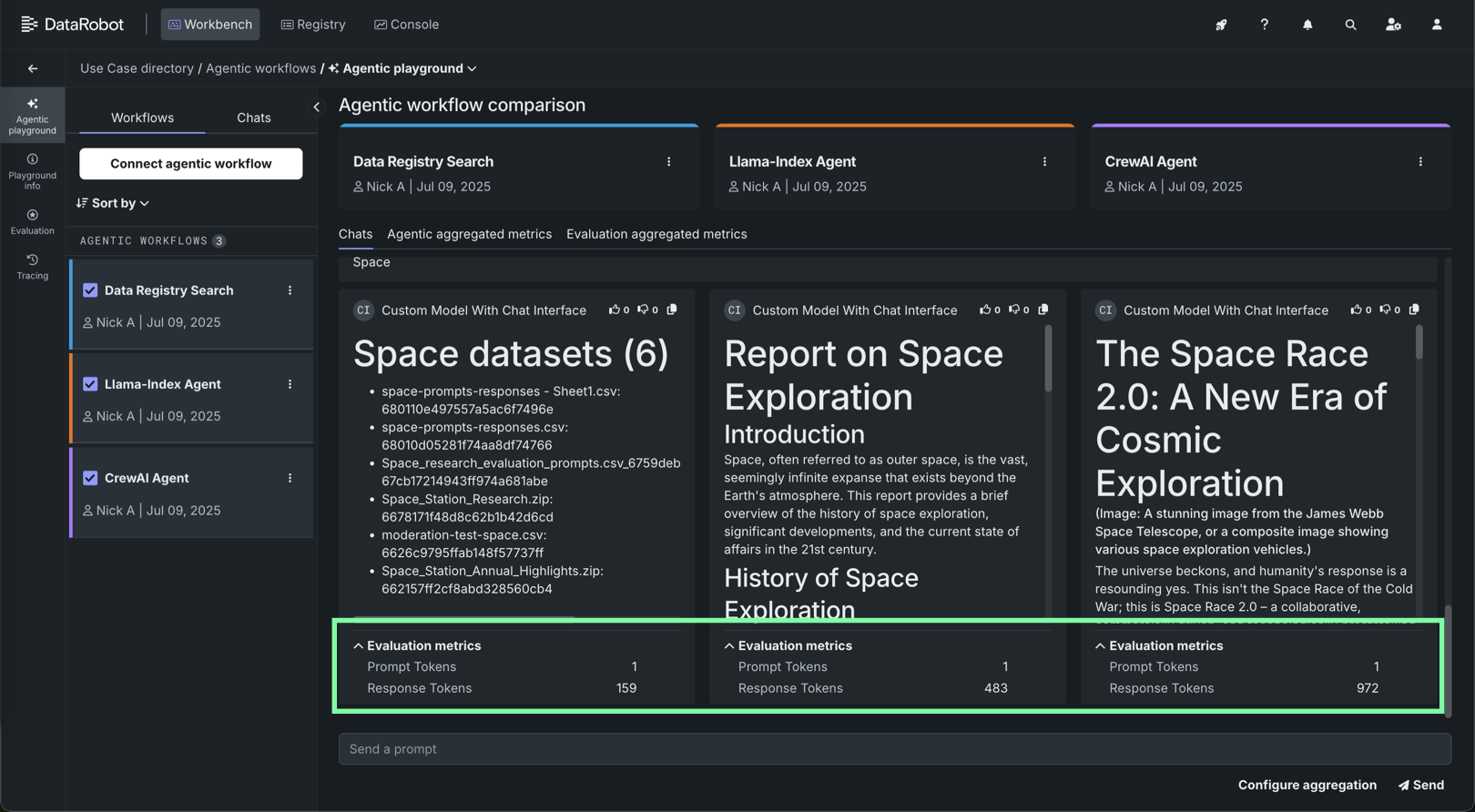
Playground metrics require reference information provided through an evaluation dataset and are useful for assessing if an agentic workfow is operating as expected. Because they require an evaluation dataset, they are only available in the playground. Agentic workflow metrics don't require reference data, so they are available in production and configured in the Workshop.
| Playground metrics | Agentic workflow metrics |
|---|---|
| Are configured in a playground. | Are configured in Workshop. |
| Require reference data provided as an evaluation dataset. | Don't require reference data. |
| Can't be computed in production. | Can be computed in production. |
| Can only be applied to the top level agentic workflow. | Can be applied to the top-level agent and sub-agents and sub-tools of the workflow (if they are separate custom models). |
Agent moderation
Agentic workflow-specific metrics don't support setting moderation criteria.
View agentic workflow metrics
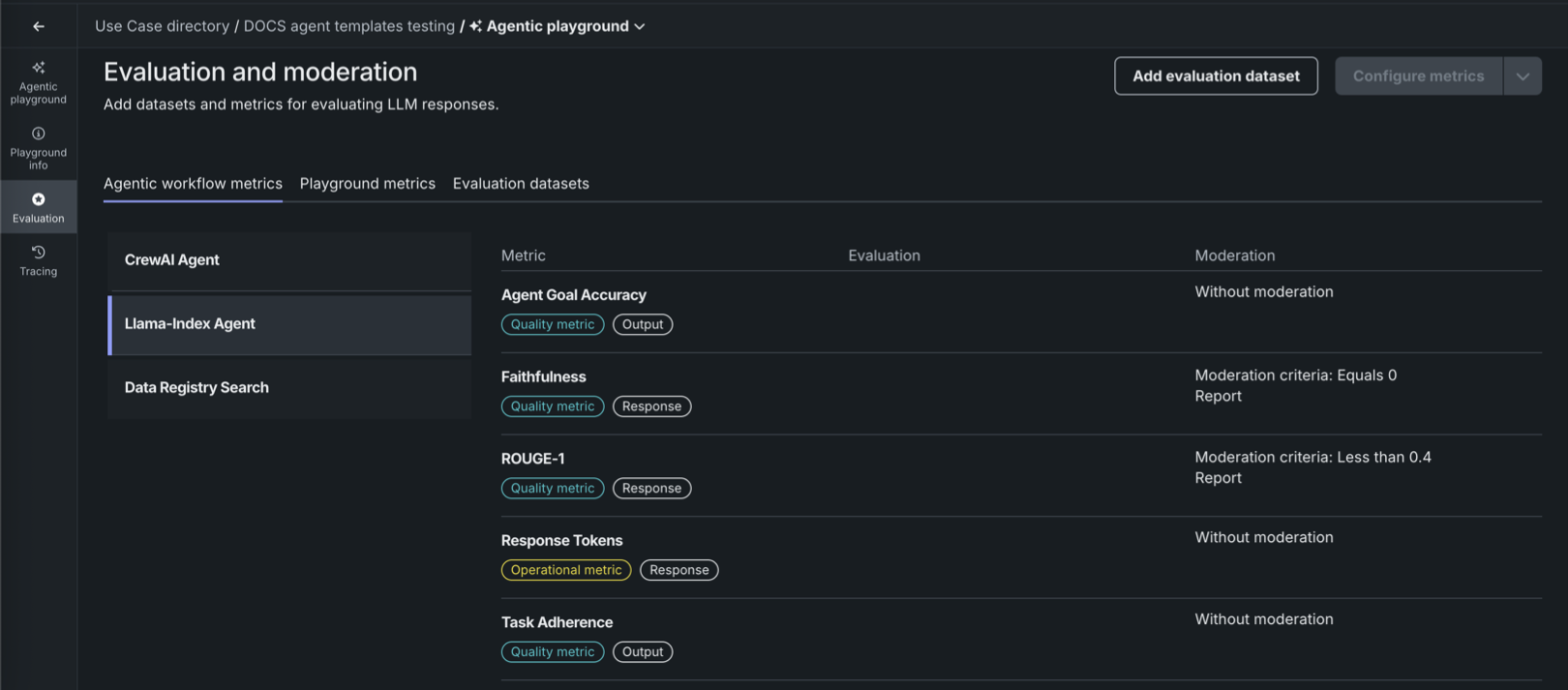
To enable agentic workflow metrics for a workflow, configure evaluation and moderation in Workshop. Click the Evaluation tile to see, on the Agentic workflow metrics tab, the configured metrics that are enabled for the agentic workflow.
Configure playground metrics
To enable playground metrics for your workflows, add one or more evaluation metrics to the agentic playground. In addition, you must provide reference data using evaluation datasets.
-
To select and configure playground evaluation metrics for an agentic playground, do either of the following:
-
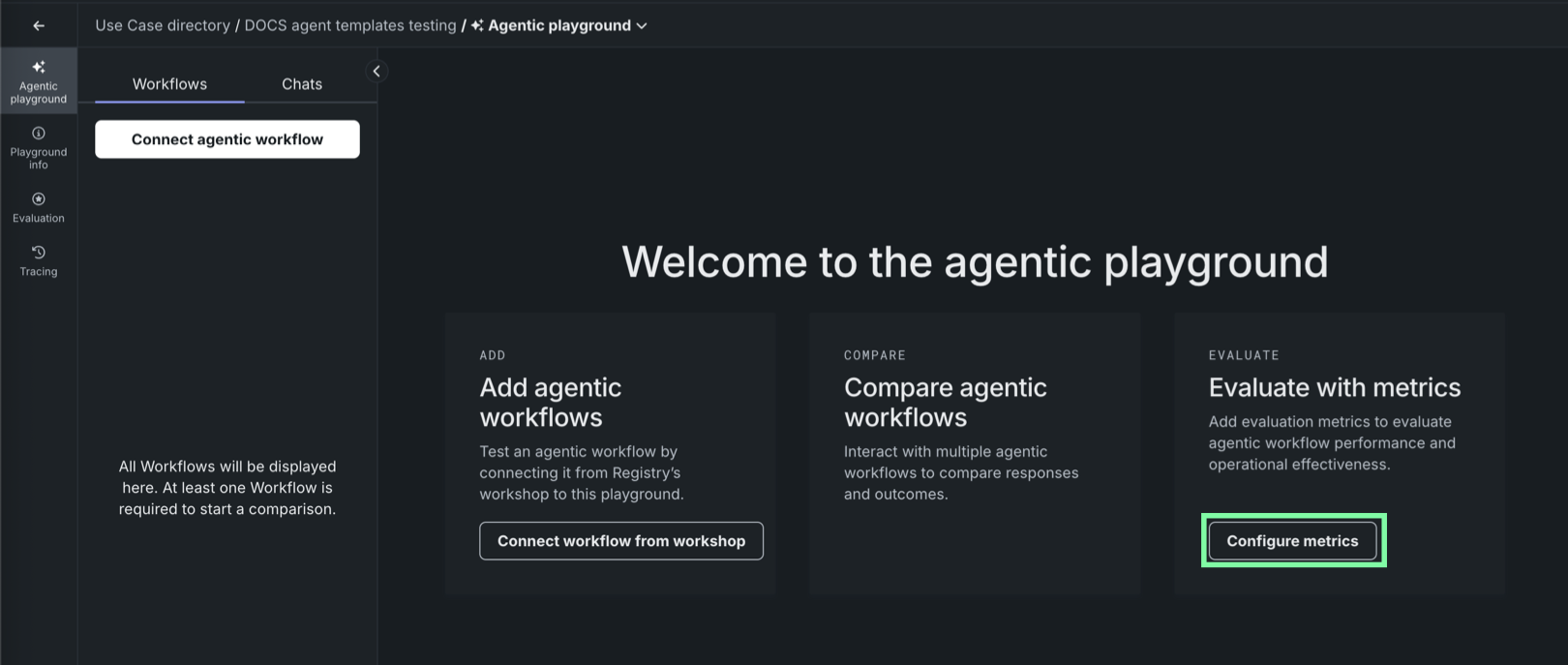
If you haven't connected any agents to the playground, in the Evaluate with metrics tile, click Configure metrics to configure metrics before adding an agent:
-
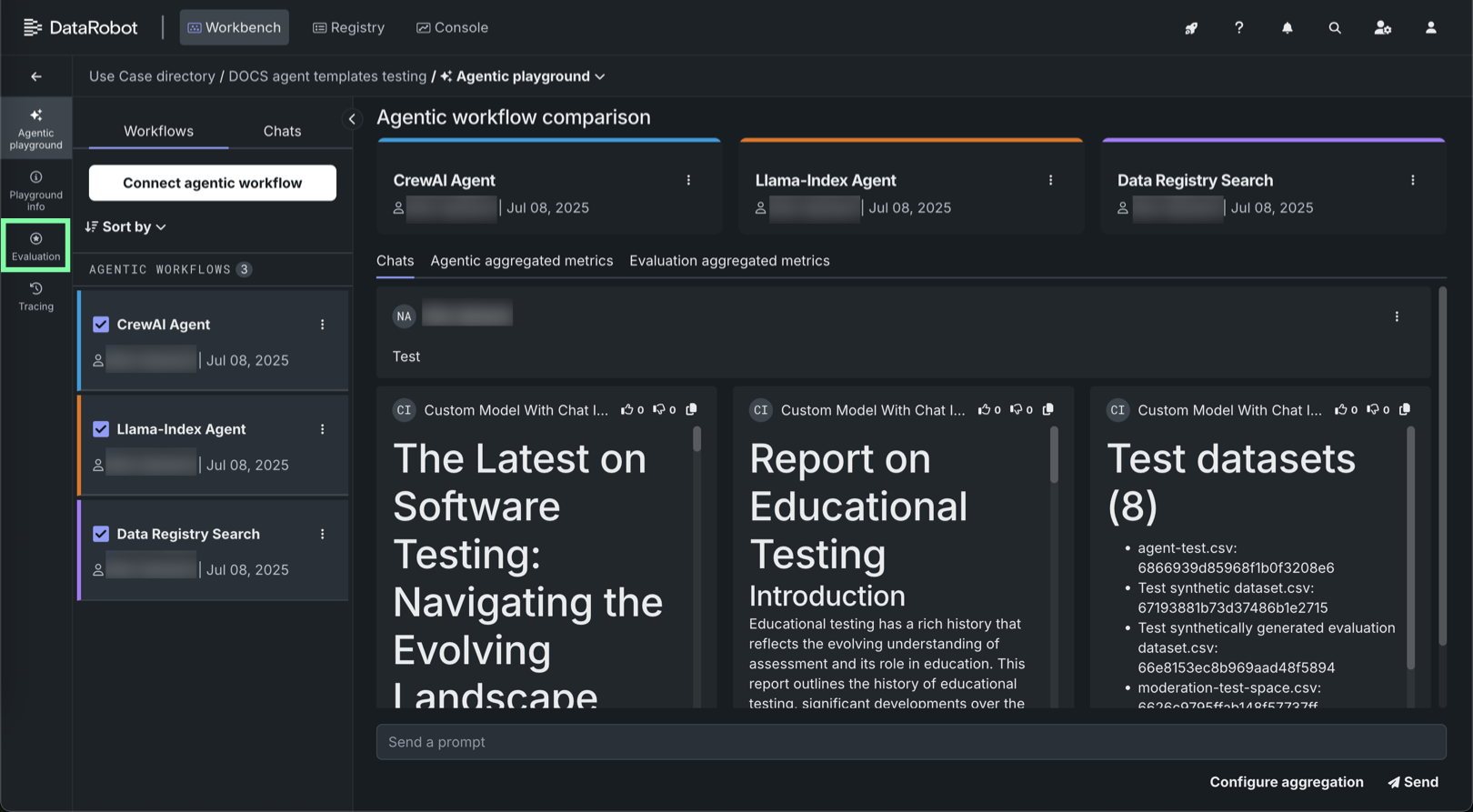
If you've added one or more agents to the playground, on the side navigation bar click the Evaluation tile:
-
-
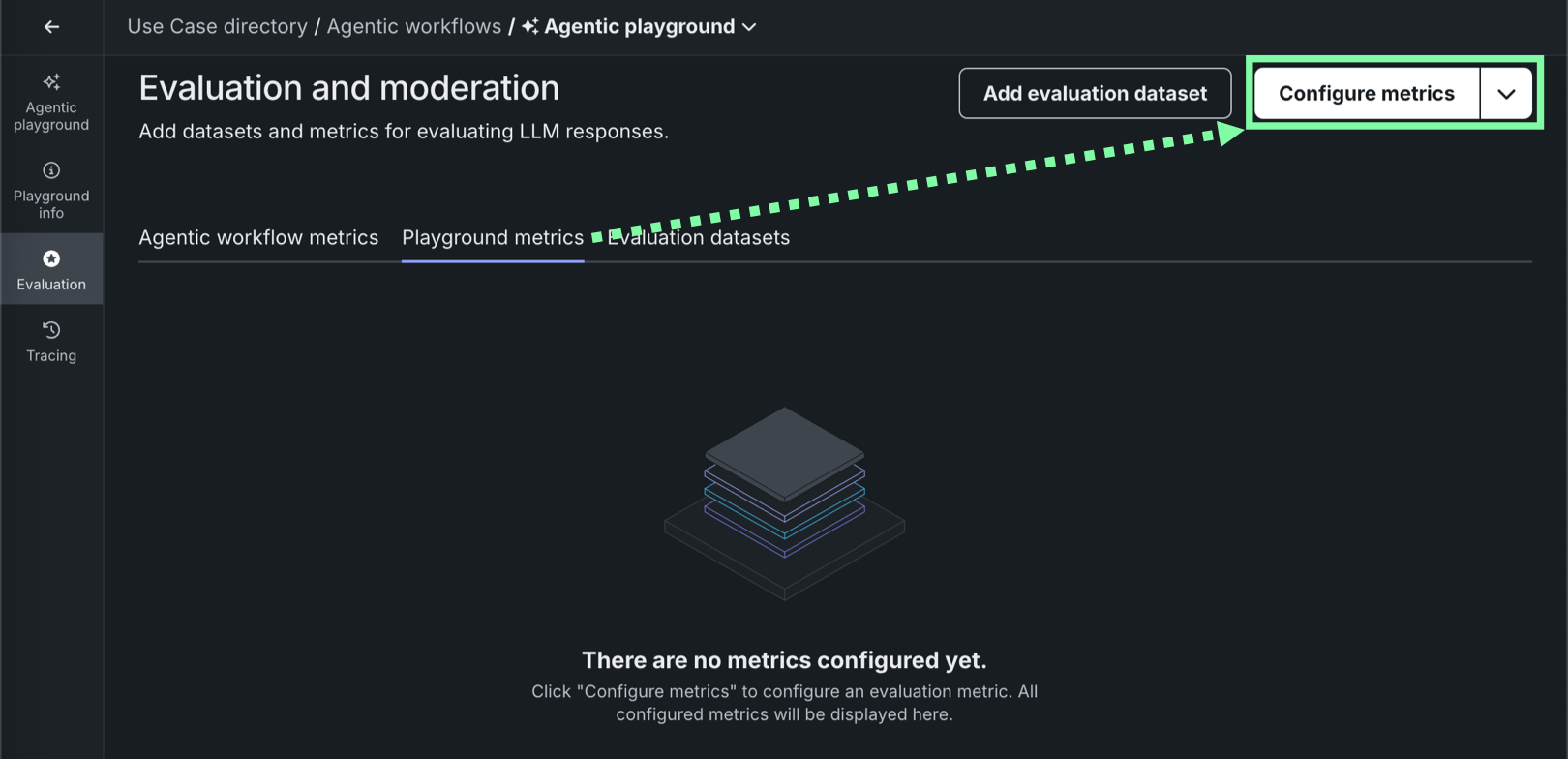
On the Evaluation and moderation page, click the Playground metrics tab, then click Configure metrics.
-
On the Configure evaluation and moderation page, click one of the available playground evaluation metrics:
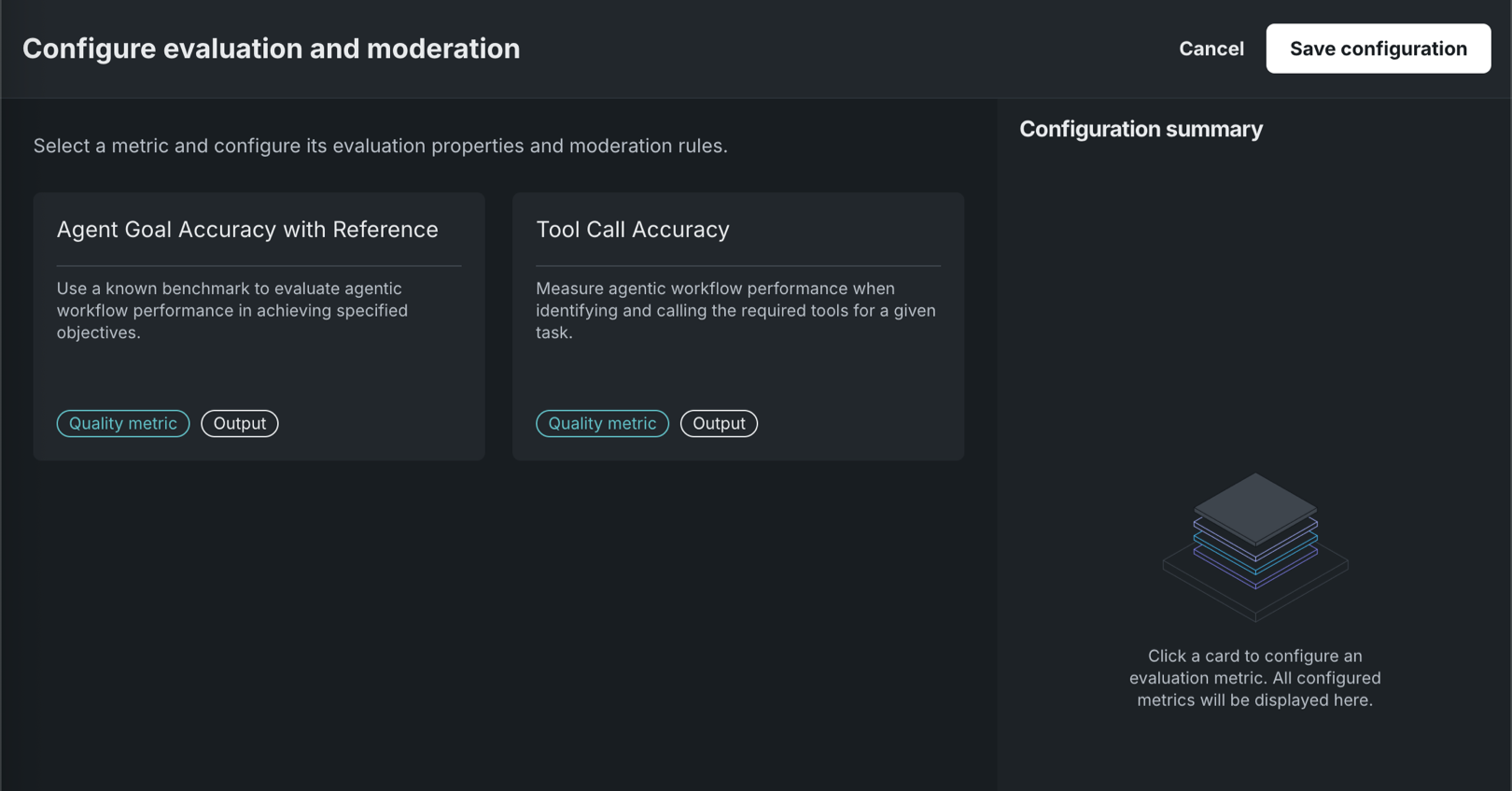
Playground metric Description Agent Goal Accuracy with Reference Use a known benchmark to evaluate agentic workflow performance in achieving specified objectives. Tool Call Accuracy Measure agentic workflow performance when identifying and calling the required tools for a given task. -
Configure the following settings, depending on the tool you selected:
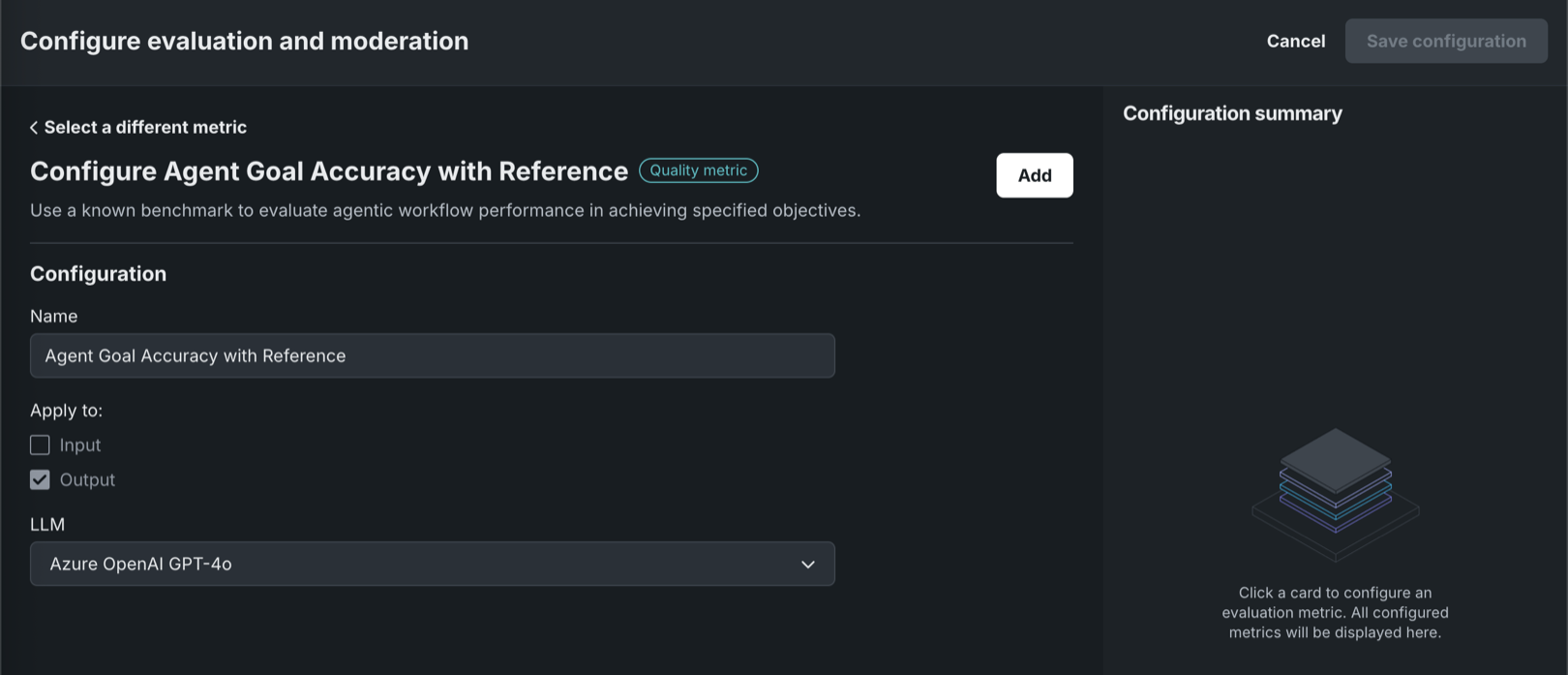
Playground metric Description Agent Goal Accuracy with Reference - (Optional) Enter a metric Name.
- Select a playground or deployed LLM to evaluate goal accuracy.
Tool Call Accuracy (Optional) Enter a metric Name. The Apply to setting is preconfigured for these metrics.
-
Click Add, then, select and configure another metric, or click Save configuration.
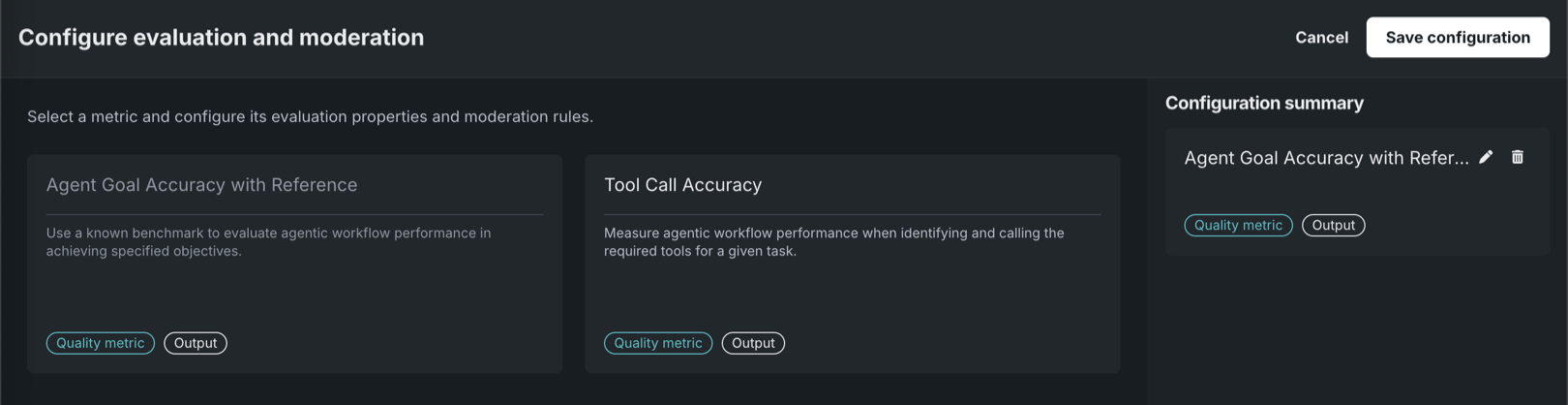
Edit configuration summary
After you add one or more metrics to the playground configuration, you can edit or delete those metrics.
Copy metric configurations
To copy an evaluation metrics configuration to or from an agentic playground:
-
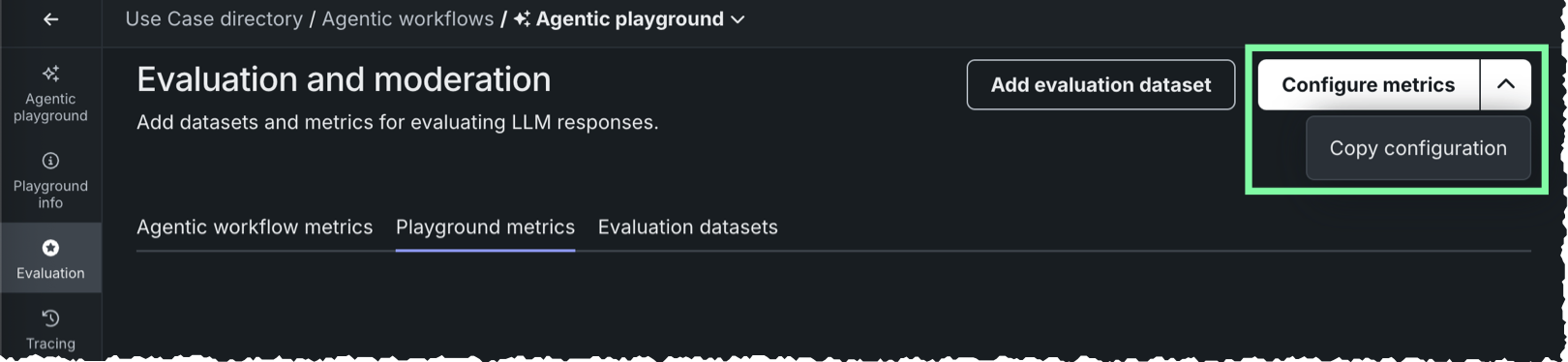
In the upper-right corner of the Evaluation and moderation page, next to Configure metrics, click , and then click Copy configuration.
-
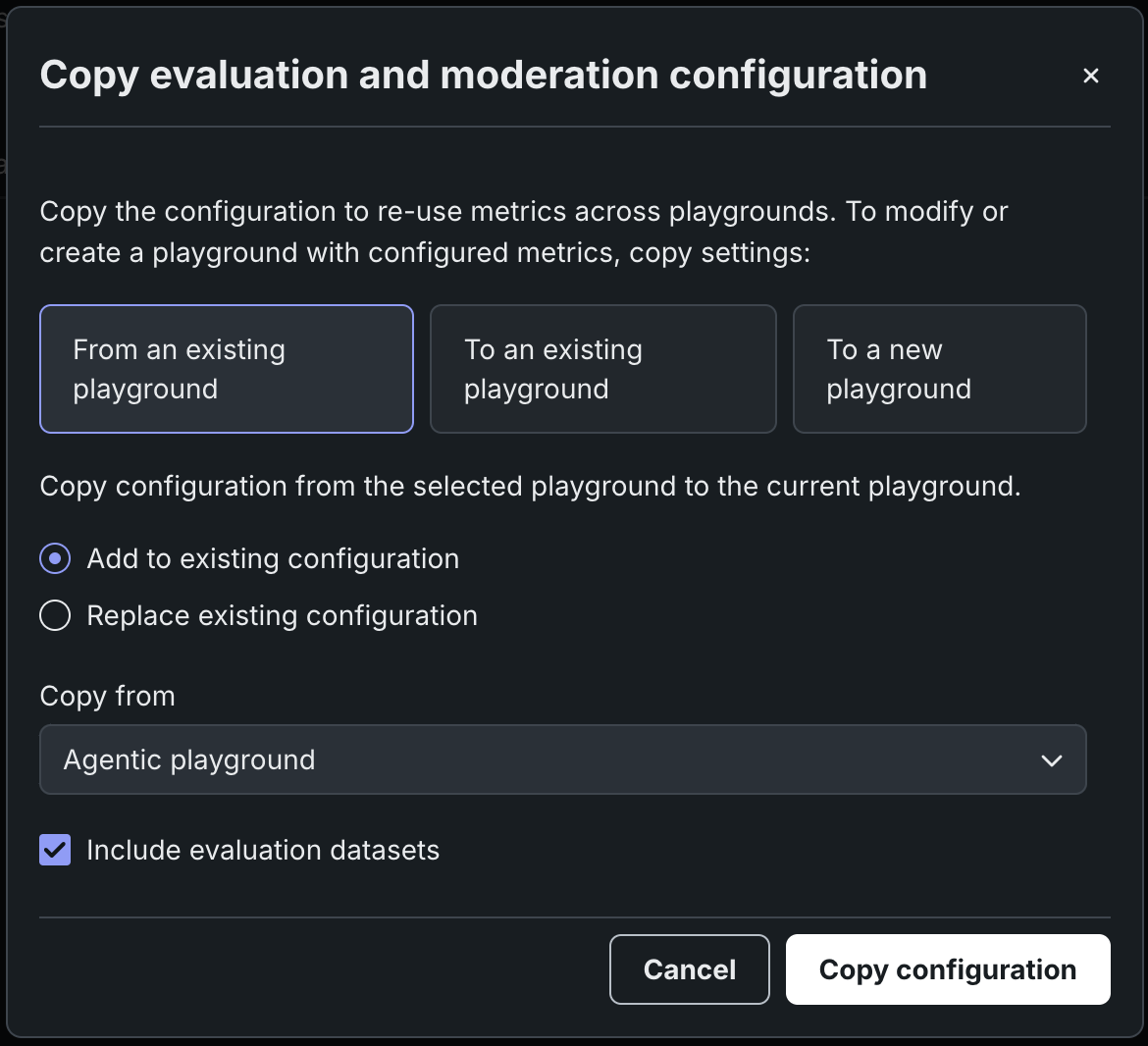
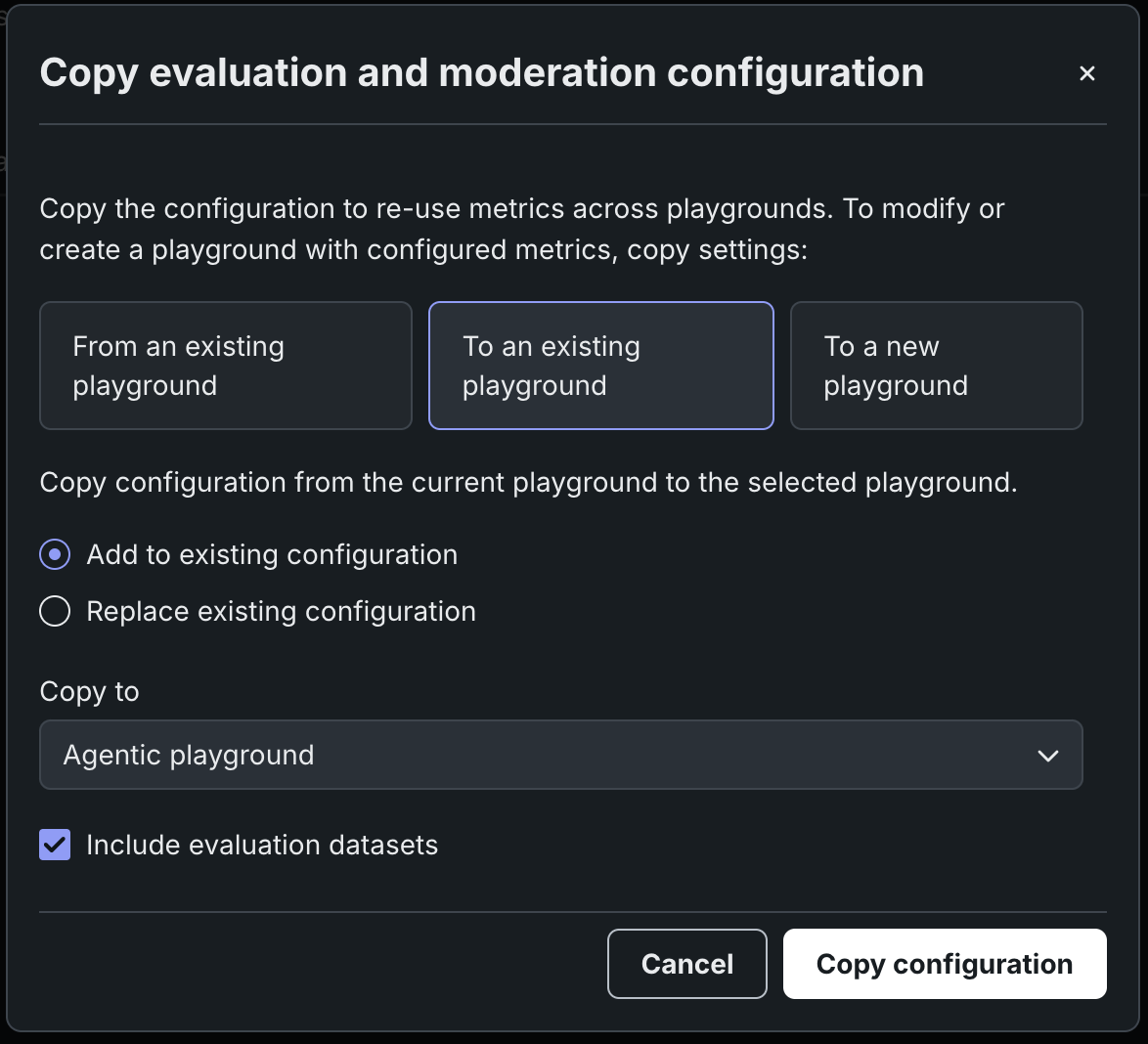
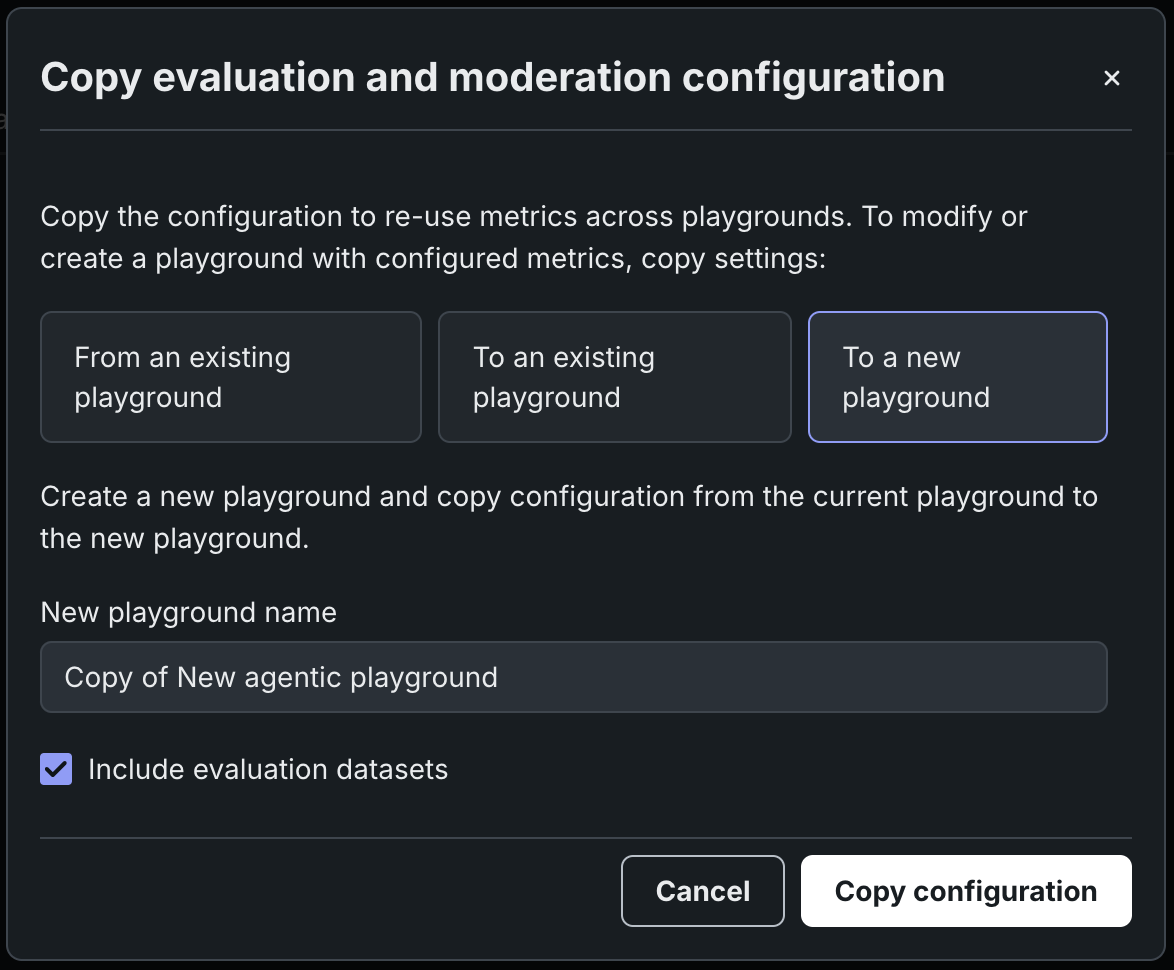
In the Copy evaluation and moderation configuration modal, select one of the following options:
If you select From an existing playground, choose to Add to existing configuration or Replace existing configuration and then select a playground to Copy from.
If you select To an existing playground, choose to Add to existing configuration or Replace existing configuration and then select a playground to Copy to.
If you select To a new playground, enter a New playground name.
-
Select if you want to Include evaluation datasets, and then click Copy configuration.
Duplicate evaluation metrics
Selecting Add to existing configuration can result in duplicate metrics.
Add evaluation datasets
To enable playground evaluation metrics and aggregated metrics, you must add one or more evaluation datasets to the playground to serve as reference data.
-
To add evaluation datasets in an agentic playground, do either of the following:
-
If you haven't connected any agents to the playground, in the Evaluate with metrics tile, click Configure metrics to configure metrics before adding an agent:
-
If you've one or more agents to the playground, on the side navigation bar click Evaluation:
-
-
On the Evaluation and moderation page, click the Evaluation datasets tab to view any existing datasets, or, click Add evaluation dataset from any tab, and select one of the following methods:
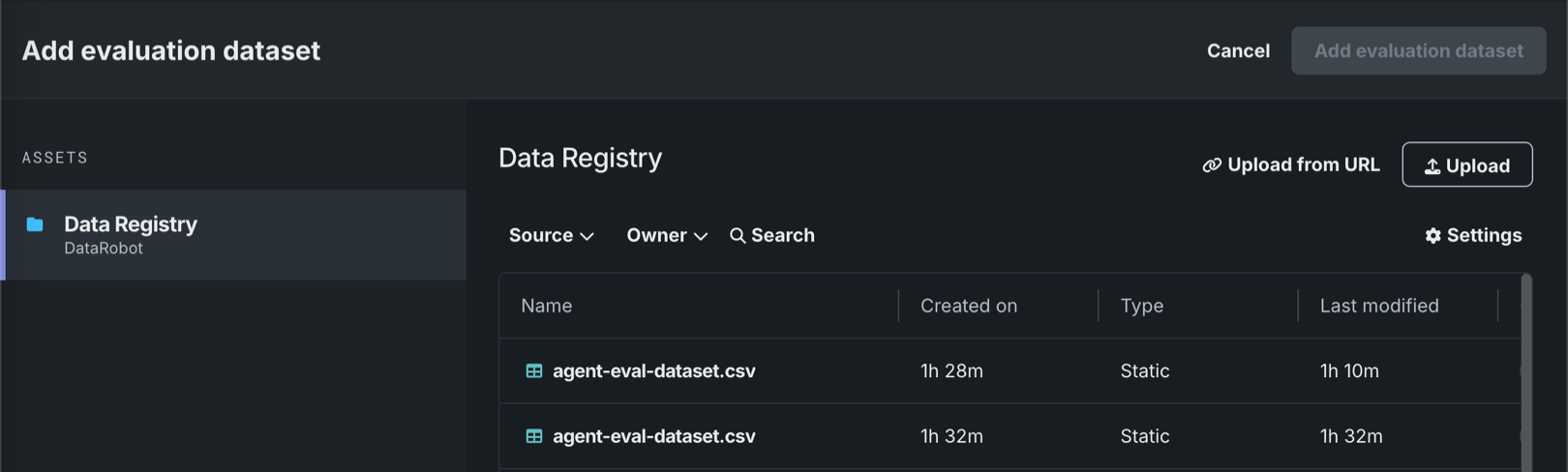
Method Description Select an existing dataset Click a dataset in the Data Registry table. Upload a new dataset - Click Upload to register and select a new dataset from your local filesystem.
- Click Upload from URL, then, enter the URL for a hosted dataset and click Add.
After you select a dataset, in the Evaluation dataset configuration right-hand sidebar, define the following columns:
Column Description Prompt column name The name of the reference dataset column containing the user prompt. Response (target) column name The name of the reference dataset column containing an expected agent response. Reference goals column name The name of the reference dataset column containing a description of the expected (goal) output of the agent. This data is used for the Configure Agent Goal Accuracy with Reference metric. Reference tools column name The name of the reference dataset column containing the expected agentic tool calls. This data is used for the Configure Tool Call Accuracy metric. Then, click Add evaluation dataset.
-
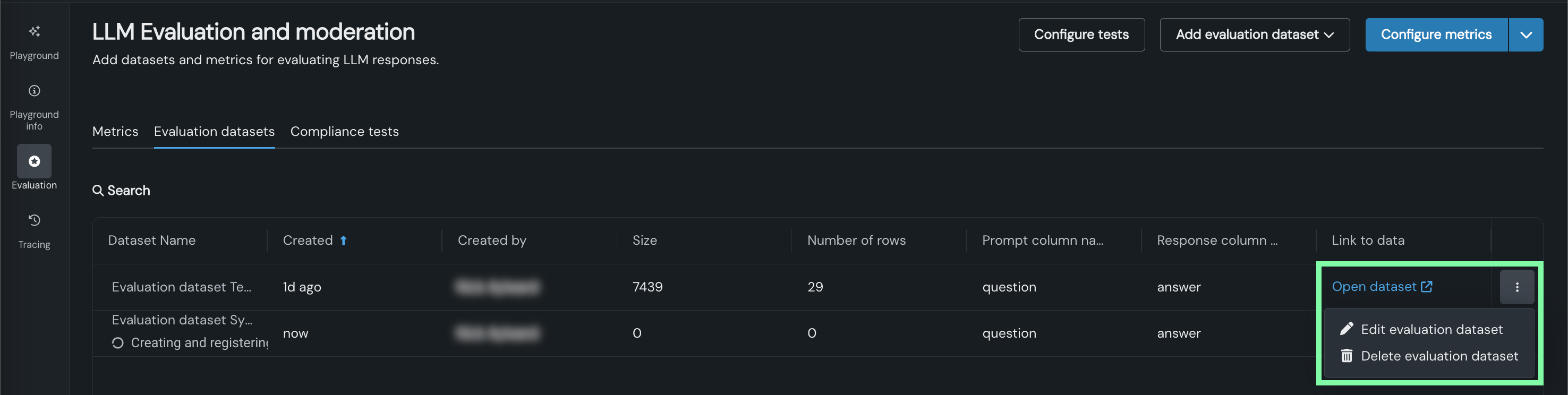
After you add an evaluation dataset, it appears on the Evaluation datasets tab of the Evaluation and moderation page, where you can:
- Click Open dataset to view the data.
- Click the Actions menu to Edit evaluation dataset or Delete evaluation dataset:
Add aggregated metrics
When a playground includes more than one metric, you can begin creating aggregate metrics. Aggregation is the act of combining metrics across many prompts and/or responses, which helps to evaluate agents at a high level (only so much can be learned from evaluating a single prompt/response). Aggregation provides a more comprehensive approach to evaluation.
Aggregation either averages the raw scores, counts the boolean values, or surfaces the number of categories in a multiclass model. DataRobot does this by generating the metrics for each individual prompt/response and then aggregating using one of the methods listed, based on the metric.
To configure aggregated metrics for an agentic playground:
-
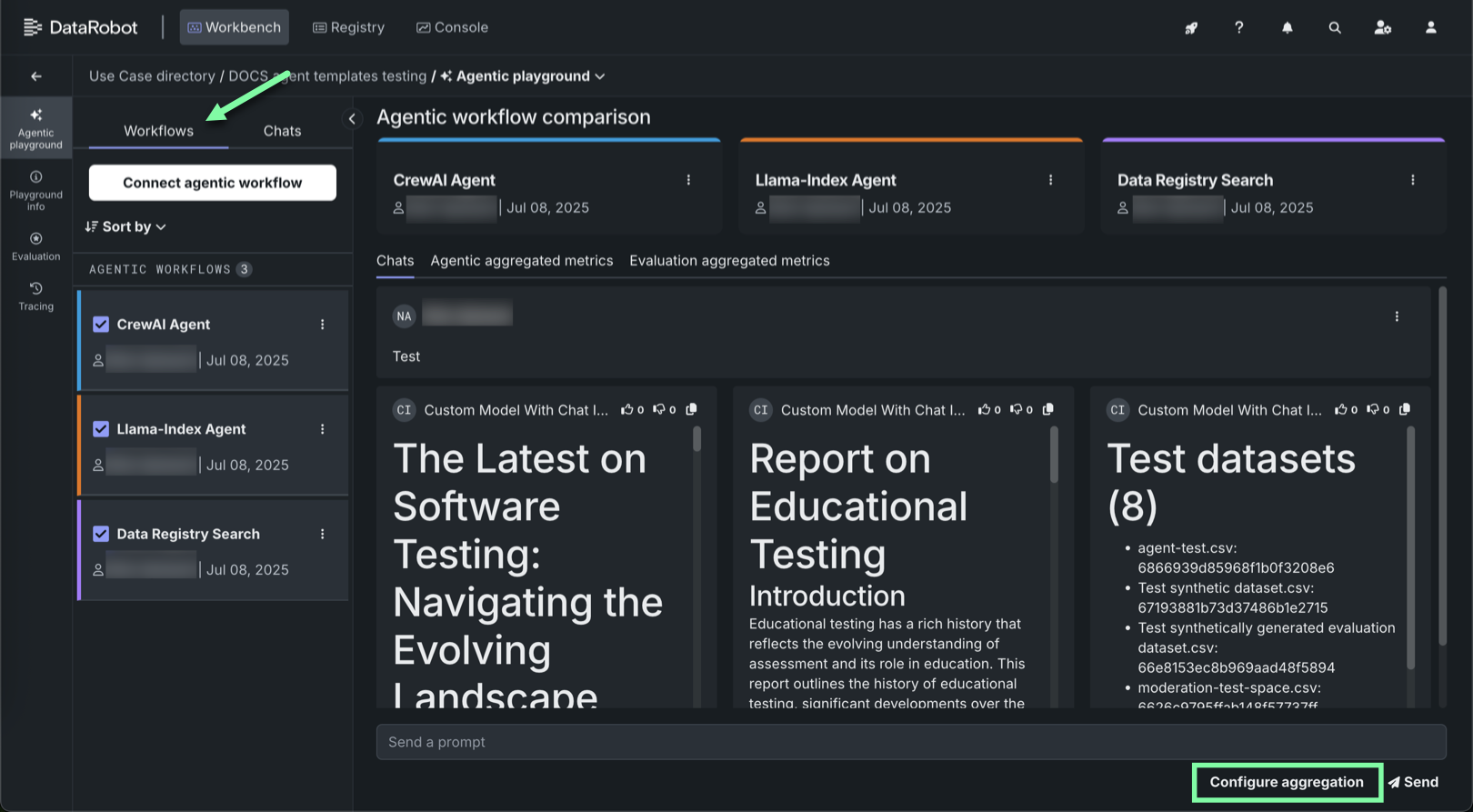
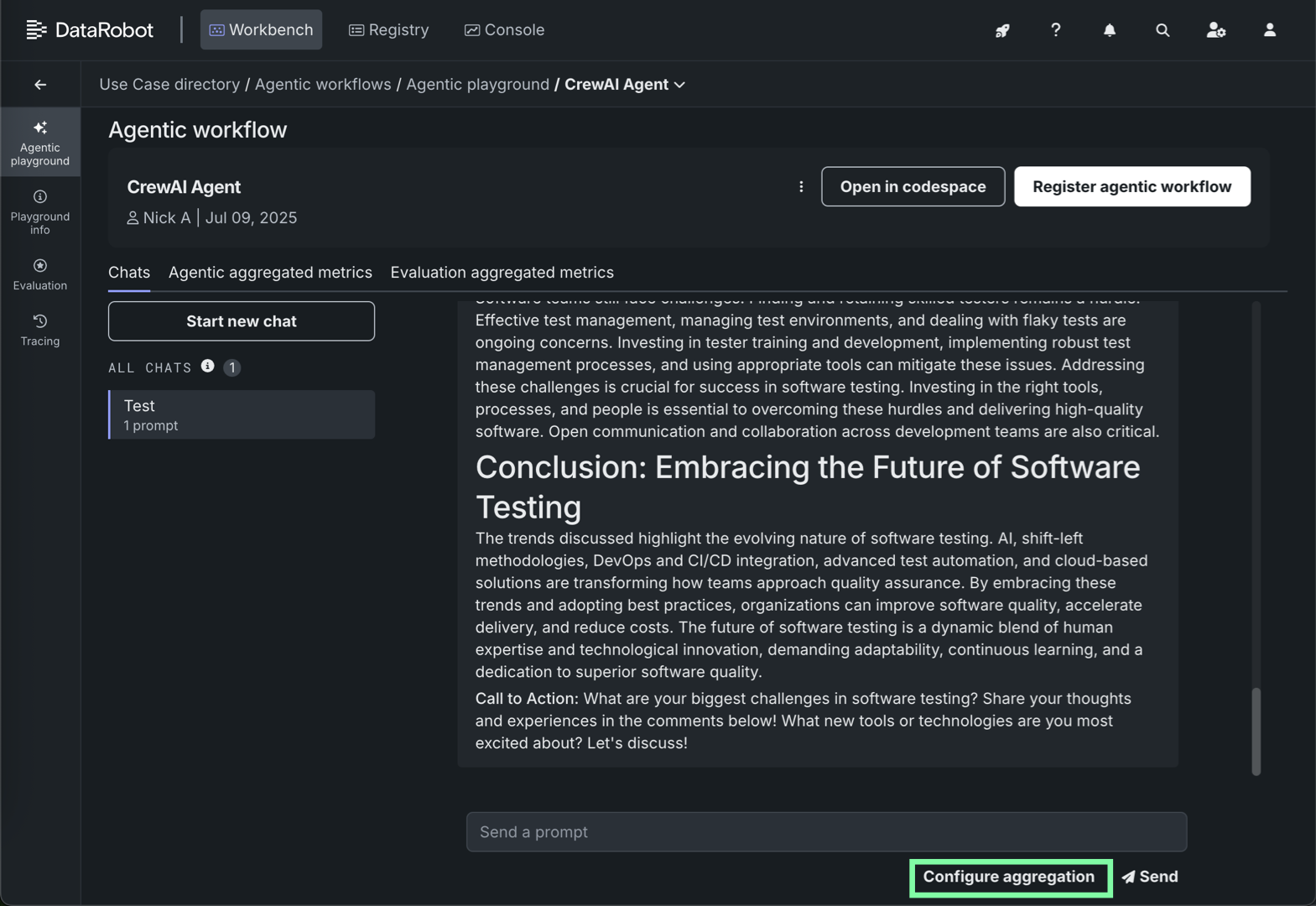
In the agentic playground, click Configure aggregation below the prompt input (from the Workflows tab, or in an individual agent Chats tab):
From the Workflows tab, each agentic workflow selected is included in the aggregation job.
From the Chats tab for a single agent, only the current agentic workflow is included in the aggregation job.
Aggregation job run limit
Only one aggregated metric job can run at a time. If an aggregation job is currently running, the Configure aggregation button is disabled and the "Aggregation job in progress; try again when it completes" tooltip appears.
-
On the Generate aggregated metrics panel, select metrics to include in aggregation and configure the Aggregate by settings. In the right-hand panel, enter a new Chat name, select an Evaluation dataset (to generate prompts in the new chat), and select the Workflows for which the metrics should be generated. These fields are pre-populated based on the current playground:
Playground vs agentic workflow metrics
In the example below, Agent Goal Accuracy with Reference and Tool Call Accuracy are playground metrics, while ROUGE-1 and Response Tokens are agentic workflow metrics (from Workshop).
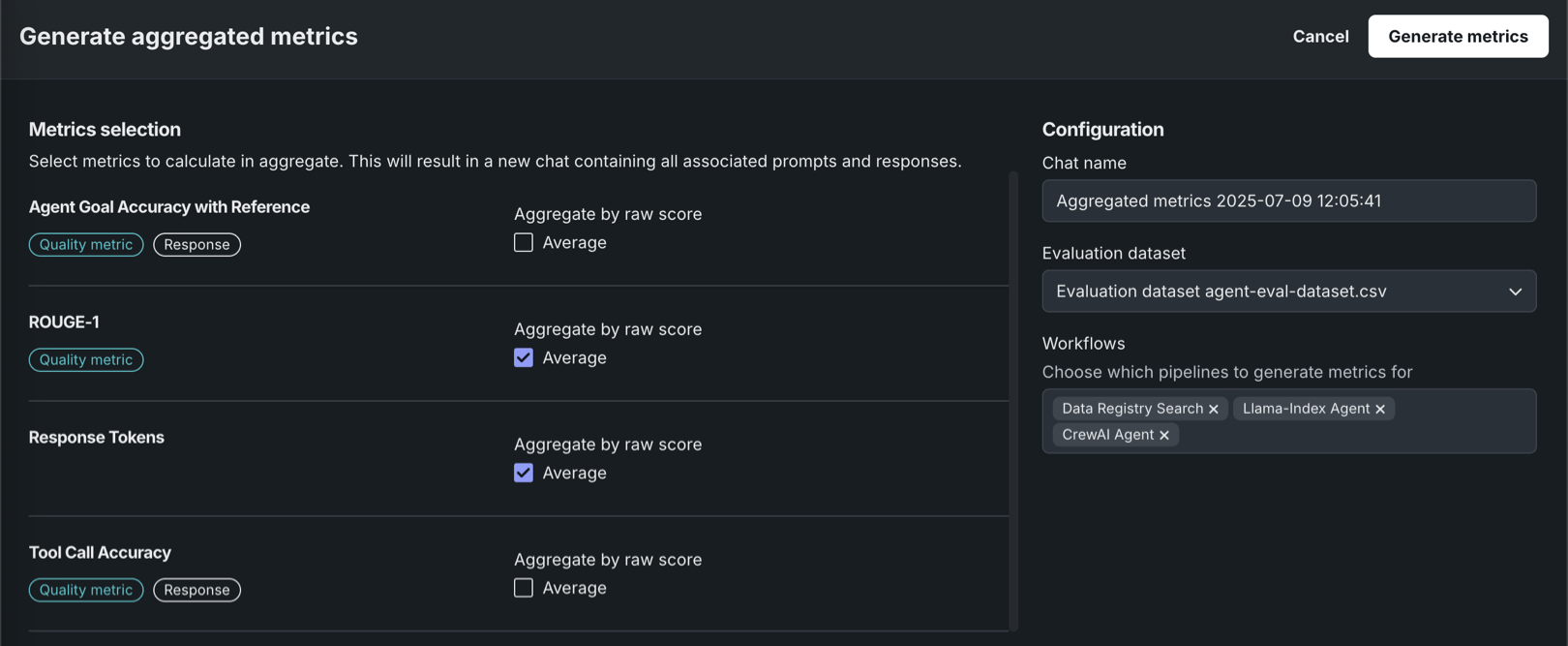
After you complete the Metrics selection and Configuration sections, click Generate metrics. This results in a chat, identified as a Metric chat, containing all associated prompts and responses:
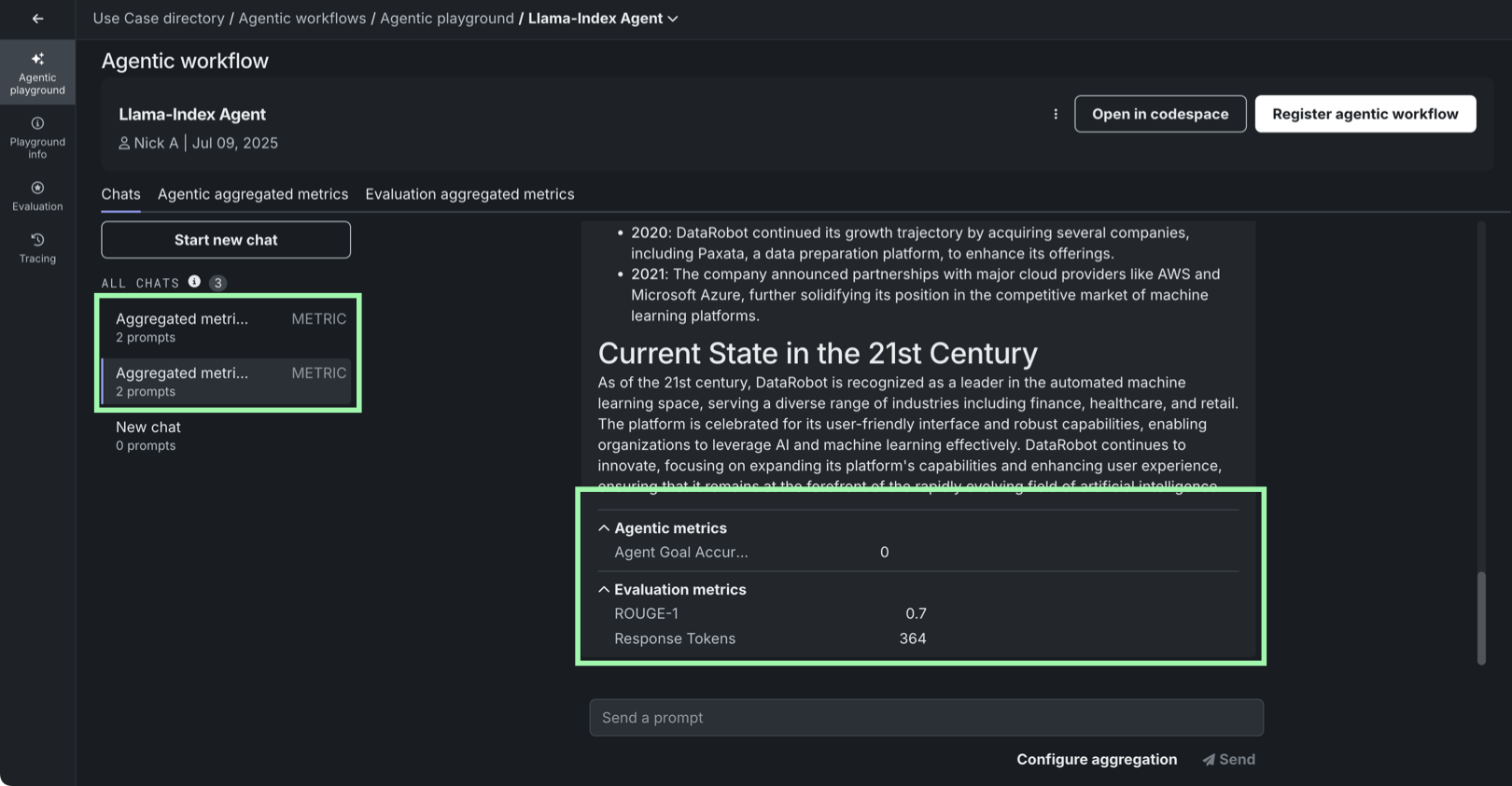
Aggregated metrics are run against an evaluation dataset, not individual prompts in a standard chat. Therefore, you can only view aggregated metrics in the generated aggregated metrics chat, added to the agent's All Chats list (on the agent's individual Chats tab).
Aggregation metric calculation for multiple agents
If many agents are included in the metric aggregation request, aggregated metrics are computed sequentially, agent-by-agent.
-
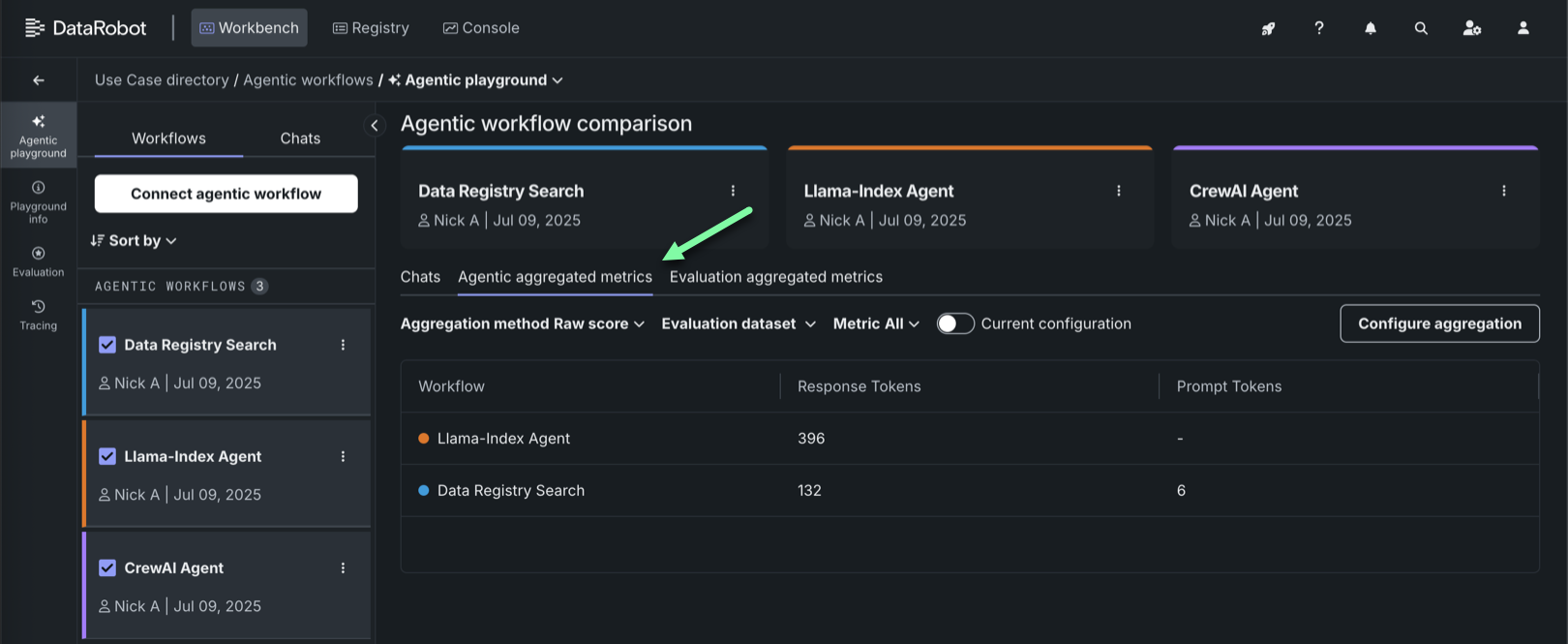
Once an aggregated chat is generated, you can explore the resulting aggregated metrics, scores, and related assets on the Agentic aggregated metrics tab and Evaluation aggregated metrics tab. These tabs are available when comparing agentic chats, and when viewing a single-agent chat. You can filter by Aggregation method, Evaluation dataset, and Metric:
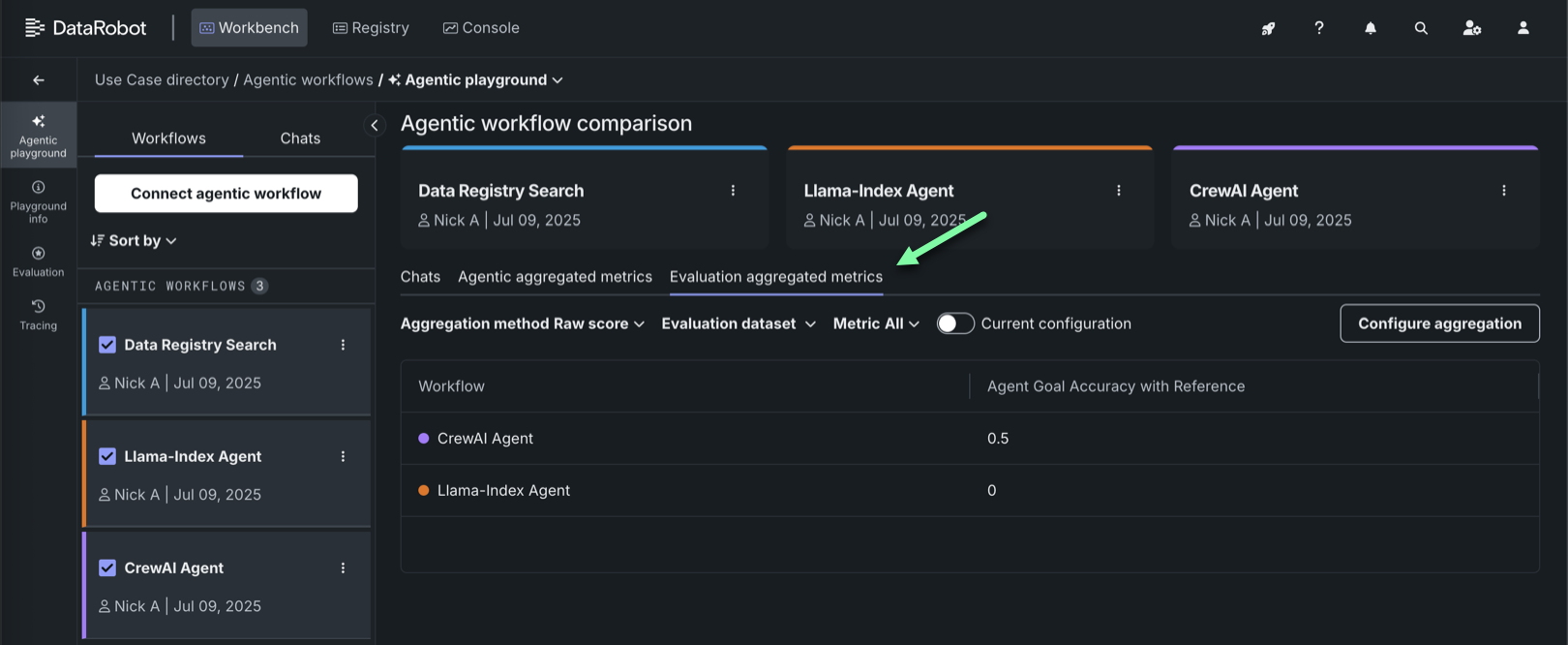
In addition, toggle on Current configuration to compare only the metrics calculated using the currently defined aggregation configuration, excluding calculated values from previous configurations.