Update connected vector databases
Note
Versioning—creating a complete, new vector database—is not available for external, connected vector databases. Instead, you can add data to ("hydrate") a connected vector database without creating a new version.
This page describes the ability to add data to a Pinecone, Elasticsearch, or Milvus connected vector database. See the section on versioning a resident vector databases for details on creating child, related entities based on a single, DataRobot-hosted parent.
Add data
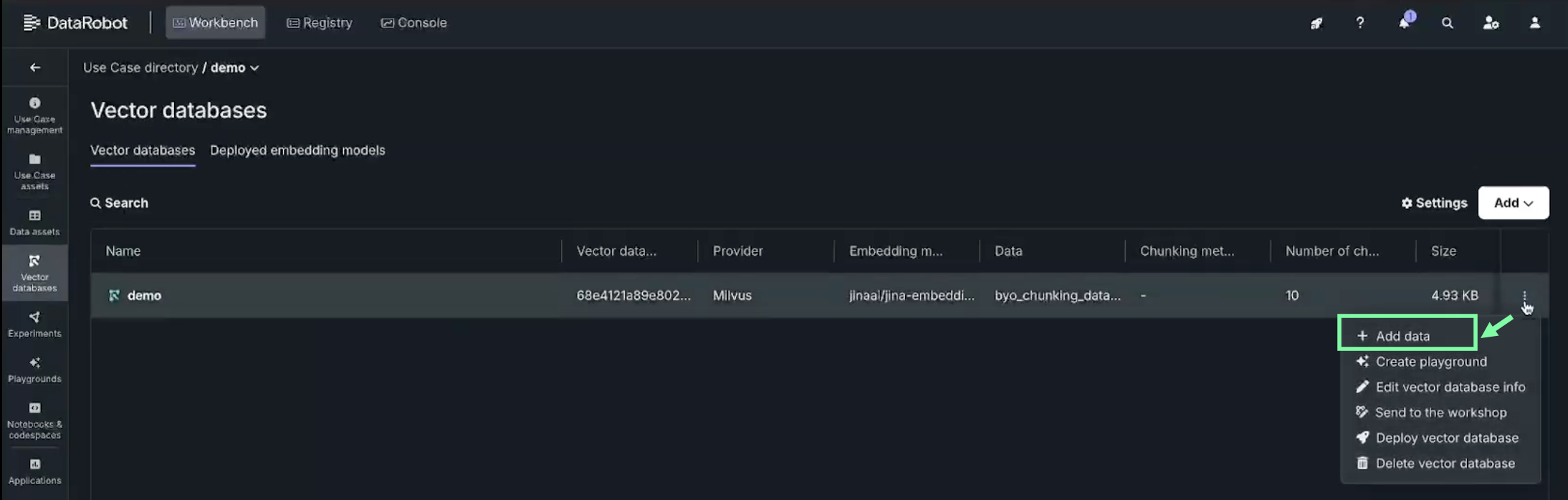
To add data, go to the Vector databases tile in the left panel and select the connected vector database you want to update. From the Actions menu , choose Add data.
Note
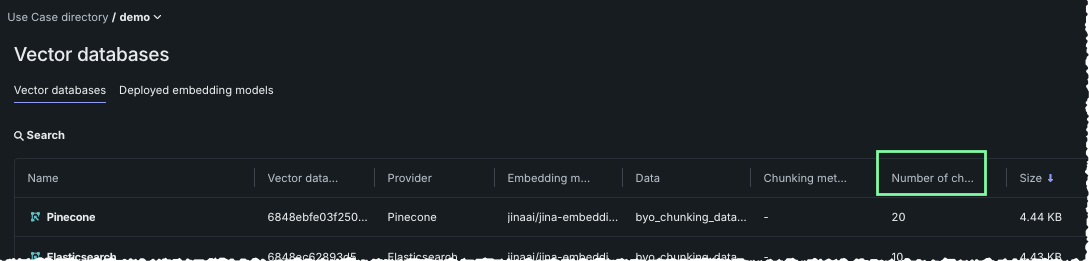
Before adding data, take note of the number of chunks shown in the Number of chunks column. After adding data, you can compare the chunk count of the newly hydrated vector database with this value.
The Update vector database page opens, providing:
- The Data source dropdown, which provides access to all Use Case vector databases and provides an option to Add data.
- An optional field for attaching metadata.
- A summary of the current vector database configuration. This is the same information provided in the Details section on the vector database listing.
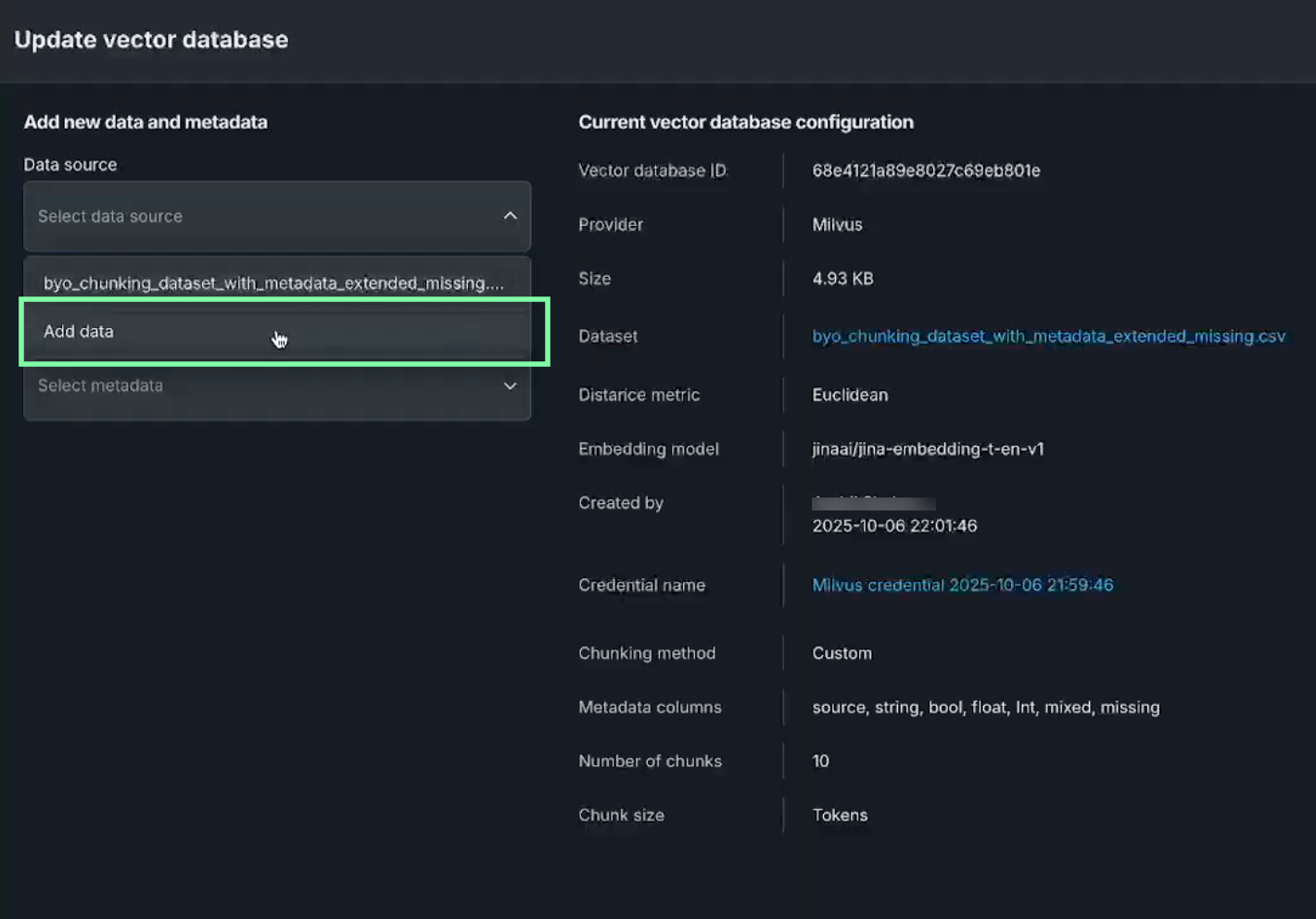
From the Data source dropdown, select Add data. The Data Registry opens where you can select a dataset to append to the current vector database. Click to select the new dataset and then click Add dataset.
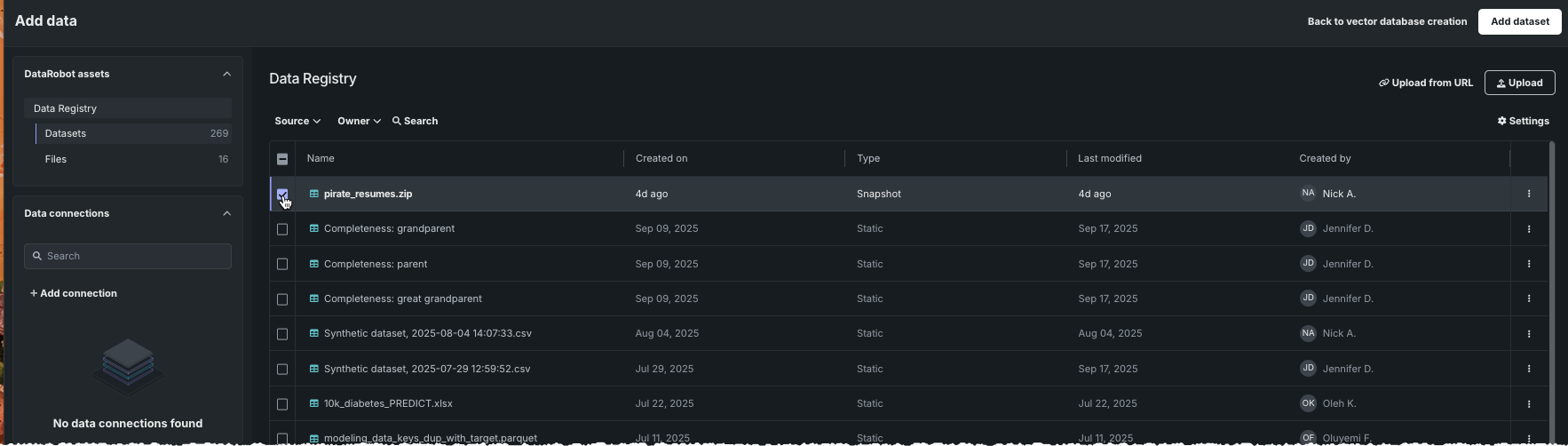
You are returned to the Update vector database page; click Update in the upper right to save changes. When you receive a popup notification that data was successfully added, you can confirm the addition by:
- Checking your collection at the provider site.
- Comparing the number of chunks shown in the Number of chunks column to the number observed prior to adding data.
Deploy the updated vector database
After updating the vector database with new data, you can do the following. Note that you do not need to redeploy to pick up the changes. Because the deployment is simply a "pass-through" to the connected vector database index, existing deployments automatically have access to the added data.
-
Send it to the model workshop, where it is maintained as a standalone vector database custom model.
-
Deploy it, which sends it to the model workshop, registers it, and then deploys it.
See the section on registering and deploying vector databases for more information.