Data Quality Assessment
The Data Quality Assessment capability automatically detects and surfaces common data quality issues and, often, handles them with minimal or no action on the part of the user. The assessment not only saves time finding and addressing issues, but provides transparency into automated data processing (you can see the automated processing that has been applied). It includes a warning level to help determine issue severity.
As part of EDA1, DataRobot runs checks on features that don’t require date/time and/or target information. Once EDA2 starts, DataRobot runs additional checks. In the end, the following checks are run:
DataRobot always runs the following baseline data quality checks:
- Outliers
- Multicategorical format errors
- Inliers
- Excess zeros
- Disguised missing values
- Target leakage
- Missing images (Visual AI experiments)
Time series experiments run all the baseline data quality checks as well as checks for:
The Visual AI experiments Data Quality Assessment runs the same baseline checks and an additional missing image check:
Related reference
To learn more about the topics discussed on this page, see:
- EDA explained: Detailed descriptions of how DataRobot processes EDA.
- Data quality checks: Detailed descriptions of each data quality check, as well as a summary of the logic behind each one.
- Feature considerations: Important additional information about data quality.
Data Quality Assessment locations
The Data Quality Assessment provides information about data quality issues that are relevant to your stage of model building. Initially run as part of EDA1 (data ingest), the results report on the All Features list. It runs again and updates after EDA2, displaying information for the selected feature list (or, by default, All Features). For checks that are not applicable to individual features (for example, Inconsistent Gaps), the report provides a general summary.
You can access a Data Quality Assessment from two areas in Workbench:
In a Workbench Use Case, open a dataset and select either the Data preview or Features tile. Then, click Show summary. This assessment displays data quality checks surfaced during EDA1.
In a Workbench Use Case, open an experiment and select either the Data preview or Features tile. Then, click Show summary. This assessment displays data quality checks surfaced during EDA2.
Once model building completes, you can view the Data Quality Handling Report for additional imputation information.
Identify target leakage
When EDA2 is calculated, DataRobot checks for target leakage, which refers to a feature whose value cannot be known at the time of prediction, leading to overly optimistic models. A badge is displayed next to these features so that you can easily identify and exclude them from any new feature lists.

Explore the assessment
To view the Data Quality Assessment from one of the areas listed in the previous section, click Show summary (unless it is already open, then the button displays Hide summary).

Then, click Show details to open a detailed report.
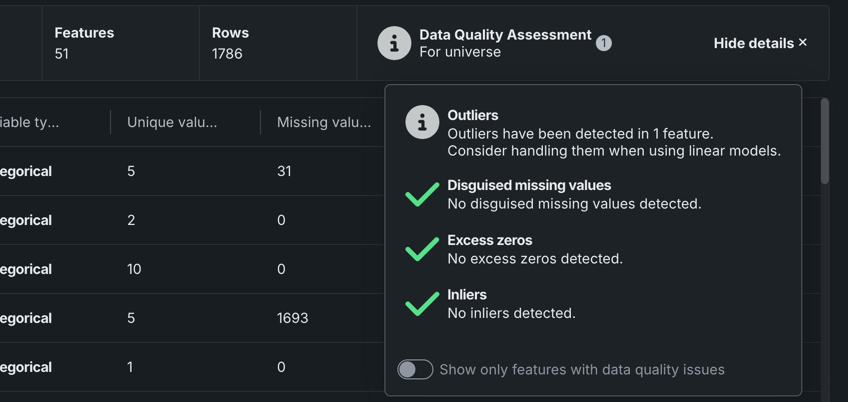
Each data quality check provides issue status flags, a short description of the issue, and a recommendation message, if appropriate:
| Status | Description |
|---|---|
| Warning | Attention or action required |
| Informational | No action required |
| Passing | No issue detected |
Isolate features with data quality issues
From within the assessment modal, you can filter by issue type to see which features triggered the checks. Toggle on Show only affected features and check boxes next to the check names to select which checks to display:
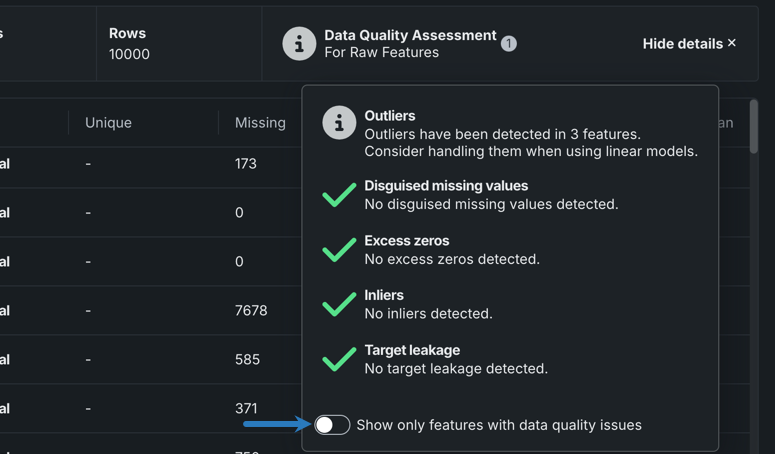
DataRobot then displays only features violating the selected data quality checks, and within the selected feature list. You can hover on an icon for more detail.
For multilabel and Visual AI experiments, Preview Log displays at the top if the assessment detects multicategorical format errors or missing images in the dataset. Click Preview Log to open a window with a detailed view of each error, so you can more easily find and fix them in the dataset.
View data quality checks
To check individual features for data quality issues:
- From the Use Case, click on the dataset or experiment you want to view.
-
Open the Features tile on the left. The Data quality column indicates if DataRobot detected a data quality issue with the feature.

-
Hover over the icon to learn which check failed. You can then use the exploratory data insights to correct them.

Because the results are feature-list based, it is possible that if you change the selected feature list, new checks will appear or current checks will disappear from the assessment. For example, if feature list List 1 contains a feature problem, which contains outliers, the outliers check will show in the assessment. If you change lists to List 2 which does not include problem (or any other feature with outliers), the outliers check will report "no issue" .