API keys and tools
DataRobot provides multiple developer tools for you to use when making prediction requests or engaging with the DataRobot API. The currently available tools are:
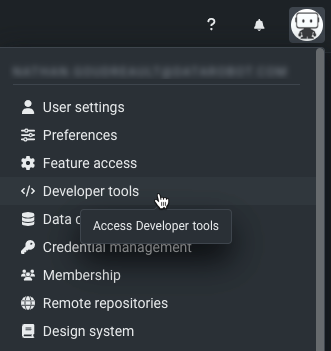
Click on your user icon and navigate to API keys and tools to access these features:
API key management
API keys are the preferred method for authenticating web requests to the DataRobot APIs; they replace the legacy API token method. You can simply post the API key into the request header and the application requests you as a user. All DataRobot API endpoints use API keys as a mode of authentication.
Generating multiple API keys allows you to create a new key, update your existing integrations, and then revoke the old key, all without disruption of service of your API calls. This also allows you to generate distinct keys for different integrations (script A using key A, script B using key B).
Note
If you were previously using an API token, that token has been upgraded to an API key. All existing integrations will continue to function as expected, both for the DataRobot API and the Prediction API.
Access API key management
You can register and manage—name, create, and delete—multiple API keys. To access this page, click on your user icon and navigate to the API keys and tools page.
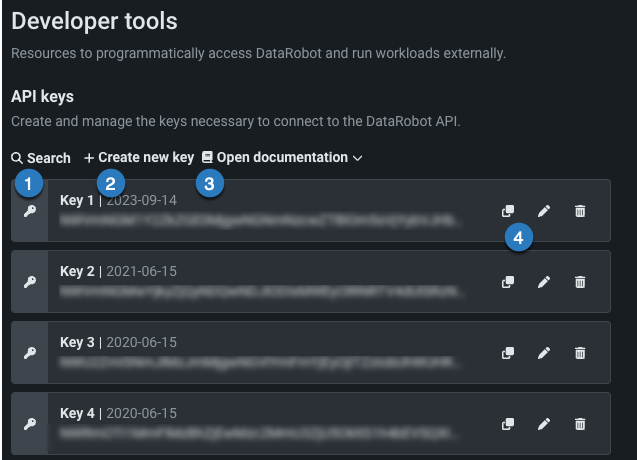
The Personal API keys tab lists your API keys with a variety of options available:
| Element | Description | |
|---|---|---|
| 1 | API endpoint | Copy the API endpoint to your clipboard (contents blurred out in this image) to paste elsewhere. |
| 2 | Open documentation | Access multiple code-first resources, such as REST API documentation, Python client documentation, or AI accelerators. |
| 3 | Key type | Toggle between tabs for the three kinds of API keys: API keys for personal use of the API, application API keys for use with custom applications, and agent API keys for use with agentic workflows. |
| 4 | Search | Search the list of API keys by name or date created. |
| 5 | + Create new key | Create a new personal API key. |
| 6 | Copy | Copy a key to your clipboard (contents blurred out in this image) to paste elsewhere. |
| 7 | Actions menu | Expand the actions menu to rename or delete an API key. |
Personal API keys
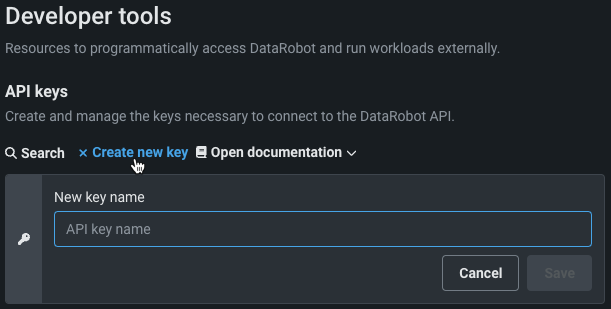
Each personal API key on the Personal API keys tab lists the key name, status, value, creation date, and when it was last used. To create a personal API key, from the Personal API keys tab on the API keys and tools page, click + Create new key. Then enter an API key name and click Create. This activates the new key, making it ready for use.
Application API keys
An application API key grants an application the necessary access to the DataRobot Public API, allowing you to grant users the ability to access and use data from within an application. A new key is automatically created each time you build a custom application. While sharing roles grant control over the application as an entity within DataRobot, application API keys grant control over the requests the app can make when a user accesses it. See configuring application API keys for custom applications for more information.
Application API keys are listed in the Application API keys tab of the API keys and tools page.
| Field | Description |
|---|---|
| Name | The name of the key. |
| Key | The value of the API key. |
| Role | The scope of access the application has to the public API granted by the key. |
| Connected application | The name of the custom application that the key belongs to. Click the link to access the application. |
| Data created | The date the key was created. |
| Last used | The time elapsed since the last use of the key. |
| Expiration | The time remaining until the key expires. |
Allowed endpoints
Application API keys do not grant complete access to the REST API. Each key can only call endpoints allowed for custom applications. The list below shows all endpoints (and their child endpoints; for example ,/api/v2/projects/<project_id>/) available in the default configuration.
Only a system administrator can add or remove allowed endpoints. Multi-tenant SaaS (MTS) users can contact DataRobot Support for assistance. On single-tenant SaaS (STS) and self-managed deployments, system administrators manage this through System Configuration. See Allowed API endpoints for details.
- /api/v2/account/info/
- /api/v2/account/validateApiKey/
- /api/v2/applications/
- /api/v2/automatedDocumentOptions/
- /api/v2/automatedDocuments/
- /api/v2/batchJobs/
- /api/v2/batchMonitoring/
- /api/v2/batchMonitoringJobDefinitions/
- /api/v2/batchPredictionJobDefinitions/
- /api/v2/batchPredictions/
- /api/v2/calendarCountryCodes/
- /api/v2/calendars/
- /api/v2/catalogItems/
- /api/v2/changeRequests/
- /api/v2/comments/
- /api/v2/credentials/
/associations/ / - /api/v2/credentials/associations/
/ - /api/v2/customApplicationSources/
- /api/v2/customJobLimits/
- /api/v2/customJobs/
- /api/v2/customModelDeployments/
- /api/v2/customModelLimits/
- /api/v2/customModelTests/
- /api/v2/customTasks/
- /api/v2/customTrainingBlueprints/
- /api/v2/dataEngineQueryGenerators/
- /api/v2/dataEngineWorkspaceStates/
- /api/v2/datasets/
- /api/v2/dataSlices/
- /api/v2/deployments/
- /api/v2/executionEnvironments/
- /api/v2/externalDataSources/
- /api/v2/externalDataStores/
- /api/v2/files/
- /api/v2/genai/llmgw/
- /api/v2/guardConfigurations/
- /api/v2/guardTemplates/
- /api/v2/imageAugmentationLists/
- /api/v2/imageAugmentationOptions/
- /api/v2/insights/
- /api/v2/keyValues/
- /api/v2/modelComplianceDocsInitializations/
- /api/v2/modelPackages/
- /api/v2/models/
- /api/v2/moderationSupportedLlms/
- /api/v2/multilabelInsights/
- /api/v2/ocrJobResources/
- /api/v2/overallModerationConfiguration/
- /api/v2/predictionServers/
- /api/v2/projectClones/
- /api/v2/projects/
- /api/v2/recipes/
- /api/v2/registeredModels/
- /api/v2/relationshipsConfigurations/
- /api/v2/remoteEvents/
- /api/v2/remoteRepositories/
- /api/v2/scheduledJobs/
- /api/v2/status/
- /api/v2/stringEncryptions/
- /api/v2/useCases/
- /api/v2/useCasesWithShortenedInfo/
- /api/v2/userBlueprints/
- /api/v2/userBlueprintsBulkValidations/
- /api/v2/userBlueprintsInputTypes/
- /api/v2/userBlueprintsProjectBlueprints/
- /api/v2/userBlueprintsTaskParameters/
- /api/v2/userBlueprintsTasks/
- /api/v2/userBlueprintsValidations/
- /api/v2/version/
Agent API keys
To differentiate between various applications and agents using a deployment, agent API keys are generated automatically when a new Agentic workflow deployment is created. Agent API keys are listed in the Agent API keys tab of the API keys and tools page, and can be edited (renamed) or deleted.
| Field | Description |
|---|---|
| Name | The name of the key. |
| Key | The value of the key. |
| Connected deployment | The name of the deployment that the key belongs to. Click the link to access the deployment. |
| Data created | The date the key was created. |
| Last used | The time elapsed since the last use of the key. |
Workload API keys
Workload API keys are generated automatically when a new workload is created. Workload API keys are listed in the Workload API keys tab of the API keys and tools page, and can be edited (renamed) or deleted.
| Field | Description |
|---|---|
| Name | The name of the key. |
| Key | The value of the key. |
| Connected workload | The name of the workload that the key belongs to. Click the link to access the workload. |
| Data created | The date the key was created. |
| Last used | The time elapsed since the last use of the key. |
Delete an existing key
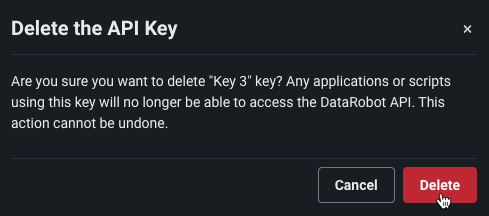
To delete an existing key, expand the actions menu for the key you wish to delete, then click Delete. This prompts a dialog box warning you about the impacts of deletion. Click Delete again to remove your key.
Monitoring agent tarball
DataRobot offers the monitoring agent as a solution for monitoring external models outside of DataRobot and reporting back statistics. To monitor a deployment of this kind, you must first implement the following software components, provided by DataRobot:
- MLOps library (available in Python, Java, and R)
- The monitoring agent
These components are part of an installer package available as a tarball in the DataRobot application.
Download the monitoring agent tarball
The monitoring agent tarball can be accessed from two locations: the API keys and tools section, and the Predictions > Monitoring tab for a deployment.
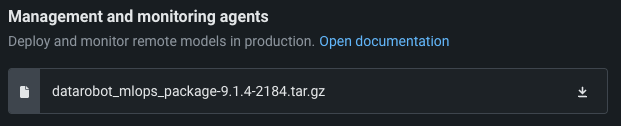
Click on your user icon and navigate to API keys and tools. Under the Management and monitoring agents header, click the download icon. Additional documentation for setting up the Agent is included in the tarball.
Note
You can also download the DataRobot Python libraries from the public Python Package Index site. Download and install the DataRobot metrics reporting library and the DataRobot Connected Client. These pages include instructions for installing the libraries.
Portable Prediction Server Docker image
Availability information
The Portable Prediction Server image may not be available in some installations. Review the availability guidelines for more information.
Download the Portable Prediction Server Docker image from the API keys and tools page:
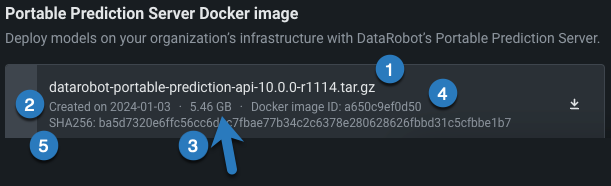
You can see some important information about the image:
| Element | Description | |
|---|---|---|
| 1 | Image name | The name of the image archive file that will be downloaded. |
| 2 | Image creation date | The date that the image was built. |
| 3 | File size | The size of the compressed image to be downloaded. Be aware that the uncompressed image size can exceed 12GB. |
| 4 | Docker Image ID |
A shortened version of the Docker Image ID, as displayed by the docker images command. It is content-based so that regardless of the image tag, this value will remain the same. Use it to compare versions with the image you are currently running. |
| 5 | Hash | Hash algorithm and content hash sum. Use to check file integrity after download (see example below). Currently SHA256 is used as a hash algorithm. |
Click the download icon and wait for the file to download. Due to image size, download times may take minutes (or even hours) depending on your network speed. Once the download completes, check the file integrity using its hash sum. For example, on Linux:
sha256sum datarobot-portable-prediction-api-7.0.0-r1736.tar.gz
5bafef491c3575180894855164b08efaffdec845491678131a45f1646db5a99d  datarobot-portable-prediction-api-7.0.0-r1736.tar.gz
If the checksum matches the value displayed in the image information (Hash value (5), above), the image was downloaded successfully and can be safely loaded to Docker.