Account settings
To access profile information, two-factor authentication, developer tools, data sources, and membership assignments, click your profile icon (or the default avatar ) in the upper-right corner of DataRobot.
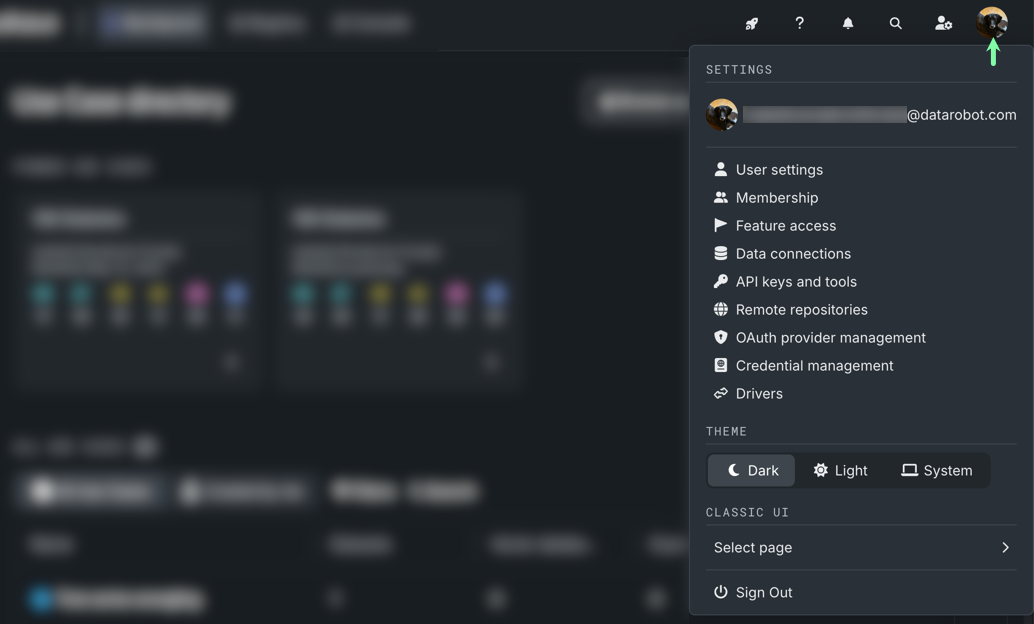
The following table summarizes the options:
| Topic | Description |
|---|---|
| User settings | Update your account information and avatar. |
| Membership | View the organizations and groups you belong to and join groups. |
| Feature access | Enable or disable features for tenants. |
| Data connections | Add, delete, modify, and test data connections. |
| Remote repositories | Add and manage connections to remote repositories. After adding a repository to DataRobot, you can pull files from the repository and include them in the custom model. |
| OAuth provider management | Add, manage, and authorize OAuth providers. |
| Credential management | Add and manage securely stored credentials to reuse when accessing secure data sources. |
| Usage Explorer | View your GPU, CPU, and LLM API usage across the platform, broken down by service. |
| API keys and tools | |
| API keys | Create and manage the keys necessary to connect to the DataRobot API. |
| Management and monitoring agents | Download the agents to deploy and monitor remote models in production. |
| Portable Prediction Server | Deploy models on your organization’s infrastructure with DataRobot’s Portable Prediction Server. |
Note
The options available in the dropdown are dependent on your DataRobot permissions.