OAuth provider management
The OAuth providers tile allows you to configure, add, remove, or modify OAuth providers for your cluster.
Configure an OAuth provider
DataRobot supports integration with several external OAuth providers. Refer to the links below for configuration options.
| Provider | Client setup instructions | Callback URI |
|---|---|---|
| GitHub | Creating an OAuth app | DATAROBOT_BASE_URL/account/oauth-providers/?providerId=PROVIDER_ID |
| GitLab | Configure GitLab as an OAuth 2.0 provider | DATAROBOT_BASE_URL/account/oauth-providers/?providerId=PROVIDER_ID |
| Bitbucket | Use OAuth on Bitbucket Cloud | DATAROBOT_BASE_URL/account/oauth-providers/?providerId=PROVIDER_ID |
| Setting up OAuth 2.0 | DATAROBOT_BASE_URL/account/oauth-providers/?providerId=PROVIDER_ID |
|
| Box | Setup with OAuth 2.0 | DATAROBOT_BASE_URL/account/oauth-providers/?providerId=PROVIDER_ID |
| Microsoft | Register an application in Microsoft Entra ID | DATAROBOT_BASE_URL/account/oauth-providers/?providerId=PROVIDER_ID |
| Confluence | OAuth 2.0 (3LO) apps | DATAROBOT_BASE_URL/account/oauth-providers/?providerId=PROVIDER_ID |
| Jira | OAuth 2.0 (3LO) apps | DATAROBOT_BASE_URL/account/oauth-providers/?providerId=PROVIDER_ID |
| SharePoint | OAuth 2.0 and OIDC authentication flow in the Microsoft identity platform | DATAROBOT_BASE_URL/account/oauth-providers/?providerId=PROVIDER_ID |
Note
In the Callback URI field, substitute the URL of your deployment in place of DATAROBOT_BASE_URL (e.g., app.DataRobot.com). The Callback URI field is configured in the external OAuth provider's settings outside of DataRobot. For Google or Box configurations, the value for PROVIDER_ID must be updated in the URI field after creating the OAuth provider in DataRobot. Once added, the value is the one shown in the Provider id column for the provider in the DataRobot UI.
Add a provider
To add a new OAuth provider:
-
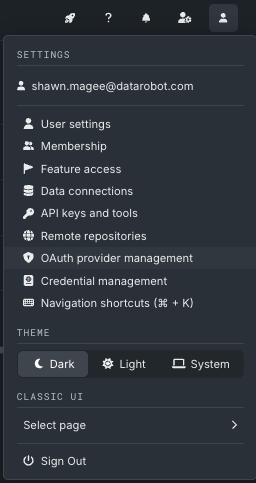
In the top-right corner, go to User Settings > OAuth provider management.
-
Click Add OAuth provider.
-
Fill in the fields. Note that all fields are required:
Field Description Provider type Specify the provider. Provider Name Specify a name for the provider being added. Client ID Enter the Client IDfrom the provider you want to add.Client Secret Enter the Client Secretfrom the provider you want to add. -
To add the new provider, click Add.
Note
Only the user who added the provider will be able to access it for modifying or removal.
Verify a provider
Before an OAuth provider can be used in the cluster, it must be authorized for the user accessing the server.
To verify an OAuth provider:
-
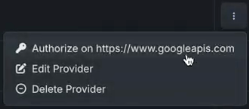
Open the Actions menu on the right-hand side of the OAuth provider management table in the row containing your provider and select Authorize on NAME (NAME will vary based on the provider of the service).
-
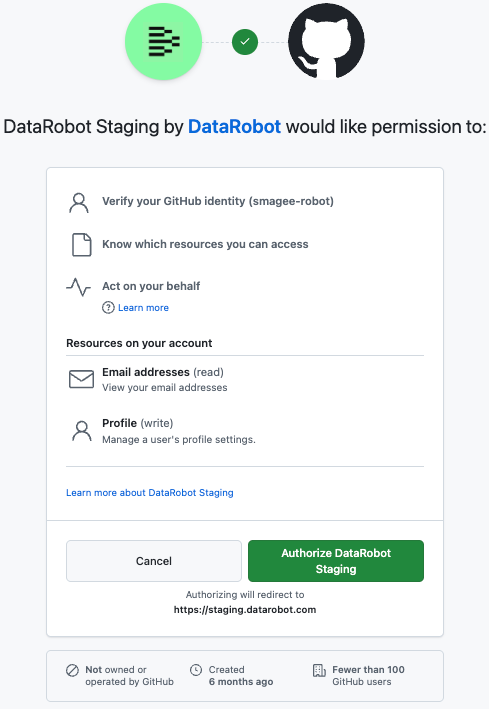
Click through the subsequent steps required by the service to authorize your provider. The example below demonstrates the flow for GitHub, but other providers will differ.
-
After verification, the provider row displays an authorized badge below its name.
Modify a provider
To edit a configured provider:
-
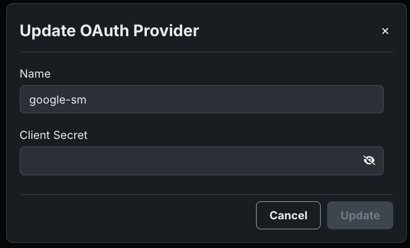
Open the Actions menu on the right-hand side of the OAuth provider management table in the row containing your provider and select Edit OAuth provider.
-
Edit the necessary fields and click Update to finish.
Remove a provider
To remove a provider:
-
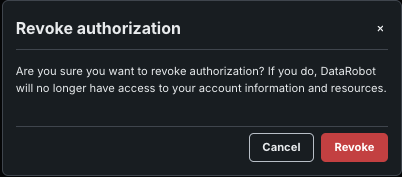
Open the Actions menu on the right-hand side of the OAuth provider management table in the row containing your provider and select Revoke authorization.
-
Click Revoke to proceed.
The provider now displays a Not authorized icon below it.
Note
The default providers cannot be removed.
Organization-wide consent for Microsoft OAuth
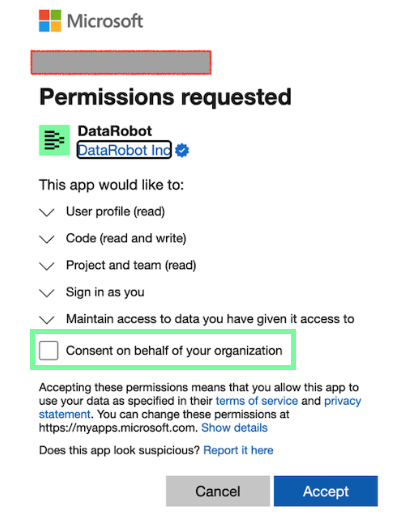
This feature allows administrators to grant tenant-wide consent for user permissions required by the DataRobot application in Microsoft Entra ID. In Azure, by default, user permissions are not granted to individual user resources, requiring personal user consent when authorizing a Microsoft OAuth provider. When enabled, users also no longer receive consent prompts. If the list of required permissions is changed by the DataRobot application, or the administrator account who granted consent is not active anymore, the administrator must grant consent again to provide the necessary permissions for the DataRobot application.
Prerequisite
Before enabling this feature in DataRobot, in Microsoft Entra ID, a Cloud Application Administrator must grant tenant-wide consent to the DataRobot application.
Managed AI Cloud (SaaS) administrators must contact DataRobot Support to enable this feature.
To enable this feature in DataRobot:
A system administrator must perform the following steps:
- Click the System admin icon in the management toolbar and select Organizations.
- On the Profile tab, scroll down to Grant organization-wide consent for global Microsoft OAuth providers.
- Select the checkbox to enable global authorization for all users in the organization. The resulting window describes next steps.
- After closing the window, click Save.
Then, an organization administrator must perform the following steps:
- Open User settings > OAuth provider management.
-
Click the Actions menu next to the OAuth provider you want to authorize and select Grant user consent on behalf of organization.

-
A window appears describing action that must be taken in Azure Entra ID. Click Grant consent and then in Azure, an application administrator must enable consent on behalf of your organization for the DataRobot application.
Note
Before proceeding, contact DataRobot Support to enable this feature.
An organization administrator must perform the following steps:
- Open User settings > OAuth provider management.
-
Click the Actions menu next to the OAuth provider you want to authorize and select Grant consent on behalf of your organization.
-
A window appears describing action that must be taken in Azure Entra ID. Click Grant consent and then in Azure, an application administrator must enable consent on behalf of your organization for the DataRobot application.