Deployment approval policies
Availability information
Required permission: Can Manage Approval Policies
To enable effective governance of the model deployment, administrators can create approval policies for deployment-related activities and a monitoring plan to provide guidance on deployment configuration requirements.
To create approval policies and a monitoring plan, navigate to the Governance management page:
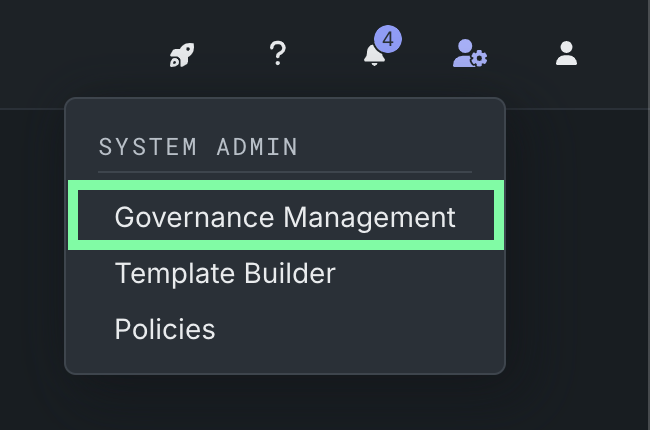
In the NextGen UI, click Admin settings in the top navigation bar and select Governance Management. The Governance management page opens in the Classic UI, where you can manage approval policies and monitoring plans. After configuring these polices and plans, return to the NextGen UI using the dropdown in the upper-right corner of the navigation bar.
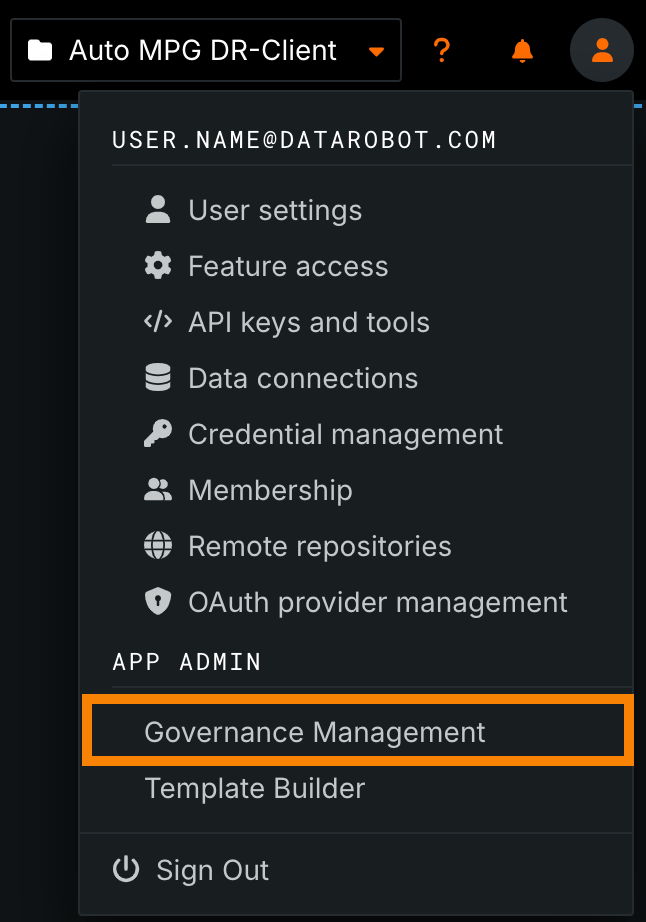
In the Classic UI, click the user icon and then, in the App Admin section, click Governance Management.
Create an approval policy
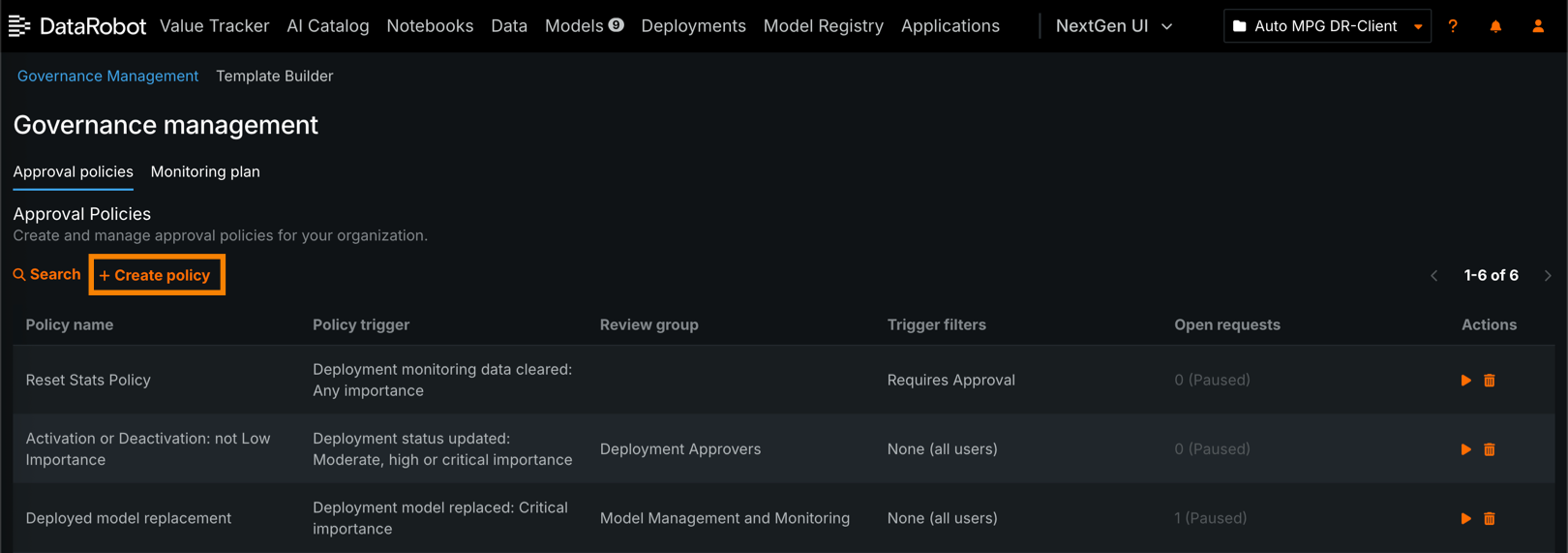
Deployment approval policies ensure that deployments are created and configured safely with the necessary guardrails in place. Administrators can create policies from the Governance management > Approval policies page. Once created, you can perform a variety of actions to manage approval policies. Note that the policies an administrator sees are specific to their organization—each organization may have its own approval policies configured. Approval policies affect users with permissions to review deployments and provide automated actions when reviews time out. Approval policies also affect users whose deployment events are governed by a configured policy (e.g., new deployment creation, model replacement). When a user deploys a model, they are prompted to assign an importance level to it: Critical, High, Moderate, or Low. Importance represents an aggregate of factors relevant to your organization such as the prediction volume of the deployment, the level of exposure, the potential financial impact, and more. These policies, the defined importance level, and the deployment monitoring plan serve as the basis of the approval process.
To create a new approval policy:
-
On the Approval policies tab, click + Create policy.
-
Define the required fields for the new approval policy:
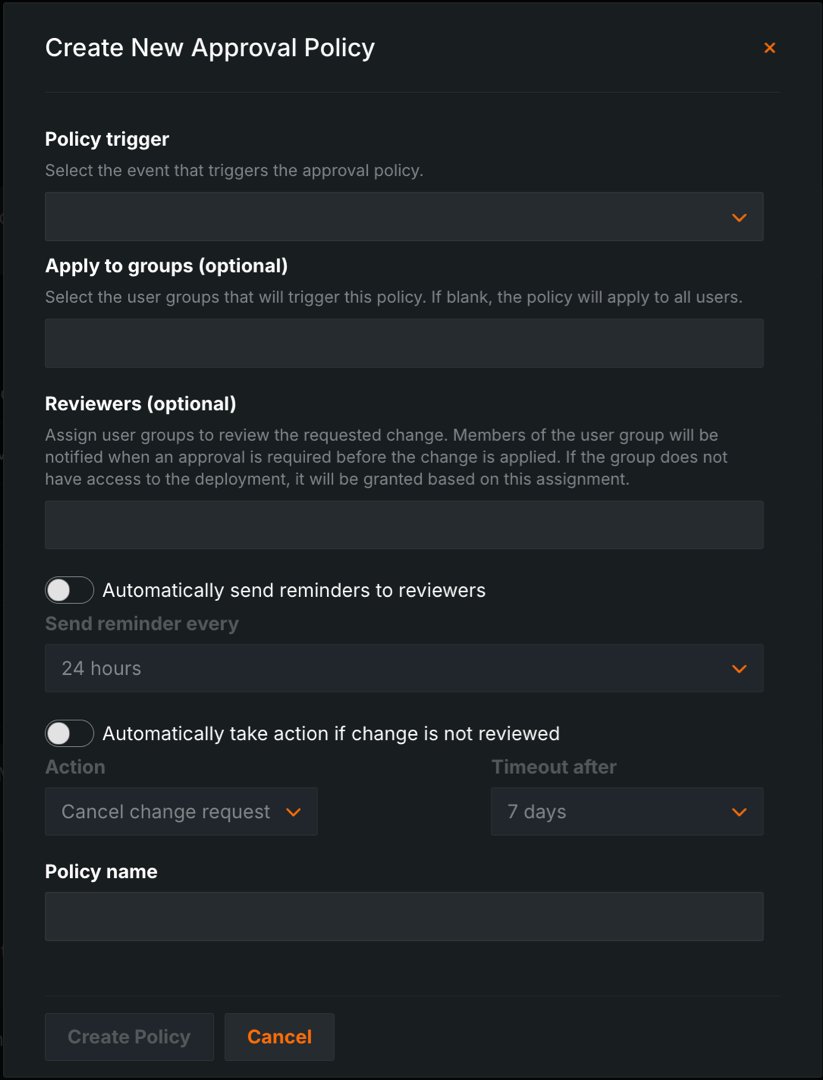
Setting Description Policy trigger Define the deployment event that triggers the approval workflow for reviewers: deployment creation or deletion, importance changes, secondary dataset configuration changes, model replacement, status updates, or monitoring data deletion. You must also indicate the importance level required for the event to trigger the approval policy (critical, high, moderate, low, any, or all levels above low). Apply to groups Optional. Add the user groups that can trigger the approval policy. Start typing a group name and select the groups you want to include. If no groups are specified, the policy applies to all users in the organization. Reviewers Optional. Add users or groups to review deployments after the policy is triggered. These users can review the deployment event to approve it or request changes. Once a user is added as a reviewer, they gain access to each deployment that triggers the policy and are notified when a review is requested. All MLOps Admins in the organization have reviewer permissions by default, and serve as the reviewers if none are specified. Automatically send reminders to reviewers Automatically send reminders to reviewers. Set the reminder frequency (every 12 hours, 24 hours, 3 days, or 7 days). Automatically take action if change is not reviewed Assign an automatic action if a deployment event is not reviewed. Choose the action and when to apply it. For example, you can cancel a model replacement if the event was not reviewed within 7 days of the request for review. Policy name Define the name of the deployment approval policy. -
Click Create Policy.
The new policy appears on the Approval policies page.
Manage approval policies
After creating one or more approval policies, you can perform the following actions on the Approval policies tab:
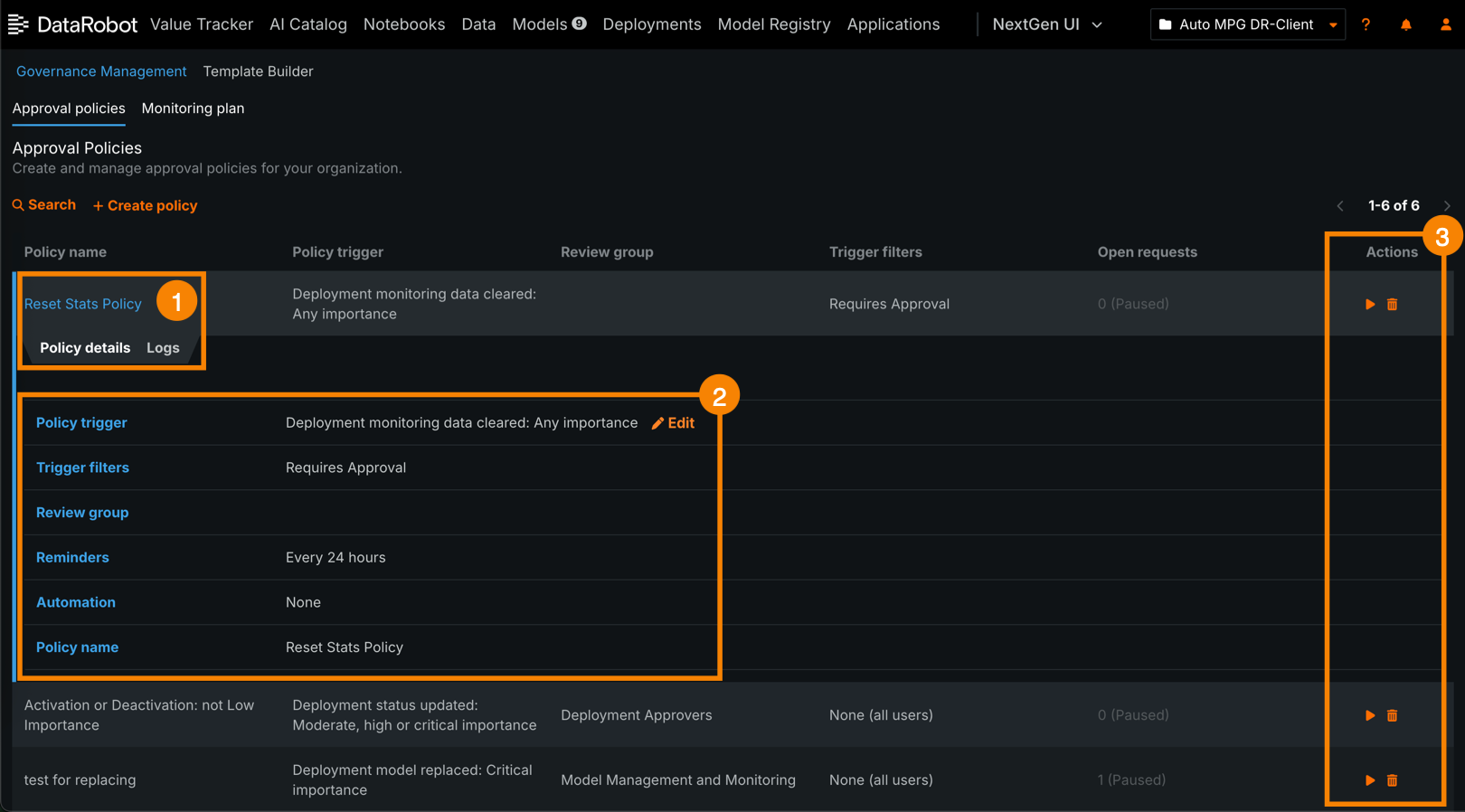
| Element | Description |
|---|---|
| 1 | Click an approval policy row to access the following tabs:
|
| 2 | In the Policy details section, hover on the field you want to change and select Edit. After editing the field, click the save icon to apply the edits. |
| 3 | From the Actions column, click one of the following:
|
Create a monitoring plan
A deployment monitoring plan ensures the deployment owner is aware of the organization's requirements for deployment monitoring. Administrators can create a monitoring plan for deployments from the Governance management > Monitoring plan page. The defined monitoring plan appears in the Setup checklist panel on the deployment Overview. If a monitoring plan isn't defined, the checklist includes all available deployment settings. If a monitoring plan is defined, the checklist includes the settings defined in the monitoring plan and any additional guidance provided when you configured the checklist. Each setting in the checklist panel also includes the status of the setting: Not enabled, Partially enabled, or Enabled. Deployment owners can click a tile in the checklist to open the relevant deployment setting page and configure the required settings.
To create a monitoring plan:
-
On the Monitoring plan tab, add settings to the plan:
-
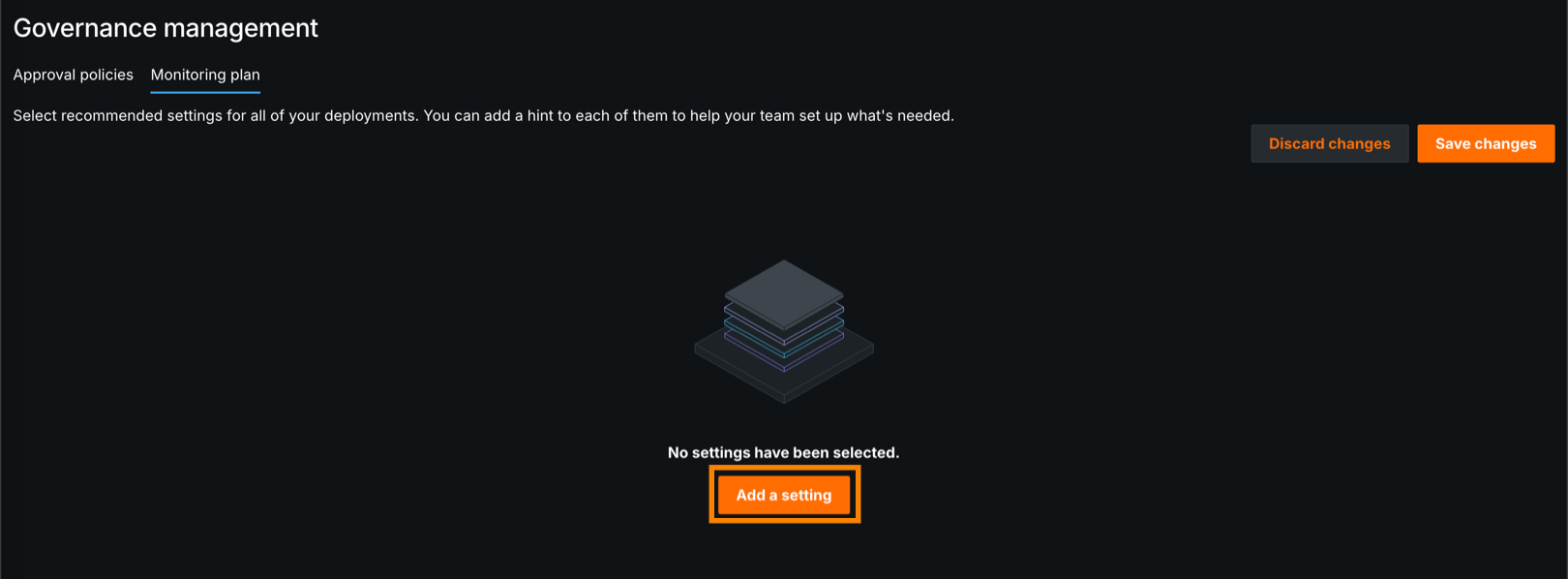
If the plan is empty, click Add a setting.
-
If the plan includes one or more settings, click + Add another setting.
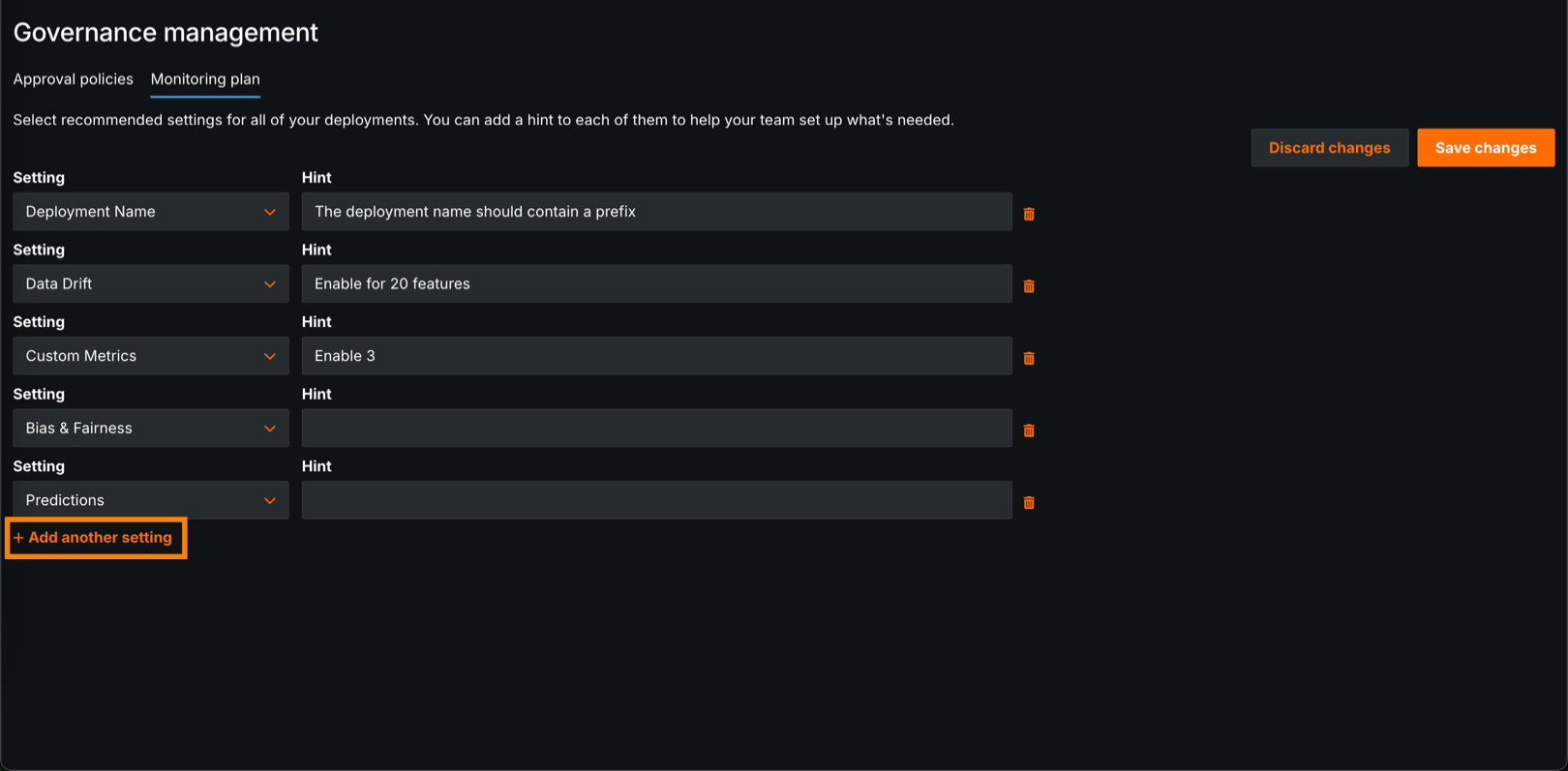
Each time you add a setting, a new setting value is populated in the Setting field.
-
-
After you add one or more settings rows, you can configure the following fields:
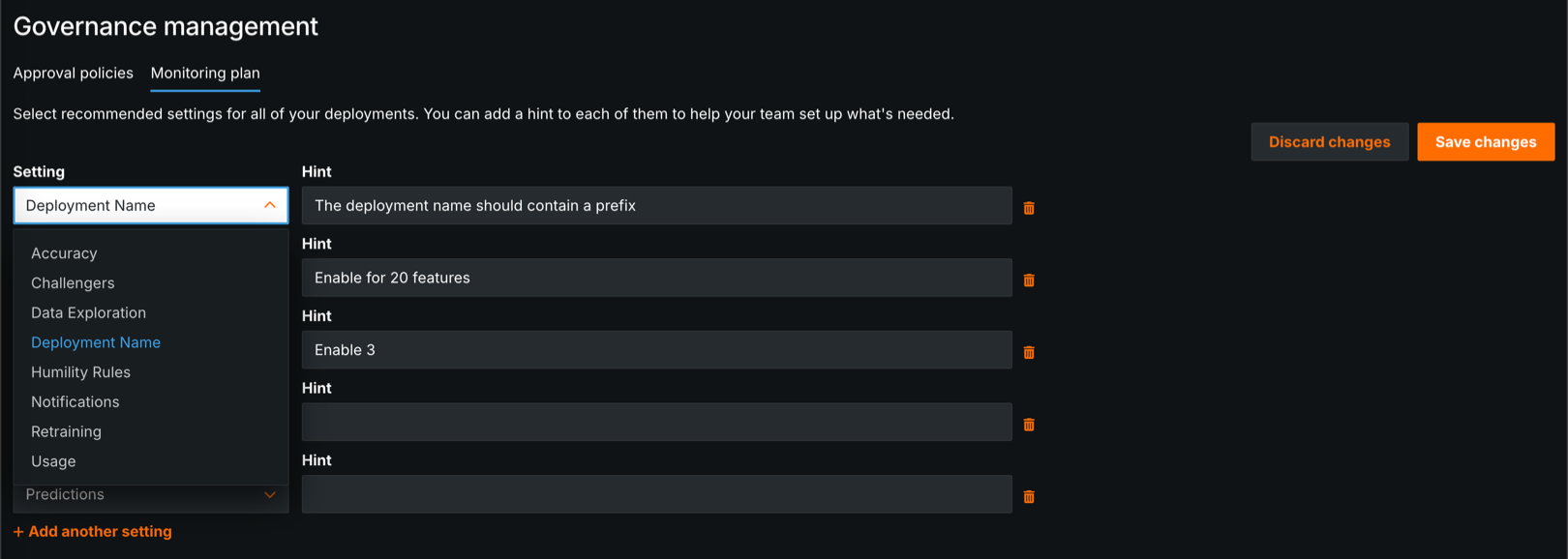
Field Description Setting Select a deployment setting to add to the deployment checklist. Hint Enter a description of the configuration requirements for the selected setting. Remove a setting from the checklist
To remove a setting from the checklist, click the delete icon at the end of the setting row.
-
Click Save changes.
Feature considerations
-
A deployment Owner can choose to share a deployment with MLOps administrators and grant either User or Owner permissions. When explicitly shared, Owner rights are the default.
-
MLOps administrators are eligible to perform reviews if the approval policy has no approvers group assigned. Otherwise, only members of the designated approvers group can review the deployment.
-
For Self-Managed AI Platform installations: An MLOps administrator will be able to monitor actions taken by users in their organization.