アーティファクトとリポジトリの管理
レジストリは、アーティファクトのライフサイクル作業を行う場所です。どのワークロードが特定のアーティファクトを実行しているかを追跡し、ロックされたアーティファクトを置き換える前に影響を評価し、本番環境のワークロードがロックされたアーティファクトを参照しているかを確認します。基盤となるモデル(タイプ、ライフサイクル、リポジトリ、設定のレイヤリング)については、アーティファクトの概念を参照してください。
サービスアーティファクトページを移動する
レジストリ > サービスからアクセスするサービスアーティファクトリポジトリページは、組織のすべてのアーティファクトを参照するためのエントリーポイントです。サービスアーティファクトリポジトリページのリストから、リポジトリ列の行をクリックして、そのアーティファクトのリストを開きます。
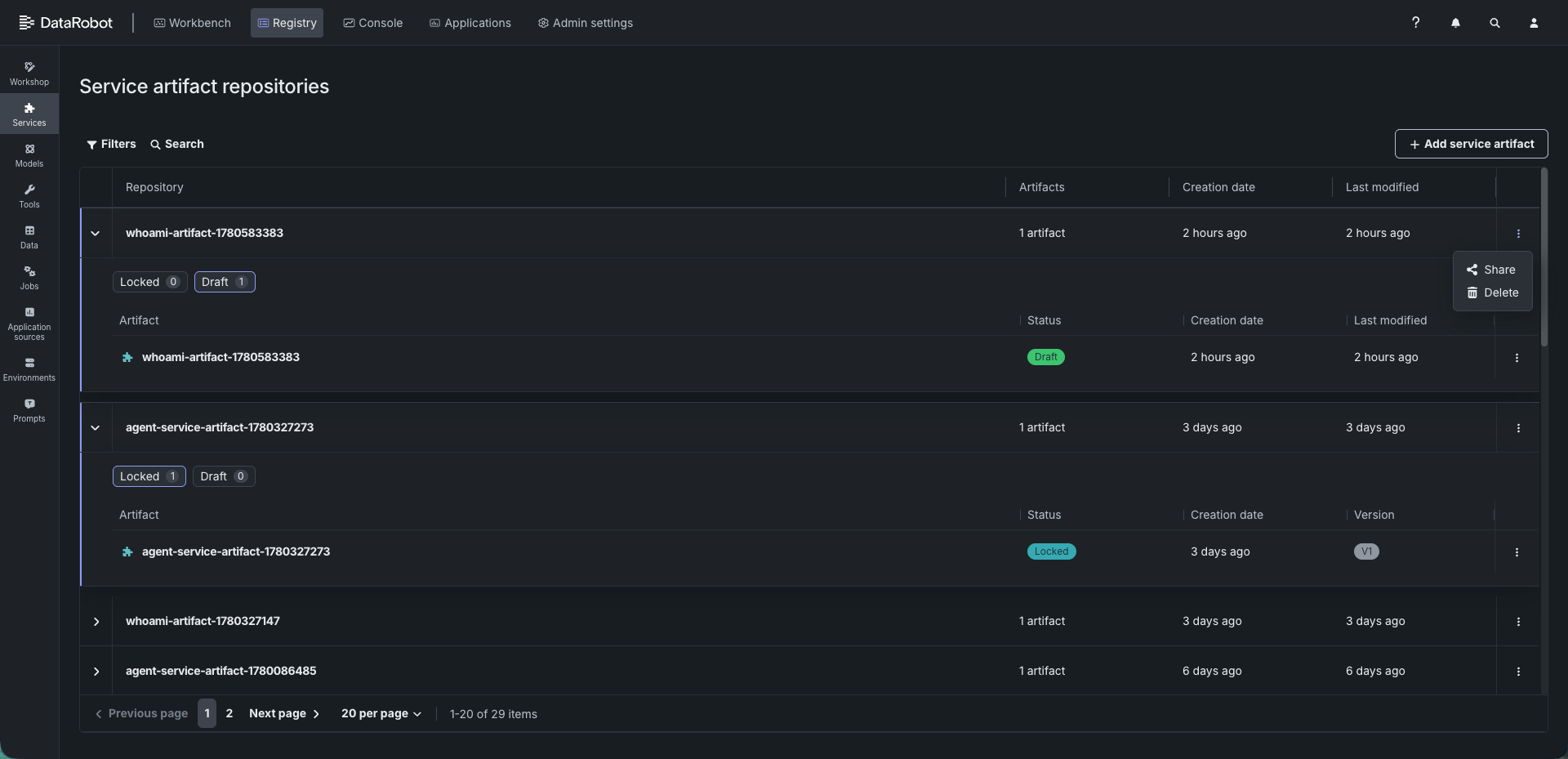
各リポジトリのリストには、ロックされたアーティファクトとドラフトアーティファクトの別々のタブがあり、ステータス、作成日、最終更新日の列があります。2つのステータスは、それぞれがサポートできるワークロードの数が異なります。
| アーティファクトのステータス | アクティブなワークロード |
|---|---|
| ドラフト | 最大1つのワークロード。 |
| ロック | 複数のワークロードがサポートされます。 |
特定のアーティファクトを見つけるには、ページの左上隅にある フィルターおよび 検索を使用します。フィルターには、作成者およびタグフィールドが含まれます。
新しいサービスアーティファクトの追加
アーティファクトの作成はAPIファーストです。コンソールではREST呼び出しが公開されているため、スクリプトやターミナルにコピーしてペイロードをカスタマイズできます。サービスアーティファクトリポジトリページの右上隅にある+ サービスアーティファクトの追加をクリックして、新しいアーティファクトの追加パネルを開きます。パネルには、シンプルなドラフトアーティファクトを作成するためのコピー可能なコード例が表示されます。
この例では、BearerトークンヘッダーとともにJSONペイロードを/api/v2/artifacts/にPOSTし、draftステータスのアーティファクトを作成します。ペイロードには、アーティファクト名と説明が指定され、続いてspec.containerGroups[].containers[]の下にコンテナのトポロジーが定義されます。これには、イメージURI、ポート、primaryフラグ、名前と値のペアとして指定された環境変数、エントリーポイントコマンドの配列、およびReadinessプローブ(パス、ポート、初期遅延、周期、タイムアウト)が含まれます。リクエストを実行する前に、ペイロードをコンテナに合わせて調整します。
例のコピー
パネルの右上隅にある クリップボードにコピーボタンをクリックして、例全体をコピーします。
アーティファクトのアクションを実行する
各アーティファクトとリポジトリは、小規模なライフサイクルとガバナンスのアクションセットを公開します。どのアクションが表示されるかは、アーティファクトの現在のステータスによって異なります。プラットフォームは、draftまたはlockedのルールと競合するアクションを非表示にします。
リポジトリを開いてアーティファクトを選択すると、アーティファクトの詳細ビューが開き、アセンブルタブが表示されます。そこから、アクションボタン(テスト、停止、ロック、デプロイ)とアクションメニュー()がすべてのタブで利用できます。
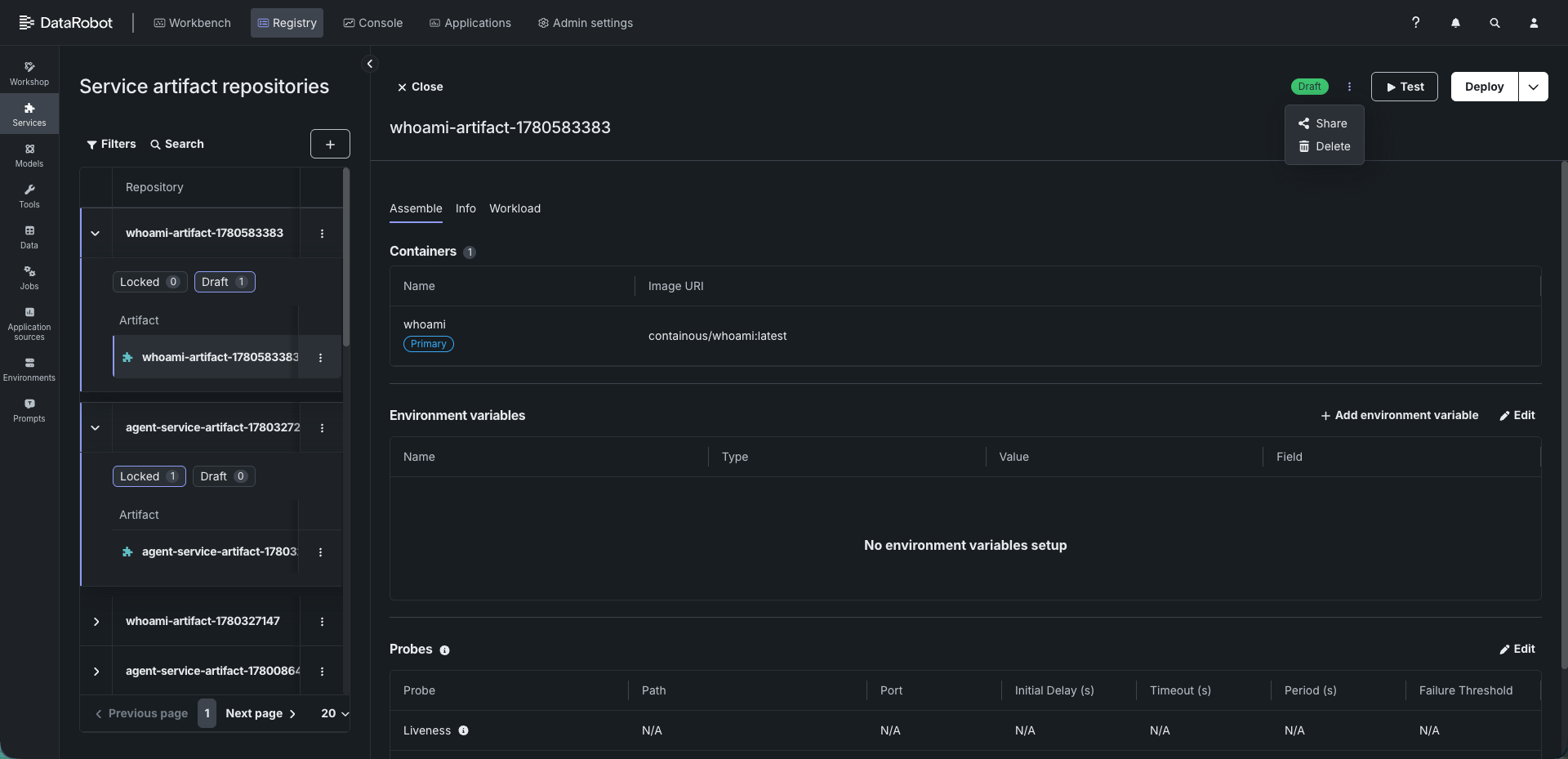
テストと停止はアクションバーの1つのスロットを共有します
テストと停止が両方同時に表示されることはありません。これらは、アーティファクトのテストワークロードが実行されているかどうかに基づいて切り替わります。アーティファクトに実行中のテストワークロードがある場合、アクションバーにはテストの代わりにそのスロットに停止が表示されます。アーティファクトを再度テストするには、まず停止をクリックします。実行が停止すると、テストが再表示されます。
アーティファクトとリポジトリの削除
アーティファクトリポジトリにロックされたアーティファクトやワークロードで使用中のアーティファクトが含まれている場合、そのリポジトリは削除できません。アーティファクトは、ロックされている場合やワークロードで使用されている場合は削除できません。
サービスアーティファクトリポジトリの場合、リポジトリ名の横にあるアクションメニュー()で次のアクションを利用できます。
| アクション | 説明 |
|---|---|
| 共有 | アーティファクトリポジトリを他のユーザーと共有します。 |
| 削除 | アーティファクトリポジトリとそこに含まれるすべてのアーティファクトを削除します。 |
サービスアーティファクトの場合、使用可能なアクションボタンはドラフトかロックかに応じて異なります。
| アクション | 説明 | ステータス |
|---|---|---|
| テスト / 停止 | テストと停止はアクションバーの同じスロットを共有し、実行状態に基づいて切り替わります。
|
ドラフト |
| ロックする | ワークロードを作成せずにサービスアーティファクトをロックします。 | ドラフト |
| デプロイ | ドラフトの場合、アーティファクトをロックし、そこからワークロードを作成します。ロックされたアーティファクトの場合、新しいワークロードを作成します。 | ドラフトまたはロック |
| アクションメニュー | ||
| 共有 | サービスアーティファクトを他のユーザーと共有します。 | ドラフトまたはロック |
| 削除 | サービスアーティファクトを削除します。 | ドラフト |
| クローン | サービスアーティファクトのクローンを作成します。 | ロック |
アーティファクトアクションの可用性
サービスアーティファクトリポジトリページのテーブルで、アーティファクトの横にあるアクションメニュー()からは、共有、削除、クローンアクションにのみアクセスできます。テスト、停止、ロック、デプロイのアクションは、開いたアーティファクトの詳細ビューからのみ利用できます。
テストワークロードの設定
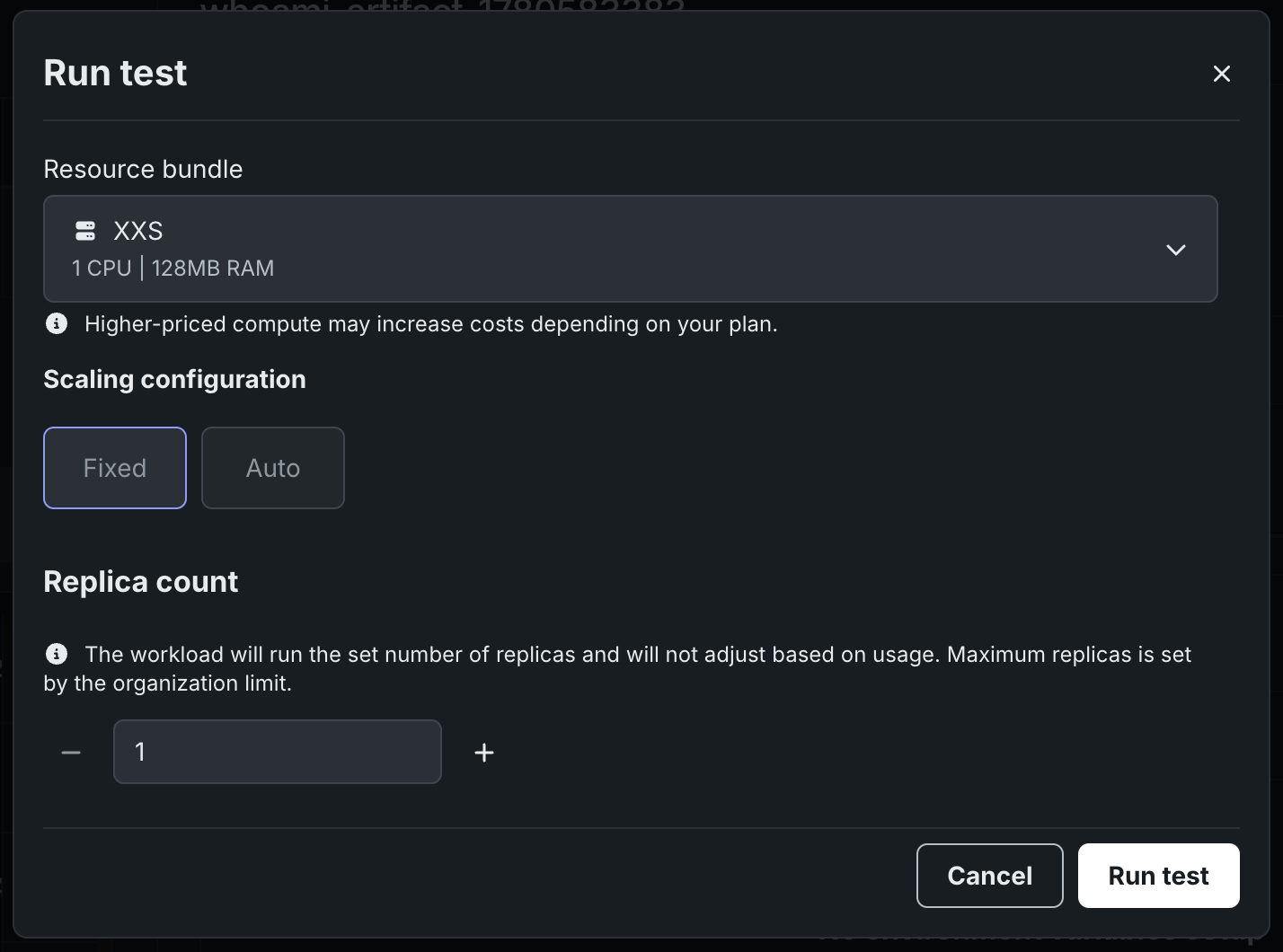
テストアクションは、テストのためにドラフトのサービスアーティファクトを実行します。 サービスアーティファクトがすでにワークロードに関連付けられている場合、テストアクションでは既存のワークロードが実行されます。 サービスアーティファクトがワークロードに関連付けられていない場合、テストアクションを実行すると、テストを実行ダイアログが開き、リソースバンドル、スケーリング設定、およびレプリカ数を設定できるようになります。
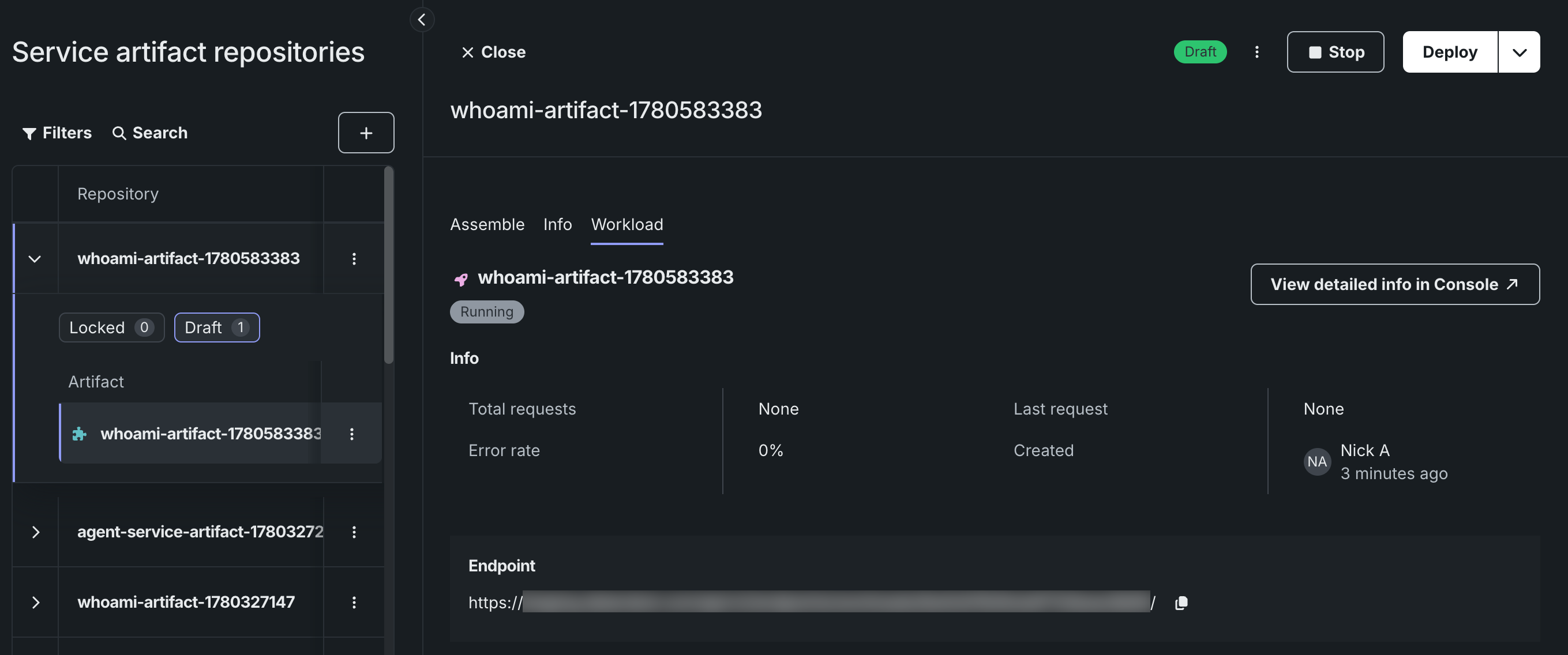
このアーティファクトの実行中のワークロードを使用するには、ワークロードタブを開いてエンドポイントにアクセスするか、コンソールのワークロードを新しいタブで開きます。
サービスアーティファクトの設定の管理
アーティファクトの詳細ビューは、定義からデプロイまでのスコープで3つのタブに構成されています。
| タブ | 説明 |
|---|---|
| アセンブル | アーティファクトのコンテナ、環境変数、およびプローブを確認します。 |
| 情報 | アーティファクトのIDとメタデータを確認します。 |
| ワークロード | アーティファクトに関連付けられたワークロードとエンドポイントを確認します。 |
サービスアーティファクトのアセンブル
アセンブルタブはアーティファクトを定義し、そのコンポーネントを3つのセクションにグループ化します。
| セクション | 説明 |
|---|---|
| コンテナ | アーティファクトのコンテナとそのイメージURI。 |
| 環境変数 | アーティファクトの環境変数。追加、編集、削除のコントロールがあります。 |
| プローブ | アーティファクトのReadiness、Liveness、Startupプローブ。プローブは、コンテナが実行され、正常であるかを確認するために使用されます。プローブのパスは必須です。入力されていないその他のフィールドにはデフォルト値が設定されます。 |
コンテナの確認
コンテナセクションには、アーティファクト内のすべてのコンテナがイメージURIとともに一覧表示されます。このセクションを使用して、ロックまたはデプロイする前にアーティファクトが何を実行するかを確認します。
環境変数の設定
環境変数セクションには、各変数の名前、タイプ、値、フィールドが表示され、追加、編集、削除のコントロールがあります。
| コントロール | 説明 |
|---|---|
| 編集 | 1つ以上の環境変数の値を編集するか、をクリックして削除します。 |
| + 環境変数を追加 | 環境変数の追加ダイアログを開き、名前、タイプ、値を使用して新しい変数を定義します。 |
アーティファクトに値を配置する場合とワークロードのランタイムに配置する場合の使い分けについては、設定のレイヤリングを参照してください。
プローブの設定
プローブセクションには、アーティファクトのReadiness、Liveness、Startupプローブが表示されます。プローブは、コンテナが実行され、正常であるかを確認するために使用されます。プローブのパスは必須であり、入力されていないその他のフィールドにはデフォルト値が設定されます。
| プローブのタイプ | 説明 |
|---|---|
| Liveness | コンテナがまだ正常であるかを確認します。連続して何度も失敗した場合、コンテナは自動的に再起動されます。 |
| Readiness | コンテナがトラフィックを受信する準備がいつできるかを制御します。プラットフォームはこのエンドポイントをポーリングし、正常に応答した場合にのみリクエストをルーティングします。 |
| スタートアップ | コンテナの起動が完了したかを確認します。これがパスするまでLivenessチェックは一時停止されます。大きなモデルのロードなど、起動時間の遅いコンテナに役立ちます。 |
プローブテーブルで、 編集をクリックして、プローブのパス、ポート、初期遅延 (秒)、タイムアウト (秒)、期間 (秒)、および失敗のしきい値を設定します。
サービスアーティファクトの情報を表示する
情報タブには、アーティファクトの説明、アーティファクトのタイプ、作成者情報、最終更新日、アーティファクトリポジトリID、およびアーティファクトIDが表示されます。ドラフトアーティファクトの場合、説明の横にあるをクリックして更新します。
ワークロードとエンドポイントを表示する
ワークロードタブには、アーティファクトに関連付けられたワークロードとエンドポイントが表示されます。コンソールで詳細情報を表示 をクリックして、コンソールのワークロードを新しいタブで開きます。