デプロイされたワークロードの表示
コンソールでは、サマリー正常性指標とフィルタリング可能な全ワークロードのリストを組み合わせて、組織全体のワークロードを監視し、対応することができます。 基盤となるモデル(ステータス、重要度、ドラフトとロックの比較)については、ワークロードの概念を参照してください。
デプロイされたワークロードページに移動する
コンソール > デプロイされたワークロードページで、サービスタブをクリックすると、組織内のすべてのワークロード(ロックおよびドラフト)が一覧表示されます。 このタブでは、サマリー指標とワークロード一覧がまとめられています。
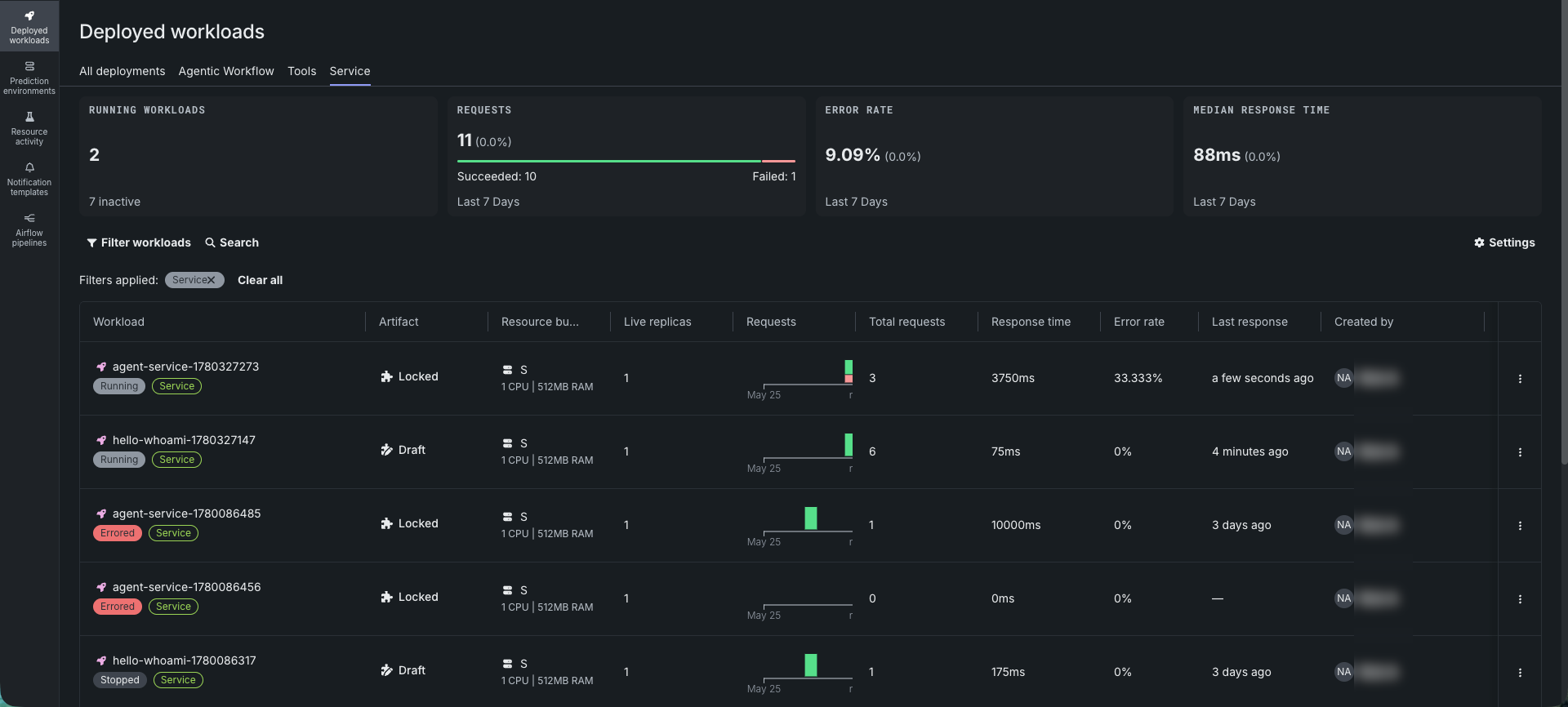
サマリー指標の確認
各タブの上部には、フィルターされたセット全体の集計された正常性が表示されるため、個々の行をドリルダウンする前に問題を発見できます。
| 指標 | 説明 |
|---|---|
| 実行中のワークロード | runningステータスのワークロードの数。非アクティブなワークロードの数も横に表示されます。 |
| リクエスト | 過去7日間にフィルターされたセット内のすべてのワークロードが受信したリクエストの合計数。成功したリクエスト数と失敗したリクエスト数に分類されます。 |
| エラー率 | 過去7日間にエラーを返したリクエストの割合(%)。 |
| 中央値(Median)応答時間 | 過去7日間のワークロードのリクエストレイテンシーの中央値(p50)。 |
各タイルには、前の7日間のウィンドウとの傾向の比較が、デルタのパーセンテージとして表示されます。 タイルは動的に更新されます。フィルターを適用または解除すると、一致するセットの4つの値すべてがすぐに再計算され、ステータスの変更(ワークロードの開始や停止など)は、手動で更新しなくても実行中のワークロードの数に反映されます。
ワークロードのフィルタリングと検索
特定のワークロードを見つけるには、ページ上部のワークロードをフィルターと検索を使用します。 ワークロードをフィルターには、作成者、タグ、重要度の各フィールドが含まれます。 アクティブなフィルターは、削除可能なチップとしてリストの横に表示されます。すべてクリアをクリックするとリセットされます。
ドラフトワークロードとロックされたワークロードは、コンソールで同じ監視機能を備えており、組織レベルのテレメトリ保持ポリシーも同じです。監視の概念:保持期間の概要を参照してください。
ワークロード一覧の確認
各行には、名前とID、バックアップアーティファクトのステータス、リソースバンドル、ライブレプリカ数、最近のリクエストボリューム、総リクエスト数、応答時間など、1つのワークロードの概要が表示されます。 表示する列を選択するには、検索およびフィルターバーの右端にある設定をクリックします。
さらに各行では、行の右側にあるアクションメニュー()から、ライフサイクルとガバナンスに関するいくつかのアクションを実行できます。
| アクション | 説明 |
|---|---|
| 共有 | ワークロードを他のユーザーと共有します。 |
| 統計をクリア | ワークロードの統計カウンターをクリーンなベースラインにリセットします。 |
| 非アクティブ化 | ワークロードを削除せずに、ワークロードの基盤となるプロトンを停止します。 |
| 昇格 | ドラフトワークロードを、ロックされた本番対応の状態に昇格させます。 |
| 削除 | ワークロードを削除します。 |
デプロイされたワークロード情報の表示
ワークロードの行をクリックすると、デプロイされたワークロードが開きます。 ワークロードの詳細ビューの概要タブが開き、ID、ステータス、設定、系統が1か所にまとめられています。 詳細ビューの上部にあるタブ—監視、エンドポイント、キャパシティ、設定、アクティビティログ—については、デプロイされたワークロードの監視、ワークロードのエンドポイントへのアクセス、ワークロードのキャパシティの設定、デプロイされたワークロードの操作、およびデプロイされたワークロードのアクティビティの表示で説明されています。
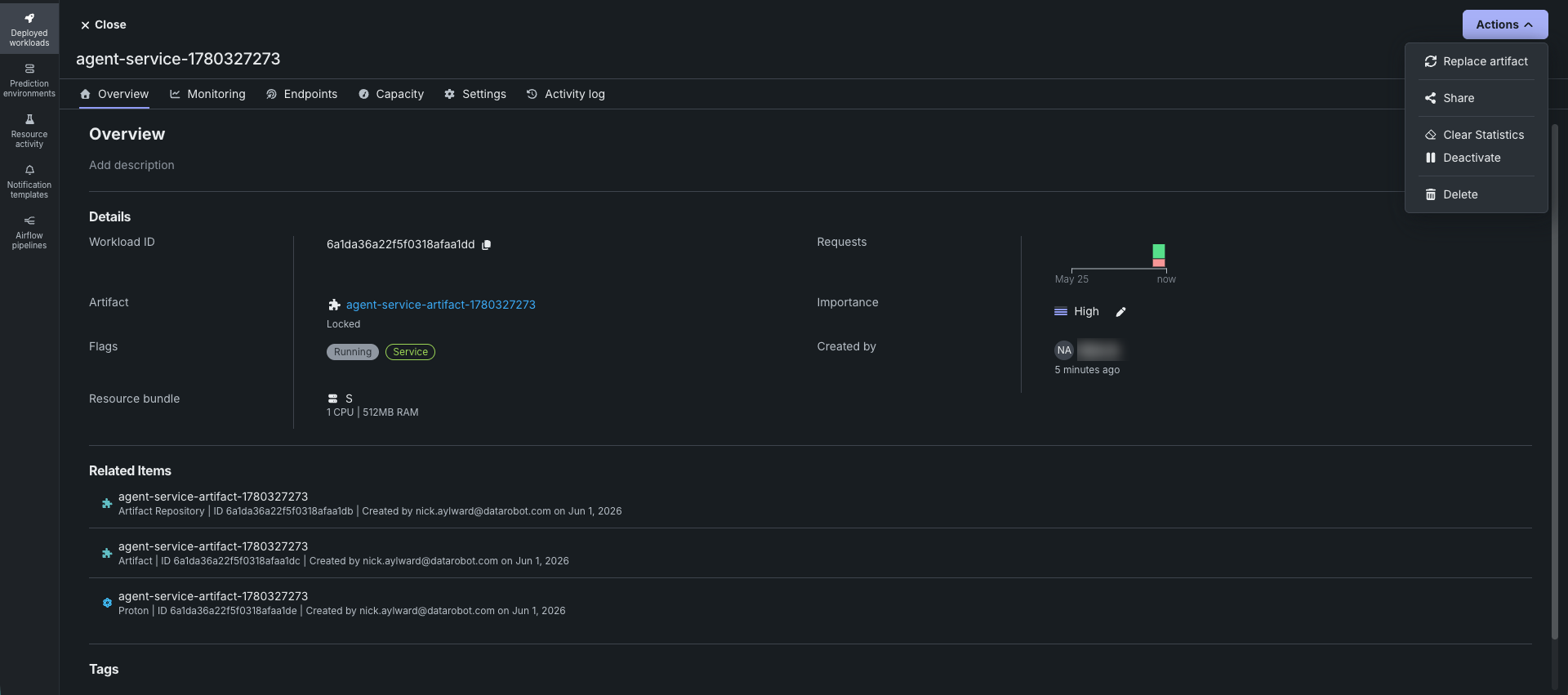
概要タブの構成は次のとおりです:
| セクション | 表示内容 |
|---|---|
| 詳細 | ワークロードID、基盤となるアーティファクト(draftまたはlockedステータス)、フラグ(ステータスとワークロードタイプ)、リソースバンドルとそのCPU/メモリー割り当て、リクエストチャート、重要度、および作成者。 |
| 関連アイテム | このワークロードの基盤となるアーティファクトリポジトリ、アーティファクト、プロトンへのリンク。 |
| タグ | ユーザー定義のタグのキーと値のペア。追加するには+ 新規追加をクリックします。 |
ワークロードの詳細を編集するには、次の操作を行います:
- ページの上部にあるワークロード名をクリックして編集します。
- 概要タイトルの下にある説明を追加をクリックして、説明を添付します。
- 重要度の横にあるをクリックして、重要度レベルを変更します。
詳細ビューの右上隅にあるアクションメニューには、行レベルのアクションメニューと同じ項目に加えて、昇格アクションなどが表示されます:
| アクション | 説明 |
|---|---|
| アーティファクトの置換 | ワークロードの基盤となるアーティファクトを置き換えます。 |
| 共有 | ワークロードを他のユーザーと共有します。 |
| 統計をクリア | ワークロードの統計カウンターをクリーンなベースラインにリセットします。 |
| 非アクティブ化 | ワークロードを削除せずに、ワークロードの基盤となるプロトンを停止します。 |
| 昇格 | ドラフトワークロードを、ロックされた本番対応の状態に昇格させます。 |
| 削除 | ワークロードを削除します。 |
これらのアクションの詳細については、デプロイされたワークロードの更新を参照してください。