Set up service health monitoring
On a deployment's Settings > Service health tab, you can enable segmented analysis for service health; however, to use segmented analysis for data drift and accuracy, you must also enable the following data drift settings:
-
Target monitoring (required to enable data drift and accuracy tracking)
-
Enable feature drift tracking (required to enable data drift tracking)
Once you've enabled the tracking required for your deployment, configure segment analysis to access segmented analysis of service health, data drift, and accuracy statistics by filtering them into unique segment attributes and values.
On a deployment's Service health settings, configure the following settings:
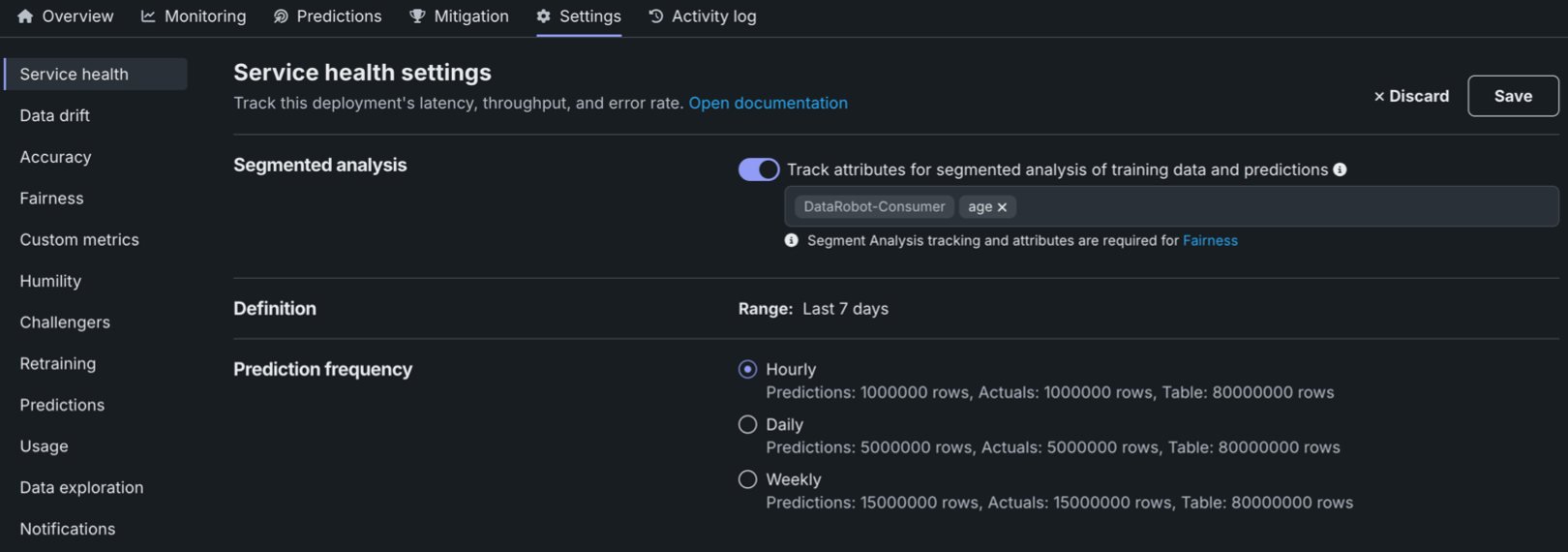
| Field | Description |
|---|---|
| Segmented analysis | |
| Track attributes for segmented analysis of training data and predictions | Enables DataRobot to monitor deployment predictions by segment, for example by categorical features. |
| Definition | |
| Range | Displays the reference period for service health monitoring notifications; by default, the period is the last 7 days. |
| Prediction frequency | |
| Prediction frequency | Configure the prediction frequency limits for the deployment, tracked on the Usage tab. |
Availability information
Configurable predictions and actuals upload limits are off by default. Contact your DataRobot representative or administrator for information on enabling this preview feature.
Feature flag: Enable Configurable Prediction and Actuals Limits
Select segments for analysis
After enabling segmented analysis, specify the segment attributes to track in training and prediction data before making predictions. Selecting a segment attribute for tracking causes the model's data to be segmented by the attribute, allowing users to closely analyze the segment values that comprise the attributes selected for tracking. Attributes used for segmented analysis must be present in the training dataset for a deployed model, but they don't need to be features of the model. The list of segment attributes available for tracking is limited to categorical features, except the selected series ID used by multiseries deployments. To track an attribute, add it to the Track attributes for segmented analysis of training data and predictions field.

Note
If the training dataset used for the model doesn't contain any features suitable for segmented analysis, a tooltip appears stating: There are no corresponding categorical attributes in the training dataset.
The DataRobot-Consumer attribute (representing users making prediction requests) is always listed by default. For time series deployments with segmented analysis enabled, DataRobot automatically adds up to two segmented attributes: Forecast Distance and series id (the ID is only provided for multiseries models). Forecast distance is automatically available as a segment attribute without being explicitly present in the training dataset; it is inferred based on the forecast point and the date being predicted on. These attributes allow you to view accuracy and drift for a specific forecast distance, series, or other defined attribute. When you have finalized the attributes to track, click Save. Then, make predictions and navigate to the tab you want to analyze for your deployment by segment: Service health, Data drift, or Accuracy.
Note
Segmented analysis is only available for predictions made after segmented analysis is enabled.
Add new segments for custom metric analysis
After enabling segmented analysis, you can create new segments—not present in the deployed model's training dataset—for use with custom metrics.
