Data Registry
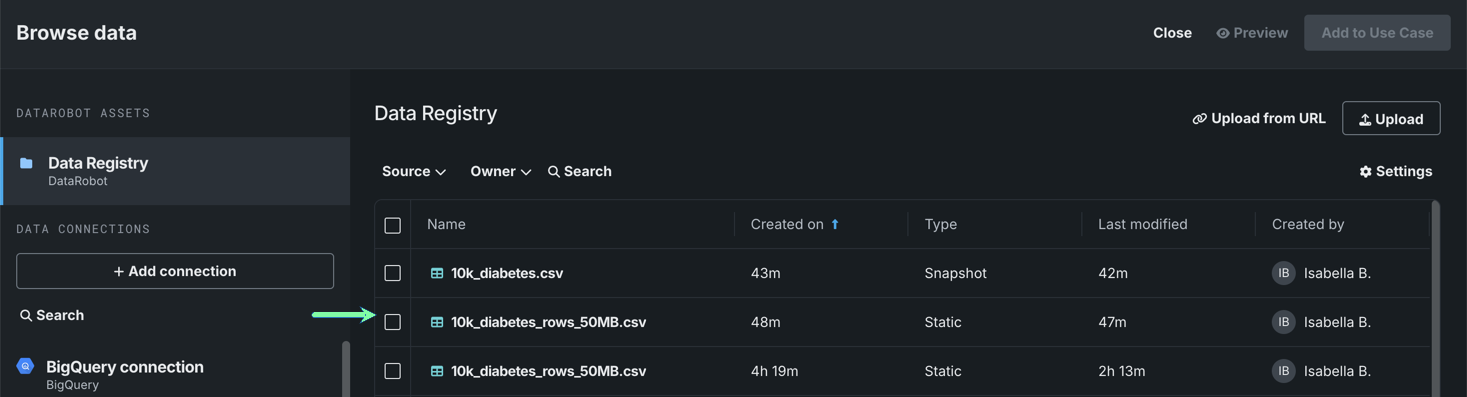
When you open the Browse data modal, DataRobot displays the Data Registry, a central catalog for your datasets that lists all static, snapshot, and dynamic datasets currently in the Data tile in Registry—this includes data that has been added directly to the Data Registry or added to a Use Case, which is then registered in the Data Registry.
When you add a dataset from the registry, you're creating a link from the Use Case to the source of that dataset, meaning datasets can have a one-to-many relationship with Use Cases. When a dataset is removed, you're only removing the link; any experiments created from the dataset will not be affected.
See the associated considerations for important additional information.
Add a dataset
You can add any datasets that have been previously registered in DataRobot.
To add a dataset:
-
In the Data Registry, select the box to the left of the dataset you want to view.

-
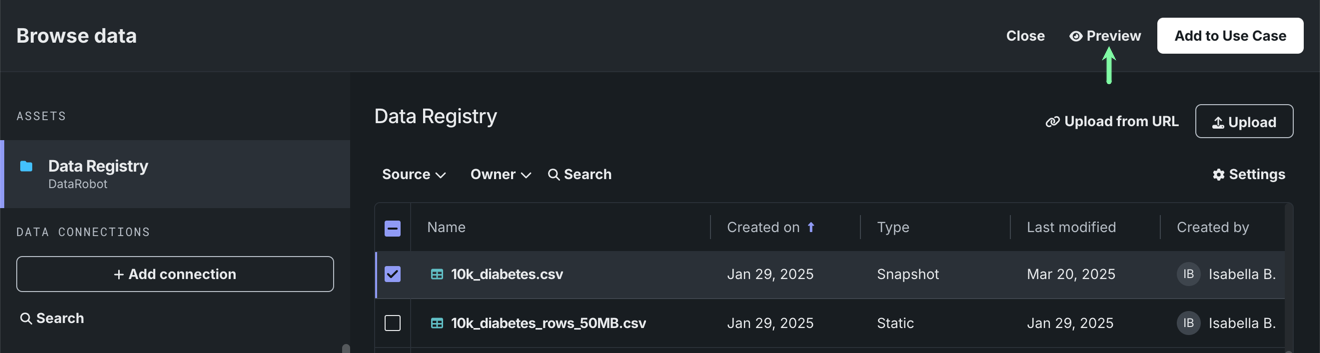
(Optional) Preview the dataset to determine if the dataset is appropriate for the objective of your Use Case by clicking Preview.
-
Click Add to Use Case in the upper-right corner.
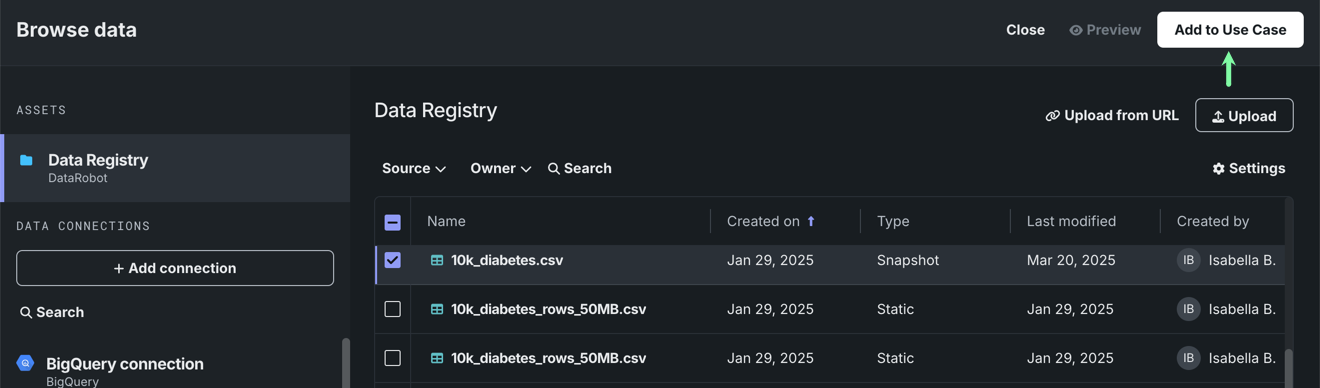
Workbench opens to the Data assets tile of your Use Case.
Preview a dataset
Viewing a snapshot preview allows you to confirm that a dataset is appropriate for your Use Case before adding it. Note that the Preview button is disabled when more than one dataset is selected.
To preview a dataset:
-
In the Data Registry, select the box to the left of the dataset you want to view and click Preview in the upper-right corner.
-
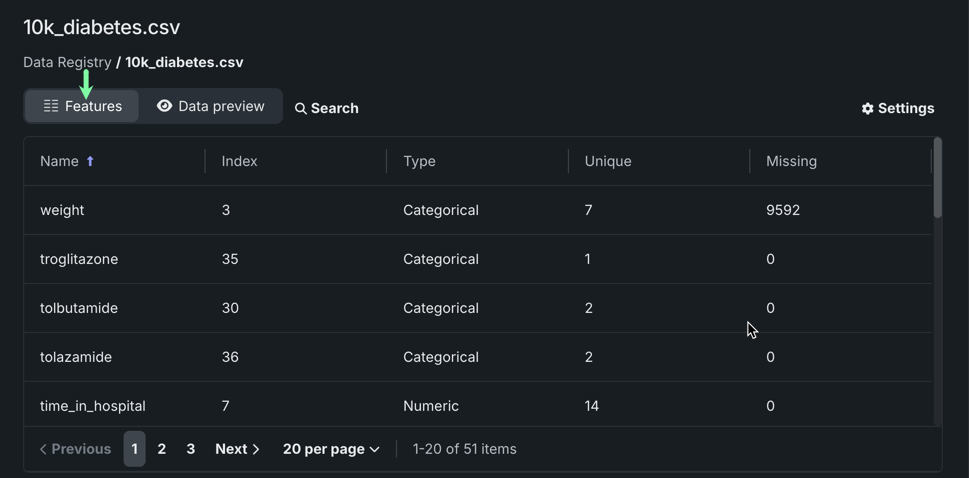
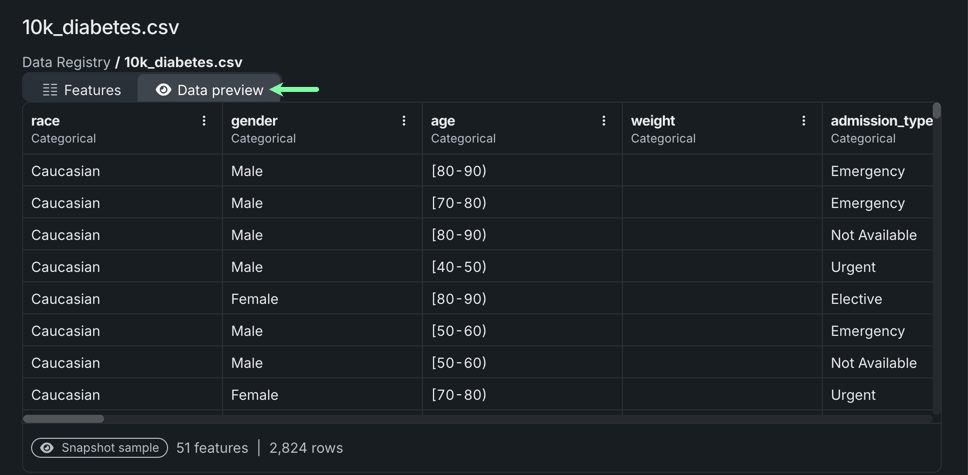
Analyze the dataset using the Features and Data preview buttons:
Lists the feature name, type, number of unique values, and number of missing values for each feature in the dataset.
Displays a random sample, up to 1MB, of the raw data table.
-
Determine if the dataset suits your Use Case, and then either:
- Add the dataset to your Use Case by clicking Add to Use Case.
- Go back to the Data Registry by clicking Data Registry in the breadcrumbs below the dataset name.
Read more
To learn more about the topics discussed on this page, see: