Explore data
The Data assets tile lists all datasets and recipes currently linked to the selected Use Case. From here, you can manage your assets and launch various data actions:
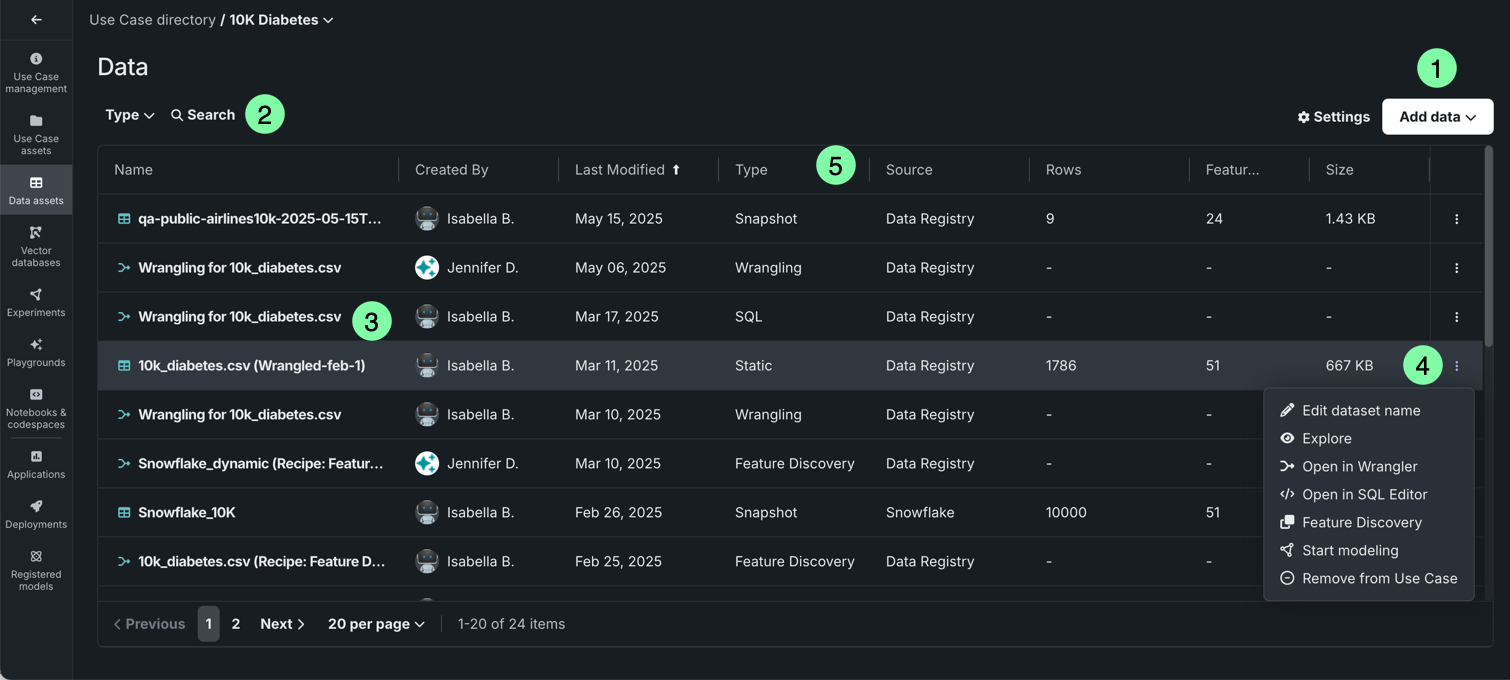
| Element | Description | |
|---|---|---|
| 1 | Add Data | Click to open the Add data modal, allowing you to add datasets to the current Use Case. |
| 2 | Search | Search for a specific dataset. |
| 3 | Asset type icons | Each asset is preceded by one of the following icons:
|
| 4 | Actions menu | Click the Actions menu to interact with a data asset. For datasets you can:
|
| 5 | Sort | Sort the dataset columns. |
While a dataset is being registered in Workbench, DataRobot also performs exploratory data analysis (EDA1)—analyzing and profiling every feature to detect feature types, automatically transform date-type features, and assess feature quality. Once registration is complete, you can explore the information uncovered while computing EDA1.
To open the data explore page, click the Actions menu next to the dataset you want to view and select Explore. Alternatively, click the dataset name to view its insights.
Data explore tiles
| Tile | Description |
|---|---|
 |
Displays summary information for the dataset. |
 |
Displays a more visual representation of the features in your dataset, including frequent values. |
 |
Displays features in a table format alongside feature importance and summary statistics. Select specific features to view more detailed data insights than those shown on the Data preview tile. |
 |
Allows you to create new feature lists as well as manage existing ones. |
Info tile
Displays summary information for the dataset version you're currently viewing.
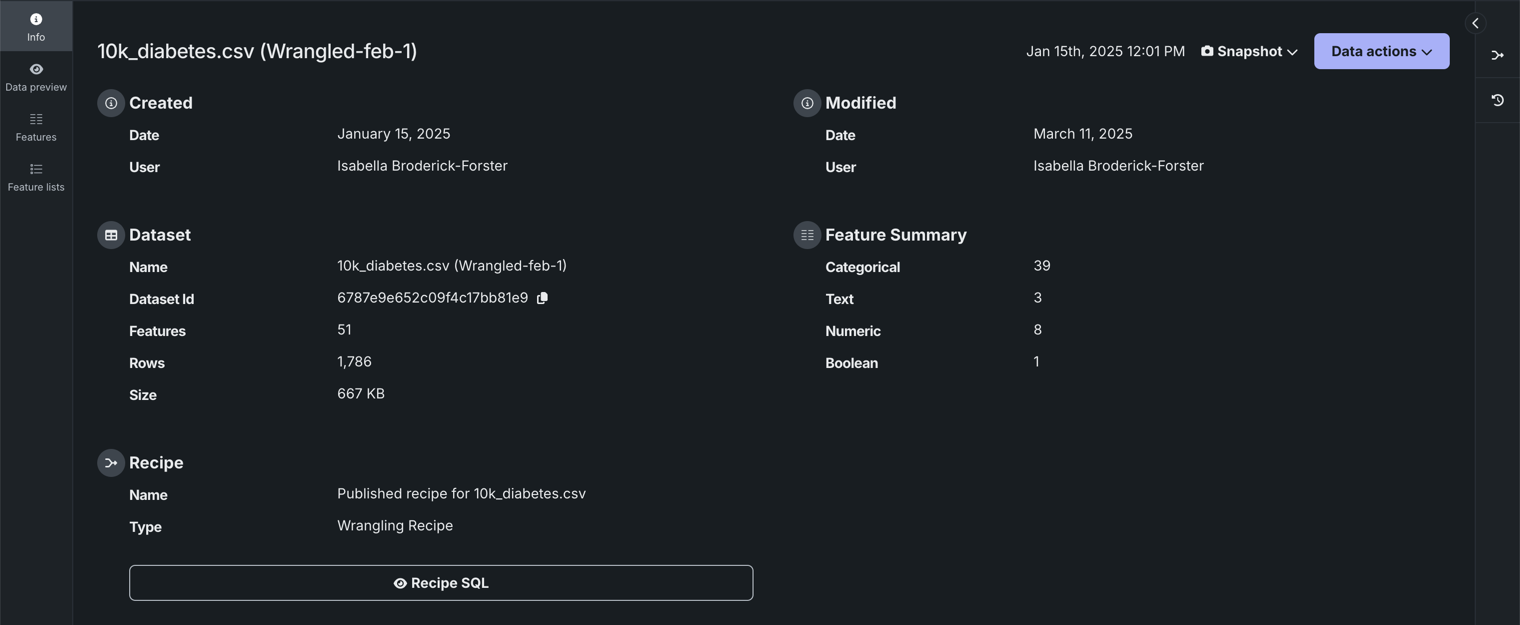
The page reports:
| Field | Description |
|---|---|
| Created | A timestamp indicating the registration date of the dataset as well as the user who added the dataset to DataRobot. |
| Dataset | The name, number of features, and number of rows in the dataset. |
| Recipe | The name and recipe type used to create the dataset after being applied to the source data. |
| Modified | A timestamp indicating when the dataset was last modified as well as the user who modified the dataset. |
| Feature Summary | The number of features in the dataset, grouped by data type. |
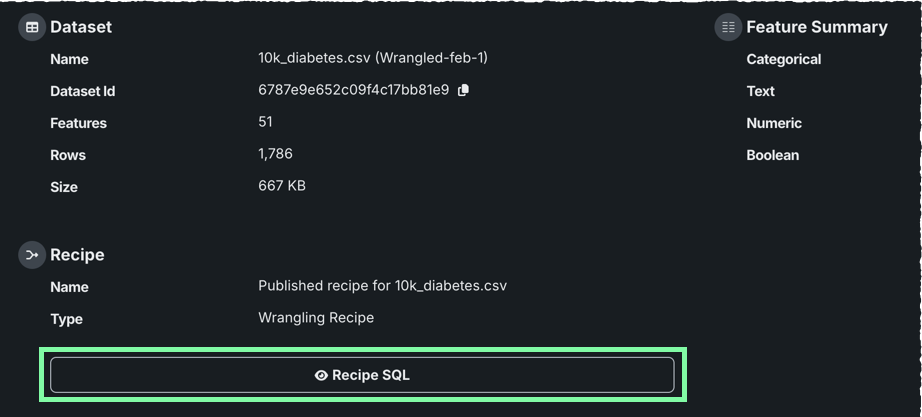
If the dataset you're viewing is the output of a published wrangling recipe, you can click Recipe SQL at the bottom of the page to view the final compiled form of the operations executed by the data source.
Data preview tile
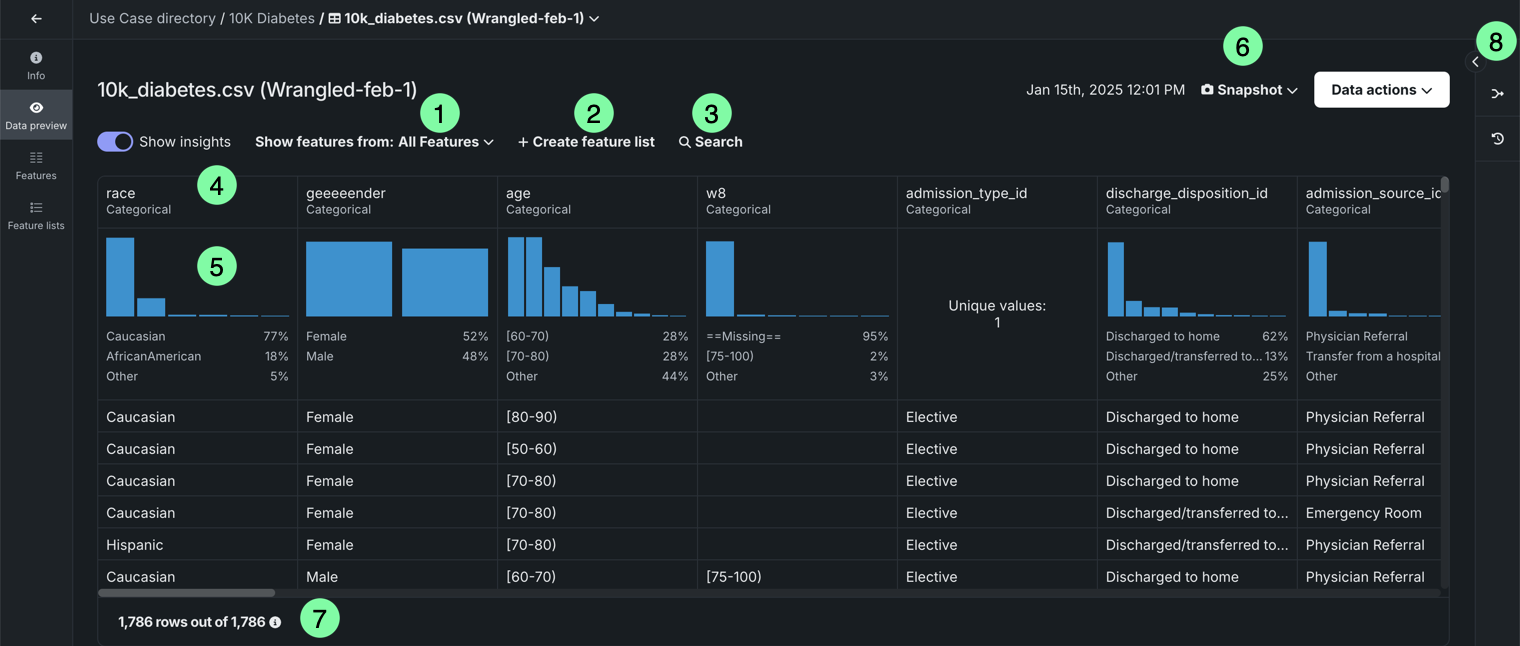
Displays a preview using a uniform random sampling of the selected dataset (see EDA insights for more information). If the dataset is dynamic, you can view an interactive sample, in which case DataRobot displays a random sampling of the raw data. You can specify the sampling method and number of rows in the right panel under Interactive sample. This option is not available for snapshot datasets.
| Element | Description | |
|---|---|---|
| 1 | Show features from dropdown | Allows you to view features from a specific feature list. |
| 2 | + Create feature list | Creates a new feature list. |
| 3 | Search | Searches for a specific feature in the dataset or feature list you're currently viewing. |
| 4 | Features | Displays each feature row and column for the selected feature list. |
| 5 | Frequent values chart | Plots the counts of each individual value for the most frequent values of a feature. |
| 6 | Snapshot policy | Displays the selected dataset version. If the snapshot version is selected, DataRobot displays the date and time of the snapshot creation. Click the dropdown to access the following:
|
| 7 | Preview sample | Displays the number of rows used to generate the preview out of the total number of rows in the dataset. |
| 8 | Wrangling recipe | Allows you to view the wrangling recipe, if applicable, associated with the dataset, as well as continue wrangling the dataset. |
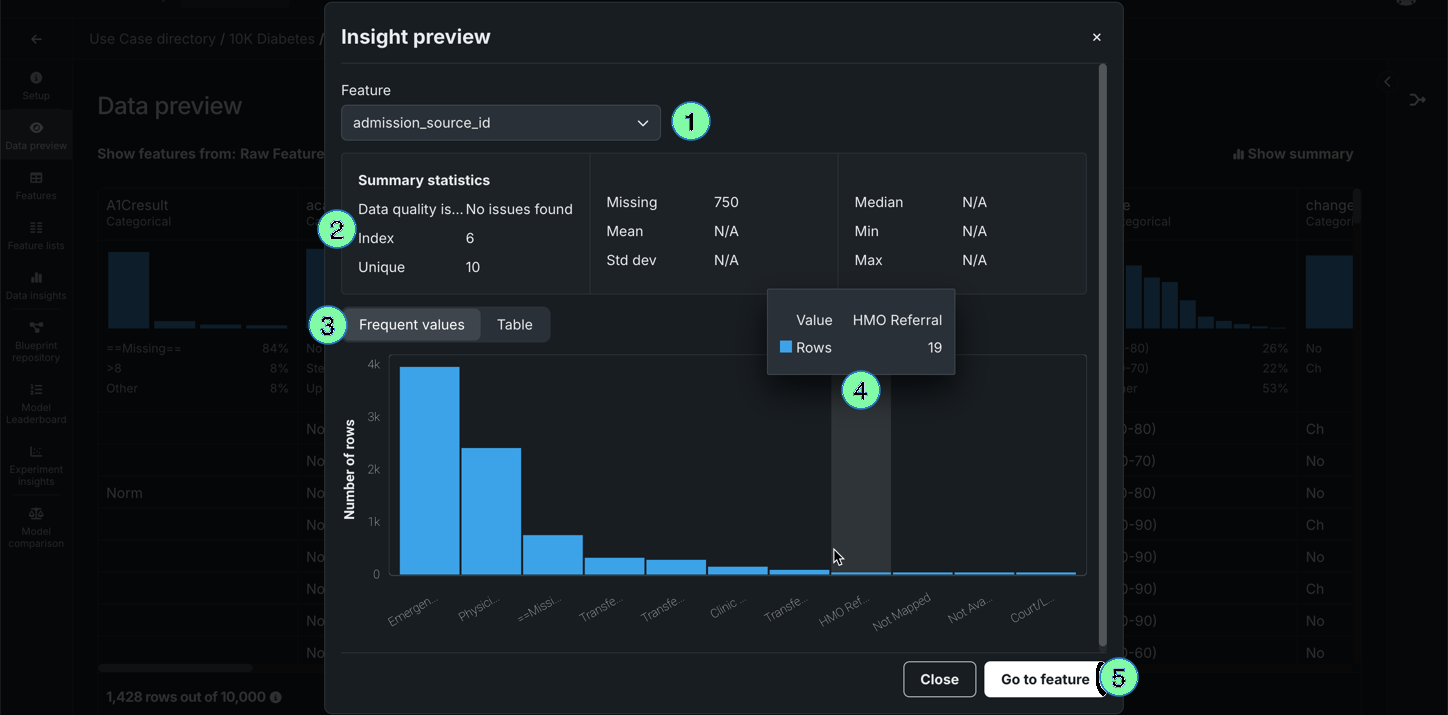
Select a feature to view additional summary statistics and insights.
| Element | Description | |
|---|---|---|
| 1 | Feature dropdown | Allows you to change the feature you're currently viewing. |
| 2 | Summary statistics | Displays summary statistics for the feature, including data quality issues and unique values. |
| 3 | Insights | Allows you to view available insights for the variable type of the feature. |
| 4 | Hover details | Displays additional information when you hover on the chart. |
| 5 | Go to feature | Opens the Features tile and expands the feature you were viewing. |
Features tile
Displays each feature within the selected feature list. Click on a feature to view additional information, including summary metrics and frequent values. The available insights are based on the variable type of the feature.
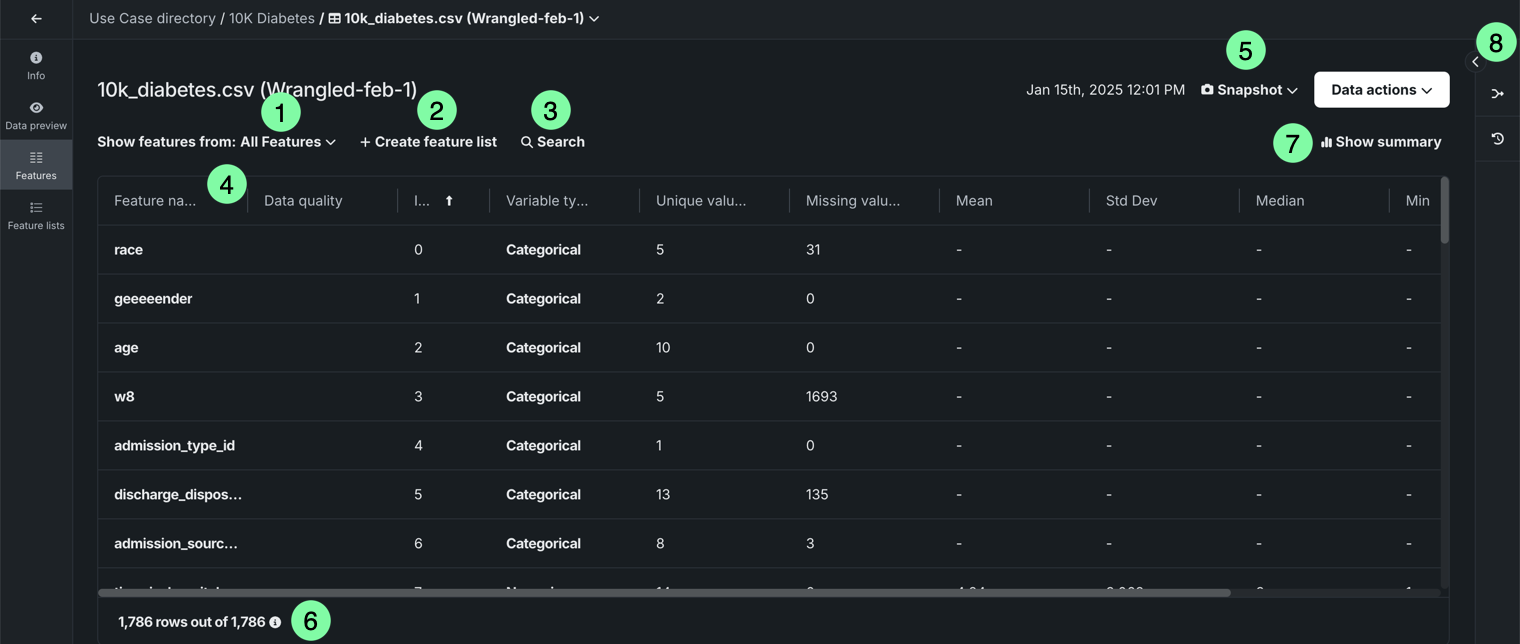
| Element | Description | |
|---|---|---|
| 1 | Show features from dropdown | Allows you to view features from a specific feature list. |
| 2 | + Create feature list | Creates a new feature list. |
| 3 | Search | Searches for a specific feature in the dataset or feature list you're currently viewing. |
| 4 | Features | Displays each feature, as well as summary statstics for each feature, in the selected feature list. |
| 5 | Snapshot policy | Displays the selected dataset version. If the snapshot version is selected, DataRobot displays the date and time of the snapshot's creation. Click the dropdown to access the following:
|
| 6 | Preview sample | Displays the number of rows used to generate the preview out of the total number of rows in the dataset. |
| 7 | Show summary | Displays the following summary information for the dataset:
|
| 8 | Wrangling recipe | Allows you to view the wrangling recipe, if applicable, associated with the dataset, as well as continue wrangling the dataset. |
Select a feature to view additional summary statistics and insights:
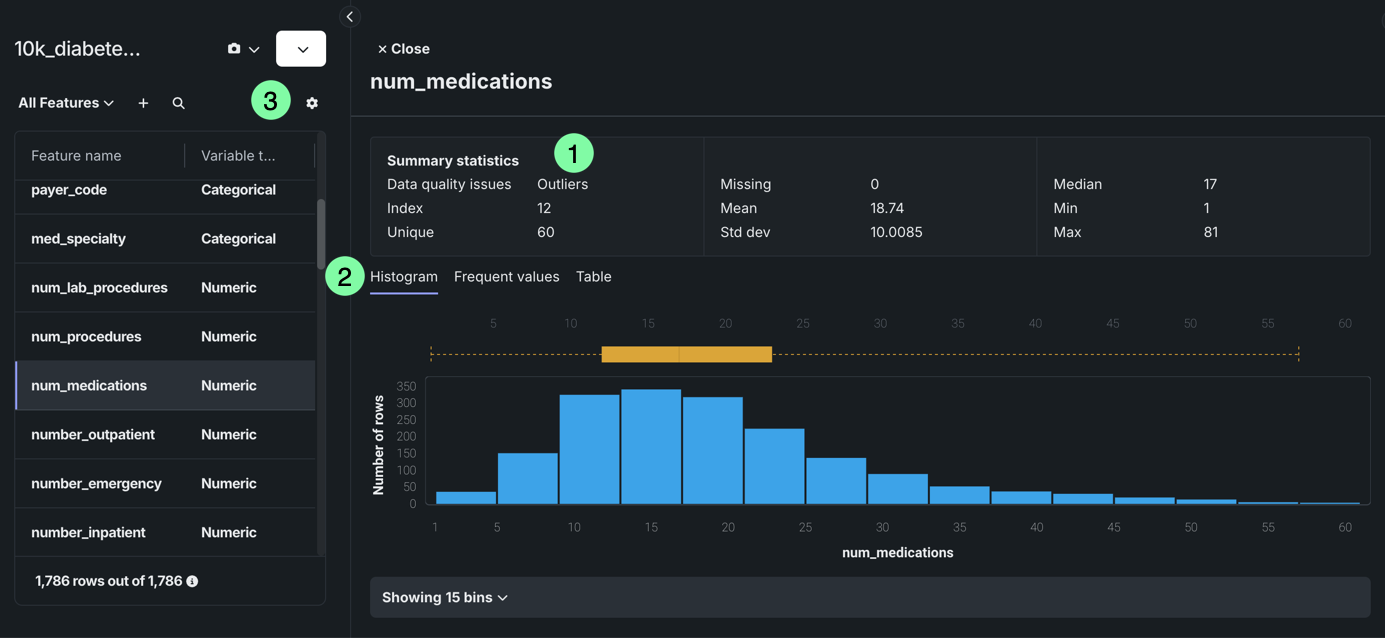
| Element | Description | |
|---|---|---|
| 1 | Summary statistics | Displays summary statistics for the feature, including data quality issues and unique values. |
| 2 | Insights | Allows you to view available insights for the variable type of the feature. |
| 3 | Column management | Allows hide, display, pin, and reorder columns. |
Dataset versioning
The data explore page supports dataset versioning, allowing you to access a history of data snapshots as well as create new snapshots from the same page. Note that you can can access dataset versioning from any view on the data explore page.
To access dataset versions, click the dropdown next to Data actions or open Dataset Versions in the right panel.
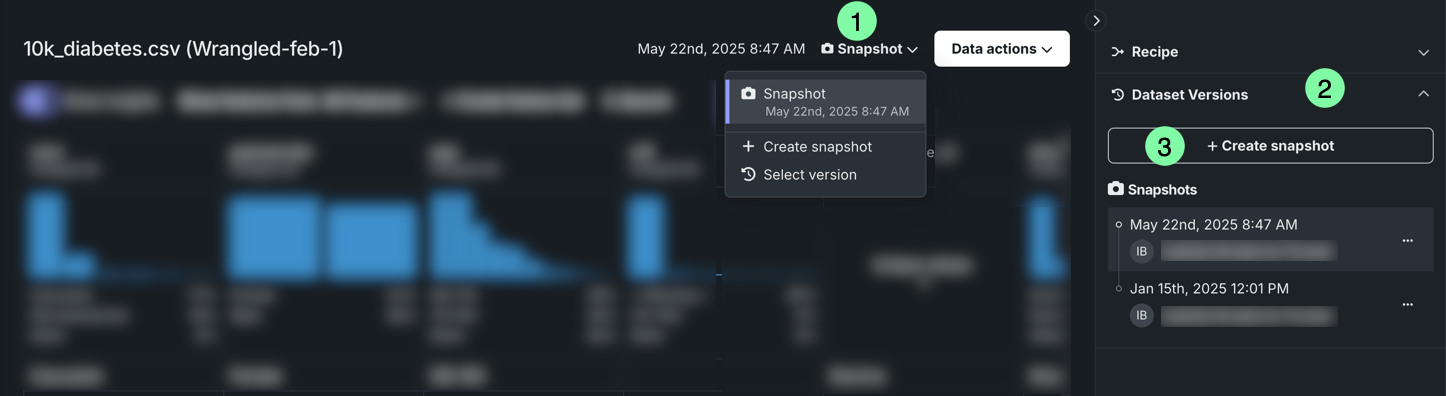
| Element | Description | |
|---|---|---|
| 1 | Snapshot policy | Displays the selected dataset version. If the snapshot version is selected, DataRobot displays the date and time of the snapshot creation. Click the dropdown to access the following:
|
| 2 | Dataset Versions | Displays a version history of the dataset. Click a dataset to view a different version. |
| 3 | + Create snapshot / Upload new version | Allows you to add additional versions of the dataset, and after registration is complete, the new dataset is displayed in the version history. Additionally, it is added to the Use Case and Data Registry.
|
Data actions for snapshot policies
The data explore page supports the following snapshot policies:
- Dynamic: DataRobot is connected to the data source and uses live data to perform the selected data action.
- Snapshot: A fixed snapshot that is stored in DataRobot and used to perform the selected data action. This policy is recommended for repeatable experimentation if live data often changes.
- Static: A local file used to perform the selected data action.
Data actions
You can perform the following actions on the data explore page (note that these actions persist no matter what view is currently selected):
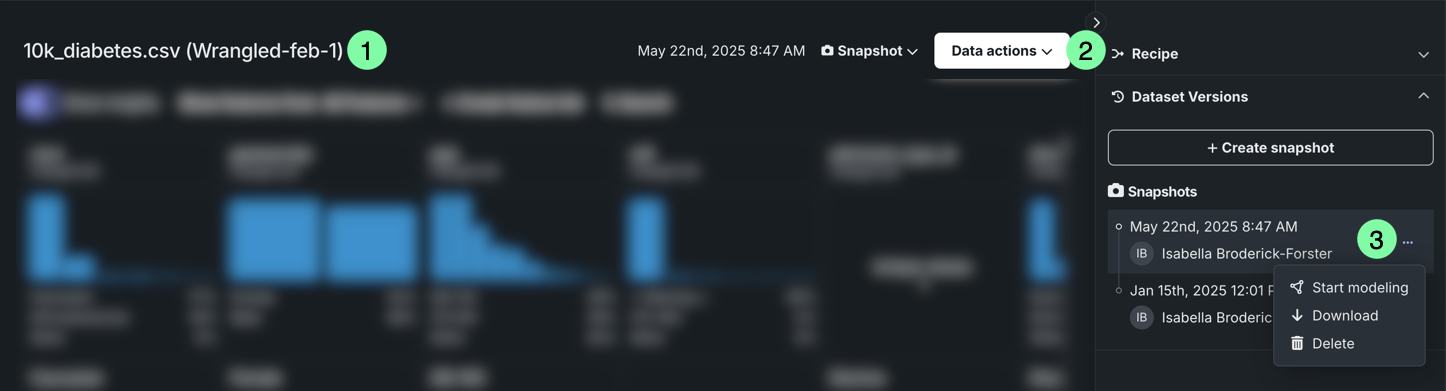
| Element | Description | |
|---|---|---|
| 1 | Dataset name | To rename the dataset, click on its name. To save your changes, click outside of the text field. |
| 2 | Data actions | Open the Data actions dropdown to perform one of the following actions with the dataset you're currently viewing:
|
| 3 | Data Versions actions | Under Dataset Versions, click the Actions menu to perform one of the following actions on a specific snapshot dataset:
|
Next steps
From here, you can: