Application templates
DataRobot offers various approaches for building applications; see the comparison table for more information.
Application templates provide a code-first, end-to-end pipeline for provisioning DataRobot resources. With customizable components, templates assist you by programmatically generating DataRobot resources that support predictive and generative use cases. The templates include necessary metadata, perform auto-installation of dependencies configuration settings, and seamlessly integrate with existing DataRobot infrastructure to help you quickly deploy and configure solutions.
Persistent storage in applications
DataRobot uses the key-value store API and file storage to provide persistent storage in applications. This can include user settings, preferences, and permissions to specific resources, as well as chat history, monitoring usage, and data caching for large data frames.
View an end-to-end walkthrough of the Talk to my Data Agent application template.
Available templates
The table below describes the available templates. Each template links to its respective GitHub repository. Note that, in addition to the templates that DataRobot provides, organization administrators can add custom application templates for their users to execute.
In addition to the templates listed below, you can review examples of DataRobot tasks you can perform with Pulumi.
| Application template | Description |
|---|---|
| Forecast Assistant | Leverage predictive and generative AI to analyze a forecast and summarize important factors in predictions. The Forecast Assistant template provides explorable explanations over time and supports what-if scenario analysis. Example use case: store sales forecasting. |
| Guarded RAG Assistant | Build a RAG-powered chatbot using any knowledge base as its source. The Guarded RAG Assistant template logic contains prompt injection guardrails, sidecar models to evaluate responses, and a customizable interface that is easy to host and share. Example use cases: product documentation, HR policy documentation. |
| Predictive Content Generator | Generates prediction content using prediction explanations from a classification model. The Predictive Content Generator template returns natural language-based personalized outreach. Example use cases: next-best-offer, loan approvals, and fraud detection. |
| Predictive AI starter | Outlines a basic predictive AI deployment workflow in DataRobot using a Streamlit front-end. DataRobot recommends using this as a template for getting started with app templates, as it is easy to customize. |
| "Talk to my data" agent | Provides a talk-to-your-data experience. Upload a .csv, ask a question, and the agent recommends business analyses. It then produces charts and tables to answer your question (including the source code). This experience is paired with MLOps to host, monitor, and govern the components. |
| Cash flow forecasting | Outlines a basic development and prediction workflow for a late payment predictive model. |
| Demand planning | Outlines a demand planning predictive model development and forecasting workflow. |
Configure an application template
To access and configure an application template:
-
From the Workbench home page or Use Case directory, click Browse application templates to open the Application Gallery.
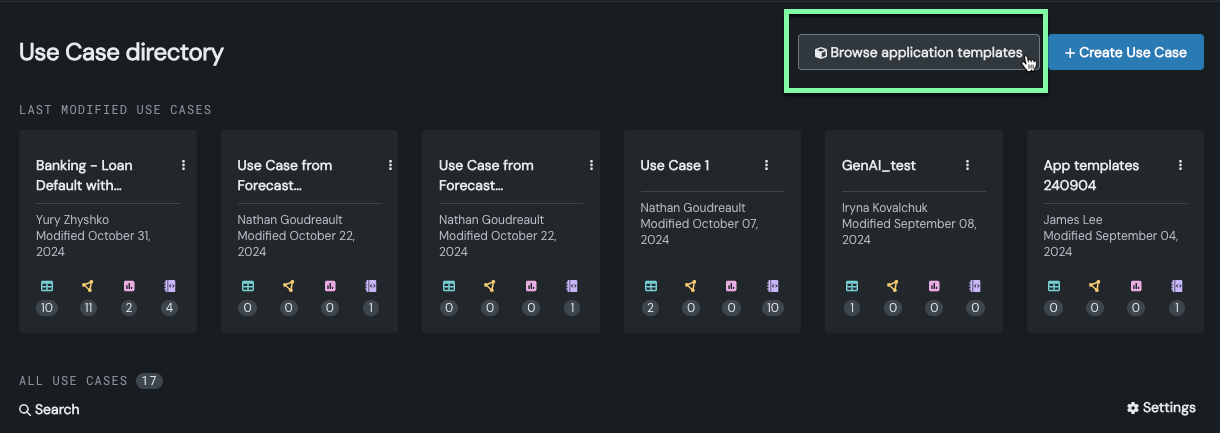
The Application Gallery displays the collection of available templates and provides a brief description of each. While the descriptions list example uses cases, each template can be applied to a variety of use case types.
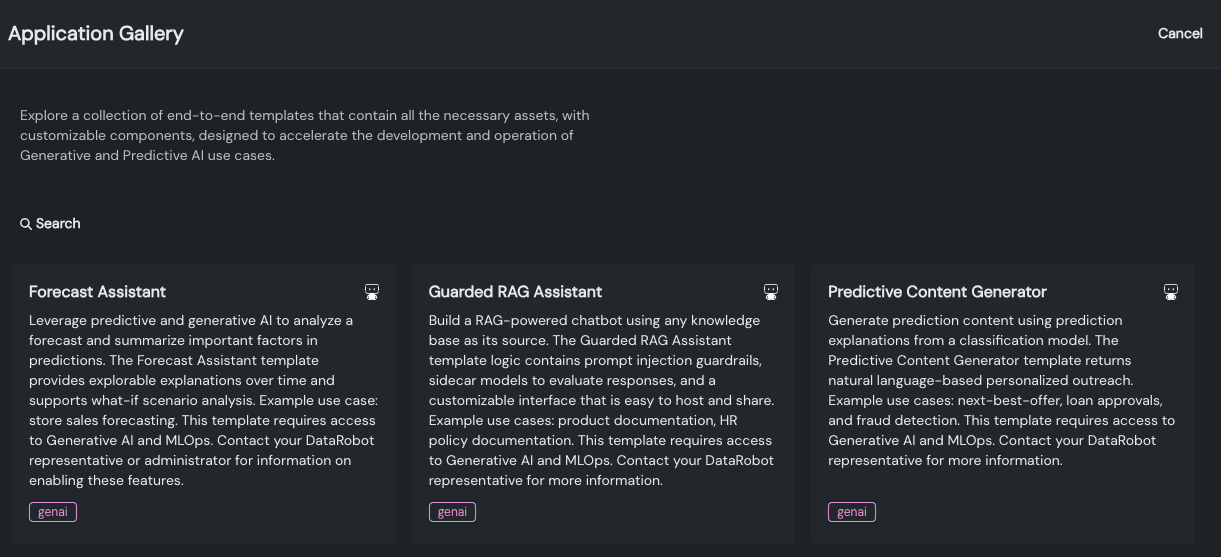
-
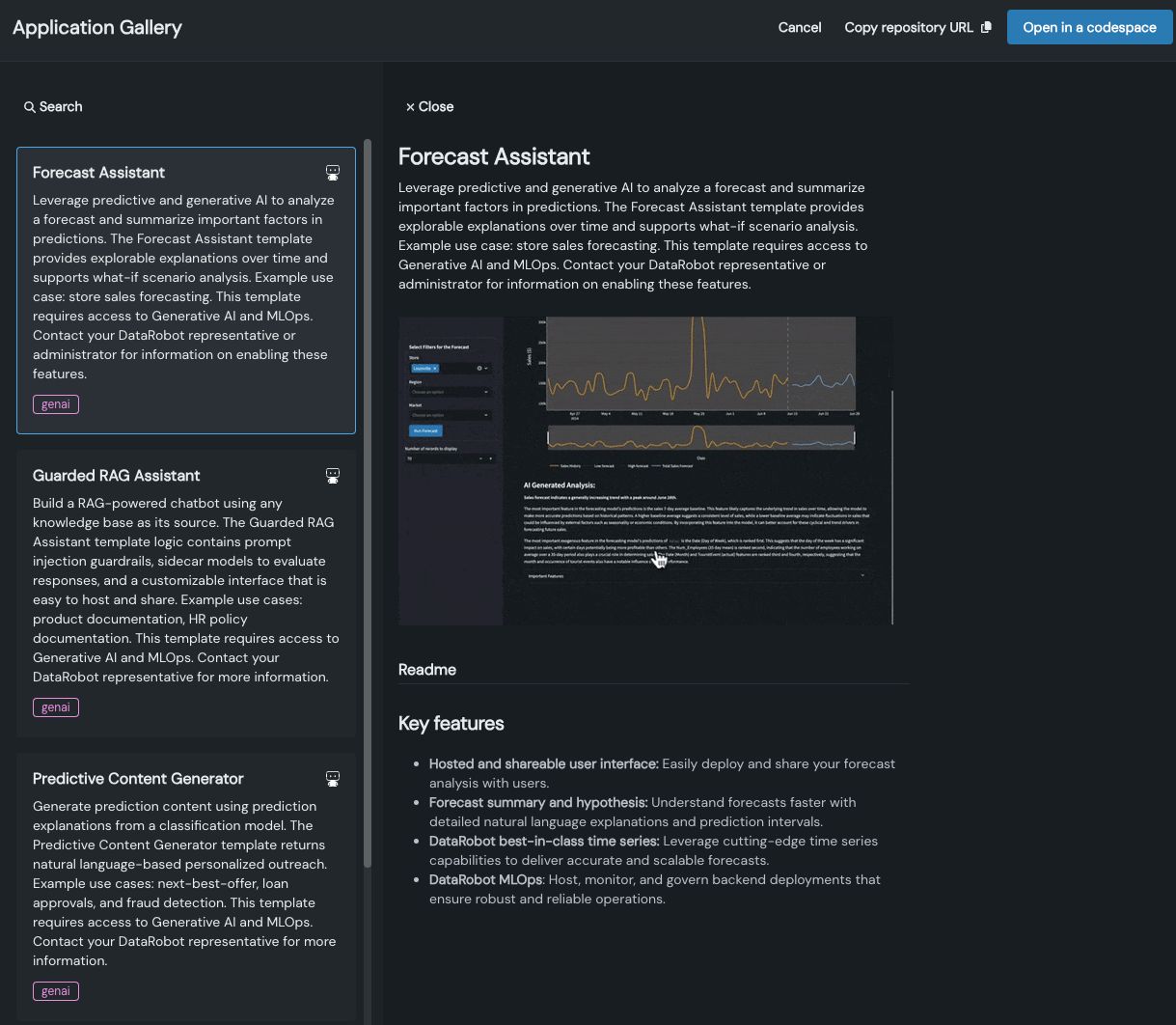
Select a template to expand it and review its key features.
Note
For more information about a template, including the step-by-step procedures for running it, click Copy repository URL. Then, paste the URL into your browser to open the template in GitHub and view a detailed README that outlines the template's workflow.

-
Once you have selected an application template, click Open in a codespace. DataRobot then:
- Creates a Use Case for the template assets.
- Creates a codespace based off of the template, which includes all of the files necessary to execute the template's workflow.
-
Allow some time for the codespace to initialize. Then, you can work with the application template and follow its unique workflow to begin creating a variety of DataRobot resources.
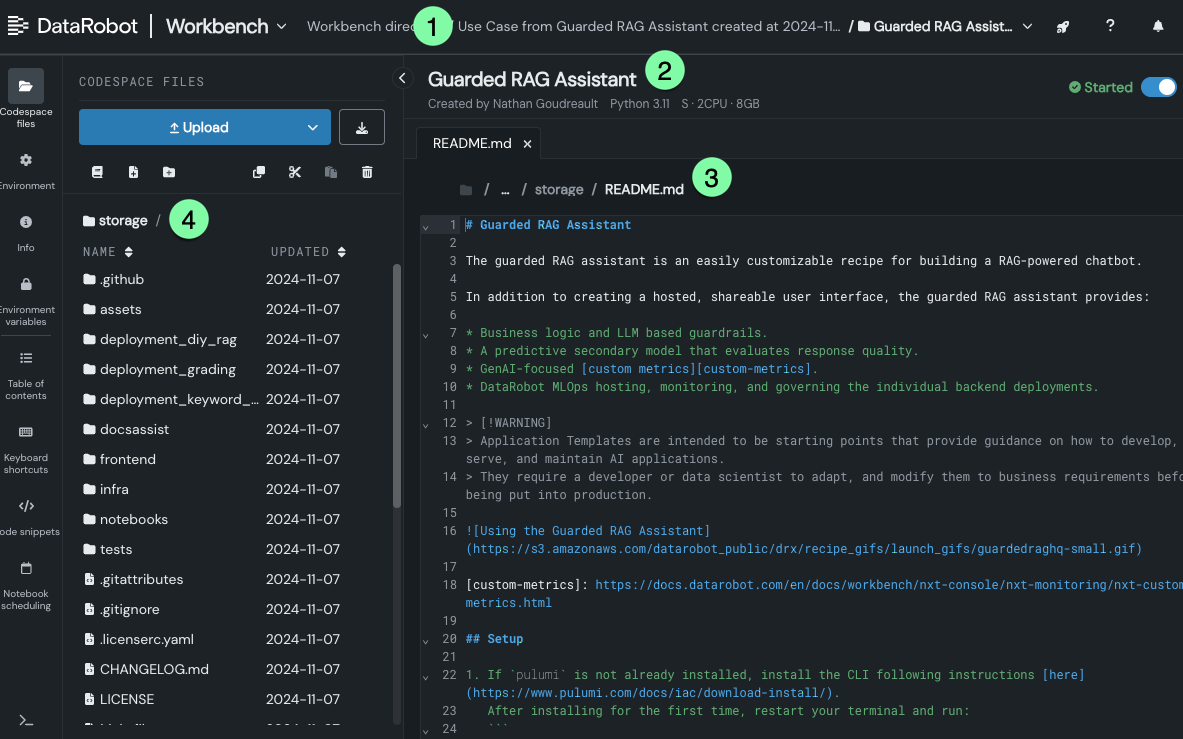
In the codespace you have access to:
Element Description 1 Use Case The Use Case that was created from the template. Click in the breadcrumbs to view the Use Case in the directory. 2 Codespace title The name of the codespace created in a Use Case for the application template 3 The template README The README file for the application template. It outlines steps for the local development workflow and critical steps for the codespace workflow that are slightly different (detailed in the "Setup for advanced users" section). 4 File browser The codespace's file browser lists all of the files that are part of the application template. Use the browser to navigate to and open the README and notebooks executing the template's code. How you work with an application template depends on where you work with it:
-
In a codespace, you open the terminal and execute the steps in the README that begin with creating an
.envfile. -
Alternatively, clone the GitHub repository and work with the template in your local environment. Reference the template README documentation for the steps required to work with an application template locally.
-
Add custom application templates to an organization
Organization admins can add custom application templates to their organizations, allowing users within the organization to build applications from them.
To add a custom application template:
-
Navigate to the Workbench home page and click Browse application templates to open the Application Gallery.
-
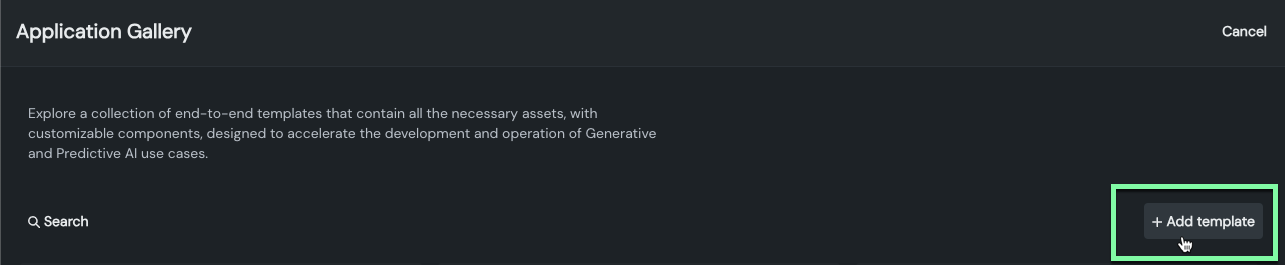
From the Application Gallery, click + Add template.
-
Configure the application template.
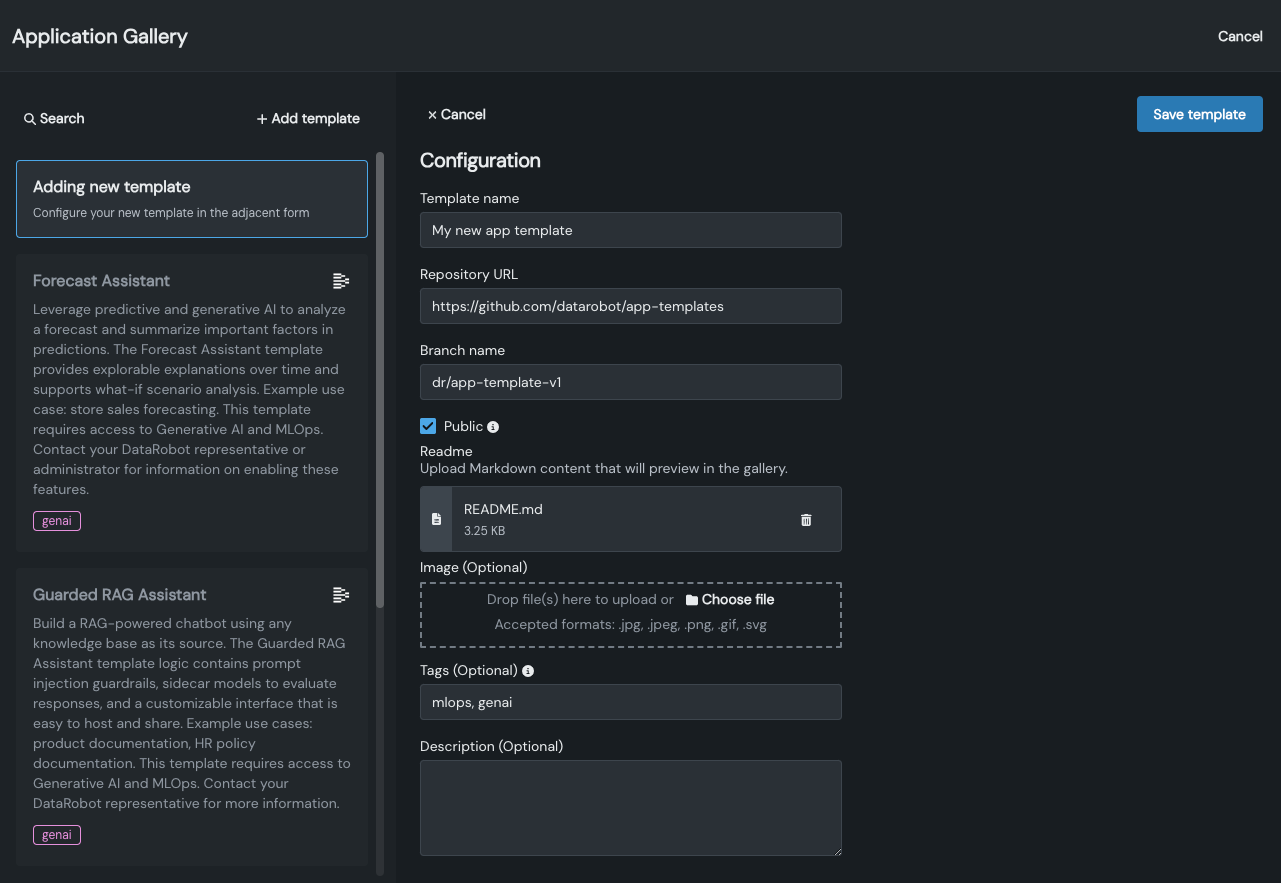
Field Description Template name The name of the application template to be added to the Application Gallery. Repository URL A link to the repository that hosts the files that make up the application template. Branch name The Git branch stemming from the linked repository that contains the file contents for the application template. Public toggle Use this toggle to indicate whether the repository is public or not. Public repositories can be cloned without requiring authentication. If an application template is not marked as public, users are only able to copy the repository URL and will need to provide the appropriate credentials to clone the repository. Readme Upload a README.mdMarkdown file that outlines the purpose and workflow for the application template.Image Optional. Upload an image that represents the use case or workflow for the application template. Tags Provide tags to label the application template. To provide multiple tags, enter them in a comma-separated list. Description Optional. Provide a description that outlines what you would use the application template for in DataRobot. -
After configuring the template, click Save template.
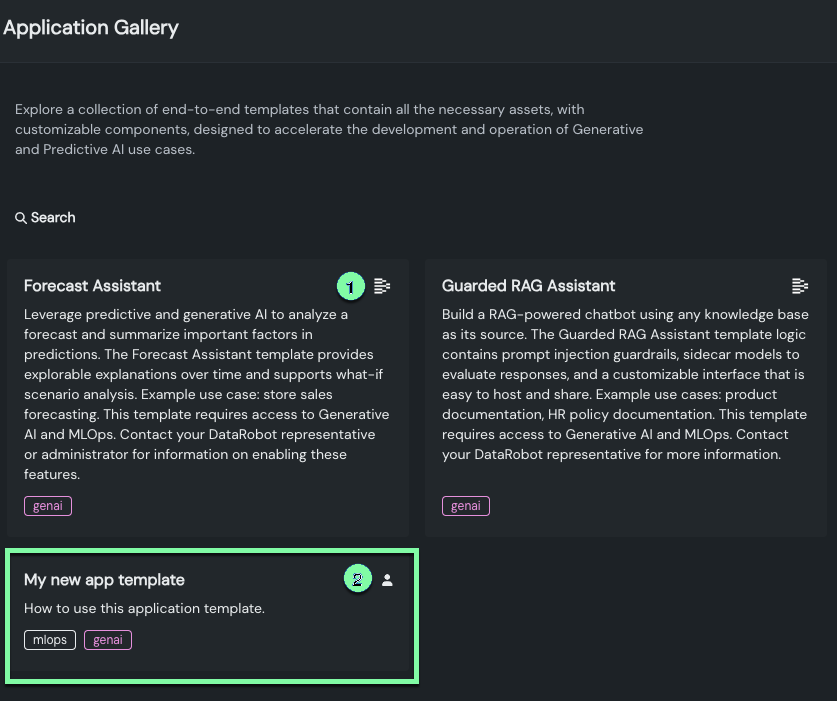
Once saved, the application template appears alongside other templates in the Application Gallery. Note that DataRobot-provided templates are indicated by the company logo (1), and admin-provided templates are indicated by the user icon (2).
Use a text generation NVIDIA NIM in an application template
Premium
The use of NVIDIA Inference Microservices (NIMs) in DataRobot requires access to premium features for GenAI experimentation and GPU inference. Contact your DataRobot representative or administrator for information on enabling the required features.
GenAI application templates can integrate capabilities provided by NVIDIA AI Enterprise, a comprehensive, cloud-native software platform that accelerates data science pipelines and streamlines the development and deployment of production-grade AI applications. To use this integration, you can customize a DataRobot application template to programmatically generate a generative AI use case built on NVIDIA Inference Microservices (NIMs).
To use an existing text generation model or deployment with these application templates, select one of the GenAI application templates from the Application Gallery. Then, you can make three modifications, locally or in a DataRobot codespace, to customize the template to use a registered or deployed NVIDIA NIM.
- In
infra/settings_generative.py, locateLLM=GlobalLLMand set it toLLM=GlobalLLM.DEPLOYED_LLM. - Ensure
.env.templateis renamed to.env, and then set eitherTEXTGEN_REGISTERED_MODEL_IDorTEXTGEN_DEPLOYMENT_ID. - In
.env, setCHAT_MODEL_NAMEto the model name expected by the deployment. For NIM registered models and deployments,datarobot-deployed-llm.
With the template customized, you can proceed with the standard workflow outlined in the template's README.md.