Add operations
A recipe is composed of operations—transformations that will be applied to the source data to prepare it for modeling. Note that operations are applied sequentially, so you may need to reorder the operations in your recipe to achieve the desired result.
Operation behavior
When a wrangling recipe is pushed down to the connected cloud data platform, the operations are executed in their environment. To understand how operations behave, refer to the documentation for your data platform:
Once the dataset is materialized in DataRobot and added to your Use Case, you can go to the Data tab and view which queries were executed by the cloud data platform during push down.
The table below describes the wrangling operations currently available in Workbench:
| Operation | Description |
|---|---|
| Join | Join datasets that are accessible via the same connection instance. |
| Aggregate | Apply mathematical aggregations to features in your dataset. |
| Filter row | Filter the rows in your dataset according to specified value(s) and conditions |
| De-duplicate rows | Automatically remove all duplicate rows from your dataset. |
| Find and replace | Replace specific feature values in a dataset. |
| Compute new feature | Create a new feature using scalar subqueries, scalar functions, or window functions. |
| Rename features | Change the name of one or more features in your dataset. |
| Remove features | Remove one or more features from your dataset. |
| Derive time series features | Create customized feature engineering for time series experiments. |
| Lag features | Create one or more lags for a feature based off of the ordering feature. |
| Derive rolling statistics (numeric) | Apply statistical methods to create rolling statistics for a numeric feature. |
| Derive rolling statistics (categorical) | Create rolling statistics for a categorical feature. |
Can I perform majority class downsampling for unbalanced datasets?
Yes, you can enable majority class downsampling during the publishing phase of wrangling. In Workbench, downsampling happens in-source and sampling weight is generated. The target and weights are then passed along to the experiment.
To add an operation to your recipe:
-
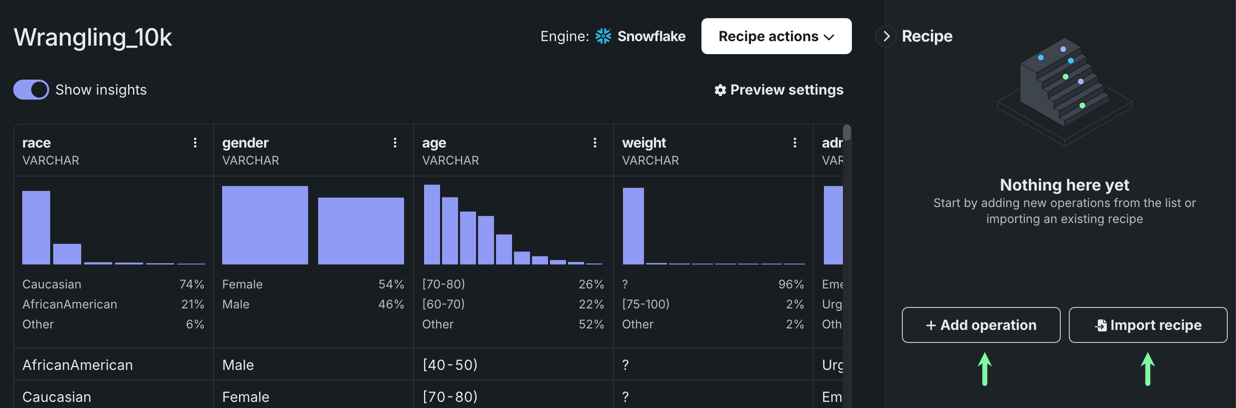
In the right panel, either click + Add operation to add individual transformations to your recipe, or Import recipe to import an existing recipe.
-
Continue adding operations while analyzing their effect on the live sample. To add operations, you can:
- Click + Add operation.
- Open the Actions menu to interact with existing operations.
-
Once you've added at least one operation, you can click the arrow to the right of the + Add operation button and select Import recipe. This allows you to add operations from an existing wrangling recipe.
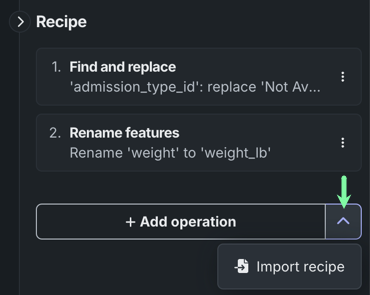
The live sample updates after DataRobot retrieves a new sample from the data source and applies the operation, allowing you to review the transformation in realtime.
-
When you're done, you can publish the recipe.
Join
Use the Join operation to combine datasets that are accessible via the same connection instance.
To join a table or dataset:
-
Click Join in the right panel.
-
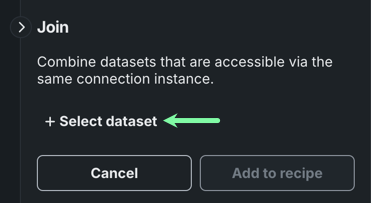
Click + Select dataset to browse and select a dataset from your connection instance.
-
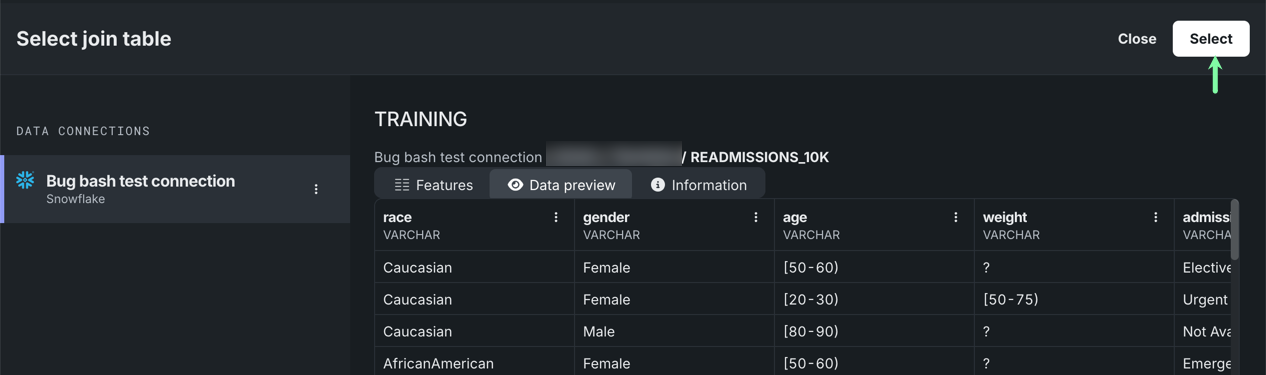
Once you've opened and profiled the dataset you want to add, click Select.
-
Select the appropriate Join type from the dropdown.
- Inner only returns rows that have matching values in both datasets, for example, any rows with matching values in the
order_idcolumn. - Left returns all rows from the left dataset (the original), and only the rows with matching values in the right dataset (joined).
- Cartesian, or cross join, combines every row from one table with every row from another table, so that the resulting table contains all possible combinations.
- Inner only returns rows that have matching values in both datasets, for example, any rows with matching values in the
-
Select the Join condition, which defines how the two datasets are related. In this example, both the datasets are related by
order_id.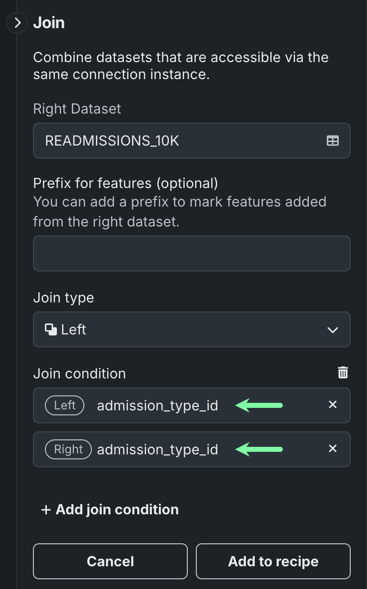
-
(Optional) If you populate the field below Prefix for features, all features added from the right dataset are marked with the specified prefix in the resulting dataset after the datasets are combined.
-
Click Add to recipe.
Aggregate
Use the Aggregate operation to apply the following mathematical aggregations to the dataset (available aggregations vary by feature type):
- Sum
- Min
- Max
- Median
- Avg
- Standard deviation
- Count
- Count distinct
- Most frequent (Snowflake only)
To add an aggregation:
-
Click Aggregate in the right panel.
-
Fill in the available fields:
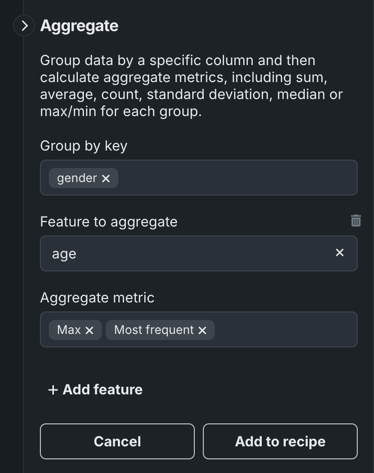
- Under Group by key, select the feature(s) you want to group your aggregation(s) by.
- Click the field below Feature to aggregate and select a feature from the dropdown.
- Click the field below Aggregate function and choose one or more aggregations to apply to the feature.
-
(Optional) To apply aggregations to additional features in this grouping, click + Add feature.
-
Click Add to recipe.
After adding the operation to the recipe, DataRobot renames aggregated features using the original name with the
_AggregationFunctionsuffix attached. In this example, the new columns areage_maxandage_most_frequent.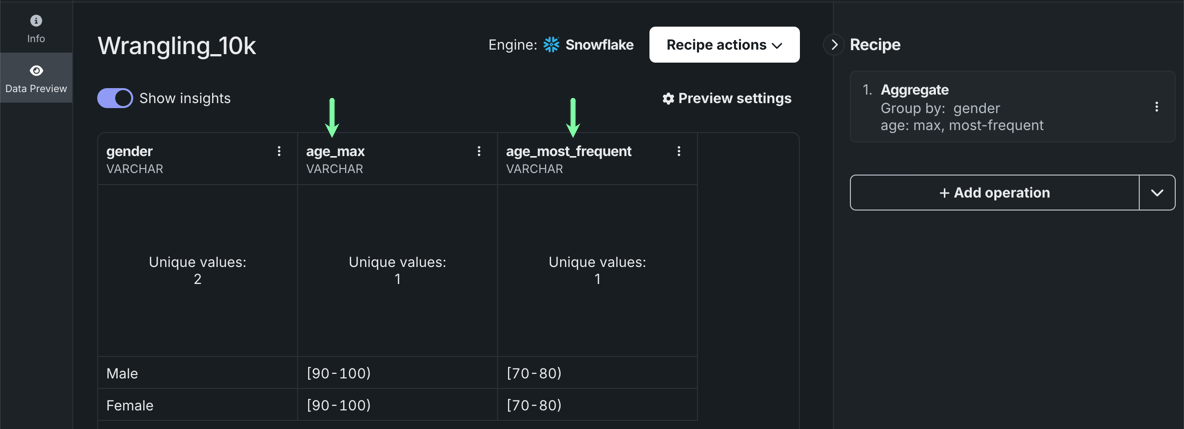
Filter row
Use the Filter row operation to filter the rows in your dataset according to specified value(s) and conditions.
To filter rows:
-
Click Filter row in the right panel.
-
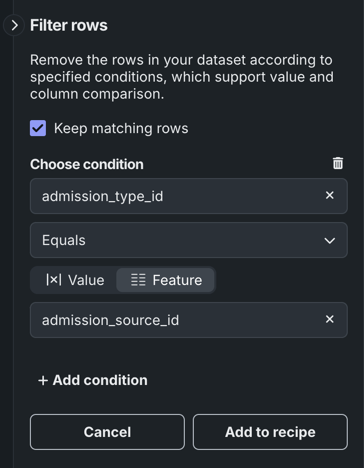
Decide if you want to keep the rows that match the defined conditions or exclude them.
-
Choose the feature you want to filter. To do so, click inside the first field below Choose condition and select a feature from the dropdown.
-
In the dropdown below the feature, choose a condition type from the following options:
Condition type Description Equals Return rows that are the same as the specified value or feature. Not equals Return rows that are not the same as the specified value or feature. Less than Return rows that are less than the specified value or feature. Less than or equals Return rows that are either less than or equal to the specified value or feature. Greater than Return rows that are greater than the specified value or feature. Greater than or equals Return rows that are either greater than or equal to the specified value or feature. Is null Return all rows that are null. Is not null Return all rows that are not null. Between Return a range between one value or feature and another value or feature. Contains Return rows that contain the specified value or feature. -
Below the condition type, select either Value or Feature. Note that this step is not required for some condition types.
- If you select Value, you must then enter a value in the field. DataRobot will compare the selected feature and the specified value, returning all rows that meet the condition type.
- If you select Feature, you must then click inside the field and select a dataset feature from the dropdown. DataRobot will compare the two features, returning all rows that meet the condition type based. For example, if the condition is
admission_type_idequalsadmission_source_id, DataRobot only returns rows where the value ofadmission_type_idis the same as the value ofadmission_source_id.
-
(Optional) Click Add condition to define additional filtering criteria.
-
Click Add to recipe.
De-duplicate rows
To de-duplicate rows, click De-duplicate rows in the right panel. This operation is immediately added to your recipe and applied to the live sample, removing all rows with duplicate information.
Find and replace
Use the Find and replace operation to quickly replace specific feature values in a dataset. This is helpful to, for example, fix typos in a dataset.
To find and replace a feature value:
-
Click Find and replace in the right panel.
-
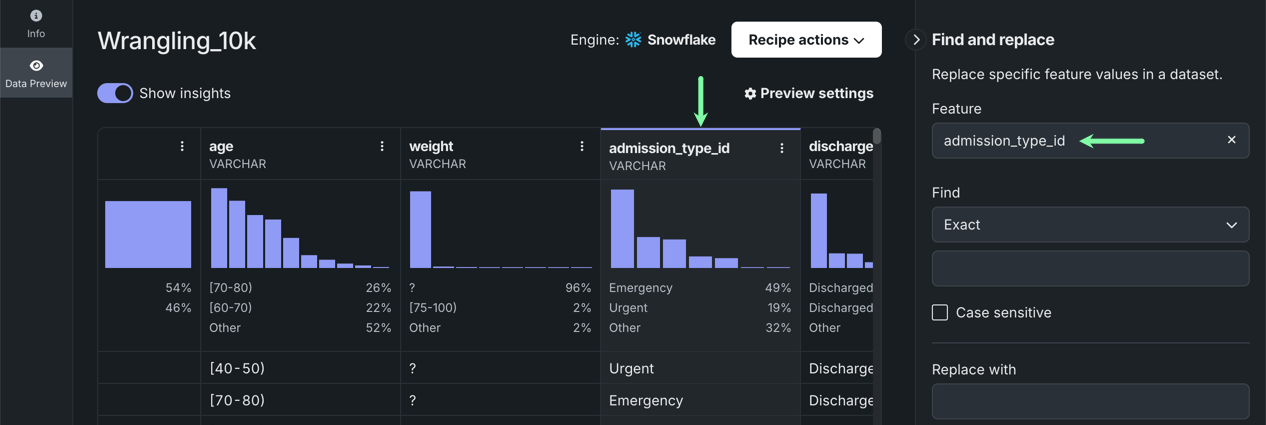
Under Select feature, click the dropdown and choose the feature that contains the value you want to replace. DataRobot highlights the selected column.
-
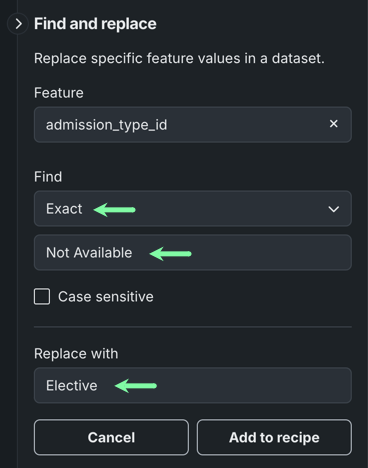
Under Find, choose the match criteria—Exact, Partial, or Regular Expression—and enter the feature value you want to replace. Then, under Replace, enter the new value.
-
Click Add to recipe.
Compute a new feature
Use the Compute new feature operation to create a new output feature from existing features in your dataset. By applying domain knowledge, you can create features that do a better job of representing your business problem to the model than those in the original dataset.
To compute a new feature:
-
Click Compute new feature in the right panel.
-
Enter a name for the new feature, and under Expression, define the feature using scalar subqueries, scalar functions, or window functions for your chosen cloud data platform:
See the Snowflake documentation for:
See the BigQuery documentation for:
See the Databricks documentation for:
See the Spark SQL documentation for:
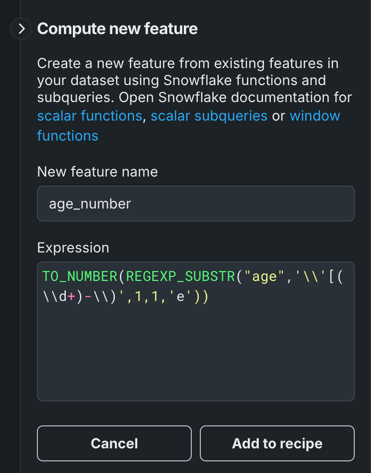
This example uses
REGEXP_SUBSTR, to extract the first number from the[<age_range_start> - <age_range_end>)from theagecolumn, andto_numberto convert the output from a string to a number.Expression formatting
For guidance on how to format your Compute new feature expressions, see the Expression field, which provides an example based on your data connection.
-
Click Add to recipe.
Rename features
Use the Rename features operation to rename one or more features in the dataset.
To rename features:
-
Click Rename features in the right panel.
Rename specific features from the live sample
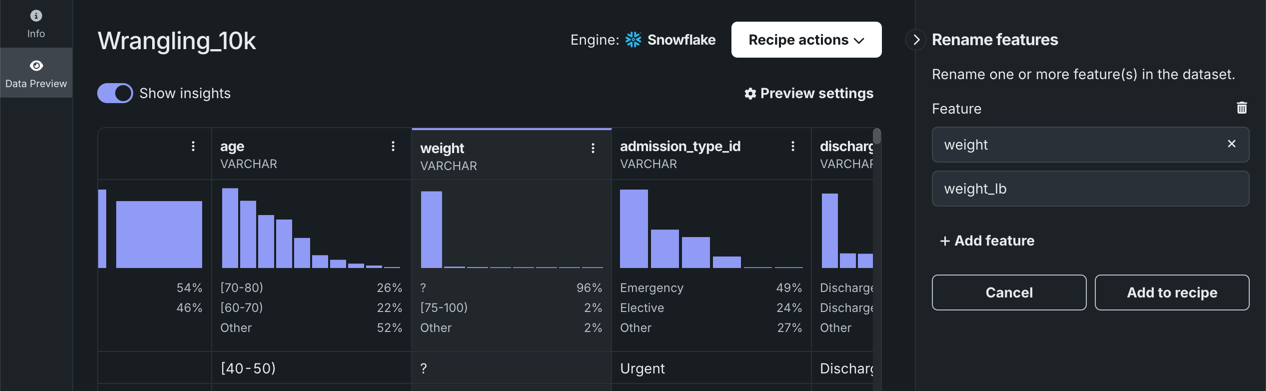
Alternatively, you can click the Actions menu next to the feature you want to rename. This opens the operation parameters in the right panel with the feature field already filled in.
-
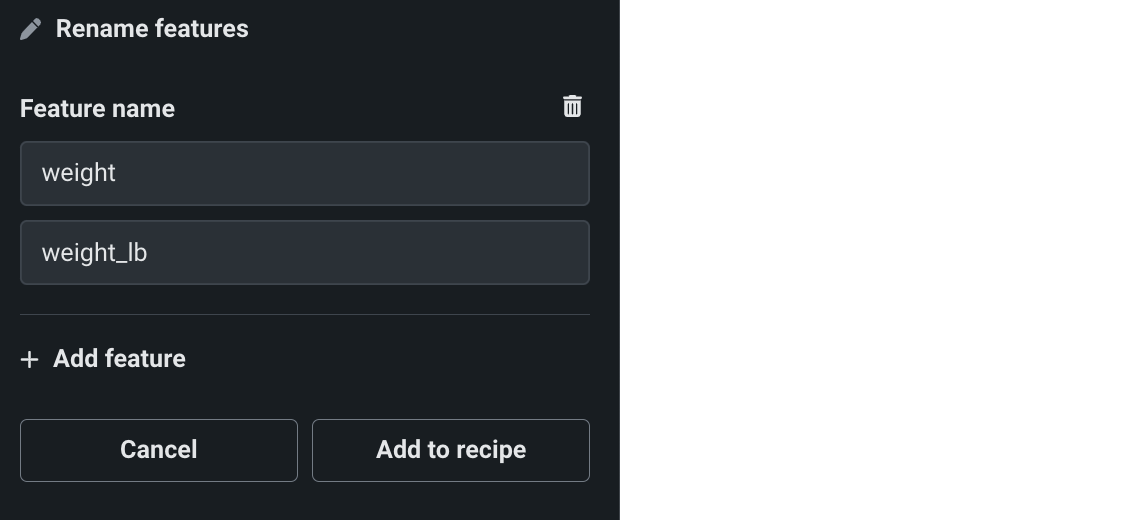
Under Feature name, click inside the first field and choose the feature you want to rename. Then, enter the new feature name in the second field.
-
(Optional) Click Add feature to rename additional features.
-
Click Add to recipe.
Remove features
Use the Remove features operation to remove features from the dataset.
To remove features:
-
Click Remove features in the right panel.
Remove specific features from the live sample
Alternatively, you can click the Actions menu next to the feature you want to remove. This opens the operation parameters in the right panel with the feature field already filled in.
-
Under Feature name, click the dropdown and either start typing the feature name or scroll through the list to select the feature(s) you want to remove. Click outside of the dropdown when you're done selecting features.
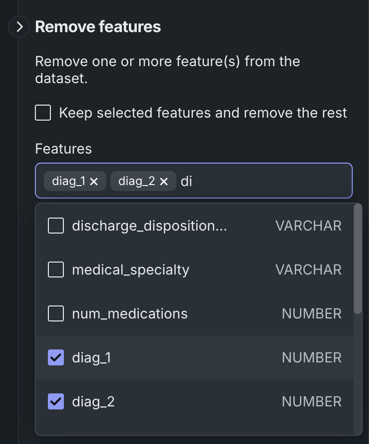
To remove every feature except the ones you selected, select the box next to Keep selected features and remove the rest.
-
Click Add to recipe.
Time-aware operations
For time-aware operations, see time series data wrangling. These operations include:
- Derive time series features
- Lag features
- Derive rolling statistics (numeric)
- Derive rolling statistics (categorical)
Operation actions
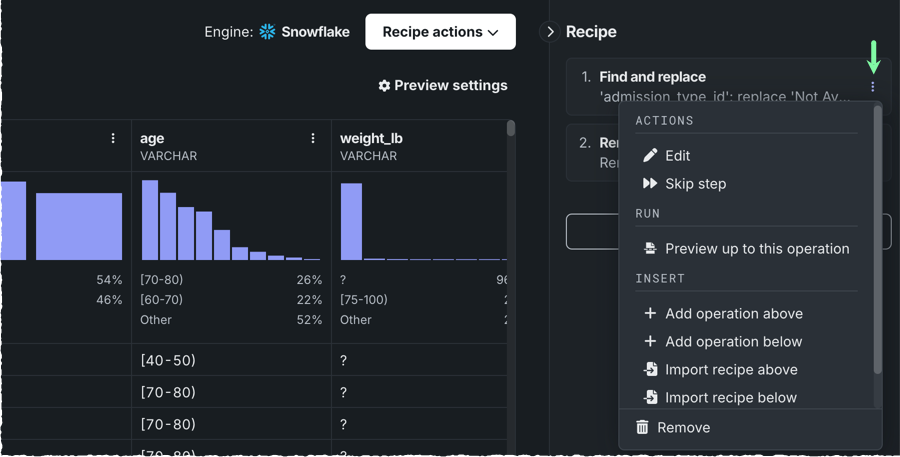
After adding an operation to the recipe, you can access the Actions menu to the right of individual operations, allowing you to:
| Action | Description |
|---|---|
| Edit | Allows you to edit the conditions of an operation. |
| Skip step | Intructs DataRobot to skip specific operations when applying the recipe to live preview. If you publish the recipe, these operations will be visible on the recipe's list of operations, however, they will not be applied to the output dataset. |
| Preview up to this operation | Applies only the operations above the selected operation to the live preview. |
| + Add operation above | Adds an operation directly above the selected operation. |
| + Add operation below | Adds an operation directly below the selected operation. |
| Import recipe above | Imports the operations from an existing recipe directly above the selected operation. |
| Import recipe below | Imports the operations from an existing recipe directly below the selected operation. |
| Duplicate | Makes a copy of the selected operation. |
| Delete | Deletes the operation from the recipe. |
Preview up to this operation
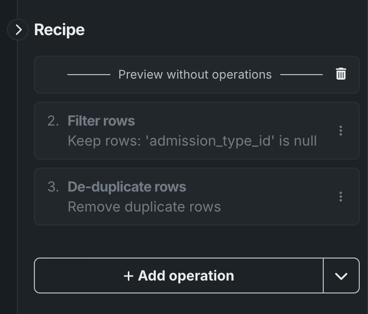
The Preview up to this operation action allows you to quickly test different combinations of operations on the live sample. When you select Preview up to this operation, the action is added to the recipe panel. The live preview only displays the operations listed above this action, so you can drag-and-drop the action below/above operations to see how different operations affect the preview.
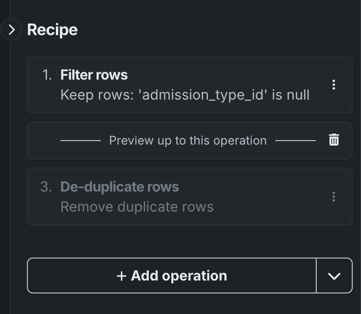
To view the preview without any operations applied, drag-and-drop the action to the top of the recipe.
Note
This operation is ignored when the recipe is published and is not visible to other members working on the same recipe.
If you use the + Add operation below action on the operation directly above Preview up to this operation, the operation is added below Preview up to this operation and not applied to the preview. If you use the + Add operation below action on the operation directly below Preview up to this operation, the operation is added below Preview up to this operation and not applied to the preview.
Reorder operations
All operations in a wrangling recipe are applied sequentially, therefore, the order in which they appear affects the results of the output dataset.
To move an operation to a new location, click and hold the operation you want to move, and then drag it to a new position.
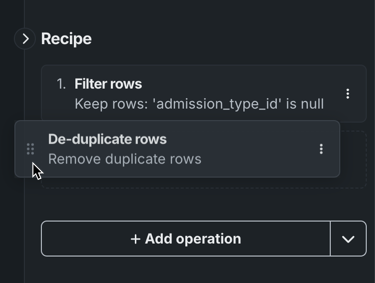
The live sample updates to reflect the new order.
Read more
To learn more about the topics discussed on this page, see: