GPU Acceleration for automl training
DataRobot enables the training of selected blueprints for text and image features using Nvidia GPUs. This guide outlines the necessary requirements and steps to enable this feature.
GPU Requirements
If you plan to utilize GPUs, be aware of the following requirements for the GPU nodes: - Nvidia GPU with one of these compute capabilities: 7.0 7.5 8.0 8.6 8.9 9.0 See this website for a list of GPUs and their compute capabilities. - 16GiB of vRam GPU memory - 64GiB of RAM - 200GiB of storage - X86-64 processor with at least 4 CPU cores
Enable the use of GPUs
After you have prepared your Kubernetes cluster and your GPU nodes (see general GPU instructions), enable the usage of GPU nodes for AutoML training jobs in the values.yaml file of the DataRobot helm chart. You need to extend the core section of the file similar to the example.
core:
  config_env_vars:
    # Node affinity that is required during scheduling and that is applied to the worker job
    # pods leveraging GPUs.
    KUBEWORKERS_GPU_INSTANCE_SELECTOR_LIST: "datarobot.com/dynamic-worker-type=gpu"
    # Job pod toleration list that is matched with appropriate node taints during scheduling and
    # is applied to the worker job pods leveraging GPUs.
    KUBEWORKERS_GPU_INSTANCE_TOLERATIONS: "nvidia.com/gpu=true:NoExecute"
Enable the feature within DataRobot
To enable the GPU Workers feature within DataRobot, follow these steps:
1. Log into the cluster with a Cluster Admin user.
2. Enable the Enable GPU Workers feature flag.
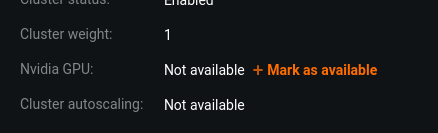
3. Mark Nvidia GPUs as available for your cluster:
1. Navigate to the Compute Resources page (Profile icon in the top right corner -> Compute Resources).
2. Select your cluster.
3. Click the Mark as available button to mark Nvidia GPUs as available.
Verify everything is working correctly
To verify that GPU support is enabled and working correctly, follow these steps:
1. Upload a dataset with text features to DataRobot and select a Binary or Regression target. For example, you can use the 10k_diabetes.csv dataset with readmitted as the target.
2. Go to Advanced Options -> Additional and select Allow use of GPU workers.
3. Select Modeling Mode: Manual and create the project by clicking the Start button.
4. Visit the repository and train the Keras Text Convolutional Neural Network Classifier blueprint.
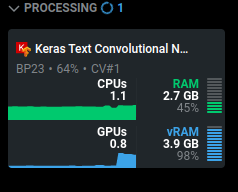
- If you see the GPU being utilized in the job status, congratulations! You have successfully enabled GPU support.