SAML Single sign-on integration
DataRobot can use external services (Identity Providers, IdP) for user authentication through Single Sign-On (SSO) technology. DataRobot supports SSO based on the SAML protocol.
To configure these options, refer to the Tuning DataRobot Environment Variables section of this guide.
Enhanced SAML single sign-on (sso)
Enhanced SAML SSO, beside authentication, provides a number of improvements in terms of users provisioning and simplified configuration of security and advanced parameters.
Enable SSO
SSO is disabled by default. Update your core.config_env_vars to enable enhanced SSO:
# helm chart values snippet
core:
  config_env_vars:
        PLATFORM_TYPE: enterprise
        ENABLE_ENHANCED_GLOBAL_SAML_SSO: true
NOTE:
- One doesn't need to backup/dump the old SSO config, the new config is created and stored separately. The new config is created either with default values (if there was no old config) or based on old SSO config values. The old config is kept for the case if one needs to switch back to the old SSO.
- However one has to update signed-in SSO route (aka Assertion Consumer Service URL) at IdP. The route format is
https://<host>/sso/signed-in/. Pay attention for route protocol (HTTP vs HTTPS), modify it if required.
SSO Configuration permissions
SSO configuration is disabled by default. There is a per user flag Enable Enhanced Global SAML SSO configuration management to enable it (find this flag in the user account settings). The Manage SSO tab appears under APP ADMIN when Enable Enhanced Global SAML SSO configuration management is checked. Note, the configuration is accessible only by system administrators.
SSO Configuration
Single Sign-On should be configured on both Identity Provider (IdP) and DataRobot sides.
Identity provider configuration
Identity Providers (IdP) implement their own dashboards, so customer should read their IdP's documentation to integrate DataRobot. IdP requires from DataRobot sign in and sign out URLs. they're represented on the Manage SSO page in section Service provider details under SP initiated login URL and IdP initiated login URL settings, where SP stands for Service Provider which is the DataRobot app in this case.
DataRobot expects to receive a username and an email from the identity provider. IdP should be configured such that the SAML response contains username attribute (mandatory) and email attribute (optional, recommended).
DataRobot configuration
The Manage SSO page is used for SSO configuration. It consists of the following sections.
Single sign-on and service provider details
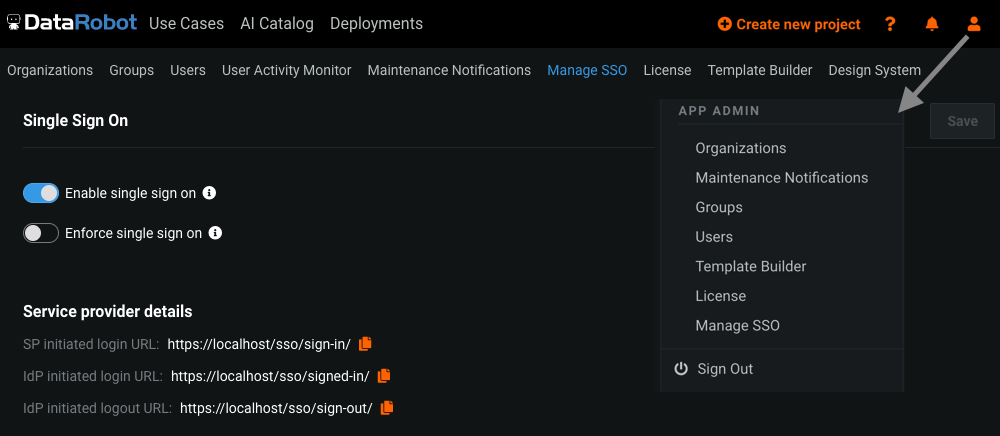
Enable single sign on- enables SSO, if checked then SSO appears on the landing page and corresponding SSO routes accepts requests.Enforce single sign on- enforces SSO, user can only login by SSO (can't use its username and password).SP initiated login URL- The endpoint DR app uses for initiating SSO authentication request to IdP (note, the default schema is HTTPS).IdP initiated login URL- The endpoint that receives the SAML sign-in request from the IdP. This URL also known as Assertion Consumer Service (ACS) URL (note, the default schema is HTTPS).IdP initiated logout URL- Optional. The endpoint that receives the SAML sign-out request from the IdP (note, the default schema is HTTPS).Save- click to save the changes.
Configure / Metadata URL
There are three option of how one can configure the IdP parameters, namely Metadata URL, Metadata file, Manual settings.
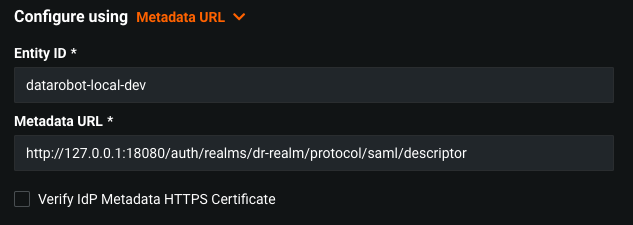
Entity Id- Unique identifier. Provided by Identity Provider.Metadata URL- URL to the XML document with information required for integration with IdP.Verify IdP Metadata HTTPS Certificate- If this is checked and the Metadata URL is of HTTPS schema, then it's checked for a valid certificate.
Configure / Metadata file
Metadata file allows user to provide IdP metadata as XML content.
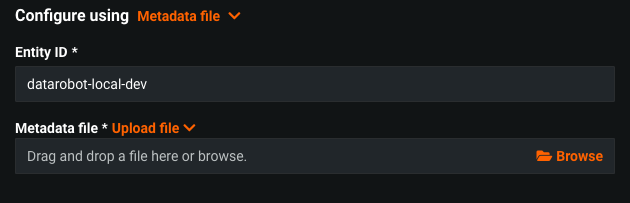
Entity Id- Unique identifier. Provided by Identity Provider.Metadata file- IdP Metadata content as XML document. User has to retrieve this content from corresponding IdP. This option should be used when there is no way to have IdP Metadata URL.
Configure / Manual settings
This option is used, if IdP metadata isn't available. DR app generates it based on the following fields.
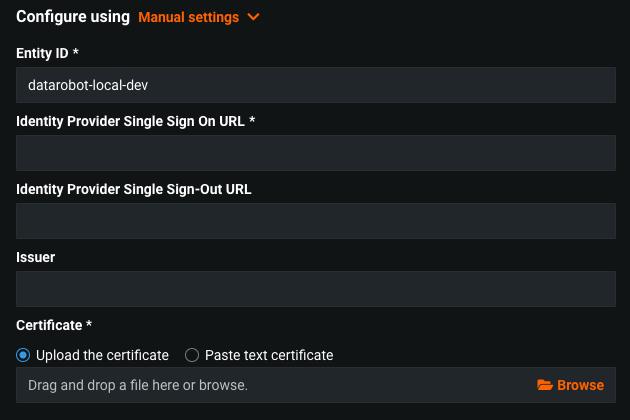
Entity Id- Unique identifier. Provided by Identity Provider.Identity Provider Single Sign On URL- The URL that DataRobot contacts to initiate login authentication for the user. This is obtained from the SAML application you created for DataRobot in the IdP configuration.Identity Provider Single Sign-Out URL (optional)- The URL that DataRobot directs the user’s browser to after logout. This is obtained from the SAML application you created for DataRobot in the IdP configuration. If left blank, DataRobot redirects to the root DataRobot site.Issuer- The IdP-provided Entity ID obtained from the SAML application you created for DataRobot in the IdP configurationCertificate- IdP X.509 certificate, pasted or uploaded. The certificate is obtained from the IdP side. The certificate is used by SP for verifying the IdP signatures.
User provisioning

Auto-generate Users- if checked then a newly signed-on user is created in the DataRobot database.
Mapping between DataRobot and the IdP
There are three mapping options: Attributes, Groups, Roles. All three options allow the system administrator to set up user attributes/groups/roles mappings between the Identity Provider and DataRobot. Those mappings are used during automatic user provisioning.
Adding mappings adds more restrictions on who can access DataRobot and also controls what users can access.
Mapping / Attributes
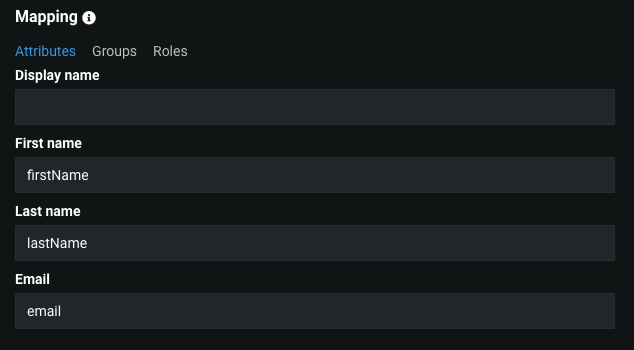
Attribute mapping allows one to map DataRobot attributes (data about the user, e.g., first name, last name) to the fields of the SAML response. In other words, because DataRobot and the IdP may use different fields' names, this section allows you to configure the name of the field in the SAML response where DataRobot updates the user’s display name, first name, last name, and email.
Mapping / Groups
Use the Groups mapping to create an unlimited number of mappings between IdP groups and existing DataRobot groups. Mappings can be one-to-one, one-to-many, or many-to-many.
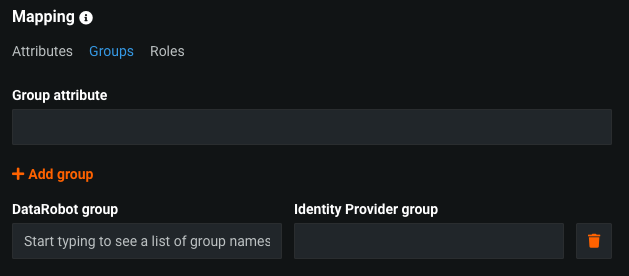
To configure, set: * Group attribute: The name, in the SAML response, that identifies the string as a group name. * DataRobot group: The name of an existing DataRobot group to which the user is assigned. * Identity provider group: The name of the IdP group to which the user belongs.
Mapping / Roles
Use the Roles mapping to create an unlimited number of mappings between IdP and DataRobot roles. Mappings can be one-to-one, one-to-many, or many-to-many.
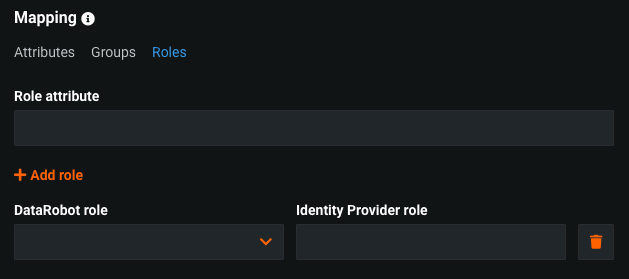
To configure, set:
- Role attribute: The name, in the SAML response, that identifies the string as a named user role.
- DataRobot role: The name of the DataRobot role to assign to the user.
- Identity provider role: The name of the role in the IdP configuration that's assigned to the user.
Security parameters
The following options are used for strengthening or weakening the security of the SAML protocol.

Allow unsolicited- when checked, the DataRobot app (SP) consumes unsolicited SAML Responses, i.e. SAML Responses for which it hasn't sent a respective SAML Authentication Request.Auth Requests Signed- when checked, the Authentication Requests sent by this DataRobot app are signed. Note, signing works only when the primary key is provided as described in the below sectionAdvanced Options / Client Config / SAML Config.Want Assertions Signed- Indicates if this DataRobot app wants the IdP to send the assertions signed. This sets the WantAssertionsSigned attribute of the SPSSODescriptor node of the metadata so the Identity Provider (IdP) knows this preference.Want Response Signed- Indicates that Authentication Responses to the DataRobot app must be signed. If checked, the DataRobot app doesn't consume any SAML Responses that aren't signed.Logout Requests Signed- Indicates if this entity signs the Logout Requests originated from it.
Advanced options / Session & Binding
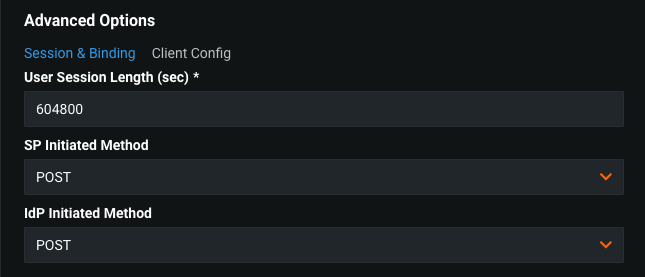
User Session Length (sec)- Session cookie expiration time.SP Initiated Method- SAML method which is used to start authentication negotiation.IdP Initiated Method- SAML method which is used to move user to DataRobot after successful authentication.
Advanced options / Client config
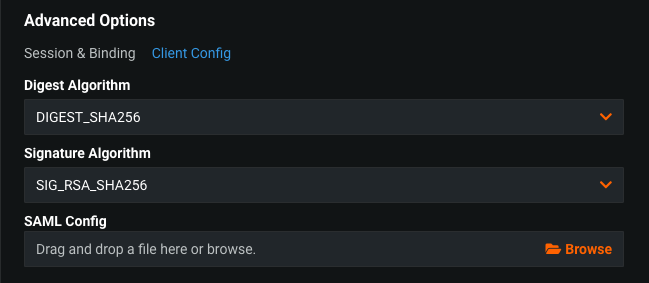
Digest Algorithm- A message digest algorithm used for calculating hash values.Signature Algorithm- An algorithm used for producing signatures.SAML Config- allows to provide fine tuning configuration for SAML client by uploading the content of cert/key files as JSON objects. The format is as follows:
{
  "encryption_keypairs" : [{
    "key_file_value" : "-----BEGIN RSA PRIVATE KEY-----\n...\n-----END RSA PRIVATE KEY----",
    "cert_file_value" : "<certificate content here>"
  }]
}
User impersonation
To enable user impersonation on environments with SAML SSO, add the following to core.config_env_vars:
# helm chart values snippet
core:
  config_env_vars:
        ENABLE_USER_IMPERSONATION: true
The username to use for impersonation is taken from the attribute impersonation_user of SAML response.
Sign In
After SSO is configured, a Single Sign-On button appears on the log in screen. The user is redirected to their Identity Provider's authentication page after clicking on it.
If SAML authentication is enforced and you want to bypass the DataRobot login screen altogether and automatically redirect users to the SAML login page from the application URL, you can do so by setting the following configuration
in the core.config_env_vars:
# helm chart values snippet
core:
  config_env_vars:
        SKIP_LOGIN_UI_IF_SAML_SSO_IS_ENFORCED: true
The user is redirected to DataRobot after successful sign-on.
Advanced enhanced SSO configuration
System administrators can also set encryption keys/certificates and security flags in the UI.
Encrypted request
To enable authentication request signing, follow these steps:
Create and upload a JSON file using SAML Config described in the Advanced Options / Client Config / SAML Config section above.
Additionally make sure the security flag Auth Requests Signed described in the Security Parameters section is enabled.
Encrypted Response
If the SAML identity provider encrypts response assertions, follow these steps:
Create and upload a JSON file using SAML Config described in the Advanced Options / Client Config / SAML Config section above. Formatted like this:
{
  "encryption_keypairs" : [{
    "key_file_value" : "-----BEGIN RSA PRIVATE KEY-----\n...\n-----END RSA PRIVATE KEY----",
    "cert_file_value" : "<certificate content here>"
  }]
}
Encrypted Response with Okta
When using encrypted assertions with Okta, additionally specify id_attr_name_crypto in the JSON file:
{
  "encryption_keypairs" : [{
    "key_file_value" : "-----BEGIN RSA PRIVATE KEY-----\n...\n-----END RSA PRIVATE KEY----",
    "cert_file_value" : "<certificate content here>"
  }],
  "id_attr_name_crypto" : "Id"
}