OAuth providers
The OAuth Providers system enables the OAuth2 workflow, allowing DataRobot users to grant the system permissions to access their external resources directly within DataRobot.
The currently supported OAuth providers:
- Github Cloud
- GitLab
- Bitbucket Cloud
- Box
- Microsoft
Starting with DataRobot 11.1, self-managed versions of supported OAuth providers are supported.
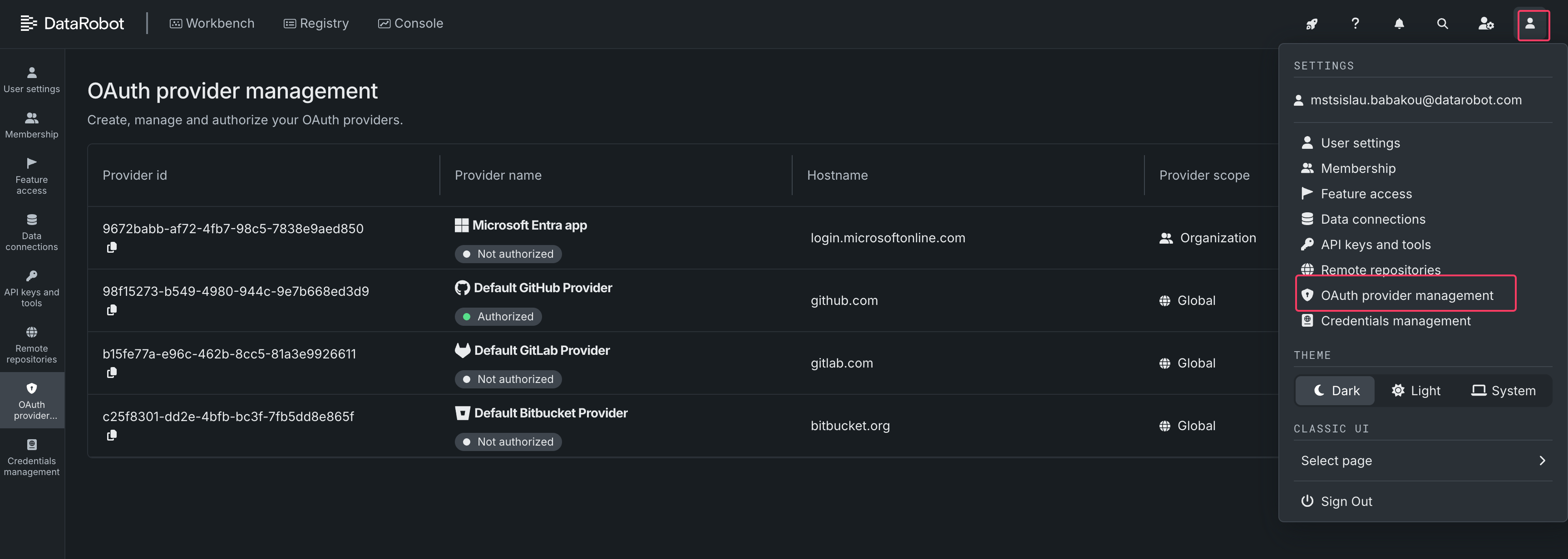
The OAuth Providers system has been available since DataRobot 11.0. It was originally introduced to enhance the Notebooks session experience by utilizing the OAuth2 flow for accessing private Git repositories instead of relying on Personal Access Tokens. Starting with DataRobot 11.1, it's also used in custom applications to access external resources, such as Google Docs.
Configure OAuth providers
To fully leverage the OAuth Providers functionality, you need to set up corresponding OAuth apps in the provider site and integrate the app with DataRobot:
GitHub
- Navigate to Settings → Developer Settings → GitHub Apps.
DataRobot uses GitHub Apps, not GitHub OAuth Apps.
-
Fill out the register new GitHub App form:
- GitHub App name: DataRobot x
{YOUR_ORG_NAME}(could be anything, but should be unique) - Description: DataRobot GitHub App to authorize DataRobot to authenticate to user’s Git provider on their behalf. (could be anything but it’s shown to the end users so make it clear what the app does for them)
- Homepage URL:
{DATAROBOT_BASE_URL} - Callback URL:
{DATAROBOT_BASE_URL}/account/oauth-providers/(with the trailing slash) - Expire user authorization tokens: ✔️ Checked
- Request user authorization (OAuth) during installation: ✔️ Checked
- Webhook
- Active: unchecked
- Permissions:
- Repository permissions:
- Contents: Read & Write
- Metadata: Read-only
- Workflows: Read & Write
- Organization permissions:
- Members: Read-only
- Account permissions:
- Email addresses: Read-only
- Profile: Read & Write
- Repository permissions:
- Where can this GitHub App be installed? Any Account
- GitHub App name: DataRobot x
-
Create a new GitHub App with this information.
- Generate a new private key and save it securely. Then, go to the top of the form and generate a Client Secret. The secret should also be saved securely.
-
Copy the following information to configure the DataRobot installation:
- The Client ID and Client Secret should be set as corresponding values of the
oauth-providers-service-oauth-githubk8s secret:
- The Client ID and Client Secret should be set as corresponding values of the
data:
  OAUTH_PROVIDERS_GITHUB_CLIENT_ID: <base64 encoded Client Id>
  OAUTH_PROVIDERS_GITHUB_CLIENT_SECRET: <base64 encoded Client Secret>
* Mount the secret in the `oauth-providers-service` deployment:
oauth-providers-service:
  secrets:
    - name: "OAUTH_PROVIDERS_GITHUB_CLIENT_ID"
      valueFrom:
        secretKeyRef:
          name: "oauth-providers-service-oauth-github"
          key: OAUTH_PROVIDERS_GITHUB_CLIENT_ID
    - name: "OAUTH_PROVIDERS_GITHUB_CLIENT_SECRET"
      valueFrom:
        secretKeyRef:
          name: "oauth-providers-service-oauth-github"
          key: OAUTH_PROVIDERS_GITHUB_CLIENT_SECRET
- The Public Link should be used as
OAUTH_PROVIDERS_GITHUB_APP_PUBLIC_URLconfig invalues.yaml:
core:
  config_env_vars:
    OAUTH_PROVIDERS_GITHUB_APP_PUBLIC_URL: <Public Link>
GitLab
- Navigate to User Settings → Applications
-
Fill out the Add new application form:
- Name: DataRobot x
{YOUR_ORG_NAME}(but could be anything) - Redirect URI:
{DATAROBOT_BASE_URL}/account/oauth-providers/(with the trailing slash) - Check mark Confidential
- Check mark the following Scopes:
- api
- read_user
- read_repository
- write_repository
- Name: DataRobot x
-
Save configurations as a new application.
-
Copy the following information to configure the DataRobot installation:
-
The Application ID and Secret should be set as corresponding values of the
oauth-providers-service-oauth-gitlabk8s secret:
data:
  OAUTH_PROVIDERS_GITLAB_CLIENT_ID: <base64 encoded Application ID>
  OAUTH_PROVIDERS_GITLAB_CLIENT_SECRET: <base64 encoded Secret>
- Mount the secret in the
oauth-providers-servicedeployment:
oauth-providers-service:
  secrets:
    - name: "OAUTH_PROVIDERS_GITLAB_CLIENT_ID"
      valueFrom:
        secretKeyRef:
          name: "oauth-providers-service-oauth-gitlab"
          key: OAUTH_PROVIDERS_GITLAB_CLIENT_ID
    - name: "OAUTH_PROVIDERS_GITLAB_CLIENT_SECRET"
      valueFrom:
        secretKeyRef:
          name: "oauth-providers-service-oauth-gitlab"
          key: OAUTH_PROVIDERS_GITLAB_CLIENT_SECRET
If you are adding a GitLab Enterprise OAuth Provider you will need to pass your base URL (shown in the example chart update using https://my-example.net):
oauth-providers-service:
  config_env_vars:
    OAUTH_PROVIDERS_GITLAB_BASE_URL: "https://my-example.net"
Be sure to also update notebooks charts where needed - instructions seen here.
Bitbucket
- Navigate to Workspace Settings → OAuth consumers
You need to be a workspace admin to be able to access the settings.
-
Fill out the Add OAuth consumer form:
- Name: DataRobot x
{YOUR_ORG_NAME}(but could be anything) - Description: DataRobot OAuth App to authorize DataRobot to authenticate to user’s Git provider on their behalf. (could be anything but it’s shown to the end users so make it clear what the app does for them)
- Callback URL:
{DATAROBOT_BASE_URL}/account/oauth-providers/(with the trailing slash) - URL:
https://www.datarobot.com/ - Privacy policy URL:
https://www.datarobot.com/privacy/(optional) - End user license agreement URL:
https://www.datarobot.com/legal/(optional) - Leave This is a private consumer unchecked
- Check mark the following Permissions:
- Account: Read, Email
- Repositories: Read, Write, Admin, Delete
- Name: DataRobot x
-
Save the configuration as a new Bitbucket OAuth app.
-
Copy the following information to configure the DataRobot installation:
-
The Client ID and Client Secret should be set as corresponding values of the
oauth-providers-service-oauth-bitbucketk8s secret:
data:
  OAUTH_PROVIDERS_BITBUCKET_CLIENT_ID: <base64 encoded Client ID>
  OAUTH_PROVIDERS_BITBUCKET_CLIENT_SECRET: <base64 encoded Client Secret>
- Mount the secret in the
oauth-providers-servicedeployment:
oauth-providers-service:
  secrets:
    - name: "OAUTH_PROVIDERS_BITBUCKET_CLIENT_ID"
      valueFrom:
        secretKeyRef:
          name: "oauth-providers-service-oauth-bitbucket"
          key: OAUTH_PROVIDERS_BITBUCKET_CLIENT_ID
    - name: "OAUTH_PROVIDERS_BITBUCKET_CLIENT_SECRET"
      valueFrom:
        secretKeyRef:
          name: "oauth-providers-service-oauth-bitbucket"
          key: OAUTH_PROVIDERS_BITBUCKET_CLIENT_SECRET
Box
Reference article: Managing platform apps
- Navigate to the Box Developer Console.
- On the My Platform Apps page, press the Create Platform App button.
- Select Custom App.
-
Fill out the form with the following data:
- Name: DataRobot x
{YOUR_ORG_NAME}(but could be anything) - Description: DataRobot OAuth App to authorize DataRobot to access files on behalf of users. (This can be anything, but it’s displayed to end users, so ensure it clearly explains the app's purpose.)
- Purpose: Integration
- Categories: Box Sign
- Which external system are you integrating with?: DataRobot
- Name: DataRobot x
Press the Next button.
- Select User Authentication (OAuth 2.0) and press the Create App button.
(Optional) If you are setting up a self-managed version of the provider, go to the DataRobot Application OAuth Provider Management → + Add OAuth Provider and fill out the form with data from the OAuth 2.0 Credentials section on the app configuration page in the Box Developer Console.
-
In the app configuration, go to the OAuth 2.0 Redirect URIs section and add
{DATAROBOT_BASE_URL}/account/oauth-providers/?providerId=<PROVIDER ID>to the Redirect URI field, then press the Add button. The provider ID can be found on the DataRobot Application OAuth Provider Management page. -
In the Application Scopes section, select Read all files and folders stored in Box.
-
Save the settings by clicking the Save button.
-
(Only for system-level applications) Copy the following information to configure the DataRobot installation:
- The Client ID and Client Secret should be set as corresponding values of the
oauth-providers-service-oauth-boxKubernetes secret:
- The Client ID and Client Secret should be set as corresponding values of the
data:
  OAUTH_PROVIDERS_BOX_CLIENT_ID: <base64 encoded Client ID>
  OAUTH_PROVIDERS_BOX_CLIENT_SECRET: <base64 encoded Client Secret>
* Mount the secret into the `oauth-providers-service` deployment:
secrets:
  - name: "OAUTH_PROVIDERS_BOX_CLIENT_ID"
    valueFrom:
      secretKeyRef:
        name: "oauth-providers-service-oauth-box"
        key: OAUTH_PROVIDERS_BOX_CLIENT_ID
  - name: "OAUTH_PROVIDERS_BOX_CLIENT_SECRET"
    valueFrom:
      secretKeyRef:
        name: "oauth-providers-service-oauth-box"
        key: OAUTH_PROVIDERS_BOX_CLIENT_SECRET
Google
Reference article: Using OAuth 2.0 to Access Google APIs
- Navigate to the Credentials page of your Google Cloud project.
- Press the Create credentials button and select OAuth client ID.
- Fill out the creation form:
- Application Type: Web application
- Name: DataRobot x
{YOUR_ORG_NAME}(can be anything) - Authorized JavaScript Origins:
{DATAROBOT_BASE_URL} - Authorized Redirect URIs: Skip this field for now. Press the Create button.
- Save the Client ID and Client Secret from the popup dialog. You are no longer able to view or download the client secret once you close this dialog.
(Optional) If you are setting up a self-managed version of the provider, go to the DataRobot Application OAuth Provider Management → + Add OAuth Provider and fill out the form with data from the previous step.
-
Go to the application settings page in the Google Cloud Console. Find the Authorized redirect URIs section and add
{DATAROBOT_BASE_URL}/account/oauth-providers/?providerId=<PROVIDER ID>to the list. The provider ID can be found on the DataRobot Application OAuth Provider Management page. -
(Only for system-level applications) Copy the following information to configure the DataRobot installation:
- The Client ID and Client Secret should be set as corresponding values of the
oauth-providers-service-oauth-googleKubernetes secret:
- The Client ID and Client Secret should be set as corresponding values of the
data:
  OAUTH_PROVIDERS_GOOGLE_CLIENT_ID: <base64 encoded Client ID>
  OAUTH_PROVIDERS_GOOGLE_CLIENT_SECRET: <base64 encoded Client Secret>
* Mount the secret into the `oauth-providers-service` deployment:
secrets:
  - name: "OAUTH_PROVIDERS_GOOGLE_CLIENT_ID"
    valueFrom:
      secretKeyRef:
        name: "oauth-providers-service-oauth-google"
        key: OAUTH_PROVIDERS_GOOGLE_CLIENT_ID
  - name: "OAUTH_PROVIDERS_GOOGLE_CLIENT_SECRET"
    valueFrom:
      secretKeyRef:
        name: "oauth-providers-service-oauth-google"
        key: OAUTH_PROVIDERS_GOOGLE_CLIENT_SECRET
Microsoft
⚠️ NOTE: Currently, only Multi-Tenant Microsoft Entra ID applications are supported.
Reference article: Register an application in Microsoft Entra ID
- Navigate to the Microsoft Entra ID App Registrations and click New registration.
- Fill out the registration form:
- Name: DataRobot x
{YOUR_ORG_NAME}(can be anything) - Supported account types: Accounts in any organizational directory (Any Microsoft Entra ID tenant - Multitenant)
- Redirect URI: Leave this field empty for now.
- Name: DataRobot x
- Click Register to create the application.
- On the new application control screen, copy and save the Application (client) ID value. This is needed later as CLIENT_ID.
- On the application control screen, go to the Certificates & secrets section, create a new client secret, and copy its value. This is needed later as CLIENT_SECRET.
(Optional) If you are setting up a self-managed version of the provider, go to the DataRobot Application OAuth Provider Management → + Add OAuth Provider and fill out the form with the data from the previous step.
- Go to the application settings page, navigate to the Authentication (Preview) section, and click the Add Redirect URI button.
-
Select "Web" as the platform and add
{DATAROBOT_BASE_URL}/account/oauth-providers/?providerId=<PROVIDER ID>to the Redirect URI field. Leave other fields empty and click the Configure button. -
(Only for system-level applications) Copy the following information to configure the DataRobot installation:
- The Client ID and Client Secret should be set as corresponding values (steps 4 and 5) of the
oauth-providers-service-oauth-microsoftKubernetes secret:
- The Client ID and Client Secret should be set as corresponding values (steps 4 and 5) of the
data:
  OAUTH_PROVIDERS_MICROSOFT_CLIENT_ID: <base64 encoded Client ID>
  OAUTH_PROVIDERS_MICROSOFT_CLIENT_SECRET: <base64 encoded Client Secret>
* Mount the secret into the `oauth-providers-service` deployment:
secrets:
  - name: "OAUTH_PROVIDERS_MICROSOFT_CLIENT_ID"
    valueFrom:
      secretKeyRef:
        name: "oauth-providers-service-oauth-microsoft"
        key: OAUTH_PROVIDERS_MICROSOFT_CLIENT_ID
  - name: "OAUTH_PROVIDERS_MICROSOFT_CLIENT_SECRET"
    valueFrom:
      secretKeyRef:
        name: "oauth-providers-service-oauth-microsoft"
        key: OAUTH_PROVIDERS_MICROSOFT_CLIENT_SECRET