SCIM provisioning
System for Cross-domain Identity Management (SCIM) automates user provisioning and deprovisioning in DataRobot through your identity provider (IdP). With SCIM configured, the IdP manages user lifecycle events, so org admins are not required to manually add, move, or remove an employee in DataRobot. IT admins still retain full control over what groups are synced with DataRobot—only explicitly selected groups are provisioned, not the entire directory.
Why use SCIM?
- Realtime visibility into who has access to DataRobot.
- Automatically provisions new users joining the company and removes users leaving the company, reducing security risks.
- Scales as organizations grow.
- Takes the burden off IT and security teams to manually manage user accounts and groups.
- Reduces the potential for over-provisioning and under-provisioning.
The basic workflow for configuring SCIM is as follows:
- Review and complete the prerequisites.
- Enable SCIM and configure SCIM for the organization.
- Create a SCIM API key.
- Configure your identity provider (IdP).
- Validate the integration.
Authentication
SCIM uses OAuth Bearer Token authentication (RFC 6750). Include the SCIM API key in every request as:
Authorization: Bearer <scim-api-key>
Store the SCIM key in your IdP's SCIM connector as the API token or bearer token.
Properties of SCIM keys
- SCIM keys do not expire.
- A SCIM key is organization-scoped, meaning it authenticates SCIM operations for one specific organization.
- The key provides access to all SCIM resource endpoints (
/api/v2/scim/<orgId>/Users,/api/v2/scim/<orgId>/Groups, etc.). - The key does not have access to the SCIM configuration endpoint (
/api/v2/scim/<orgId>/configuration/); that endpoint requires organization admin authentication via a standard DataRobot API key.
Prerequisites
Before configuring SCIM, SAML SSO must be enabled for the organization. To configure SSO, see SAML single sign-on.
Attempting to enable SCIM without SSO configured returns:
400 Bad Request: SSO must be enabled for the organization before configuring SCIM
DataRobot configuration
Complete the following sections in order.
Enable and configure SCIM
To enable and configure SCIM for the organization:
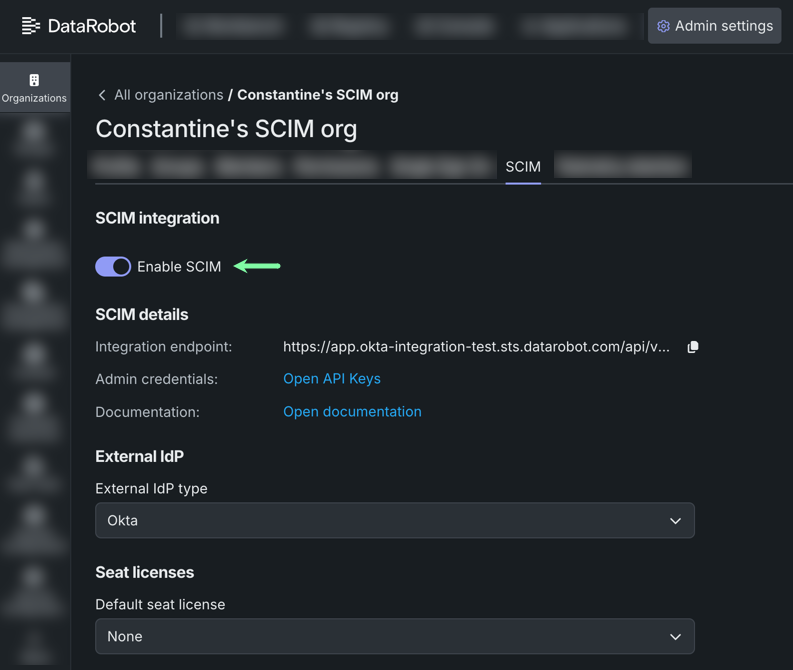
- In Admin settings, go to your organization, and click SCIM.
-
Toggle on Enable SCIM.
-
Configure the following fields:
Field Description External IdP type The identity provider (Okta or Microsoft Entra ID). Default seat license The seat license type automatically assigned to new SCIM-provisioned users. Only licenses allocated to the cluster are listed. To opt out of auto-assignment, leave this field blank.
Create a SCIM API key
Note
Only a system or organization administrator can create a SCIM API key for the target organization.
To create a SCIM API key:
-
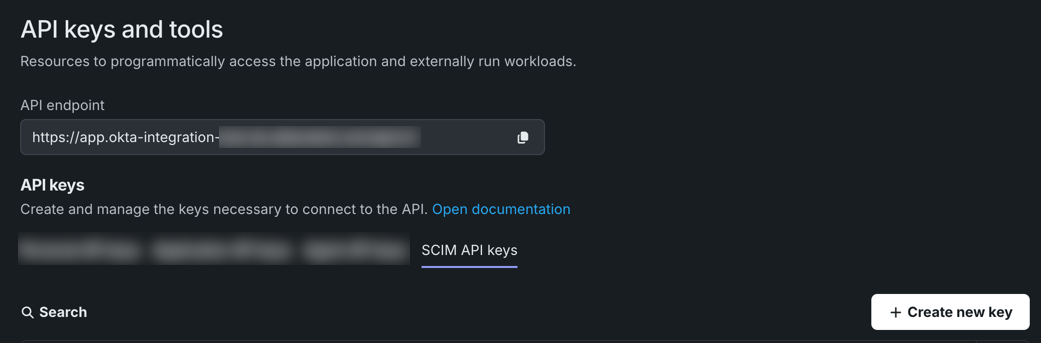
Open User settings > API keys and tools. Click the SCIM API keys tab.
-
Click + Create new key. Enter a name and target organization, then click Create.
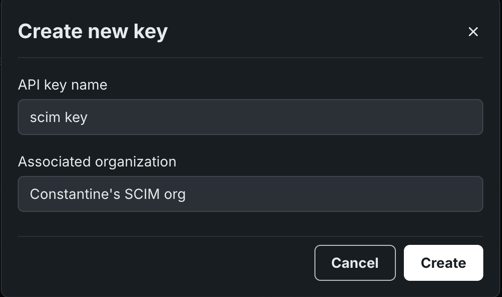
The generated key is used as the Bearer token in the IdP's SCIM connector. DataRobot recommends having only one SCIM key per organization.
Configure the IdP
Provide the following to your IdP's SCIM connector:
| Setting | Value |
|---|---|
| SCIM base URL | The integration endpoint from the SCIM configuration page (i.e, https://app.datarobot.com/api/v2/scim/6a2beff693648a4c1f6e2927/). |
| Authentication type | OAuth Bearer Token |
| Bearer token | The SCIM API key an admin created for the organization. |
| SCIM version | 2.0 |
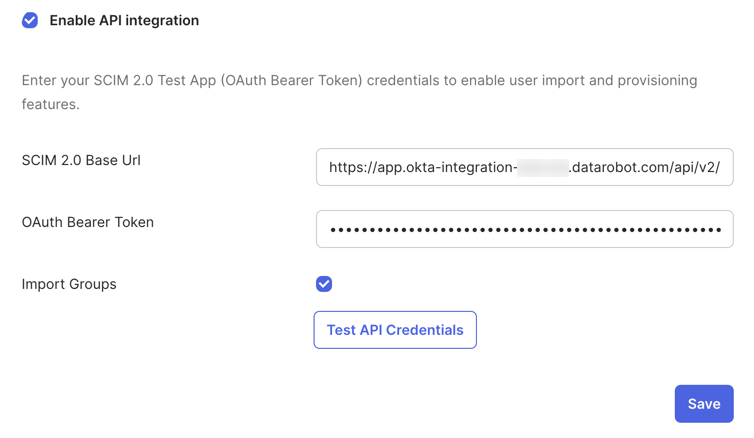
For IdP-specific setup steps, refer to your provider's documentation:
Validation
The following sections test if the SCIM integration is configured correctly and performing as expected:
Verify SCIM connectivity
Use the SCIM API key to call the ServiceProviderConfig discovery endpoint:
curl -o /dev/null -s -w "%{http_code}\n" \
  -H "Authorization: Bearer <scim-api-key>" \
  https://<dr-host>/api/v2/scim/<orgId>/ServiceProviderConfig
Expected result: 200
| Status | Meaning |
|---|---|
200 |
SCIM is enabled and the key is valid. |
401 |
Invalid or missing SCIM key. |
404 |
SCIM is not enabled for this organization. |
Verify org configuration
Use an organization administrator token to confirm the current SCIM configuration:
curl -s \
  -H "Authorization: Bearer <org-admin-token>" \
  https://<dr-host>/api/v2/scim/<orgId>/configuration/
The response must contain:
{
  "scimEnabled": true,
  "idpType": "<okta|entra_id>"
}
If scimEnabled is false or idpType is null, return to the section on enabling SCIM.
Test user provisioning
Trigger a test provisioning event from the IdP. For example, assign a test user to the SCIM application in Okta or Entra ID. Check the IdP's provisioning logs to confirm the event was sent and received a 201 Created response.