APIのキーとツール
DataRobotには、予測リクエストを行うとき、またはDataRobot APIを使用するときに使用できる複数の開発者ツールが用意されています。 現在利用可能なツールは以下のとおりです。
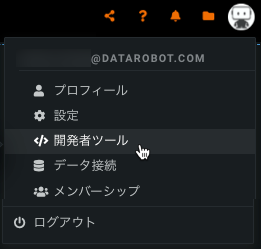
これらの機能にアクセスするには、自分のユーザーアイコンをクリックし、APIのキーとツールに移動します。
APIキー管理
APIキーは、DataRobot APIへのWebリクエストの認証に推奨される方法であり、従来のAPIトークン方式に代わるものです。 リクエストヘッダーにAPIキーを記述するだけで、アプリケーションはあなたをユーザーとしてリクエストを送信します。 すべてのDataRobot APIエンドポイントでは、APIキーが認証のモードとして使用されます。
複数のAPIキーを生成することで、新しいキーの作成、既存の連携の更新、古いキーの取り消しを、API呼び出しのサービス中断なしですべて行えます。 また、複数の異なる等号に個別のキーを生成することもできます(キーAを使用するスクリプトA、キーBを使用するスクリプトBなど)。
備考
以前にAPIトークンを使用していた場合、そのトークンはAPIキーにアップグレードされました。 既存のすべてのインテグレーションは、DataRobot APIおよび予測APIの両方で予期した通りに機能します。
APIキー管理へのアクセス
複数のAPIキーを登録および管理(名前付け、作成、削除)できます。 このページにアクセスするには、自分のユーザーアイコンをクリックし、APIのキーとツールのページに移動します。
個人APIキータブには、APIキーが一覧表示され、さまざまなオプションが利用できます。
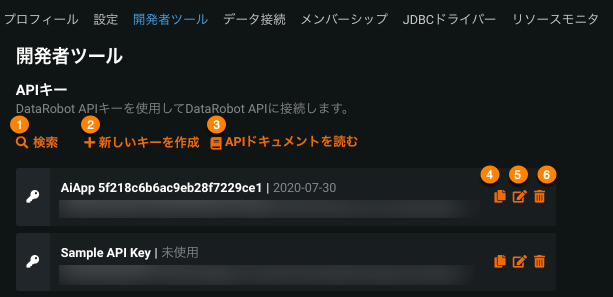
| 要素 | 説明 | |
|---|---|---|
| 1 | APIエンドポイント | APIエンドポイントをクリップボードにコピーして(この図では内容をぼかしています)、別の場所に貼り付けます。 |
| 2 | ドキュメントを開く | REST APIドキュメント、Pythonクライアントドキュメント、AIアクセラレーターなど、複数のコードファーストリソースにアクセスできます。 |
| 3 | キーの種類 | 3種類のAPIキー(APIを個人的に使用するためのAPIキーと、カスタムアプリケーションで使用するためのアプリケーションAPIキー、エージェントワークフローで使用するためのエージェントAPIキー)のタブを切り替えます。 |
| 4 | 検索 | 名前または作成日でAPIのリストを検索します。 |
| 5 | + 新しいキーを作成 | 新しい個人APIキーを作成します。 |
| 6 | コピー | キーをクリップボードにコピーして(この図では内容をぼかしています)、別の場所に貼り付けます。 |
| 7 | アクションメニュー | アクションメニューを展開して、APIキーの名前を変更または削除します。 |
個人APIキー
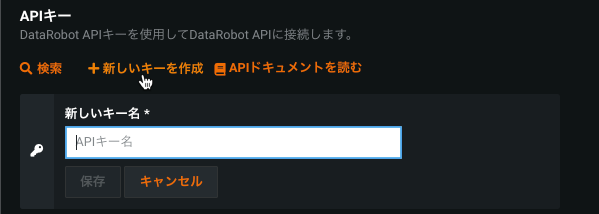
個人APIキータブには、各個人APIキーごとに、キー名、ステータス、値、作成日、および最終使用日時が表示されます。 個人APIキーを作成するには、APIのキーとツールページの個人APIキータブから、+ 新しいキーを作成をクリックします。 次にAPIキー名を入力し、作成をクリックします。 これで新しいキーが有効になり、使用できるようになります。
アプリケーションのAPIキー
アプリケーションのAPIキーは、DataRobotパブリックAPIへの必要なアクセス権をアプリケーションに付与します。これにより、アプリケーション内からデータにアクセスし、利用する権限をユーザーに付与することが可能になります。 カスタムアプリケーションを構築するたびに、新しいキーが自動的に作成されます。 共有ロールがDataRobot内のエンティティとしてアプリケーションの制御を許可するのに対して、アプリケーションのAPIキーは、ユーザーがアクセスしたときにアプリが実行できるリクエストの制御を許可します。 詳細については、カスタムアプリケーションでのアプリケーションAPIキーの設定を参照してください。
アプリケーションのAPIキーは、APIのキーとツールページのアプリケーションのAPIキータブに一覧表示されます。
| フィールド | 説明 |
|---|---|
| 名前 | キーの名前。 |
| キー | APIキーの値。 |
| 役割 | キーによってアプリケーションに付与される、パブリックAPIへのアクセス範囲。 |
| 接続されたアプリケーション | キーが属するカスタムアプリケーションの名前。 リンクをクリックすると、アプリケーションにアクセスできます。 |
| 作成日 | キーが作成された日付。 |
| 最後の使用 | キーを最後に使用してからの経過時間。 |
| 有効期限 | キーの有効期限が切れるまでの残り時間。 |
使用可能なエンドポイント
アプリケーションのAPIキーでは、REST APIへの完全なアクセス権は付与されません。 各キーは、カスタムアプリケーションで許可されているエンドポイントのみを呼び出すことができます。 以下のリストには、デフォルトの設定で利用可能なすべてのエンドポイント(およびその子エンドポイント。例:/api/v2/projects/<project_id>/)が示されています。
許可されたエンドポイントの追加や削除ができるのは、システム管理者のみです。 マルチテナントSaaS(MTS)をご利用の場合は、DataRobotサポートにお問い合わせください。 シングルテナントSaaS(STS)およびセルフマネージド環境では、システム管理者はシステム設定を通じてこれを管理します。 詳細については、許可されているAPIエンドポイントを参照してください。
- /api/v2/account/info/
- /api/v2/account/validateApiKey/
- /api/v2/applications/
- /api/v2/automatedDocumentOptions/
- /api/v2/automatedDocuments/
- /api/v2/batchJobs/
- /api/v2/batchMonitoring/
- /api/v2/batchMonitoringJobDefinitions/
- /api/v2/batchPredictionJobDefinitions/
- /api/v2/batchPredictions/
- /api/v2/calendarCountryCodes/
- /api/v2/calendars/
- /api/v2/catalogItems/
- /api/v2/changeRequests/
- /api/v2/comments/
- /api/v2/credentials/
/associations/ / - /api/v2/credentials/associations/
/ - /api/v2/customApplicationSources/
- /api/v2/customJobLimits/
- /api/v2/customJobs/
- /api/v2/customModelDeployments/
- /api/v2/customModelLimits/
- /api/v2/customModelTests/
- /api/v2/customTasks/
- /api/v2/customTrainingBlueprints/
- /api/v2/dataEngineQueryGenerators/
- /api/v2/dataEngineWorkspaceStates/
- /api/v2/datasets/
- /api/v2/dataSlices/
- /api/v2/deployments/
- /api/v2/executionEnvironments/
- /api/v2/externalDataSources/
- /api/v2/externalDataStores/
- /api/v2/files/
- /api/v2/genai/llmgw/
- /api/v2/guardConfigurations/
- /api/v2/guardTemplates/
- /api/v2/imageAugmentationLists/
- /api/v2/imageAugmentationOptions/
- /api/v2/insights/
- /api/v2/keyValues/
- /api/v2/modelComplianceDocsInitializations/
- /api/v2/modelPackages/
- /api/v2/models/
- /api/v2/moderationSupportedLlms/
- /api/v2/multilabelInsights/
- /api/v2/ocrJobResources/
- /api/v2/overallModerationConfiguration/
- /api/v2/predictionServers/
- /api/v2/projectClones/
- /api/v2/projects/
- /api/v2/recipes/
- /api/v2/registeredModels/
- /api/v2/relationshipsConfigurations/
- /api/v2/remoteEvents/
- /api/v2/remoteRepositories/
- /api/v2/scheduledJobs/
- /api/v2/status/
- /api/v2/stringEncryptions/
- /api/v2/useCases/
- /api/v2/useCasesWithShortenedInfo/
- /api/v2/userBlueprints/
- /api/v2/userBlueprintsBulkValidations/
- /api/v2/userBlueprintsInputTypes/
- /api/v2/userBlueprintsProjectBlueprints/
- /api/v2/userBlueprintsTaskParameters/
- /api/v2/userBlueprintsTasks/
- /api/v2/userBlueprintsValidations/
- /api/v2/version/
エージェントのAPIキー
デプロイを使用する各種アプリケーションとエージェントを区別するために、新しい エージェントワークフローのデプロイが作成されると、エージェントのAPIキーが自動的に生成されます。 エージェントのAPIキーは、APIのキーとツールページのエージェントのAPIキータブに一覧表示され、編集(名前の変更)や削除ができます。
| フィールド | 説明 |
|---|---|
| 名前 | キーの名前。 |
| キー | キーの値。 |
| 接続されたデプロイ | キーが属するデプロイの名前。 リンクをクリックすると、デプロイにアクセスできます。 |
| 作成日 | キーが作成された日付。 |
| 最後の使用 | キーを最後に使用してからの経過時間。 |
Workload APIキー
Workload APIキーは、新しいワークロードが作成されると自動的に生成されます。 Workload APIキーは、APIのキーとツールページのWorkload APIキータブに一覧表示され、編集(名前の変更)や削除ができます。
| フィールド | 説明 |
|---|---|
| 名前 | キーの名前。 |
| キー | キーの値。 |
| 接続されたワークロード | キーが属するワークロードの名前。 リンクをクリックすると、ワークロードにアクセスできます。 |
| 作成日 | キーが作成された日付。 |
| 最後の使用 | キーを最後に使用してからの経過時間。 |
既存のキーの削除
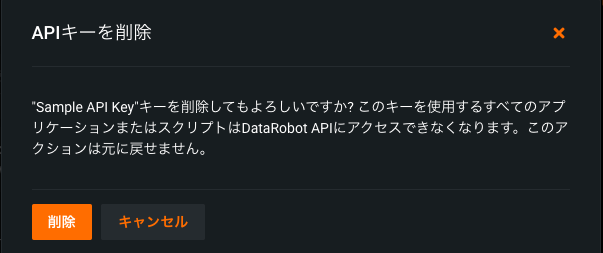
既存のキーを削除するには、削除したいキーのアクションメニューを展開し、削除をクリックします。 削除による影響に関する注意を示すダイアログボックスが表示されます。 もう一度削除をクリックして、キーを削除します。
監視エージェントのtarball
監視エージェントは、DataRobotの外部の外部モデルのモニタリングおよび統計のレポートを行うソリューションとして利用できます。 この種のデプロイをモニタするには、最初にDataRobotが提供する次のソフトウェアコンポーネントを実装する必要があります。
- MLOpsライブラリ(Python、Java、Rで利用可能)
- 監視エージェント
これらのコンポーネントは、DataRobotアプリケーションでtarballとして使用できるインストーラーパッケージの一部です。
監視エージェントのtarballをダウンロード
監視エージェントの tarball は、APIのキーとツール セクション、およびデプロイの予測 > モニタリングタブの2つの場所からアクセスできます。
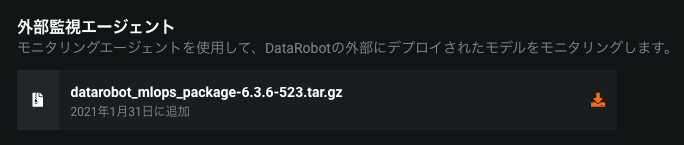
自分のユーザーアイコンをクリックし、APIのキーとツールに移動します。 管理および監視エージェントのヘッダーの下で、ダウンロードアイコンをクリックします。 エージェントをセットアップするための追加ドキュメントは、tarballに含まれています。
備考
DataRobotのPythonライブラリは、公開されているPython Package Indexサイトからダウンロードすることもできます。 DataRobot metrics reporting libraryとDataRobot Connected Clientをダウンロードしてインストールします。 これらのページには、ライブラリをインストールするための指示が含まれています。
ポータブル予測サーバーのDockerイメージ
本機能の提供について
一部のインストールでは、ポータブル予測サーバーのイメージを使用できない場合があります。 詳細については、可用性に関するガイドラインを参照してください。
APIのキーとツールからポータブル予測サーバーのDockerイメージをダウンロードします。
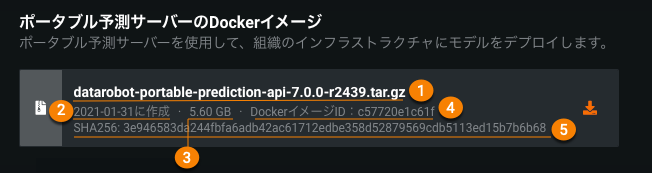
イメージに関するいくつかの重要な情報を確認できます。
| 要素 | 説明 | |
|---|---|---|
| 1 | イメージ名 | ダウンロードするイメージアーカイブファイルの名前。 |
| 2 | イメージの作成日 | イメージが作成された日付。 |
| 3 | ファイルサイズ | ダウンロードする圧縮画像のサイズ。 圧縮されていないイメージのサイズは12GBを超える場合があります。 |
| 4 | Docker Image ID |
docker imagesコマンドによって表示されるように、DockerImage IDの短縮バージョン。 これはコンテンツベースであるため、イメージタグに関係なく、この値は同じままです。 これを使用して、現在実行しているイメージとバージョンを比較します。 |
| 5 | ハッシュ | ハッシュアルゴリズムとコンテンツハッシュの合計。 ダウンロード後にファイルの整合性をチェックするために使用します(以下の例を参照)。 現在、SHA256はハッシュアルゴリズムとして使用されます。 |
ダウンロードアイコンをクリックして、ファイルがダウンロードされるのを待ちます。 イメージのサイズにより、ネットワーク速度によってはダウンロードに数分(または数時間)かかる場合があります。 ダウンロードが完了したら、ハッシュ合計を使用してファイルの整合性を確認します。 Linuxの場合を例に説明します。
sha256sum datarobot-portable-prediction-api-7.0.0-r1736.tar.gz
5bafef491c3575180894855164b08efaffdec845491678131a45f1646db5a99d  datarobot-portable-prediction-api-7.0.0-r1736.tar.gz
チェックサムがイメージ情報に表示されている値(上記のハッシュ値(5))と一致する場合、画像は正常にダウンロードされ、安全にDockerにロードできます。