Risk management frameworks
Risk management is how you define your organization’s compliance plan: the frameworks (policies) that users then apply to Use Cases, models, and deployments. As admin you create and maintain those frameworks. For each you provide optional application instructions so users know when to apply it, risk level names (the tiers used during assessment), and requirements and mitigation methods. Requirements are the conditions an AI system must meet to be put into production; mitigation methods are the in-platform technical capabilities that satisfy those conditions.
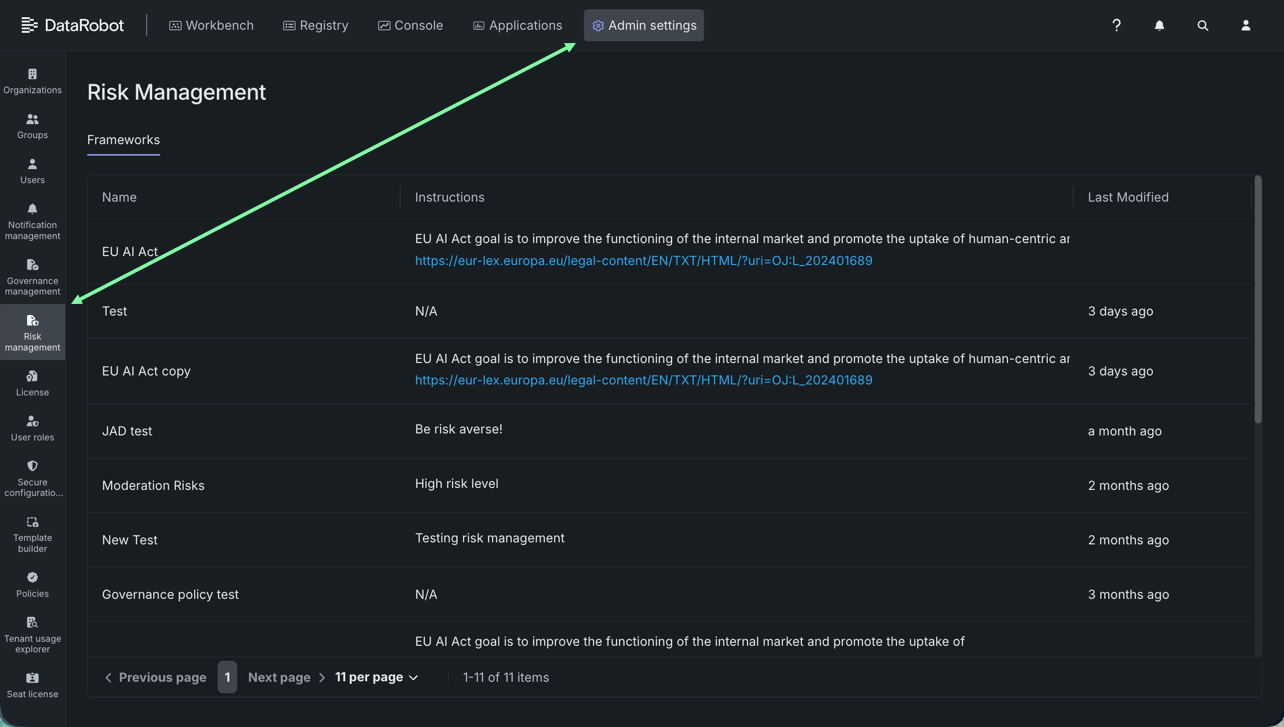
Access the configuration pages from Admin settings > Risk management.
Once configured, users with write access apply a framework to an asset. They then either select a risk level, or when applying the EU AI Act framework, complete a questionnaire that sets the risk level. DataRobot evaluates the recommended methods against the AI system and reports a compliance score. The results help users apply additional mitigation methods to meet organizational governance goals.
ユーザー権限
Access to risk management is controlled by RBAC roles, and depends on whether you're applying a framework to an asset or managing the frameworks available to your organization:
- Apply a framework to an asset: Any user with write access to a Use Case, custom model version, registered model version, or deployment can apply a risk management framework to it, select a risk level, enter a risk description, and complete the EU AI Act questionnaire. Users with only read access to the asset can view its risk management but can't make changes.
- Manage the organization's frameworks: Administrators with Admin access to, specifcally, Risk Management Framework can create, edit, and delete the risk management frameworks available to the organization. Administrators can also view every risk assessment across the organization, regardless of their access to the underlying asset.
Manage frameworks
As administrator, you own the framework catalog. 以下を実行することが可能です。
- Create a framework from scratch or start from a template (such as the EU AI Act).
- Edit or delete custom frameworks.
- View every risk assessment in the organization regardless of access to the underlying asset.
To open framework management, click Admin settings > Risk management. Frameworks appear on the Frameworks tab, along with their instructions and when they were last modified (not shown for the built-in EU AI Act framework).
Create a framework
The steps below describe how to create a blank framework.
-
From Admin settings > Risk management click to create a new framework.
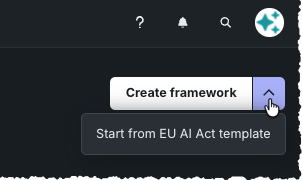
Click Create framework to start framework configuration.
Use the dropdown associated with Create framework to start from EU AI Act template. Starting from the template pre-fills the new framework's risk levels and mitigation methods from the built-in EU AI Act framework, names it EU AI Act copy by default. Any changes you make to the built-in framework template does not change the template, only changes the copy.
-
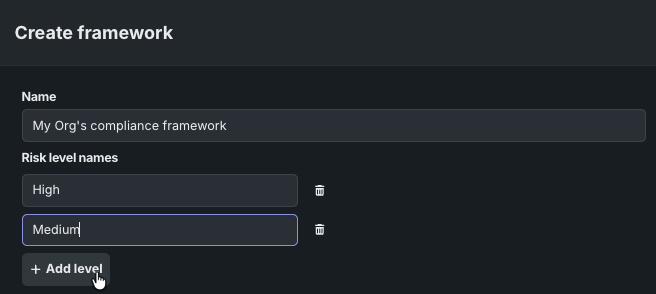
Enter or edit the framework Name.
-
Under Risk level names, add the risk levels for the framework. Each level name must be unique. Click Add level to add more; click the trash can icon to remove levels. If you click to add but do not provide a name, you cannot save the framework until the empty level is deleted.
-
Optionally, add Framework application instructions, using Markdown-formatted or plain text. This text is typically guidance to help users decide when to apply the framework.
-
Configure requirements and click Create (or Save when editing an existing framework).
Compliance score recalculation
Editing a framework that's already applied to a Use Case, model, or deployment recalculates the compliance score for every asset using it, once the changes are saved. Deleting a framework removes its configuration and assessments but does not change the assets themselves, other than dropping them from the organization’s compliance plan.
Add requirements
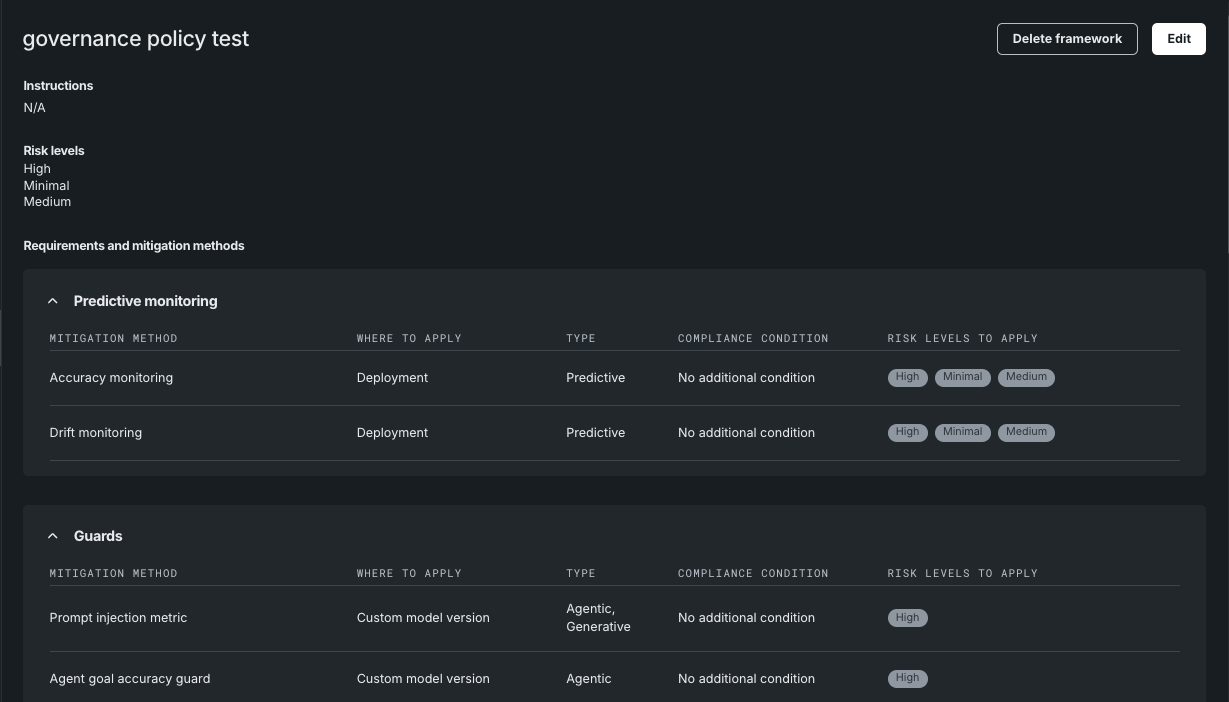
Under Requirements and mitigation methods, add one or more requirements to group mitigation methods. When configuring, note that every requirement needs a name and at least one mitigation method, and every mitigation method needs at least one assigned risk level.
-
Click Add requirement, then rename it (the default name is New requirement). Drag a requirement to reorder it among the others.
-
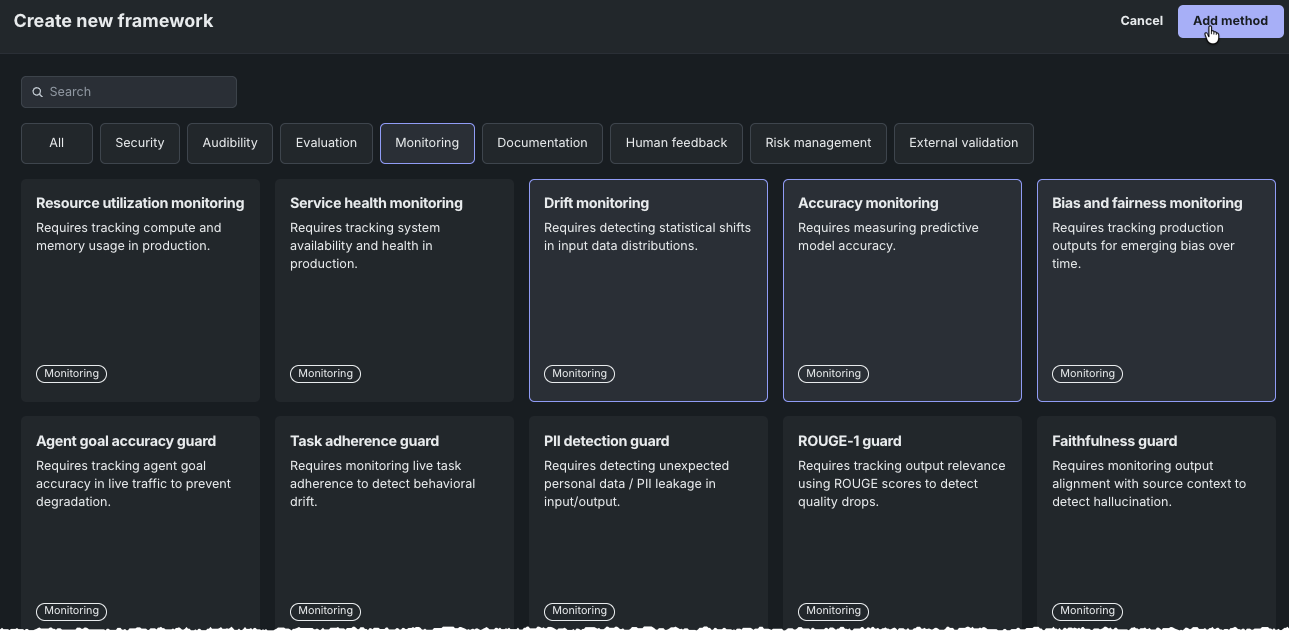
On a requirement, click Add mitigation methods to open the method picker. Search or filter by category, select one or more methods, then click Add method. A method already used elsewhere in the framework can't be selected again.
Each method added to a requirement shows its Where to apply (asset type) and Type (target type); both are fixed by the method. It also shows the method's Compliance condition and Risk levels to apply.
-
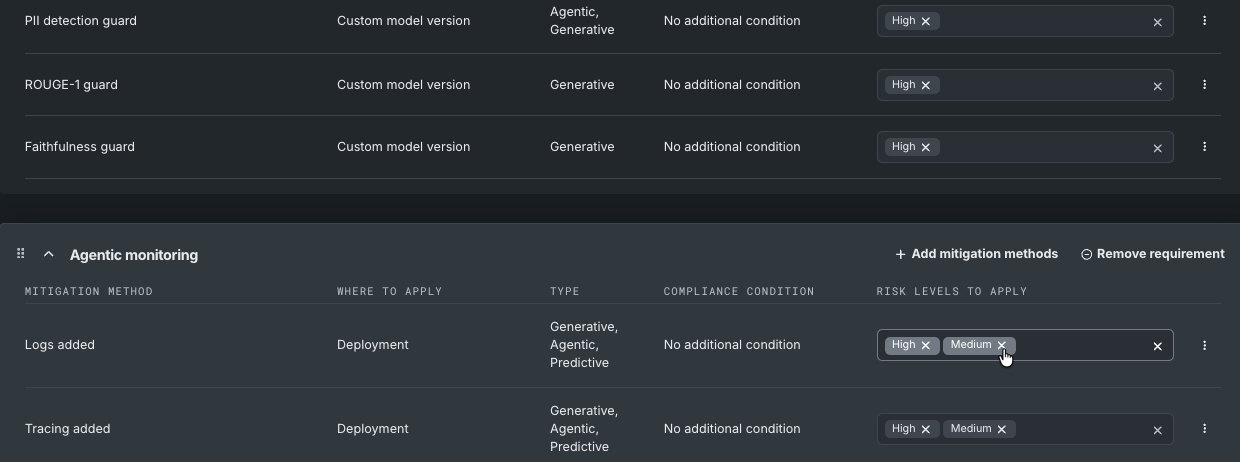
For each method, assign the risk levels it applies to. For the AI literacy method only, also select Confirm AI literacy if administrator confirmation applies, or leave it unset.
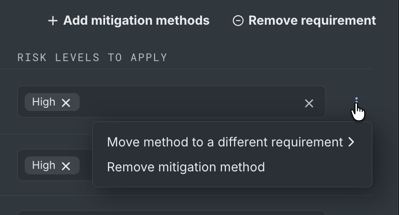
Use a method's actions menu to move it to a different requirement or remove it. Removing a requirement that still has methods asks for confirmation, since the removal also deletes those methods—move them to another requirement first if you want to keep them.
View the EU AI Act article mapping
Open the built-in EU AI Act framework from the Frameworks tab. Its mitigation methods list uses the same columns as the framework creation flow (Mitigation method, Where to apply, Type, Compliance condition, Risk levels to apply), plus a Description column that maps each method to the specific EU AI Act article (or articles) it helps satisfy. For example, AI literacy links to Article 4, and drift monitoring links to Article 26. The Description column appears only for the EU AI Act framework; custom frameworks don't include article mapping.
Administrators can also confirm AI literacy directly from this page by selecting Confirm AI literacy, recording that the organization's AI literacy obligations are met. This control is specific to the built-in EU AI Act framework; for a custom framework created from the template, set the same condition when creating or editing the framework.
Delete a framework
Built-in frameworks, including EU AI Act, can't be deleted or edited directly—start from the EU AI Act template to create an editable copy instead. Deleting a custom framework removes its configuration, including all associated mitigation methods, and deletes every risk assessment created using it. The underlying Use Cases, models, and deployments are not affected, other than no longer being part of the organization's compliance plan.
A risk level can't be deleted from a framework while any risk assessment still references that level; remove or reassign those assessments first.