Add data
Adding data before setting up an experiment gives you the chance to explore and prepare the dataset prior to modeling.
This section covers the following methods to add data:
| Topic | Description |
|---|---|
| Local file | Browse and upload a file from your local file system. |
| Data connection | Connect to and add data from an external data source. |
| Data Registry | Add any static or snapshot datasets you currently have access to in the AI Catalog. |
| URL | Adds a snapshot of the full dataset specified in the URL. |
Dataset formatting
To avoid introducing unexpected line breaks or incorrectly separated fields during data import, if a dataset includes non-numeric data containing special characters—such as newlines, carriage returns, double quotes, commas, or other field separators—ensure that those instances of non-numeric data are wrapped in quotes ("). Properly quoting non-numeric data is particularly important when the preview feature "Enable Minimal CSV Quoting" is enabled.
If a Use Case is not linked to any data assets, DataRobot provides several methods to import or link data to a Use Case:
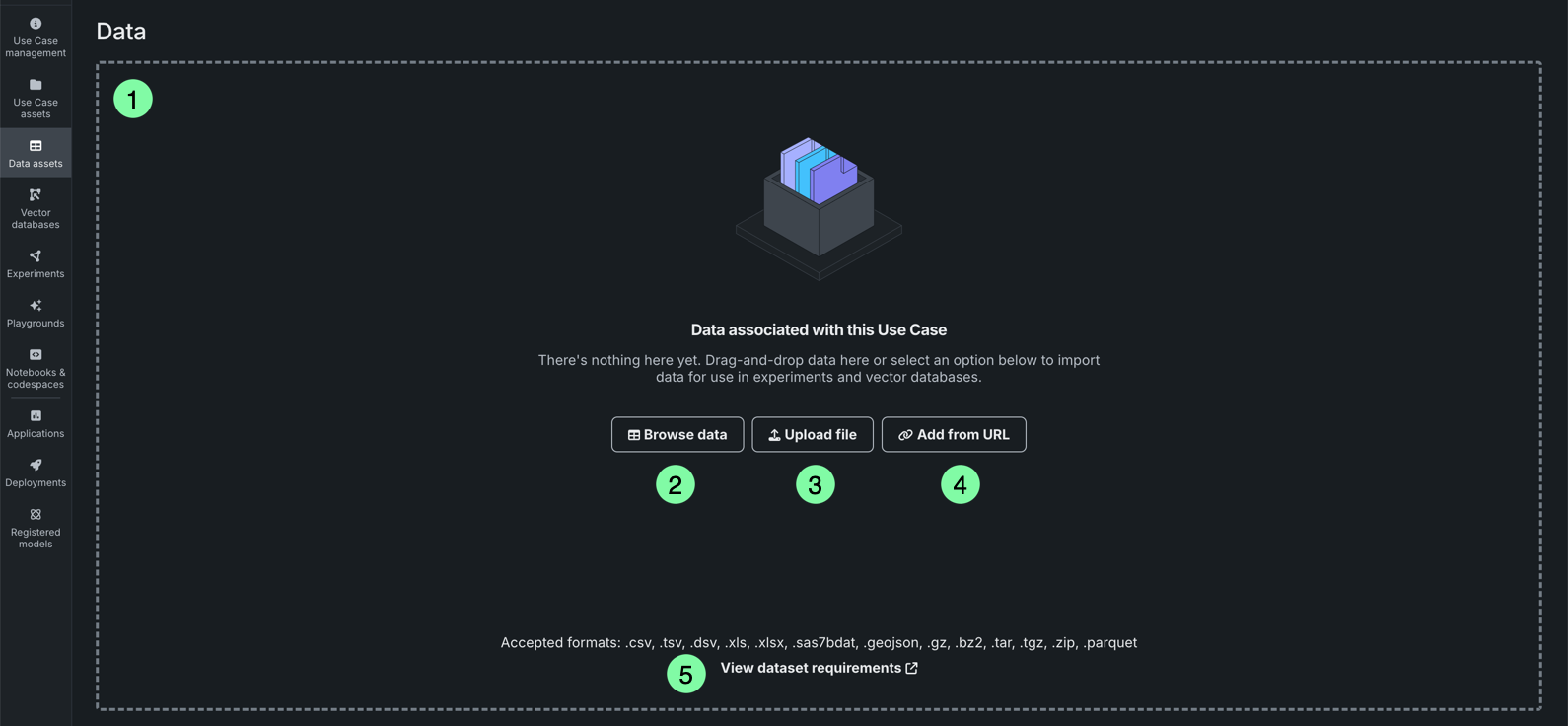
| Element | Description | |
|---|---|---|
| 1 | Drag-and-drop | Drag-and-drop one or more datasets within the dotted lines to add them to the Use Case. See the accepted formats listed above View dataset requirements. |
| 2 | Browse data | Opens the Browse data modal where you can browse the Data Registry and your external connections to select and add multiple datasets to your Use Case. This is the same action as clicking Add data, above. |
| 3 | Upload file | Allows you to upload one or more files from your local file system without opening the Browse data modal. |
| 4 | Add from URL | Allows you to add data using a URL without opening the Browse data modal. |
| 5 | View dataset requirements | Opens a window that summarizes the dataset upload requirements at DataRobot. It is recommended that you review these requirements before adding data. |
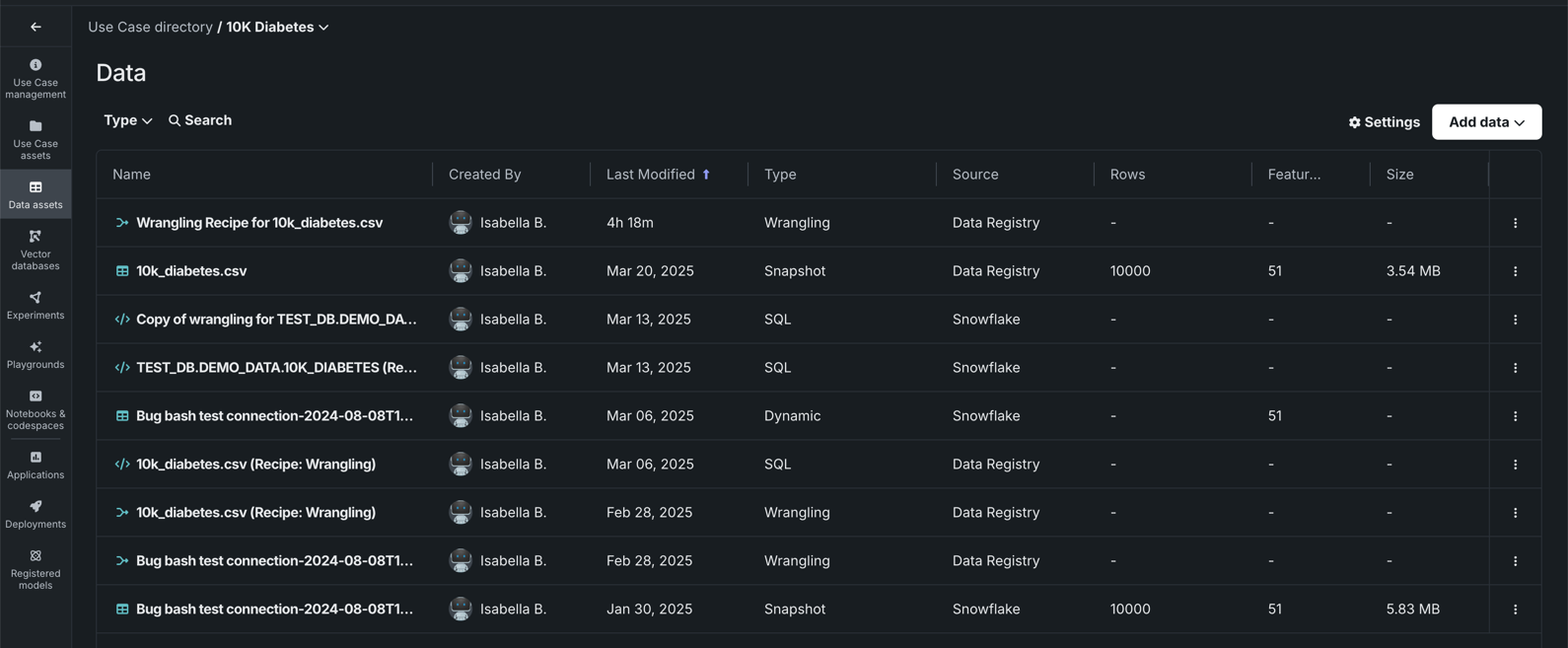
Once you've added data, the Data assets tile displays dataset information, including the data source, row count, feature count, and size. The Add data dropdown also appears in the upper-right corner, allowing you to link additional data assets to the Use Case.
Feature considerations
Consider the following when adding data:
- There is currently no image support in previews.
- You can add dynamic datasets using a JDBC driver, however, you can not preview or wrangle that data—you must first create a snapshot of the dataset.
FAQs
Can one dataset be added to multiple Use Cases?
Yes. When you add a dataset to a Use Case via the Data Registry, you are establishing a link between the dataset and the Use Case.
How do I delete a dataset?
To remove a dataset from a Use Case, click Actions menu > Remove from Use Case. Note that this only removes the link from the data source to the Use Case, meaning team members in that specific Use Case will no longer see the dataset, however, if they have access to the same dataset in a different Use Case, they will still be able to access the dataset. You can control access to the source data from the AI Catalog in DataRobot Classic.
How can I browse and manage data connections not currently supported in Workbench?
You must use DataRobot Classic to manage any data connections not listed above. Additional connections will be added to Workbench in future releases.
How can I delete a data connection in Workbench?
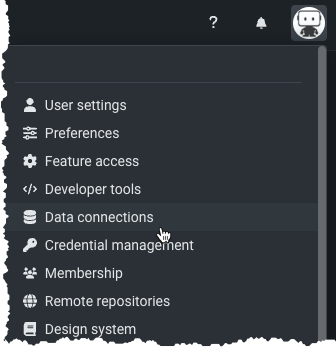
You cannot delete data connections from within Workbench; to remove existing data connections, go to User Settings > Data Connections in DataRobot Classic.
How can I manage saved credentials?
You can manage saved credentials for your data connections in DataRobot Classic.