デプロイの概要
デプロイされたワークロードダッシュボードからデプロイを選択すると、そのデプロイの概要ページが開きます。 この概要ページは、デプロイを説明するモデルと環境固有のサマリー(デプロイを作成したときに入力した情報やモデルの置換アクティビティなど)を提供します。
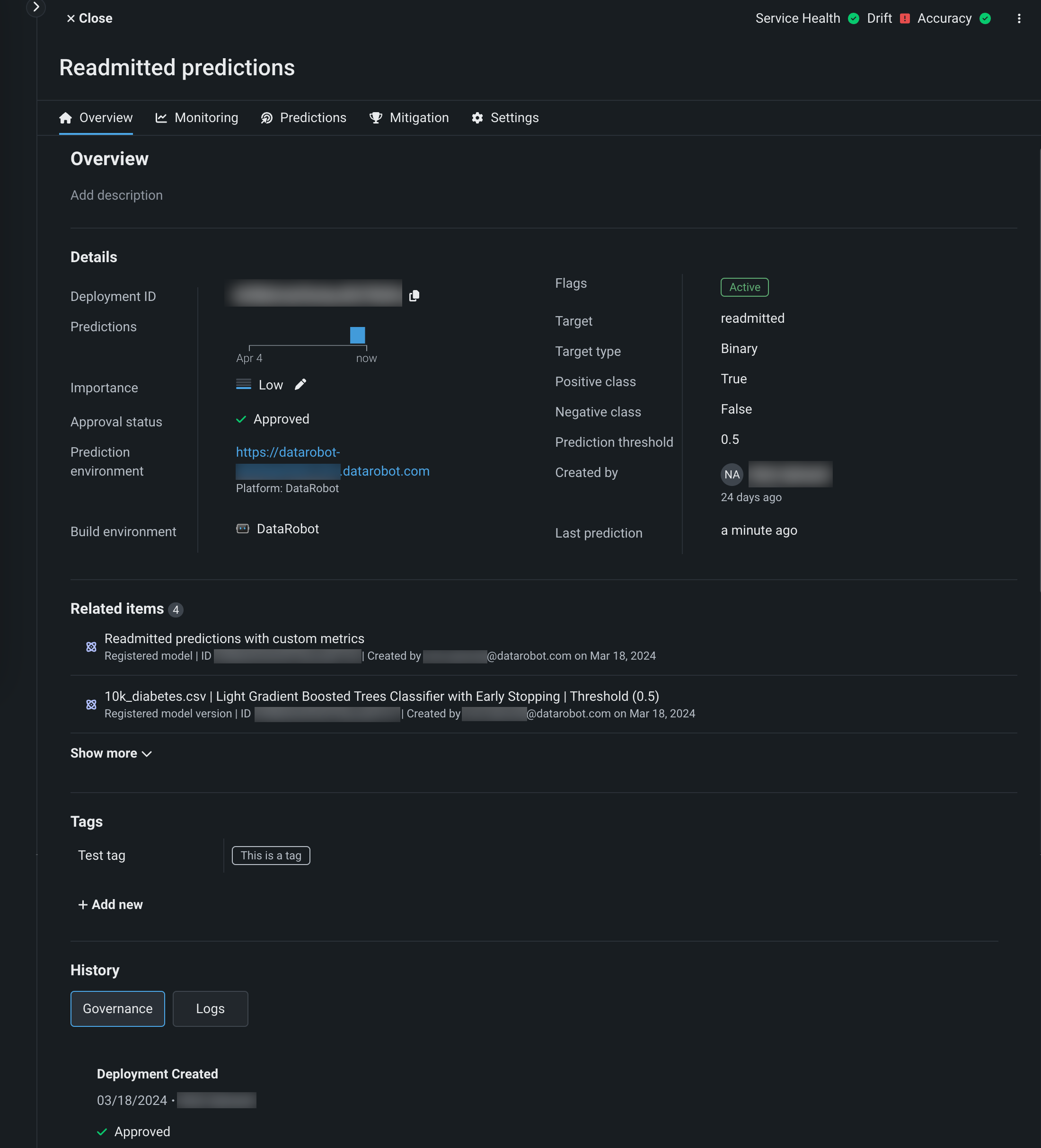
詳細
概要タブの詳細セクションには、デプロイに関する情報が一覧表示されます。これには、デプロイのモデルおよび環境固有の情報が含まれます。 概要ページの上部で、デプロイ名と説明を表示できます。この情報を更新するには、編集アイコン をクリックします。
備考
このリストに含まれる情報は、登録されたカスタムモデル、ターゲットのタイプ(テキスト生成やエージェントワークフローなど)、および環境によって異なります。
| フィールド | 説明 |
|---|---|
| デプロイID | 現在のデプロイのID番号。 コピーアイコン をクリックすると、クリップボードに保存できます。 |
| 予測 | 過去1週間の相対的な予測頻度を日単位で視覚的に表したもの。 |
| 有用性 | デプロイの作成中に割り当てられた有用性レベル。 デプロイの有用性を更新するには、編集アイコン をクリックします。 |
| 承認ステータス | ガバナンスを目的としたデプロイの承認ポリシーのステータス。 |
| 予測環境 | デプロイされたモデルが予測を行う環境。 |
| 構築環境 | デプロイの現在のモデル(DataRobot、Python、R、Javaなど)で使用する環境構築。 |
| フラグ | デプロイステータス(アクティブ、非アクティブ、エラー、警告、起動)、デプロイタイプ(例:LLM、テキスト生成、エージェントワークフロー)など、さまざまなデプロイメタデータを提供するインジケーター。 |
| 作成者 | モデルを作成したユーザーの名前。 |
| 最新の予測 | 最後の予測からの日数。 フィールドにカーソルを合わせると、完全な日付と時刻が表示されます。 |
| カスタムモデル情報 | |
| カスタムモデル | ワークショップから登録およびデプロイされたカスタムモデルの名前とバージョン。 |
| カスタム環境 | 登録されたカスタムモデルを実行するカスタムモデル環境の名前とバージョン。 |
| リソースバンドル | プレビュー機能 リソース設定でカスタムモデルのために選択されているCPUまたはGPUバンドル。 |
| リソースのレプリカ | プレビュー機能 リソース設定でカスタムモデルのために定義されているレプリカの数。 |
| 生成モデル情報 | |
| ターゲット | デプロイの現在の生成モデルで使用するターゲット列の特徴量名。 この特徴量はプロンプトに対する生成モデルの回答です(resultText、answer、completionなど)。 |
| プロンプト列の名前 | デプロイの現在の生成モデルで使用するプロンプト列の特徴量名。 この特徴量は、生成モデルが応答するプロンプトです(promptText、question、promptなど)。 |
系統
The Lineage section provides visibility into the assets and relationships associated with a deployment. This section helps understand the complete context of a deployment, including the models, datasets, experiments, and other MLOps assets connected to it.
The Lineage section contains two tabs:
-
Graph: An interactive, end-to-end visualization of the relationships and dependencies between MLOps assets. This DAG (Directed Acyclic Graph) view helps audit complex workflows, track asset lifecycles, and manage components of agentic and generative AI systems. The graph displays nodes (assets) and edges (relationships/connections), enabling the exploration of connections and navigation through the asset ecosystem.
-
List: A list of the assets associated with a deployment, including registered models, model versions, experiments, datasets, and other related items. Each item displays its name, ID, creator, and creation date. Click View to open any related item, or use the list to quickly identify and access connected assets. カスタムモデルのデプロイ(テキスト生成、エージェントワークフロー、ベクターデータベース、MCP統合など)については、このリストでは、登録済みモデル、カスタムモデルのバージョン、および関連するトレーニングデータに重点を置いています。
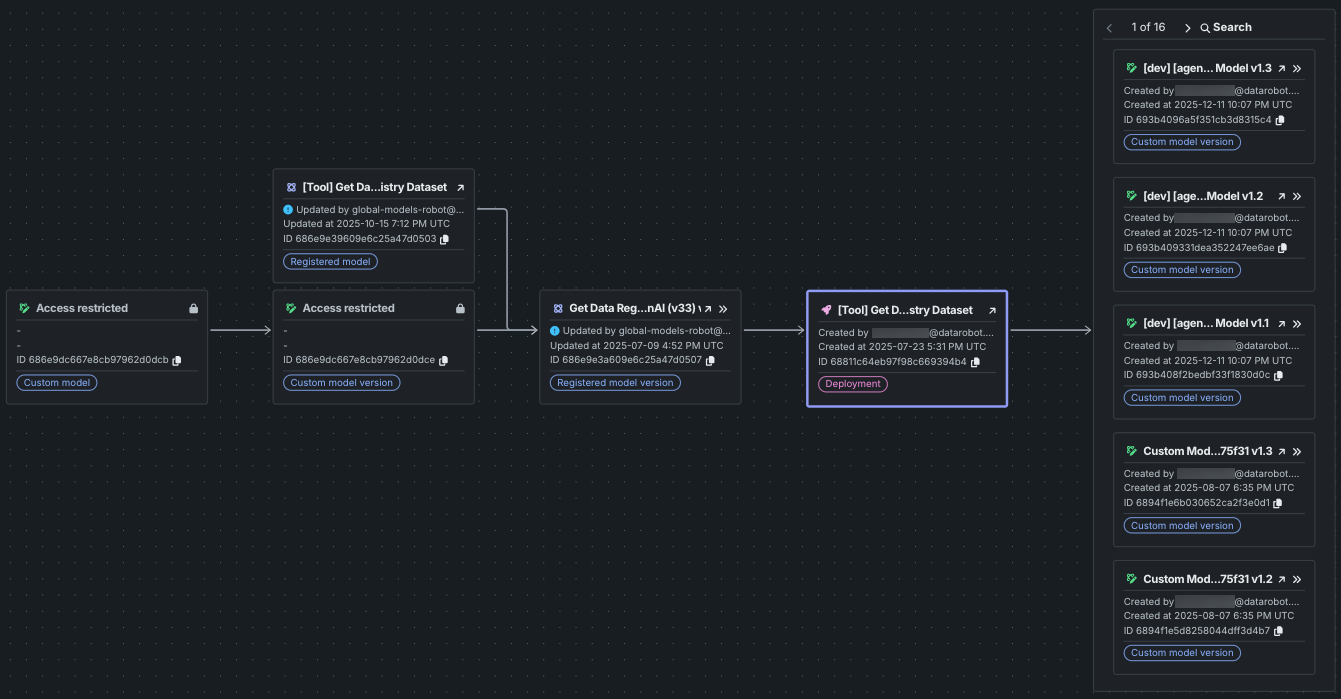
The Lineage section in the Overview tab includes a Graph view that provides an end-to-end visualization of the relationships and dependencies between your MLOps assets. This feature is essential for auditing complex workflows, tracking asset lifecycles, and managing the various components of agentic and generative AI systems.
The Graph view serves as a central hub for reviewing your systems. The lineage is presented as a Directed Acyclic Graph (DAG) consisting of nodes (assets) and edges (relationships).
When reviewing nodes, the asset you are currently viewing is distinguished by a purple outline. Nodes display key information such as ID, name (or version number), creator, and the last modification information (user and date).
When reviewing edges, solid lines represent concrete, persistent relationships within the platform, such as a registered model used to create a deployment. Dashed lines These are considered less reliable as they may change if a user modifies the underlying code or parameters. Arrows generally flow from the "ancestor" or container to the "descendant" or content (e.g., Registered model version to Deployment).
Inaccessible assets
If an asset exists but you do not have permission to view it, the node only displays the asset ID and is marked with an Asset restricted notice.
The view is highly interactive, allowing for deep exploration of your asset ecosystem. To interact with the graph area, use the following controls:
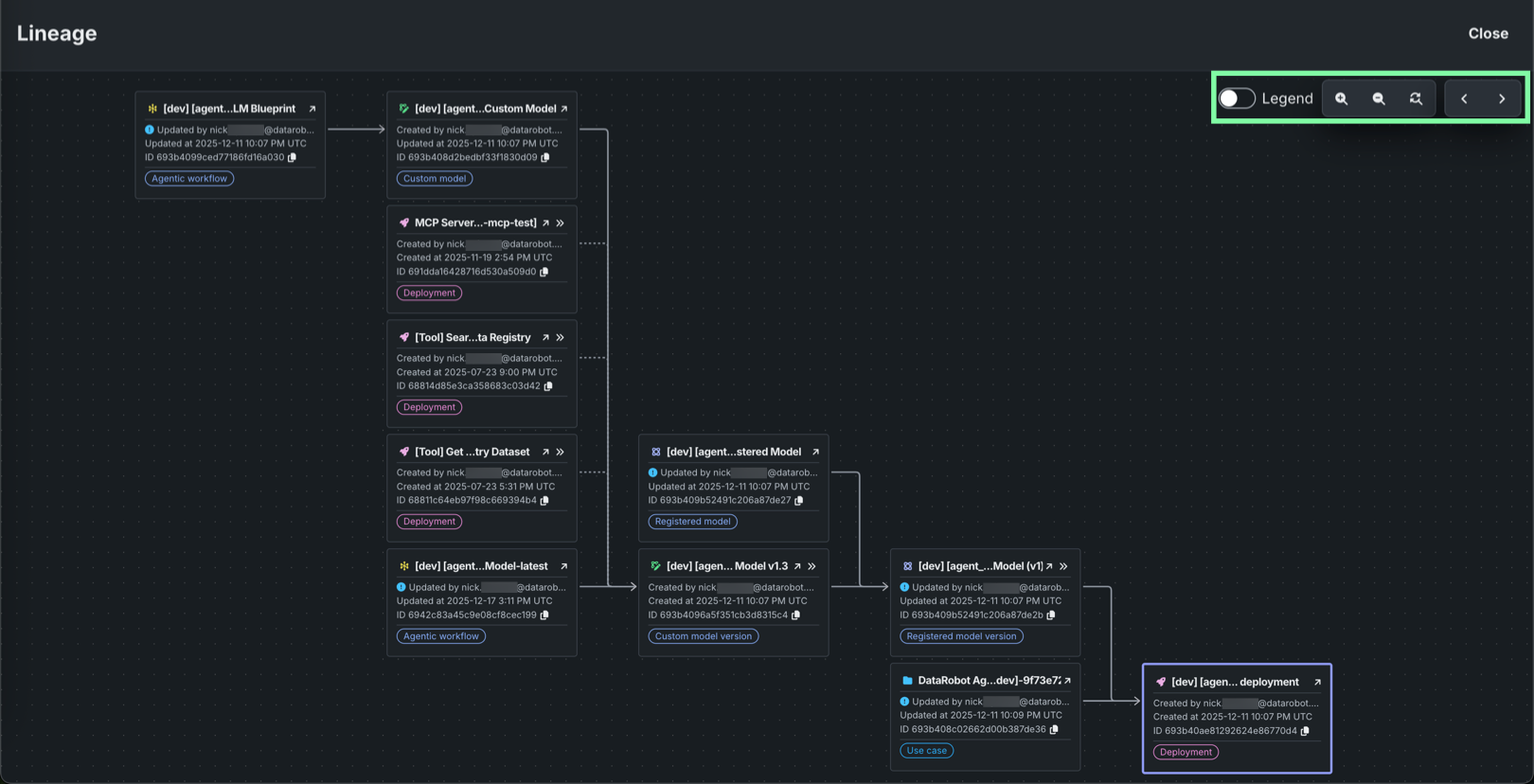
| コントロール | 説明 |
|---|---|
| 凡例 | View the legend defining how lines correspond to edges. |
| and | Control the magnification level of the graph view. |
 |
Reset the magnification level and center the graph view on the focused node. |
| Open a fullscreen view of the related items lineage graph. | |
| and | In fullscreen view, navigate the history of selected nodes (assets/nodes viewed ). |
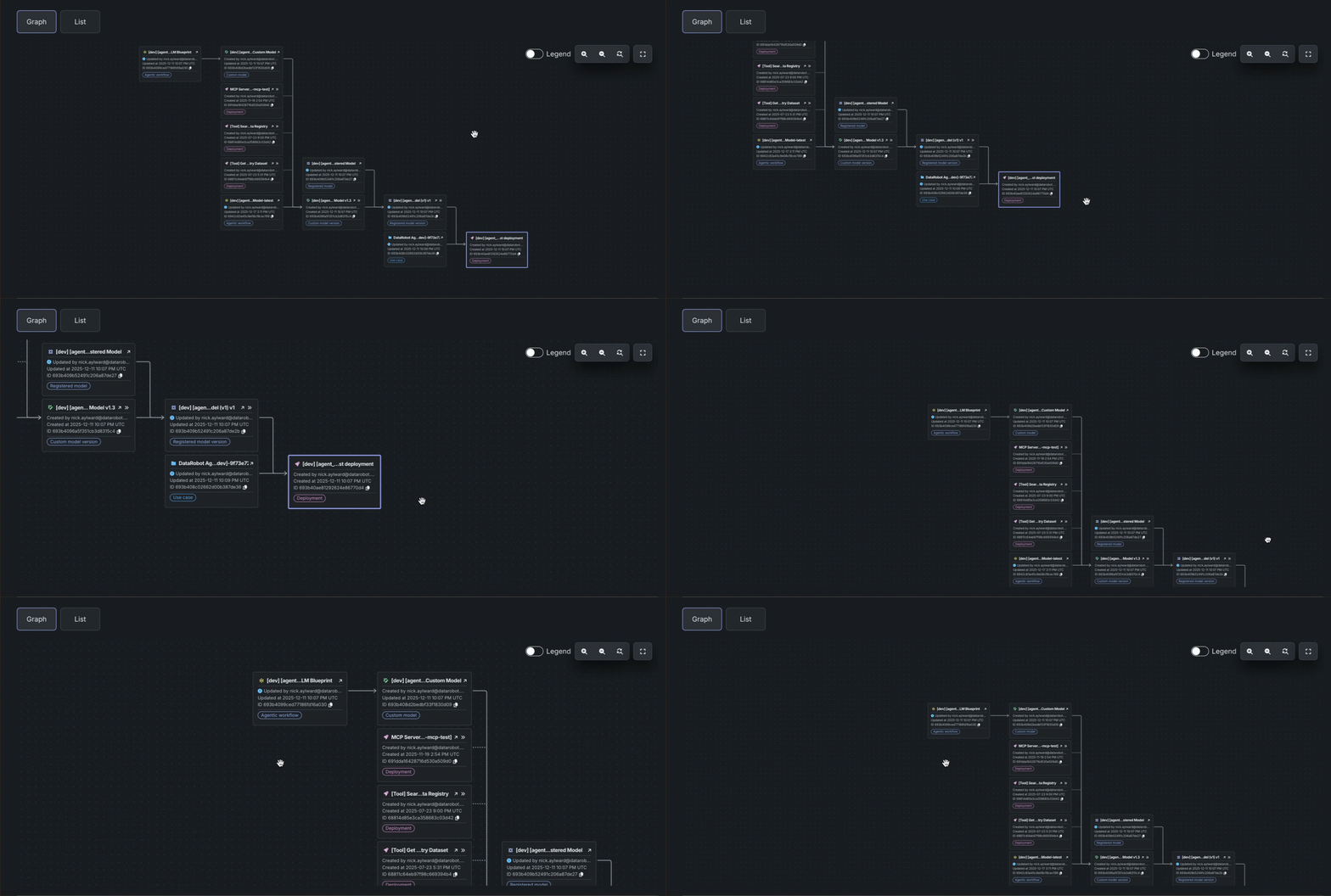
Graph area navigation
To navigate the graph, click and drag the graph area. To control the zoom level, scroll up and down.
To interact with the related item nodes, use the following controls when they appear:
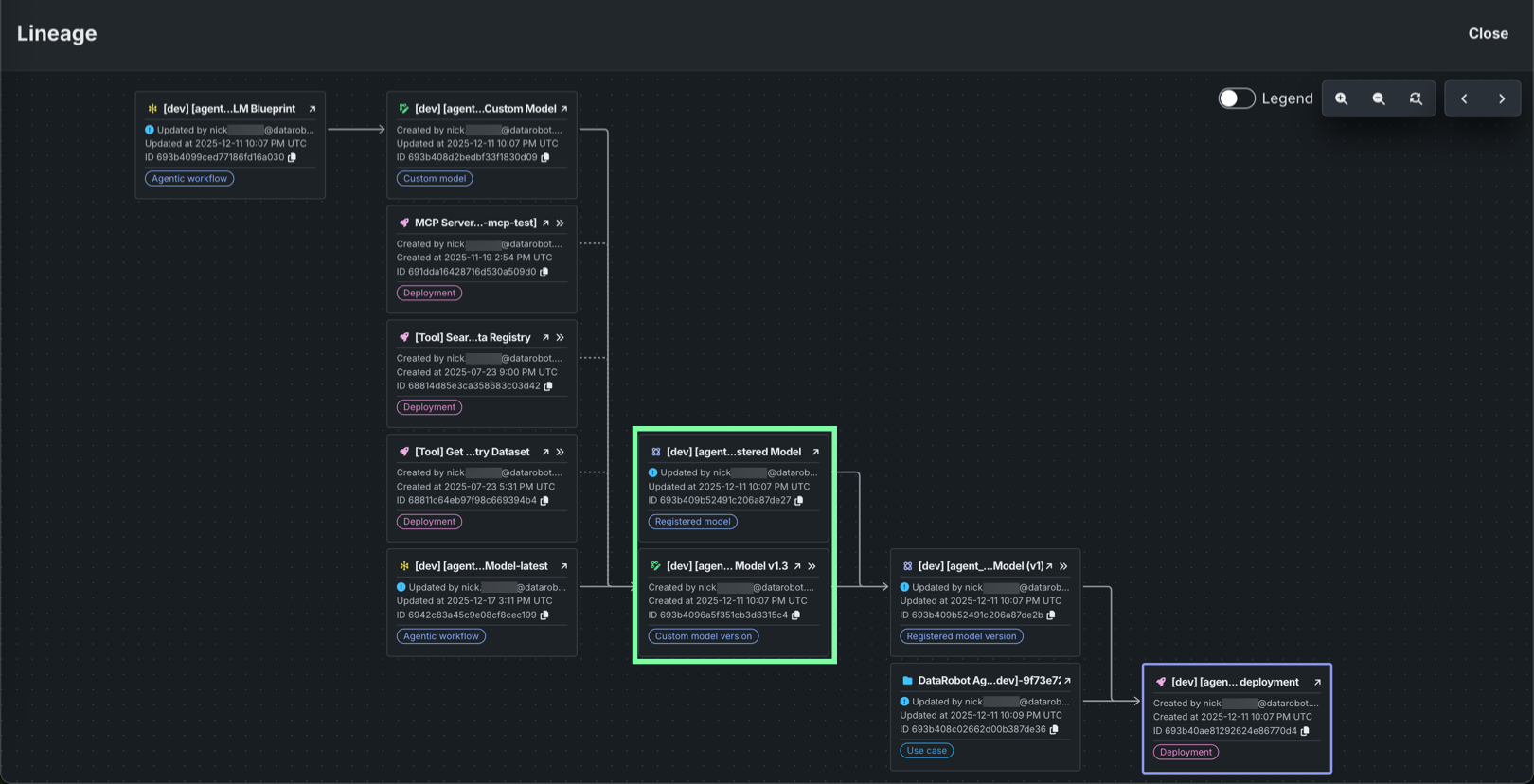
| コントロール | 説明 |
|---|---|
| Navigate to the asset in a new tab. | |
| Open a fullscreen view of the related items lineage graph centered on the selected asset node. | |
| Copy the asset's associated ID. |
One-to-many list view
If an asset is used by many other assets (e.g., one dataset version used for many projects), in the fullscreen view, the graph shows a preview of the 5 most recent items. Additional assets are viewable in a paginated and searchable list. If you don't have permission to view the ancestor of a paginated group, you can only view the 5 most recent items, without the option to change pages or search.
The Lineage section in the Overview tab also includes a List view. On the List tab, click Show more to reveal all related items. Each item in the list displays its name, ID, the user who created it, and the date it was created. Click View to open the related item. カスタムモデルのデプロイ(テキスト生成、エージェントワークフロー、ベクターデータベース、MCP統合など)については、このリストでは、登録済みモデル、カスタムモデルのバージョン、および関連するトレーニングデータに重点を置いています。
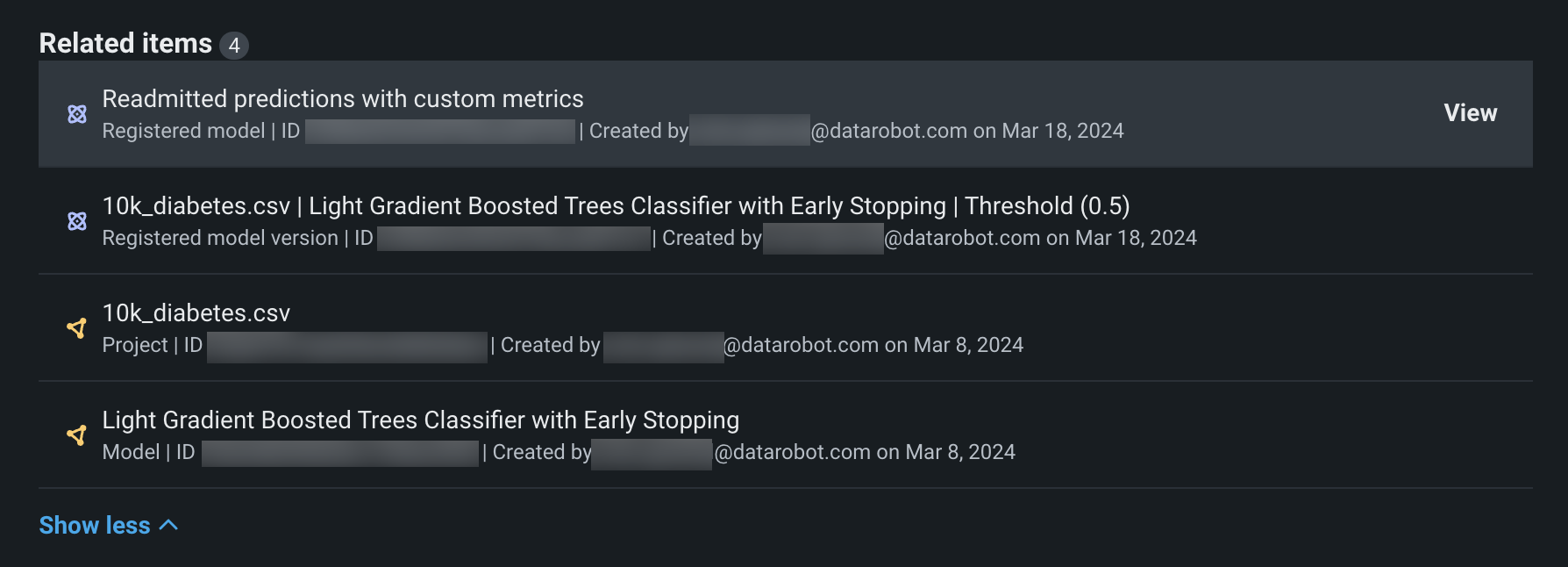
| フィールド | 説明 |
|---|---|
| 登録済みのモデル | デプロイに関連付けられた登録済みモデルの名前とID。 クリックすると、レジストリに登録されているモデルが開きます。 |
| 登録モデルのバージョン | デプロイに関連付けられた登録済みモデルバージョンの名前とID。 クリックすると、レジストリに登録されているモデルバージョンが開きます。 |
| カスタムモデル情報 | |
| カスタムモデル | デプロイに関連付けられたカスタムモデルの名前、バージョン、およびID。 クリックすると、ワークショップが開き、カスタムモデルのアセンブルタブが表示されます。 |
| カスタムモデルバージョン | デプロイに関連付けられたカスタムモデルバージョンのバージョンとID。 クリックすると、ワークショップが開き、カスタムモデルのバージョンタブが表示されます。 |
| トレーニングデータセット | 現在デプロイされているカスタムモデルの作成に使用されたトレーニングデータセットのファイル名とID。 |
Inaccessible related items
関連アイテムにアクセスできない場合、アイテムの行の末尾にロックアイコン が表示されます。
評価とモデレーション
本機能の提供について
評価およびモデレーションガードレールはプレミアム機能です。 この機能を有効にする方法については、DataRobotの担当者または管理者にお問い合わせください。
機能フラグ:モデレーションのガードレールを有効にする(プレミアム)、モデルレジストリでグローバルモデルを有効にする(プレミアム)、予測応答で追加のカスタムモデル出力を有効にする
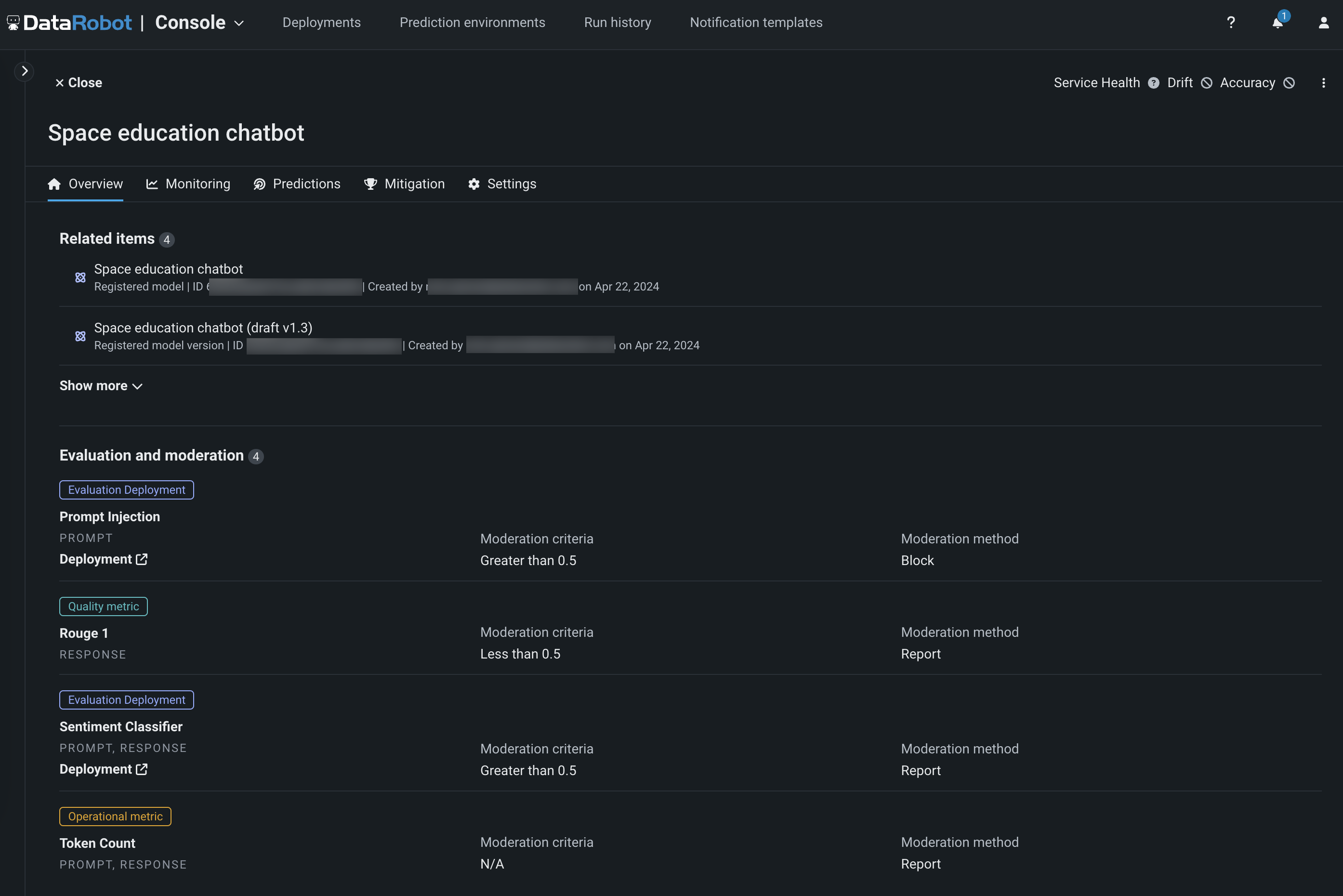
ガードレール付きのテキスト生成またはエージェントワークフローモデルが登録およびデプロイされると、デプロイの概要タブで評価とモデレーションセクションを表示できます。
タグ
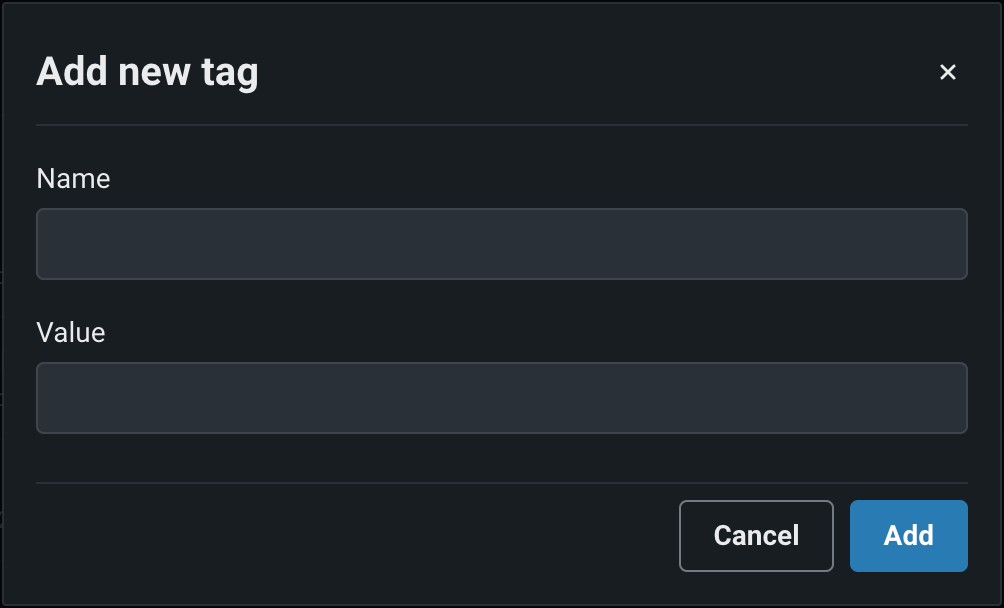
タグセクションで、+ 新規追加をクリックし、デプロイにタグ付けする各キーと値のペアの名前と値を入力します。 デプロイタグは、 ダッシュボードでデプロイを分類および検索するのに役立ちます。
ランタイムパラメーター
プレビュー
デプロイでカスタムモデルのランタイムパラメーターを編集する機能は、デフォルトでオンになっています。
機能フラグ: デプロイでカスタムモデルのランタイムパラメーターの編集を有効にする
カスタムモデルデプロイの概要タブでは、ランタイムパラメーターセクションにアクセスできます。 ランタイムパラメーターは、標準的な環境変数としてコンテナに挿入されます。単純な型の場合、プレフィックスやJSONの解析は不要です。つまり、開発者はdatarobot-drumライブラリやその関連依存関係に頼ることなく、標準的なPythonメソッド(例:os.getenv)を使用してパラメーターを取得できます。 ワークショップのUIを通じて作成されたパラメーターは、新しいコードバージョンをアップロードする際にも保持およびマージされ、シームレスな開発フローが確保されます。
このセクションから、非アクティブなデプロイのこれらのパラメーターを管理します。 これを行うには、まずデプロイが非アクティブであることを確認してから、 編集をクリックします。
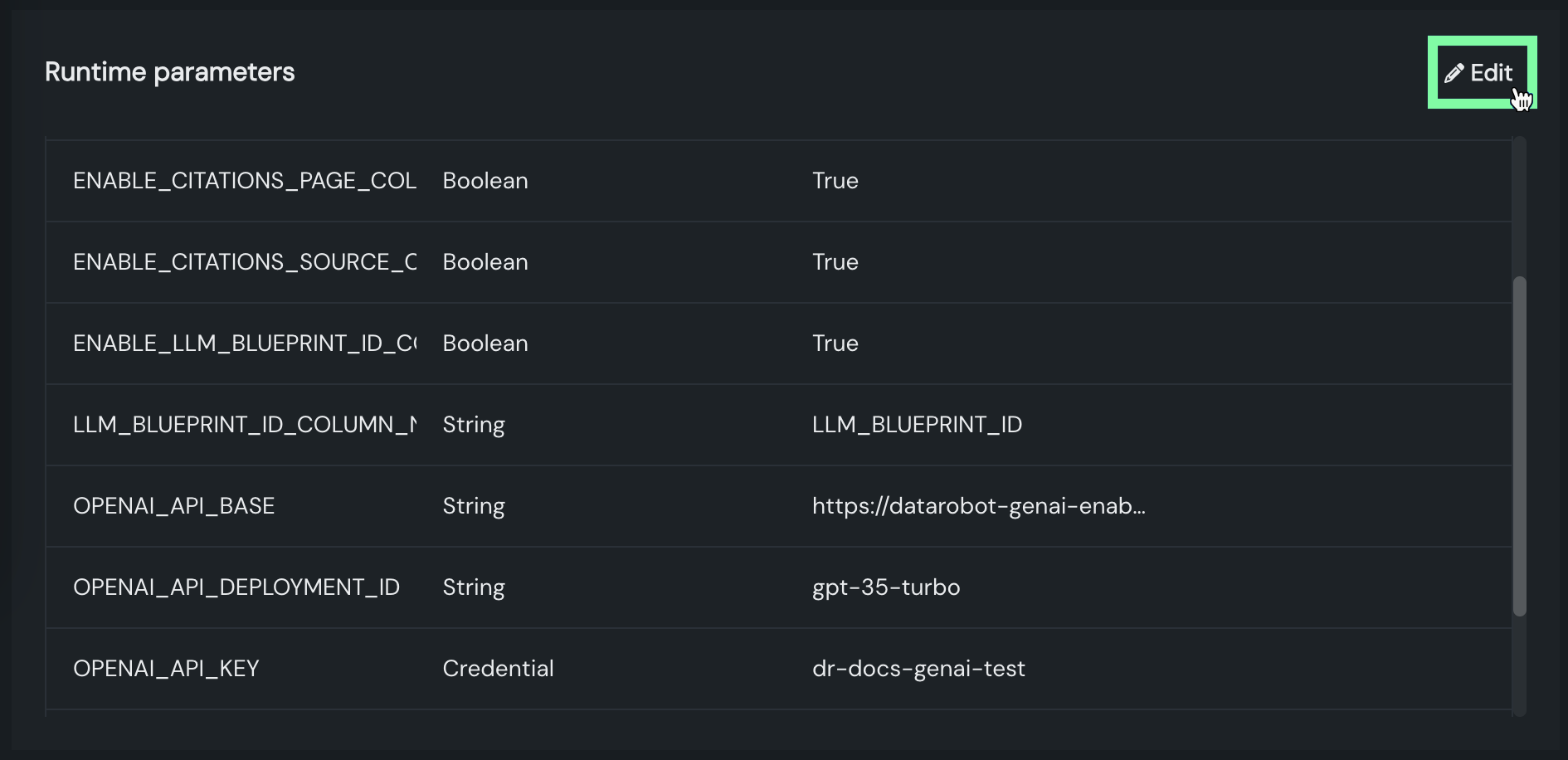
ランタイムパラメーターテーブルで、値を編集します。 個別の変更を破棄するには、 変更を元に戻すをクリックします。

ランタイムパラメーターを編集した場合は、変更を保存するために保存をクリックします。
ランタイムパラメーターを定義し、カスタムモデルコードで使用する方法の詳細については、カスタムモデルのランタイムパラメーターを定義するのドキュメントを参照してください。
セットアップチェックリストと承認
組織に対してガバナンス管理機能が有効になると、デプロイの概要にセットアップチェックリストパネルが表示されます。 このチェックリストには、管理者が必要とする設定、チェックリストを構成する際に管理者が提供した追加のガイダンス、およびチェックリストの設定のステータス(有効になっていません、一部有効、または有効)が含まれています。 管理者にデプロイの承認を依頼する前に、このチェックリストの内容を確認してください。 チェックリストでタイルをクリックして、関連するデプロイ設定ページを開きます。
デフォルトのセットアップチェックリスト
デフォルトでは、セットアップのチェックリストには、現在のデプロイで使用可能なすべての設定グループが表示されます。ただし、デフォルトのリストは組織レベルの管理者によってカスタマイズされます。
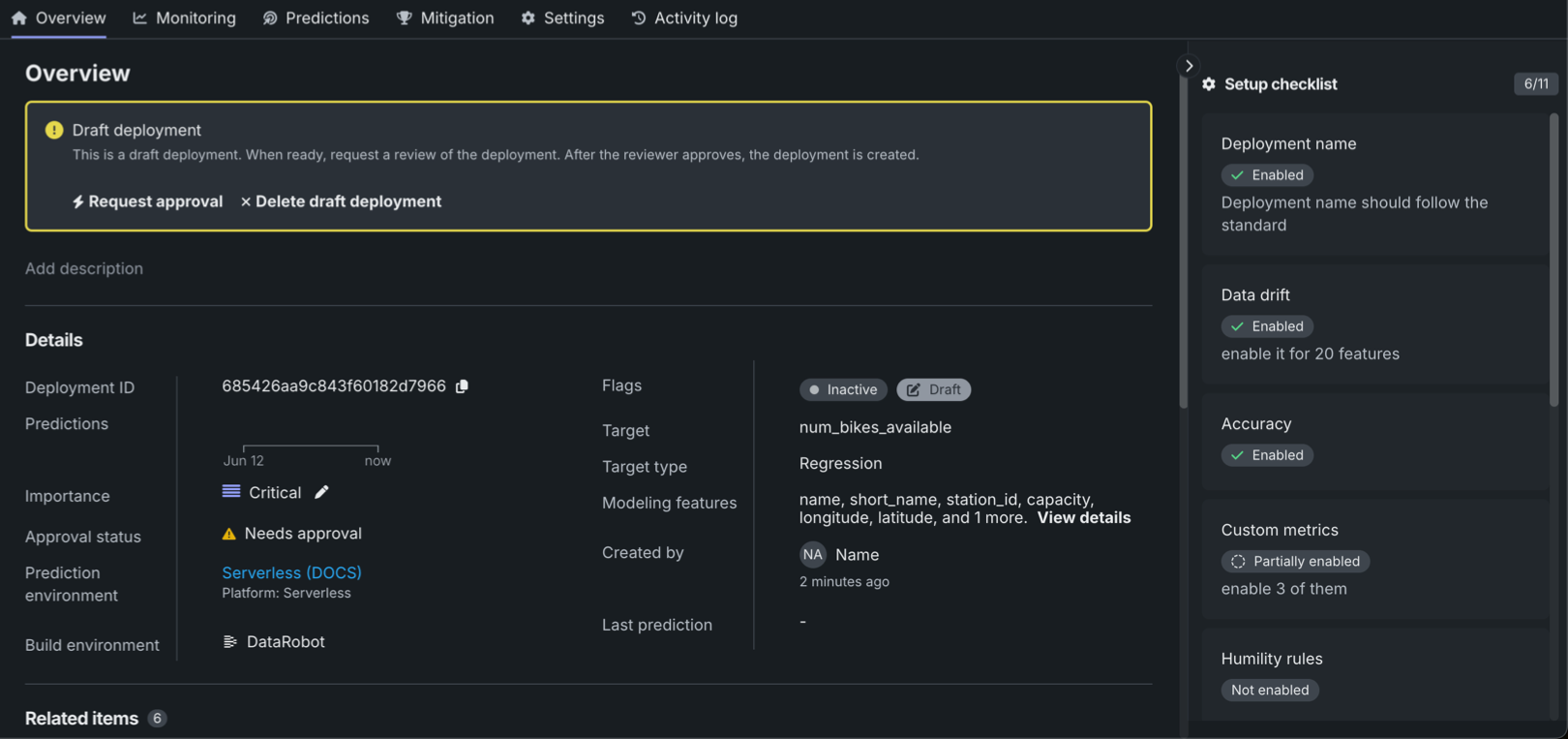
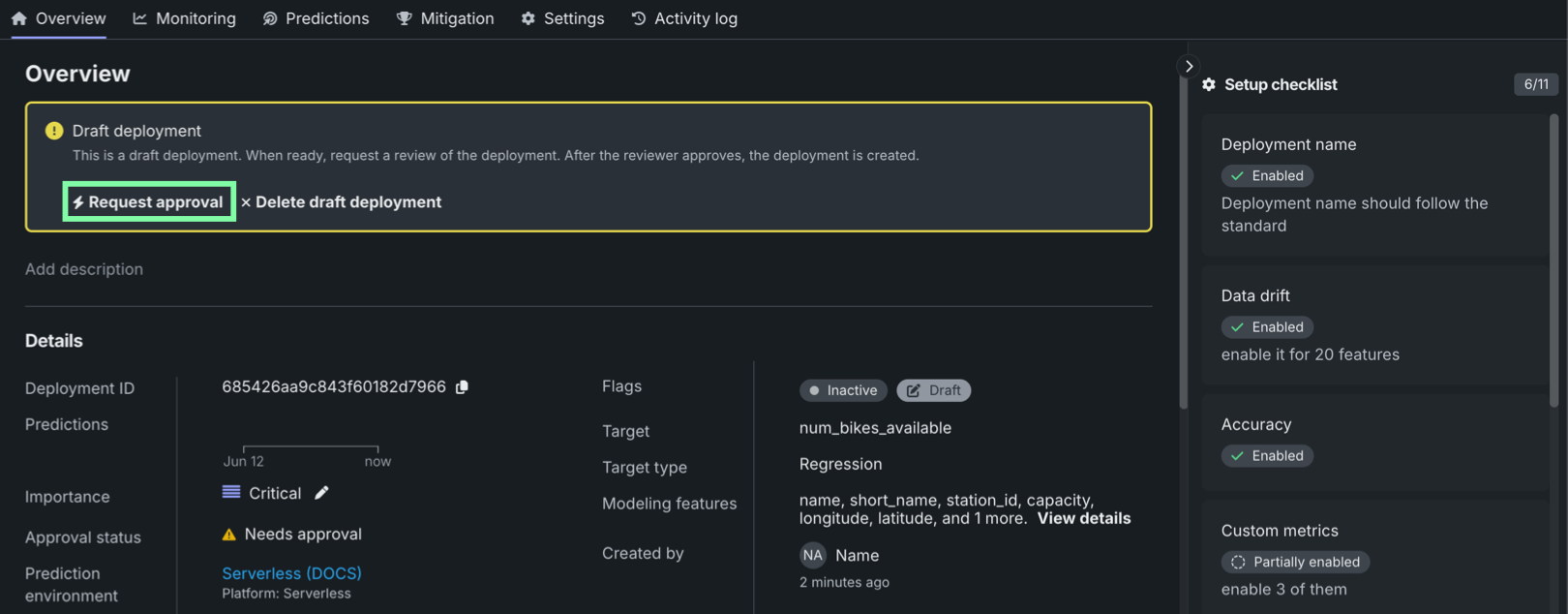
デプロイに設定済みの承認ポリシーが適用される場合、上図のように、デプロイはドラフト状態で作成され、承認ステータスは承認が必要ですです。 承認チェックリストを完了したら、デプロイの概要ページにあるデプロイのドラフト通知で承認をリクエストをクリックできます。
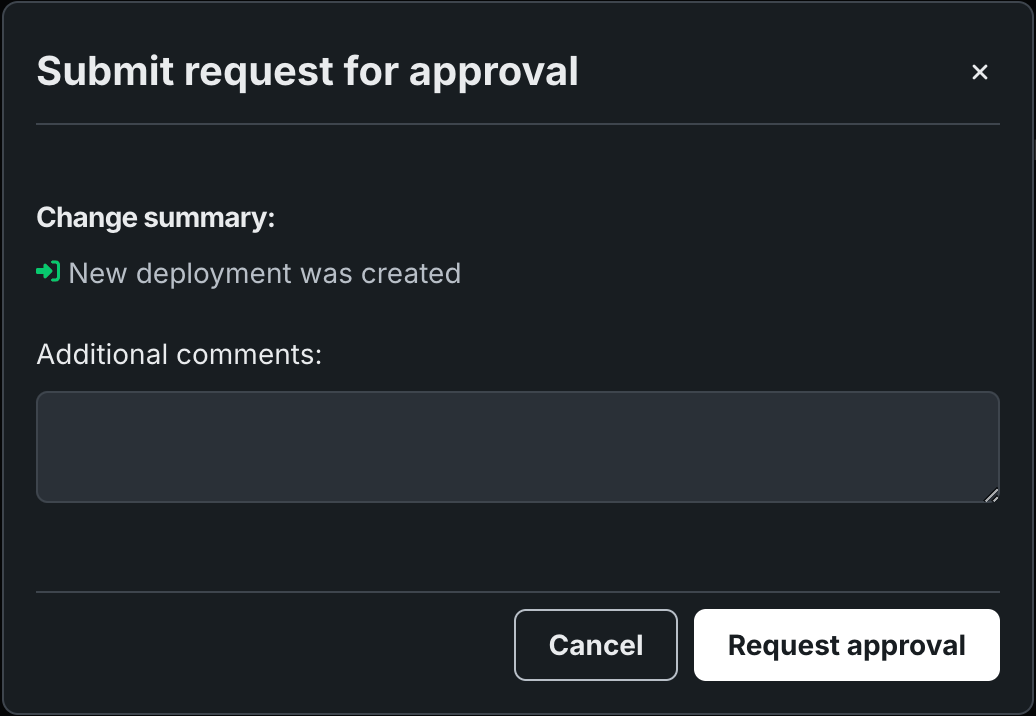
承認をリクエストをクリックすると、承認リクエストを送信ダイアログボックスが表示され、承認者への追加コメントを入力できます。 続いて、承認をリクエストをクリックしてリクエストを完了します。 承認されると、デプロイは自動的にドラフト状態から移行され、アクティブになります。
デプロイされたワークロードタブに、承認待ちのデプロイドラフトがドラフトタグと非アクティブタグ付きで表示されます。
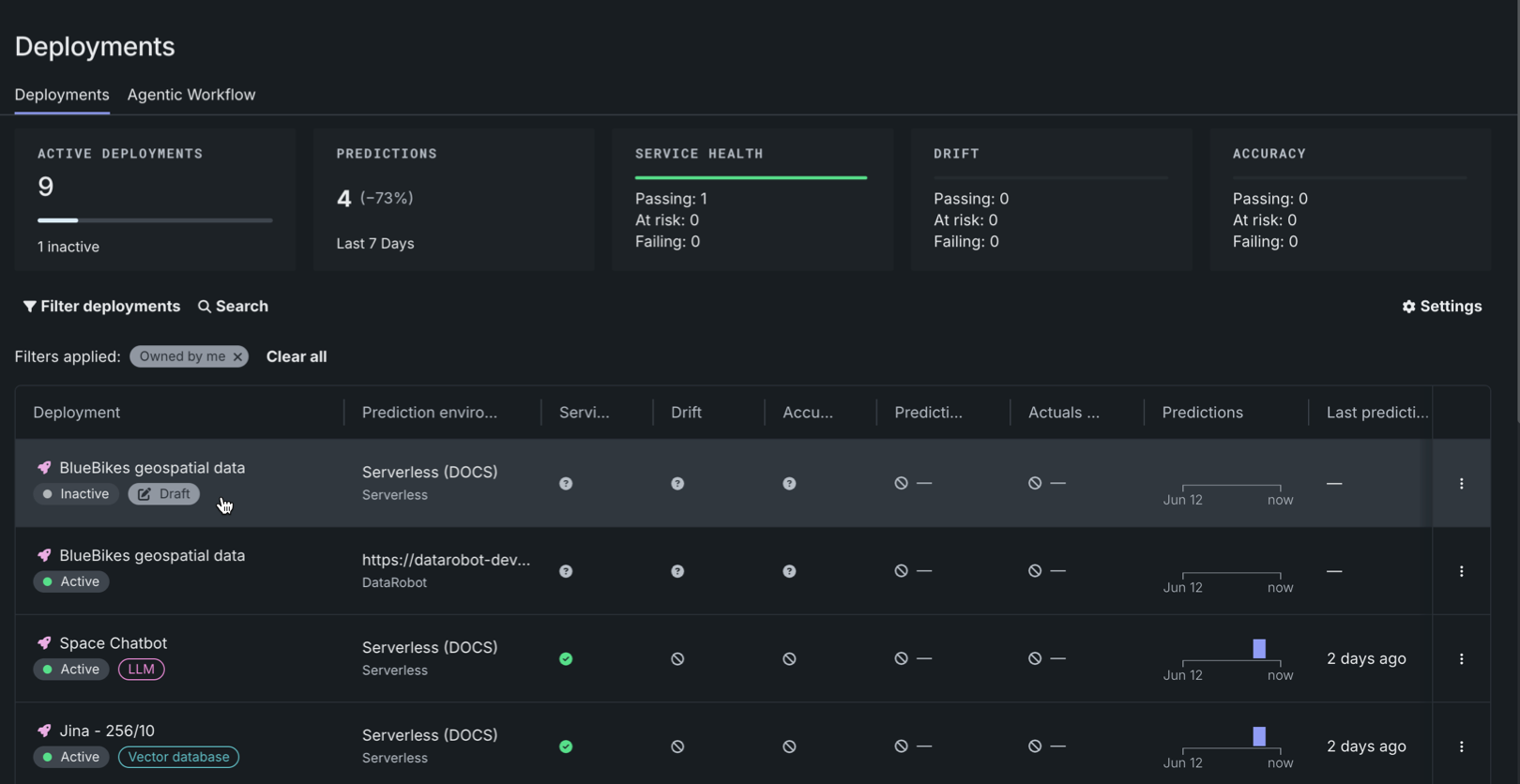
デプロイのドラフトに関する制約事項
デプロイのドラフトでは、予測の実行、実測値やカスタム指標データのアップロード、スケジュールされたジョブの作成ができません。