What are Application Templates and why should I add them?
Application Templates are comprehensive, end-to-end "recipes" designed to accelerate the development and operation of Generative and Predictive AI use cases. These templates include all necessary assets, with customizable components, enabling teams to quickly implement tailored AI solutions. They cover three core elements: AI logic, app logic, and infrastructure as code to manage resources, providing a ready-to-use foundation for all three. Most Application Templates are freely available to all users, but some require access to specific features, like GenAI or Time Series, for full functionality. Additionally, certain templates are only available with premium SKUs, such as the SAP integration SKU.
The officially supported templates available in DataRobot are: - Agentic Starter - ガード付きRAGアシスタント - 予測アシスタント - 予測コンテンツジェネレーター - 予測AIスターター - データと会話するエージェント - Talk to My Docs Agent
Who is this install guide for?
This guide provides instructions for making DataRobot-built Application Templates available for self-managed users running DataRobot in air-gapped environments (no internet access). It's intended for organizations with internal air-gapped GitHub/GitLab.
Where do Templates come from?
The officially supported DataRobot templates are installed at the same time DataRobot is installed, so there is no need to run migrations or other scripts to get started with them.
How do I add my organization's own Templates to the Gallery in the product?
You can download and zip / tar the available templates using the URLs for each template repository below. Verify the URL is pointing to the right release branch, e.g. release/11.1.
* ガード付きRAGアシスタント
* 予測アシスタント
* 予測コンテンツジェネレーター
* Predictive AI Starter
* Talk to My Data Agent
* Talk to My Docs Agent
A list of all required dependencies are listed in each template's requirements.txt file.
How do I add the Templates to the Gallery in the product?
Below are two methods for adding templates to the Gallery, allowing users to discover them easily in the product experience: via terminal or via UI.
Via terminal
To add an app template, you'll need an org admin API token and the template details. Then, you can upload the template using a cURL request like this:
curl --location '<YOUR-HOST>/api/v2/applicationTemplates/' \
--header 'Content-Type: application/json' \
--header 'Authorization: Bearer <TOKEN>' \
--data '{"name": "SAP Integration Template", "description": "A template for enabling users to rapidly integrate with SAP", "tags": ["genai", "sap"], "repository": {"url": "https://github.com/datarobot/SapIntegration", "tag": "11.1", "isPublic": true}}' \
--form 'readme=@"path/to/readme/file"' \
--form 'media=@"path/to/media.gif"'
This is an example, and the information about the template (e.g. URL, names, descriptions, etc) may be stored elsewhere. The media is optional and may be added later.
Next, all templates come with some media (usually an animated gif). This media is important because it's part of a "hook" for getting users curious and excited about the template. To add media to a template (if you didn't add it on-create), you can run:
curl --location '<YOUR-HOST>/api/v2/applicationTemplates/<TEMPLATE-ID>/media/' \
--header 'Authorization: Bearer <TOKEN>' \
--form 'file=@"<PATH-TO-YOUR-FILE>"'
Via UI
| ステップ | 説明 | Screenshot |
|---|---|---|
| 1 | Become an Org Admin: First, ensure that you are an Org Admin. You can assign this role in the user administration panel by navigating to Users > Membership and updating your role. | 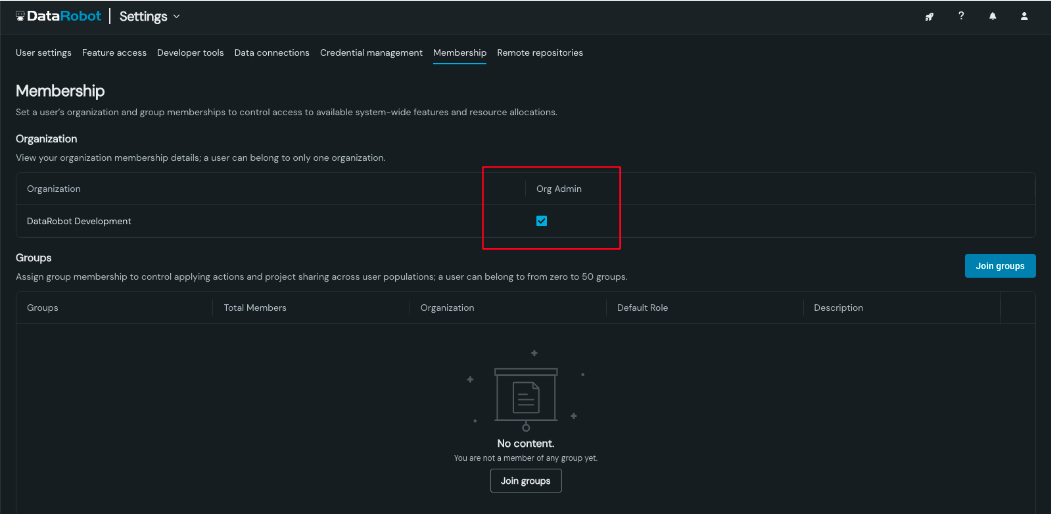 |
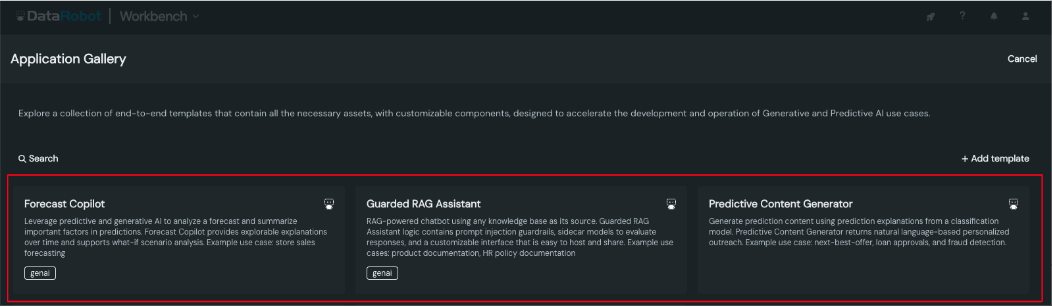
| 2 | Disable Public Templates: If your environment is air-gapped, you need to disable public templates. Set the eng config DISABLED_APP_TEMPLATES value to [‘*’]. This action hides the DataRobot-built templates from the Gallery because they point to public repositories that aren't accessible in air-gapped environments. |
 |
| 3 | Add Templates to Internal Repository: Use the compressed (tarred/zipped) files for the templates, which were brought into your environment during the install. Upload these files to your internal air-gapped GitHub/GitLab repository. | |
| 4 | Add Templates to Application Gallery: In the DataRobot Application Gallery, click on "Add Template". | 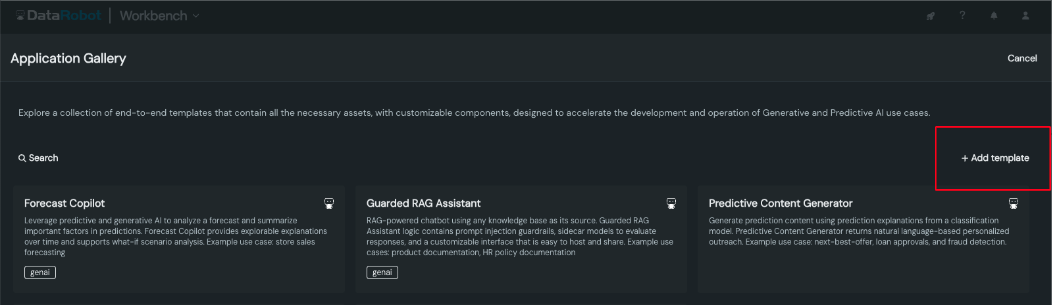 |
| 5 | Configure Templates in Application Gallery: Configure the following fields: | 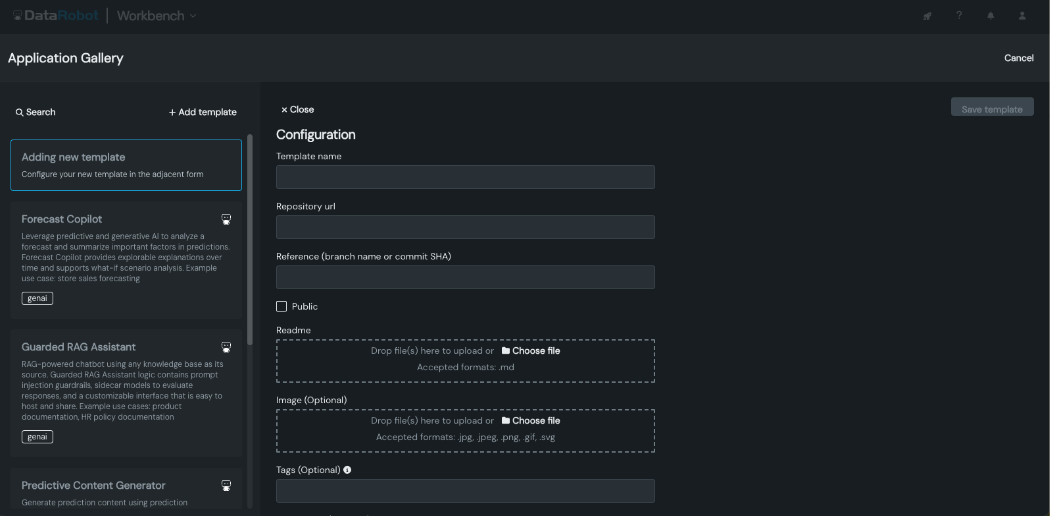 |
Recommended reference metadata for the officially supported DataRobot templates
| フィールド | 例 |
|---|---|
| テンプレート名 | データと会話するエージェント |
| リポジトリのURL | URL of the internal air-gapped GitHub/GitLab repository |
| 参照(ブランチ名またはコミットSHA) | e.g., release/11.1 |
| パブリック | Leave unchecked if the repository is private. |
| Readme | Upload the README file from the provided template repo directory. |
| Image (optional) | Already included in the readmes so this can be left blank. |
| Tags (optional) | |
| 説明(任意) | Transform thousands to billions of rows of data into actionable insights. Prompt for agent-recommended analyses supported by charts, tables, and code to uncover hidden answers in your data. For example, leverage fast and efficient insights for sales, marketing, financial, and supply chain analysis. |
How do I redirect built-in templates to an internal git mirror?
If your environment has an internal git server (for example, a self-hosted GitLab or GitHub Enterprise instance) that mirrors the datarobot-community GitHub organization, you can set the APPLICATION_TEMPLATE_GIT_BASE_URL environment variable to automatically redirect all built-in template clones to your mirror. This is simpler than disabling and manually re-adding each template.
Add the variable to your Helm values file under core.config_env_vars and run helm upgrade:
core:
  config_env_vars:
    APPLICATION_TEMPLATE_GIT_BASE_URL: https://gitlab.corp.example.com/datarobot-community
When this variable is set, any template whose repository URL begins with https://github.com/datarobot-community/ is automatically rewritten before the codespace clone is initiated. 例:
| Original URL | Resolved clone URL |
|---|---|
https://github.com/datarobot-community/guarded-rag-assistant |
https://gitlab.corp.example.com/datarobot-community/guarded-rag-assistant |
https://github.com/datarobot-community/forecast-assistant |
https://gitlab.corp.example.com/datarobot-community/forecast-assistant |
Only URLs that start with https://github.com/datarobot-community/ are rewritten. Templates pointing to other organizations are unaffected.
soft_pin behavior in air-gapped environments
Built-in templates use soft_pin to resolve the latest compatible patch version at clone time by querying the GitHub API. In air-gapped environments the GitHub API is unreachable, so this lookup times out (up to 10 seconds) before falling back to the template's tag field. To avoid the delay, ensure every template in your configuration has tag set to the desired version. When tag is set and the GitHub API is unreachable, the clone proceeds immediately using the pinned tag.
Supported git servers
Any server that hosts repositories at <base-url>/<repo-name> works with this setting, including GitLab (self-hosted or cloud), GitHub Enterprise Server, and Gitea/Forgejo. Servers that use a different URL structure (such as Bitbucket Server or Azure DevOps) are not directly compatible.
How do I remove some or all officially supported DataRobot templates in an environment or install?
Some templates may require GenAI or Time Series which might not be in an on-prem customer's purchase. If you need to remove an officially supported DataRobot template from the list of available templates, you can add:
export DISABLED_APP_TEMPLATES='["<id-of-template-here>", "<id-of-other-template>"]'
If you want to remove all global templates you can define:
export DISABLED_APP_TEMPLATES='["*"]'
追加情報
- Repository Structure: Each template repository contains a
requirements.txtfile that lists the necessary dependency pins. These are included to facilitate security and compatibility approvals, ensuring that all required components are correctly identified for your environment. - Repository Packaging: All repositories is provided as compressed files (tarred/zipped) and brought into your environment during the DataRobot installation process. This ensures that the entire package is ready for deployment in environments with restricted internet access.
- Template Gallery: The template gallery is configured to prevent links to public GitHub repositories. This ensures there are no broken links or inaccessible content in air-gapped environments, providing a seamless experience.
In the coming months, work is ongoing to ensure that each repository is bundled with CVE-scanned Docker images that include all necessary dependencies and the full template source code. These images are preconfigured, enabling immediate use post-installation, which simplifies and secures the setup process.
Performance Considerations
- Application Resource Bundle: Consider increasing the Application Resource Bundle Size with more CPU and Memory for large dataset processing. The default Bundle size is XL. For dataset bigger than 200 MB with Talk to My Data Agent Application, consider using the Remote Registry option with Spark SQL query.
- Application Replicas: Consider increasing Replicas of Applications to support concurrent users. Consider enabling session affinity with multiple replicas, so that each user's request can go to the specific replica.
- Custom Model Scaling: LLM performance can vary from model to model. LLM inference time is typically around 20 to 25 seconds with GPT models. Consider tuning the Autoscaling settings of the Custom Model if latency is high to wait for the LLM response.
Troubleshooting the Agentic Starter application template
The Agentic Starter application template is pulled from GitHub repositories at runtime rather than bundled with the DataRobot release. DataRobot 11.6 and later use a soft_pin approach to lock each self-managed release to a known compatible template version, so users receive a stable experience instead of the main branch, which may drift and become incompatible. Each new DataRobot release is automatically soft-pinned to its corresponding template version (for example, 11.7 to ~=11.7.0, 11.8 to ~=11.8.0, and so on), so no manual documentation or configuration updates are required when upgrading. Support for the soft_pin configuration field is available starting from DataRobot 11.4. DataRobot 11.3 does not support soft_pin; on 11.3 you must pin the template by setting tag to a specific compatible tag (for example 11.6.0) instead.
Why the Agentic Starter application template can become incompatible
Because the template is fetched from GitHub at runtime, the main branch may introduce dependencies on newer uv interfaces, execution environments, or features that are not present in older DataRobot versions. Starting from 11.6, every DataRobot release automatically soft-pins the Agentic Starter application template to the corresponding template version (11.6 to ~=11.6.0, 11.7 to ~=11.7.0, and so on), so the template stays compatible without manual intervention. DataRobot 11.4 and 11.5 also support soft_pin when you manually add or replace a template. If a customer's DataRobot version falls behind, the pinned template version may no longer match the platform capabilities.
Fix a broken Agentic Starter application template on DataRobot 11.3, 11.4, or 11.5
If the default Agentic Starter application template stops working on DataRobot 11.3, 11.4, or 11.5, replace it with a compatible version pinned to the last known stable release. Use the configuration that matches your DataRobot version:
- DataRobot 11.3:
soft_pinis not supported. Settagto a specific compatible tag (for example11.6.0) instead of usingsoft_pin. See the compatibility matrix for the recommended tag. - DataRobot 11.4 or 11.5: Use
soft_pin: ~=11.6.0. Thesoft_pinfield tells DataRobot to pull the latest tag of11.6.xseries.
Follow the steps corresponding to your DataRobot version below to set the soft_pin field.
-
Disable the default Agentic Starter application template by adding its ID to
DISABLED_APP_TEMPLATES:export DISABLED_APP_TEMPLATES='["69090966c601dbd8c8514516"]' -
Add a compatible replacement template. Use one of the following configurations.
On DataRobot 11.3 (use a fixed tag;
soft_pinis not supported):tags: [genai, new] repository: url: https://github.com/datarobot-community/datarobot-agent-application branch: main tag: "11.6.0" # latest 11.3-compatible tag; no soft_pin on 11.3 is_public: True ports: - port: 5173 description: Frontend - VITE - port: 8080 description: Web - FastAPI - port: 8842 description: Agent Workflow - Multi-agent Framework en: name: Agentic Starter (stable) description: >- A production-ready template for building and deploying multi-agent applications. It includes a FastAPI backend, a React frontend, and a built-in MCP server. The example multi-agent template illustrates 2 agents that handle content creation tasks, including planning and writing blog posts. Requirements: GenAI, MLOps readme: >- - **Multi-agent workflows:** Build sophisticated agentic systems with popular frameworks. - **Modern stack:** FastAPI backend and React frontend. - **MCP integration:** Built-in Model Context Protocol (MCP) server for tool interoperability. - **Dev to prod:** Local development/testing and one-command deployment to DataRobot. - **Minimal setup:** Start quickly with sane defaults and low boilerplate. - **Enterprise security:** Aligned with DataRobot security and governance standards. - **LLM choice:** Swap LLMs from supported providers via DataRobot's LLM Gateway, use a deployed LLM custom model, or use your own provider credentials. - **Tooling:** CLI, task runners, and developer utilities for efficient workflows. - **Extensible agents:** Add custom tools, logic, and workflows. - **MLOps integration:** Host, monitor, and govern with DataRobot MLOps. With **Agentic Starter**, you get a solid foundation to ship agentic applications without rebuilding infrastructure from scratch. image: file_path: agent-application.gif is_premium: FalseOn DataRobot 11.4 or 11.5 (use
soft_pin):tags: [genai, new] repository: url: https://github.com/datarobot-community/datarobot-agent-application branch: main tag: main soft_pin: ~=11.6.0 # last known compatible version is_public: True ports: - port: 5173 description: Frontend - VITE - port: 8080 description: Web - FastAPI - port: 8842 description: Agent Workflow - Multi-agent Framework en: name: Agentic Starter (stable) description: >- A production-ready template for building and deploying multi-agent applications. It includes a FastAPI backend, a React frontend, and a built-in MCP server. The example multi-agent template illustrates 2 agents that handle content creation tasks, including planning and writing blog posts. Requirements: GenAI, MLOps readme: >- - **Multi-agent workflows:** Build sophisticated agentic systems with popular frameworks. - **Modern stack:** FastAPI backend and React frontend. - **MCP integration:** Built-in Model Context Protocol (MCP) server for tool interoperability. - **Dev to prod:** Local development/testing and one-command deployment to DataRobot. - **Minimal setup:** Start quickly with sane defaults and low boilerplate. - **Enterprise security:** Aligned with DataRobot security and governance standards. - **LLM choice:** Swap LLMs from supported providers via DataRobot's LLM Gateway, use a deployed LLM custom model, or use your own provider credentials. - **Tooling:** CLI, task runners, and developer utilities for efficient workflows. - **Extensible agents:** Add custom tools, logic, and workflows. - **MLOps integration:** Host, monitor, and govern with DataRobot MLOps. With **Agentic Starter**, you get a solid foundation to ship agentic applications without rebuilding infrastructure from scratch. image: file_path: agent-application.gif is_premium: False備考
The template name is changed to "(stable)" to distinguish it from the default template.
Use the latest experimental Agentic Starter application template on DataRobot 11.6 or later
Administrators or field engineers who want the latest main version of the Agentic Starter application template can add it as a new template entry with the soft-pin removed.
Add a new template with the following configuration:
tags: [genai, new]
repository:
  url: https://github.com/datarobot-community/datarobot-agent-application
  branch: main
  tag: main
  soft_pin: null  # soft_pin is removed to pull main
  is_public: True
ports:
  - port: 5173
    description: Frontend - VITE
  - port: 8080
    description: Web - FastAPI
  - port: 8842
    description: Agent Workflow - Multi-agent Framework
en:
  name: Agentic Starter (experimental)
  description: >-
    A production-ready template for building and deploying multi-agent applications.
    It includes a FastAPI backend, a React frontend, and a built-in MCP server.
    The example multi-agent template illustrates 2 agents that handle content creation tasks,
    including planning and writing blog posts.
    Requirements: GenAI, MLOps
  readme: >-
    - **Multi-agent workflows:** Build sophisticated agentic systems with popular frameworks.
    - **Modern stack:** FastAPI backend and React frontend.
    - **MCP integration:** Built-in Model Context Protocol (MCP) server for tool interoperability.
    - **Dev to prod:** Local development/testing and one-command deployment to DataRobot.
    - **Minimal setup:** Start quickly with sane defaults and low boilerplate.
    - **Enterprise security:** Aligned with DataRobot security and governance standards.
    - **LLM choice:** Swap LLMs from supported providers via DataRobot's LLM Gateway, use a deployed LLM custom model, or use your own provider credentials.
    - **Tooling:** CLI, task runners, and developer utilities for efficient workflows.
    - **Extensible agents:** Add custom tools, logic, and workflows.
    - **MLOps integration:** Host, monitor, and govern with DataRobot MLOps.
    With **Agentic Starter**, you get a solid foundation to ship agentic applications
    without rebuilding infrastructure from scratch.
image:
  file_path: agent-application.gif
is_premium: False
注意
There is no guarantee that the experimental version will work with your DataRobot installation. Check the compatibility matrix below and verify with DataRobot support before deploying.
Agentic Starter application template compatibility matrix
| DataRobot version | Template repository | リファレンス | Soft-pin support | 備考 |
|---|---|---|---|---|
| 11.1 (LTS) | datarobot-community/datarobot-agent-templates | release/11.1 |
いいえ | |
| 11.2 | datarobot-community/datarobot-agent-templates | 11.2.4-stable |
いいえ | Compatibility not verified; pinned execution environment version may be absent |
| 11.3 | datarobot-community/datarobot-agent-application | 11.6.0 (use tag, not soft_pin) |
いいえ | Set tag to a compatible tag (e.g. 11.6.0); soft_pin is not supported |
| 11.4 | datarobot-community/datarobot-agent-application | main |
はい | Use soft_pin: ~=11.6.0 for stable replacement |
| 11.5 | datarobot-community/datarobot-agent-application | main |
はい | Use soft_pin: ~=11.6.0 for stable replacement |
| 11.6 | datarobot-community/datarobot-agent-application | main |
Yes (default) | Soft-pinned to ~=11.6.0 by default |
| 11.7+ | datarobot-community/datarobot-agent-application | main |
Yes (default) | Each release is automatically soft-pinned to its matching template version (e.g. 11.7 to ~=11.7.0) |
Known issues
- Execution environment version: The Agentic Starter application template pins an execution environment version that may not exist in self-managed installations. In this case, the template falls back to the latest available version.
uvinterface: Theuvpackage manager does not have a stable interface. The Agentic Starter application template may useuvfeatures released after version 0.9.0 (such asexclude-dependencies), which may not work on DataRobot 11.3 or earlier, which bundles an olderuvversion. If you encounteruv-related errors, use the pinned stable template instead.