Google Cloud Storageを使用してバッチ予測を行う
DataRobotのバッチ予測APIを使用すると、大規模なデータセットを取り込んで、予測サーバーで実行されているデプロイ済みモデルに対してスコアを付けることができます。 APIは、これらのファイルの入力と出力のための柔軟なオプションも提供します。
このチュートリアルでは、DataRobot Pythonクライアントパッケージ(バッチ予測APIを呼び出す)を使用してバッチ予測ジョブを設定する方法を学習します。 このジョブは、Google Cloud Storage(GCS)からスコアリング用の入力ファイルを読み取り、その結果をGCSに書き戻します。
要件
このチュートリアルで提供されているコードを使用するには、次のものがあることを確認してください。
- Python 2.7または3.4+
- The DataRobot Python package (version 2.21.0+)
- DataRobotのデプロイ
- A GCS bucket
- A service account with access to the GCS bucket (detailed below)
- A scoring dataset that lives in the GCS bucket to use with your DataRobot deployment
GCPサービスアカウントを設定する
バッチ予測ジョブを実行するには、GCSの読み取りと書き込みに適切な資格情報が必要です。 GCSバケットにアクセスできるGoogle Cloud Platformにサービスアカウントを作成してから、バッチ予測ジョブで使用するアカウントのキーをダウンロードする必要があります。
-
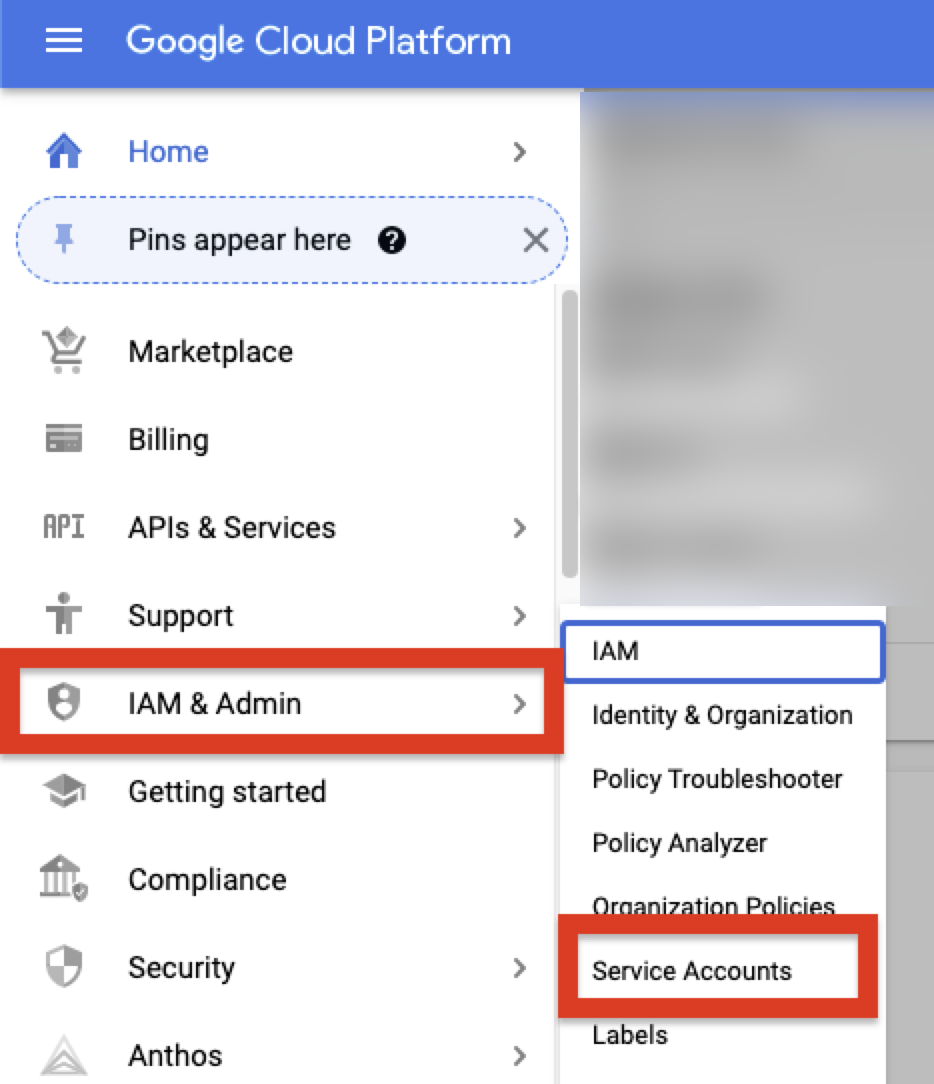
To retrieve these credentials, log into the Google Cloud Platform console and select IAM & Admin > Service Accounts from the sidebar.
-
Click Create Service Account. アカウントの名前と説明を入力し、作成 > 完了をクリックします。
-
On the Service Account page, find the account that you just created, navigate to the Details page, and click Keys.
-
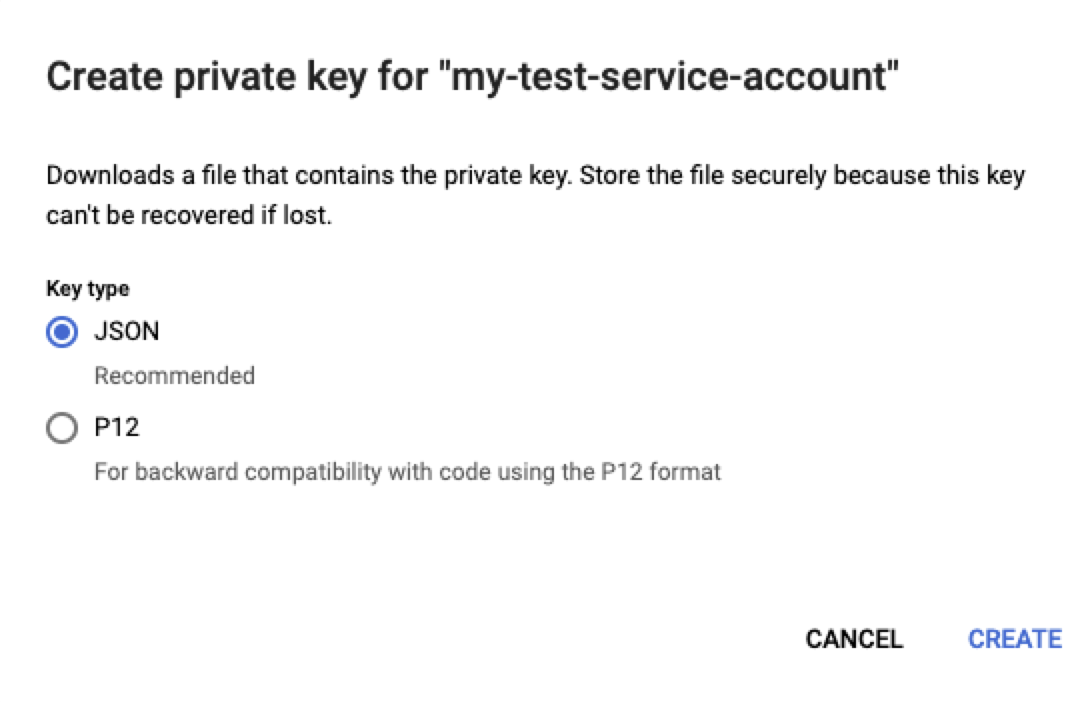
Go to the Add Key menu and click Create new key. キータイプとしてJSONを選択し、作成をクリックしてキーを生成し、バッチ予測ジョブに必要な情報を含むJSONファイルをダウンロードします。
-
Return to your GCS bucket and navigate to the Permissions tab. 追加をクリックして、作成したサービスアカウントユーザーのメールアドレスを入力し、アカウントに「ストレージ管理者」の役割を与えます。 保存をクリックして変更を確認します。 これにより、GCPサービスアカウントにGCSバケットへのアクセスが許可されます。
保存された資格情報の作成
JSONキーをダウンロードした後、次のコードを使用して、DataRobotに新しい資格情報オブジェクトを作成します。 資格情報は、GCSバケットに接続するためのバッチ予測ジョブで使用されます。 JSONキーファイルを開き、その内容をキー特徴量にコピーします。 DataRobot Pythonのクライアントは、JSONデータを辞書として読み取り、それに応じて解析します。
# Set name for GCP credential in DataRobot
DR_CREDENTIAL_NAME = "YOUR GCP DATAROBOT CREDENTIAL NAME"
# Create a GCP-specific Credential
# NOTE: This cannot be done from the UI

# This can be generated and downloaded ready to drop in from within GCP
# 1. Go to IAM & Admin -> Service Accounts
# 2. Search for the Service Account you want to use (or create a new one)
# 3. Go to Keys
# 4. Click Add Key -> Create Key
# 5. Selection JSON key type
# 6. copy the contents of the json file into the gcp_key section of the credential code below
key = {
       "type": "service_account",
       "project_id": "**********",
       "private_key_id": "***************",
       "private_key": "-----BEGIN PRIVATE KEY-----\n********\n-----END PRIVATE KEY-----\n",
       "client_email": "********",
       "client_id": "********",
       "auth_uri": "https://accounts.google.com/o/oauth2/auth",
       "token_uri": "https://oauth2.googleapis.com/token",
       "auth_provider_x509_cert_url": "https://www.googleapis.com/oauth2/v1/certs",
       "client_x509_cert_url": "https://www.googleapis.com/robot/v1/metadata/x509/*********"
   }

credential = dr.Credential.create_gcp(
   name=DR_CREDENTIAL_NAME,
   gcp_key=key
)
# Use this code to look up the ID of the credential object created.
credential_id = None
for cred in dr.Credential.list():
   if cred.name == DR_CREDENTIAL_NAME:
       credential_id = cred.credential_id
       break
print(credential_id)
予測ジョブを実行する
資格情報オブジェクトが作成されたら、バッチ予測ジョブを設定できます。 intake_settingsとoutput_settingsをgcpタイプに設定します。 読み取りと書き込みを行うGCS内のファイルへのURLを両方の属性に指定します(出力ファイルはすでに存在している必要はありません)。 さらに、上で作成した資格情報オブジェクトのIDを入力します。 以下のコードは、バッチ予測ジョブを作成して実行します。 完了すると、ジョブのステータスが表示されます。 このコードは、スコアリングデータに対して予測の説明とパススルー列の両方を返すようにジョブを設定する方法も示しています。
備考
デプロイIDは、デプロイ > 予測 > 予測APIタブのサンプルコード出力(インターフェイスを「APIクライアント」に設定)で確認できます。
DEPLOYMENT_ID = 'YOUR DEPLOYMENT ID'

# Set GCP Info
GCP_BUCKET_NAME = "YOUR GCS BUCKET NAME"
GCP_INPUT_SCORING_FILE = "YOUR INPUT SCORING FILE NAME"
GCP_OUTPUT_RESULTS_FILE = "YOUR OUTPUT RESULTS FILE NAME"

# Set up the batch prediction job
# Input: Google Cloud Storage
# Output: Google Cloud Storage

job = dr.BatchPredictionJob.score(
   deployment=DEPLOYMENT_ID,
   intake_settings={
       'type': 'gcp',
       'url': "gs://{}/{}".format(GCP_BUCKET_NAME,GCP_INPUT_SCORING_FILE),
       "credential_id": credential_id
   },
   output_settings={
       'type': 'gcp',
       'url': "gs://{}/{}".format(GCP_BUCKET_NAME,GCP_OUTPUT_RESULTS_FILE),
       "credential_id": credential_id
   },
   # If explanations are required, uncomment the line below
   max_explanations=5,

   # If passthrough columns are required, use this line
   passthrough_columns=['column1','column2']
)

job.wait_for_completion()
job.get_status()
ジョブが正常に完了すると、GCSバケットに出力ファイルが表示されます。