Rating Tables
| Tab | Description |
|---|---|
| Details | Allows you to export the model's validated parameters and modify those parameters to create new models. |
Rating tables help provide a transparent view of a GAM or GA2M model by breaking down how an individual feature contributes to that model's predictions. You can export and then download the validated parameters used by the model as a CSV file, modify the coefficients, and apply the new CSV to the original (parent) model. This creates a new child model on the Leaderboard, which you can compare to the parent or other child models to see the impact of your changes.
The downloaded table helps you understand:
- Which features were chosen to form the prediction.
- The importance of each of these features.
- Whether a feature has a positive or negative impact on the outcome.
The Rating Tables insight provide information and actions for model tuning:
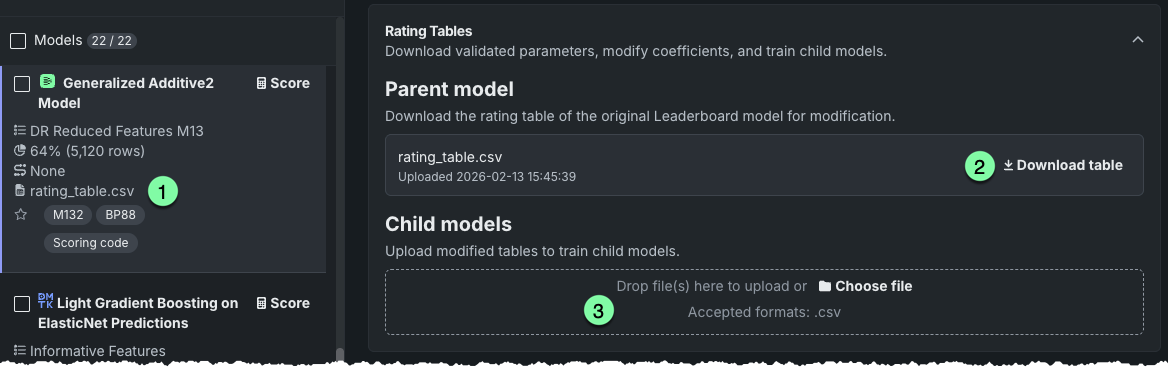
| Element | Description | |
|---|---|---|
| 1 | Leaderboard badge | Indicates that a rating table has been created and is available for export. For parent models, the name is always rating_table.csv. Child models display the name of the CSV used. This badge also appears in the model's training settings. |
| 2 | Download link | Click to download the parent model's rating table to your local system for understanding and modification. |
| 3 | Upload area | Provides options to upload a new CSV (coefficients) and create a child model. |
What is a parent and what is a child model?
The rating table process uses a parent model as the basis for model building and allows any number of individual child models.
| Model type | Description |
|---|---|
| Parent | A model built "from scratch," using either Autopilot or manual mode. Deleting a parent model does not delete any of its child models. |
| Child | A model trained on a CSV that is a modified version of the parent's coefficients. You cannot upload a new rating table to the child model (i.e., make a child from a child), you can only upload rating tables to the parent model. Deleting a child model automatically deletes the associated modified CSV and removes it from the parent model insight. |
Note
- Before working with rating tables, see below for general, availability, and editing considerations.
- For GA2M models, you can specify the pairwise interactions included in the model's output.
- See also the Coefficients tab, which provides similar information for the 30 most important features, in simple analytical form, for linear and logistic regression models.
The following provides an outline of the steps for using rating tables to iterate on, and manually tune, a model's logic. Each is detailed below:
- From the Leaderboard, identify a supported model type and download the rating table.
- Modify the coefficients outside of DataRobot.
- Upload the modified table to the parent model.
- Score the new model, adding it to the Leaderboard.
- Open the child model to compare child scores with previous versions.
- To iterate, download the child's rating table, modify as necessary, and create and score a new child model.
Create a child model
Create a child model by downloading, modifying, and re-uploading coefficients:
-
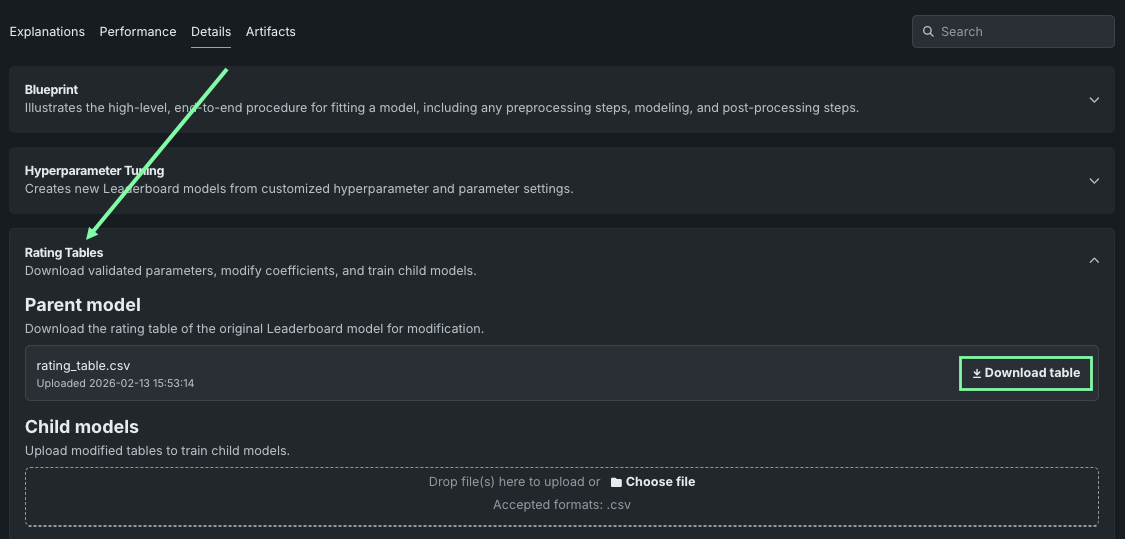
From the Leaderboard, select a GAM or GA2M model (see model type availability) and open the Details > Rating Tables tab.
-
Click Download table and save the CSV file locally.
Note
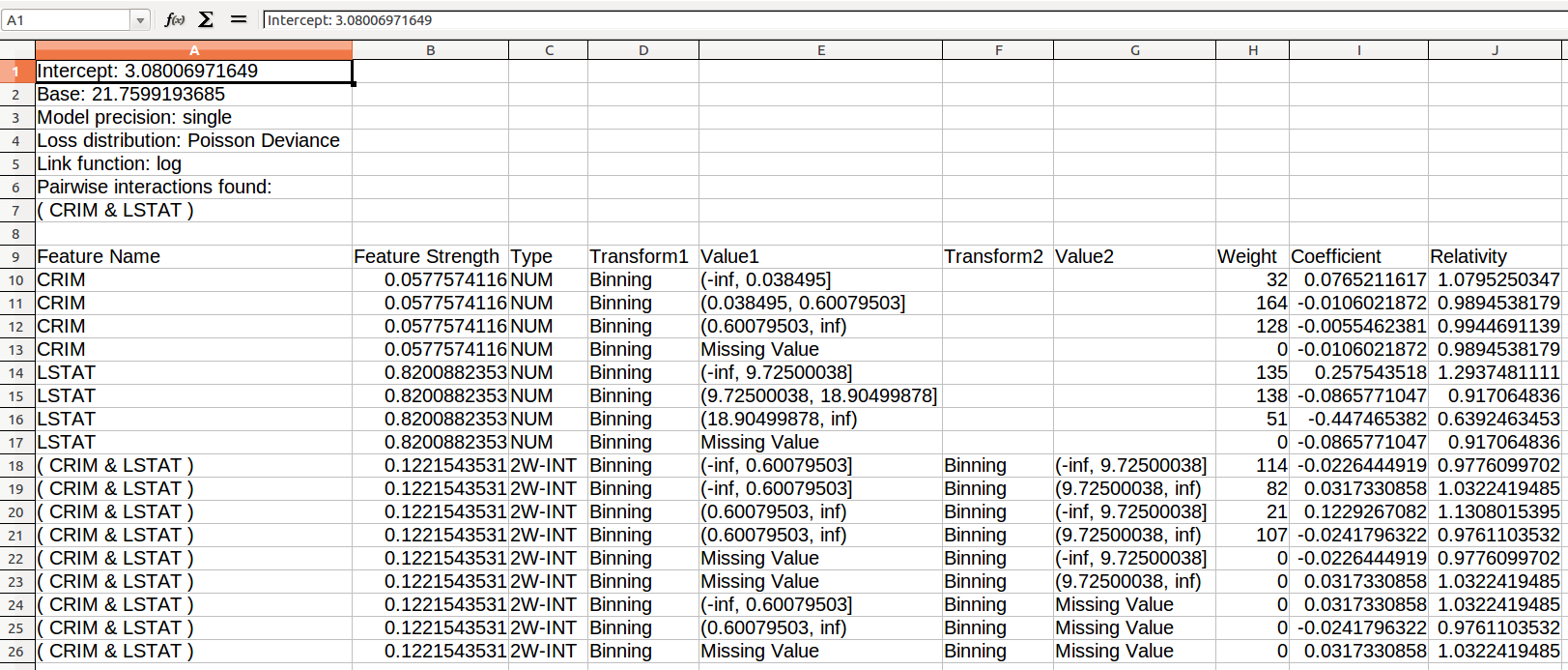
See this additional information for help interpreting the rating table output.
-
Modify the coefficients in the rating table CSV file. Before making changes, review the considerations for editing guidance and calculation explanations.
-
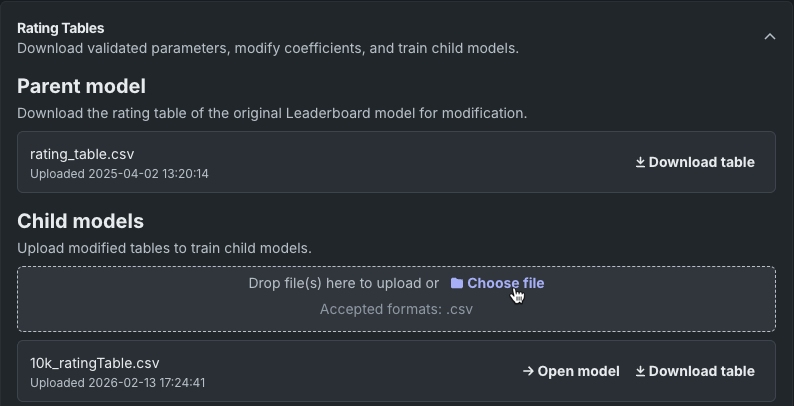
With the parent open in the Rating Tables insight, upload the modified CSV via drag-and-drop or browsing.
-
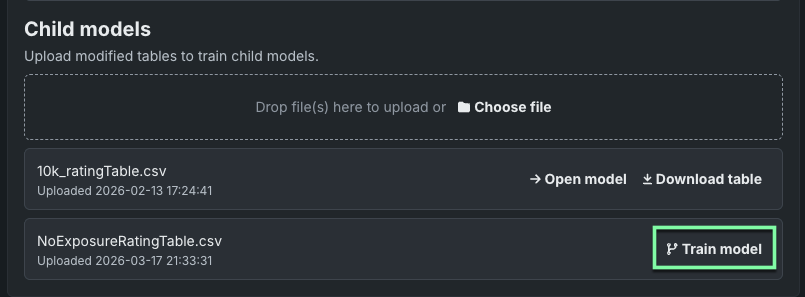
DataRobot validates the new rating table and, after validation, provides an option to train the new model. Click to train, and when training completes, DataRobot adds the child model to the Leaderboard. The model name is in the format Modified Rating Table:
. 
Parent model view
Once one or more child models have been created from a parent, the Rating Tables insight changes to reflect those changes. All child models associated with the parent are listed.
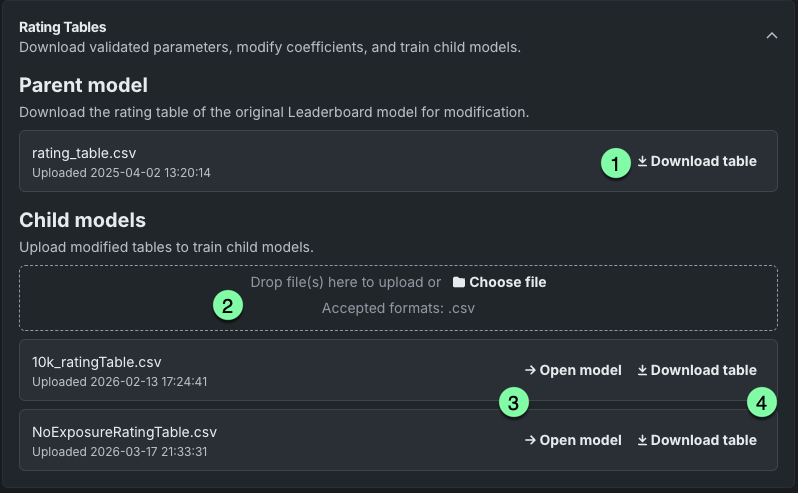
From here you can:
| Element | Description | |
|---|---|---|
| 1 | Download table | Download the parent model's original rating table to your local system to create a new version for further modification. |
| 2 | Upload area | Upload a new CSV and create a child model. |
| 3 | Open model | Open the child model that was created from the parent. |
| 4 | Download table | Download the child's rating table (the modification of the parent's) that was used to build the model. |
Child model view
You can access child models from either the parent's Rating Tables insight or from the Leaderboard listing.
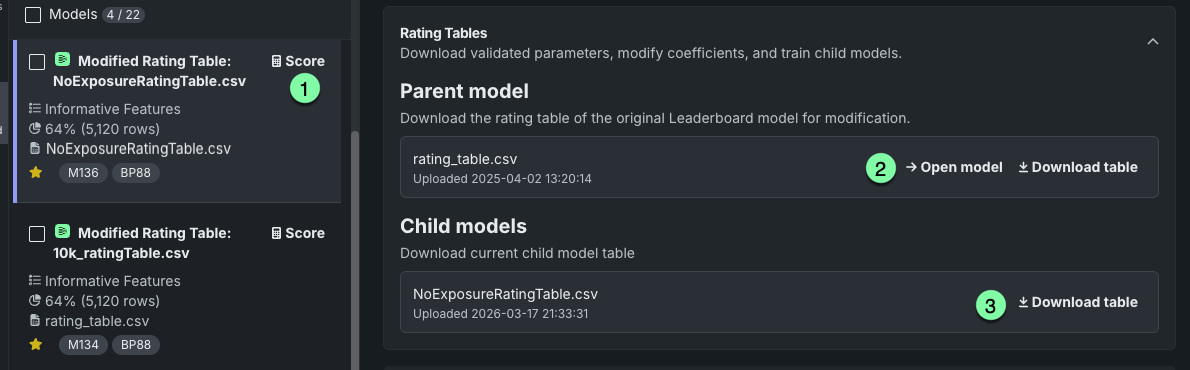
Actions available for working with the child include:
| Element | Description | |
|---|---|---|
| 1 | Score | Run cross-validation for the child model. |
| 2 | Open model / Download table | Open the parent model or download its rating table. |
| 3 | Download table | Download the child's rating table (the modification of the parent's) that was used to build the model. |
If you modify a child's rating table to iterate on coefficient changes, return to the parent to upload the new table and create a new child. You can then compare scores to evaluate changes. You cannot upload a new rating table to the child model.
Rating table validation
Validation assures that the downloaded parameters are correct and that you can reproduce the model's performance outside of DataRobot. When DataRobot builds a model that produces rating tables, it runs validation on the model before making it available from the Leaderboard. For validation, DataRobot compares predictions made by Java rating table Scoring Code (the same predictions to produce that specific rating table) against predictions made by a Python code model in the DataRobot application that is independent from the rating table CSV file. If the predictions are different, the rating table fails to validate, and DataRobot marks the model as errored.
Feature considerations
Review the availability, general, and editing considerations.
Availability
Rating tables are available for:
- GAM and GA2M models.
- Frequency‑Cost GA2M and Frequency/Severity GAM and GA2M.
- They are not available for non-GAM Frequency/Severity or Frequency/Cost.
- They are not available for Eureqa GAM models.
General
The following are general considerations to keep in mind:
-
Because rating models (GAM, GA2M, and Frequency/Severity) depend on DataRobot's specialized internal code generation for validation, they are limited to 8GB in-RAM datasets. Over this amount, the project may potentially fail due to memory issues. If you get an OOM, decrease the sample size and try again.
-
Rating tables are not available for time-aware experiments.
-
Rating tables are not created for models with Japanese text columns (they do not support the MeCab tokenizer).
-
Models with custom rating tables cannot be retrained.
-
Models with custom rating tables cannot be blended.
-
Modified CSVs used to build child models are not stored in the Data Registry.
Editing
The following considerations are specific to editing the rating table output:
-
Rating table modification does not support changing the header row of the dataset or data type of the columns. Some editors process data in a way that unintentionally makes these changes, for example, by truncating “000” to “0" or quoting every field so that coefficients are changed from numeric to string. This affects the table that is ultimately re-uploaded. Therefore, DataRobot strongly suggests using a text editor that does not change the data.
-
If you are using a spreadsheet application, be careful that you do not convert column types (e.g., Num to Date). When you modify a rating table and upload it to the original parent model (and then run the model), DataRobot creates a child model with the modified version of the original parent model's rating table. Available from the Leaderboard, the new model has access to the same features as the parent (with these exceptions).
-
In the first section of the table (which defines model parameters and pairwise interactions), you can only modify the values of
InterceptandBase.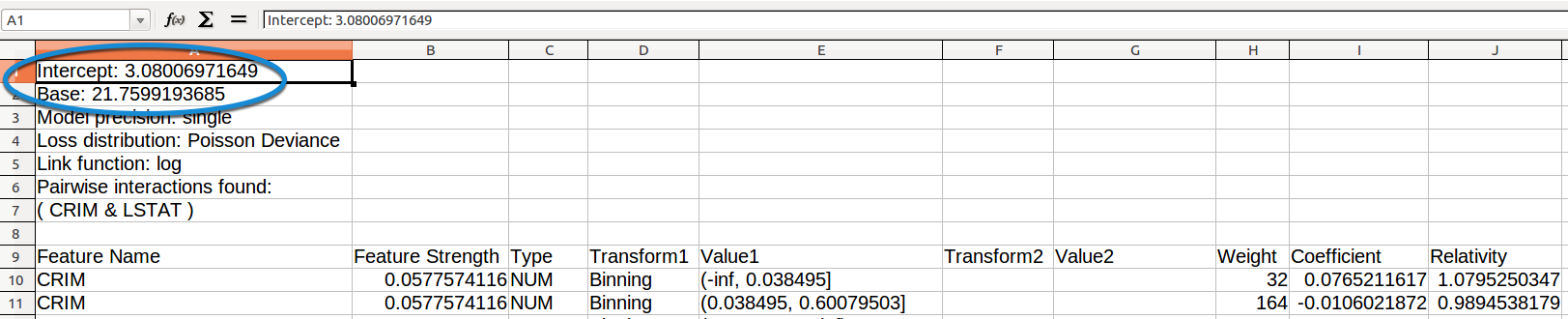
-
In the first line of the second section (which defines how each variable is used to derive the coefficient that contributes to the prediction), you can edit the value of any column except:
Feature Name,Type,Transform1,Value1,Transform2,Value2, andweight. -
You can add extra columns to the table (for example, to add comments).
-
The
Coefficient,Relativity,Intercept, andBasevalues must be numeric. -
Baseis the exponential ofInterceptand is computed from theInterceptvalue. -
Relativityis the exponential ofCoefficientfor each row and is computed from theCoefficientvalue in the row. -
Feature Strengthis computed from the modifiedCoefficientvalues. -
CSV encoding must be UTF-8.
Additionally, for Frequency/Severity models:
-
The
Coefficientvalue for each row is the sum of theFrequency_CoefficientandSeverity_Coefficientvalues for the row, and is computed from them.Relativityis computed fromCoefficientas described above. -
Frequency_Relativityis the exponential ofFrequency_Coefficientfor each row, and is computed from theFrequency_Coefficientvalue in the row. -
Severity_Relativityis the exponential ofSeverity_Coefficientfor each row and is computed from theSeverity_Coefficientvalue in the row. -
Frequency_Coefficient,Severity_Coefficient,Frequency_Relativity, andSeverity_Relativityvalues must be numeric.
Child model considerations
When DataRobot creates a child model with the modified version of the original parent model’s rating table, the new model has access to the same features as the parent, with these exceptions:
-
In the Make Predictions tab, the child model is unable to make predictions on data that was used to train the original. That is, making predictions on the Validation and Holdout partitions of the training data is only possible if those partitions were not used for training. Predictions on those partitions are available when using a newly uploaded dataset.
-
You cannot retrain a child model (for example, with a different feature list or sample size).
-
You cannot change row order when modifying a rating table; any changes will result in error.
-
You cannot upload a new rating table to the child model. You can only upload rating tables to the parent model.
-
Models with a custom rating tables (child models) cannot be blended.
Next steps
Once you've created a child model from a modified rating table, explore other ways to inspect and tune GAM, GA2M, and Eureqa models.
- Coefficients: View the relative effects of a linear or logistic regression model's 30 most important features.
- Eureqa Models: Inspect Eureqa GAM and other Eureqa blueprint results that balance predictive accuracy against complexity.
- Hyperparameter Tuning: Manually override model hyperparameters to create another new child model on the Leaderboard.